Enable online bookings for your services
Learn how to set up online bookings for your services by choosing if they’re available online and adding extra options clients can choose as they book.
How online bookings for services work
Clients can book your services online through Fresha’s marketplace, your social media pages, and any custom booking links you share. Once your online profile is published and online booking is enabled for a service, clients will be able to view availability, choose a team member, and book an appointment directly through your online channels.
You can also manage when services are available to book, making a service bookable during specific times, such as special promotions
Allow online bookings for services
- From the main menu on the left of your screen, go to Catalog.
- Select Service menu from the left menu panel.
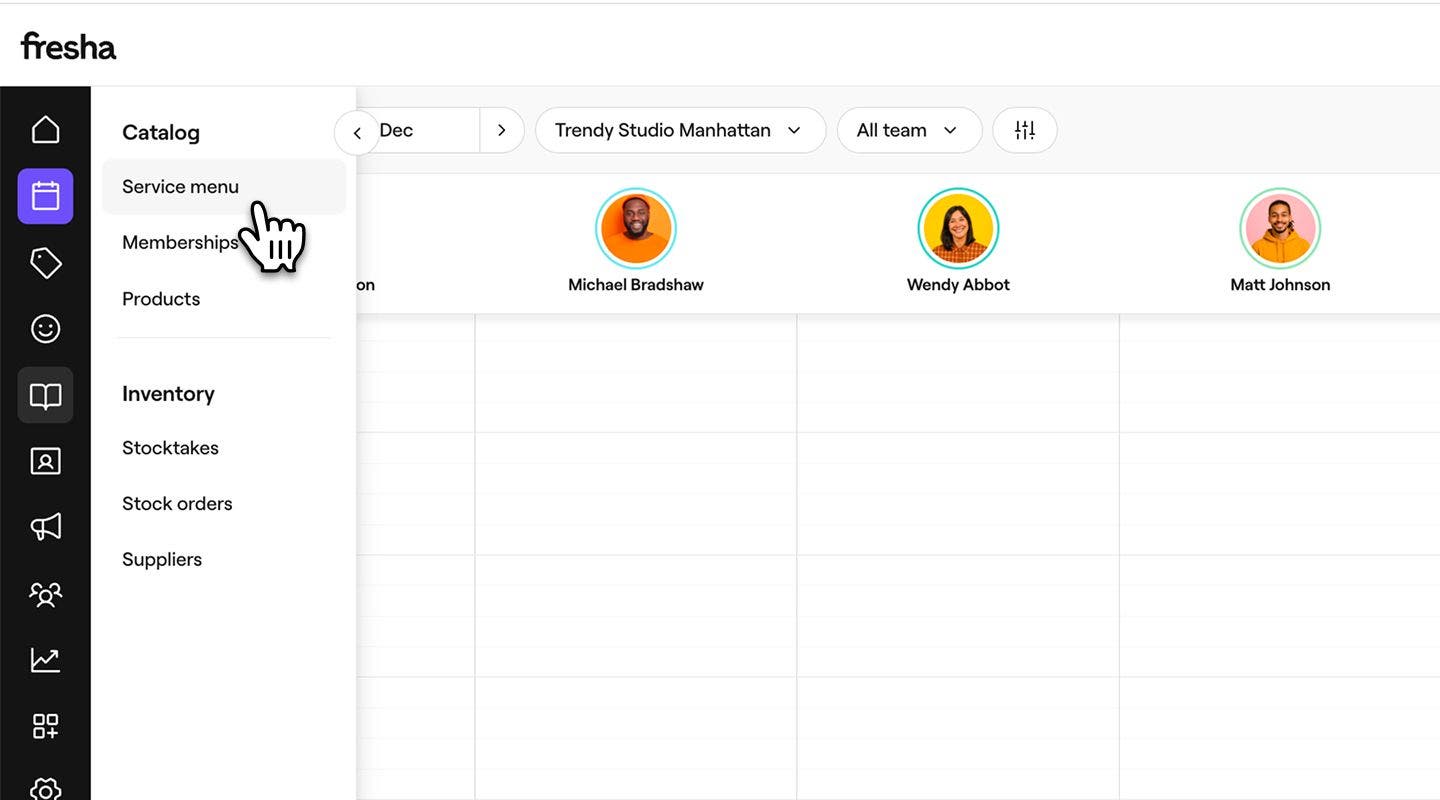
- Select a service from the service menu to update.
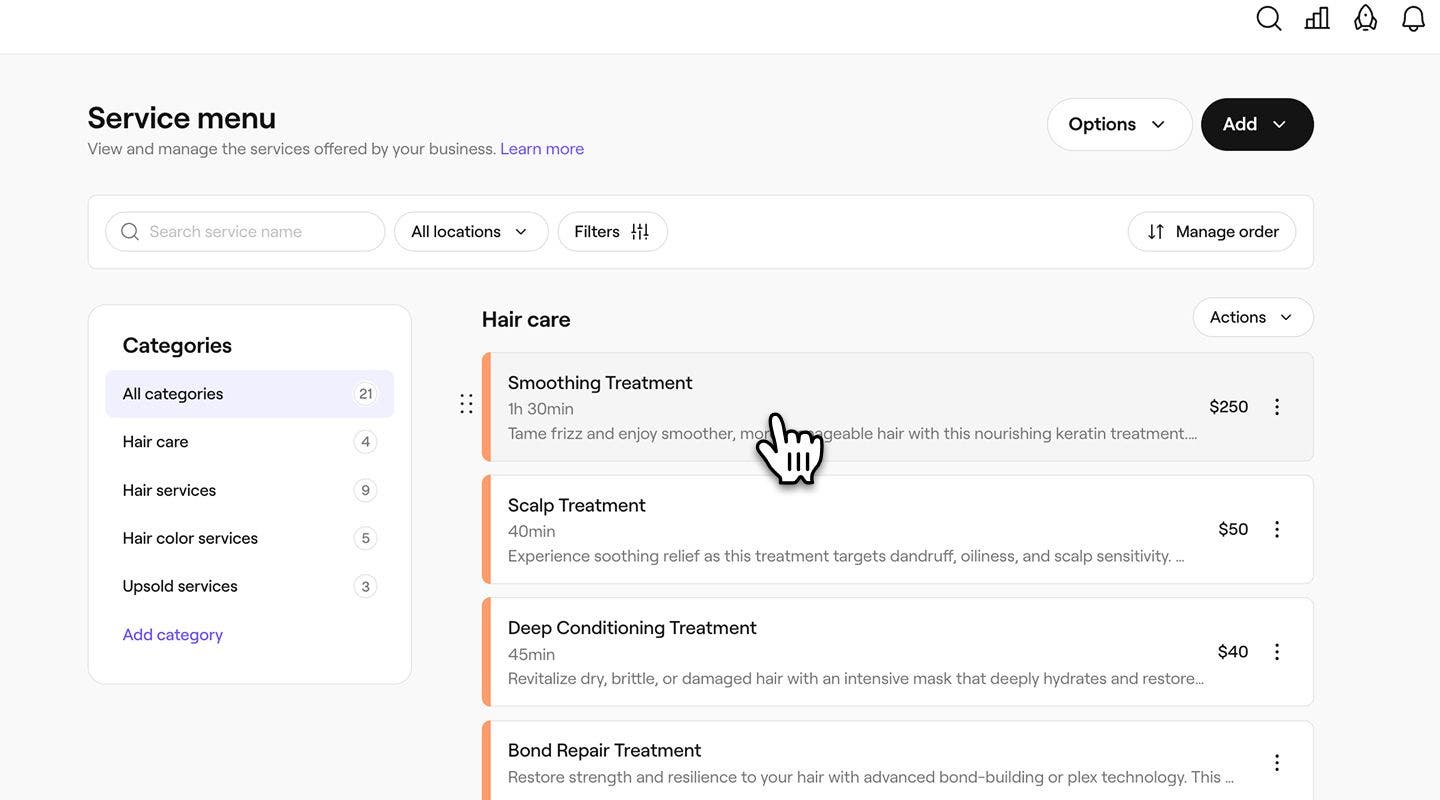
- In the Edit service view, click on Online booking from the left menu panel.
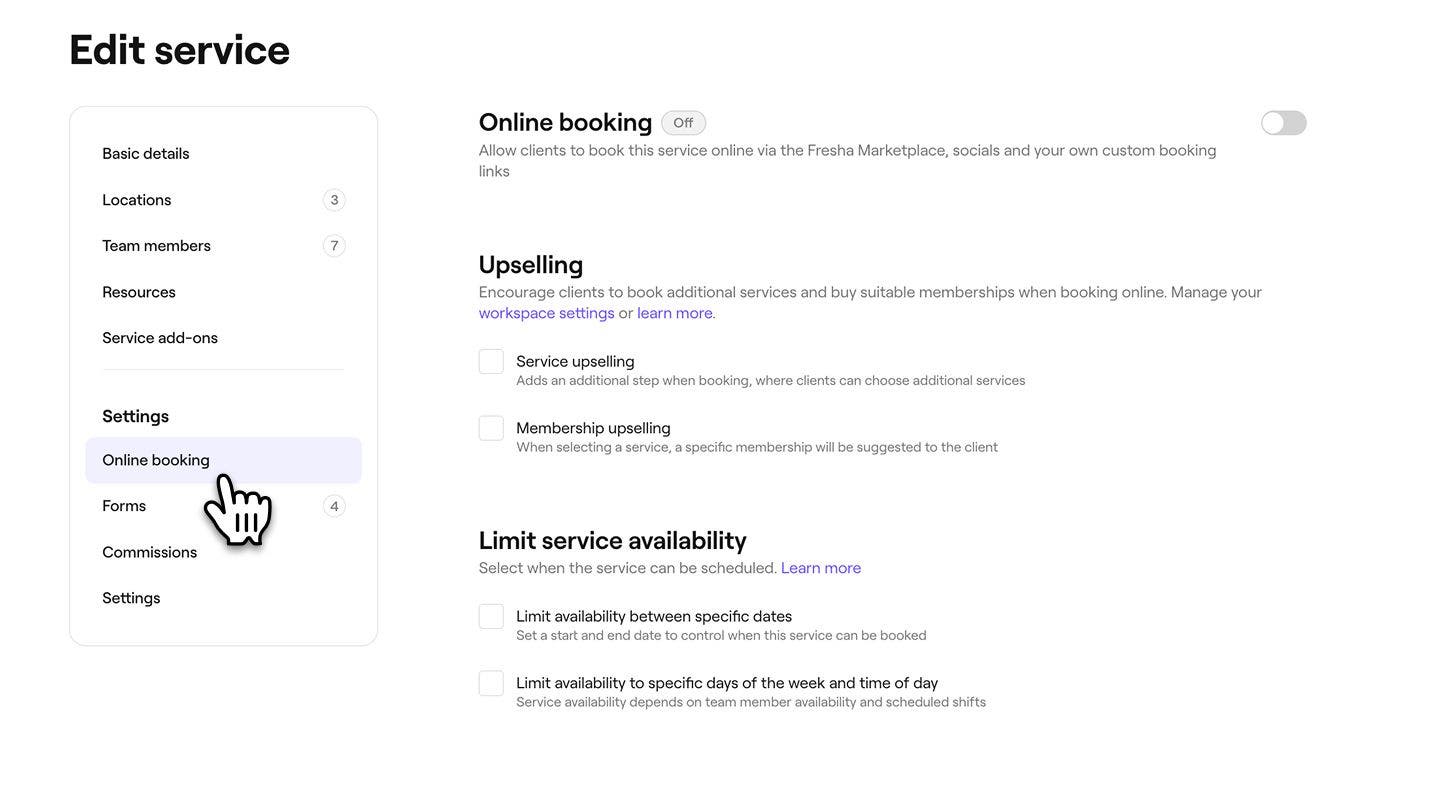
- Under Online booking, use the toggle to allow clients to book the service online, then specify the service availability by gender.

- Under Upselling, tick the checkbox next to the following options to encourage clients to book additional services or memberships when booking a service online:
- Service upselling: Select Edit under services to select up to five services. Add a Discount value that will be applied to the upsold services.
- Membership upselling: Choose the Cheapest or a Custom membership using the dropdowns.
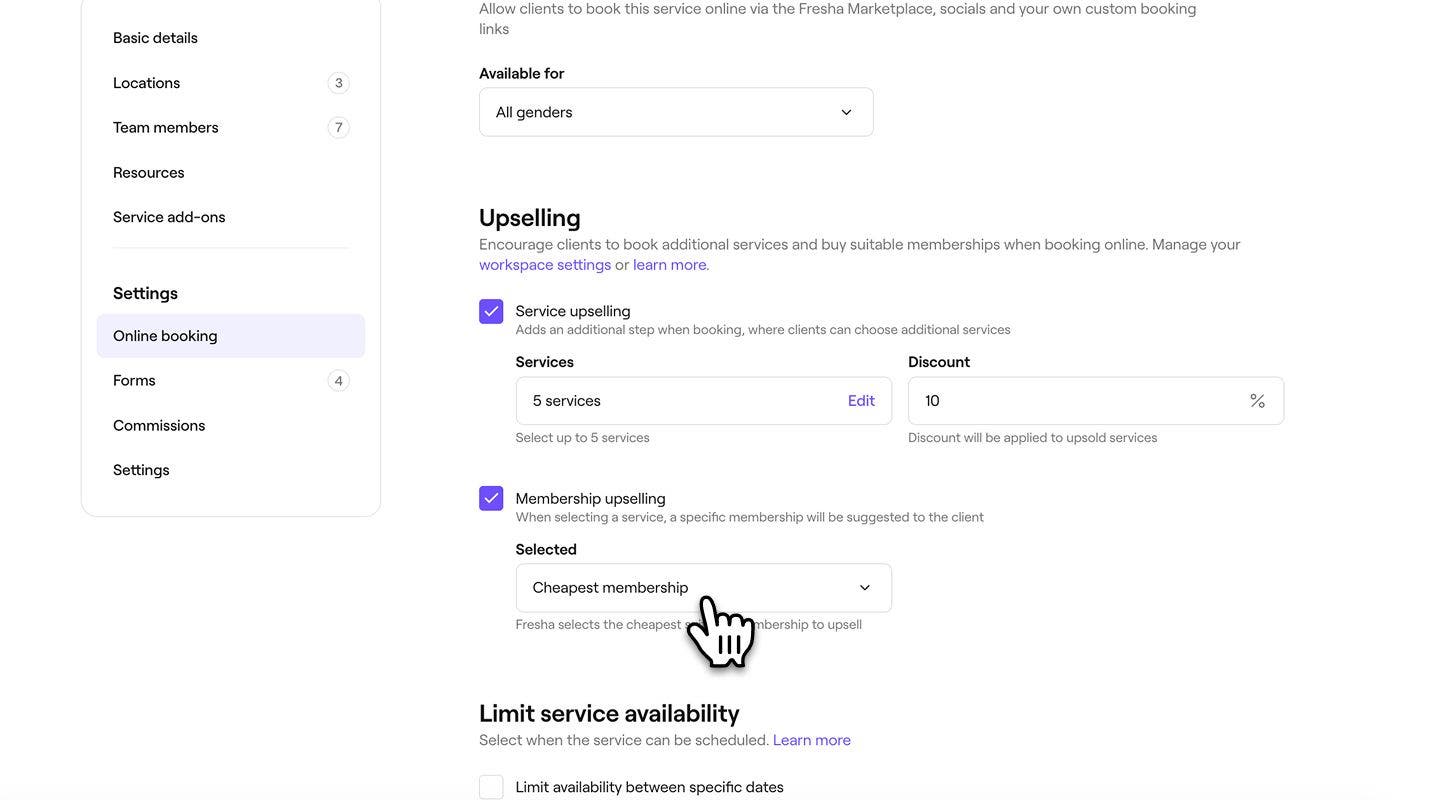
- Click on the Save button in the top right of the view to update the service.
Once saved, the service is updated with your online booking settings. You can disable online bookings at any time by switching off the online booking toggle.
FAQs
Turning off online booking for a service removes it from your online menu, so the service no longer appears as an option when clients book online. Any existing appointments remain unchanged.