Collect payments using Pay now
Learn how to charge clients in a single action directly within an appointment view, using Fresha Payments.
In this article
How Pay now works
Pay now lets you collect payment directly within an appointment without going through the standard checkout flow. It supports Client card on file, Card terminal, and Tap to pay.
You set a primary and secondary payment method for your workspace. Pay now uses the primary whenever it's available, falling back to the secondary if it isn't. When neither method is available, your team can always complete the appointment through standard checkout instead.
Set up Pay now
- From the main menu on the left of your screen, go to Settings.
- Click on the Sales category to manage your settings.

- Select Pay now from the left menu panel.
- Click on the Edit button to choose your preferred payment method.

- In the Pay now priority view, under the Primary method, choose the method that should be used first at checkout.
- Under Secondary method choose the method that should be used if the primary method isn't available for the client or appointment.

- Click on the Save button in the top right to apply your changes.


Once saved, your selected payment methods will appear in the appointment view when available for an appointment. Follow the same steps to edit your Pay now payment methods.
Take a payment with Pay now
- Open an existing appointment from your Calendar.

- In the right panel of the appointment view, click on the Pay now button to collect a payment using your preferred method.
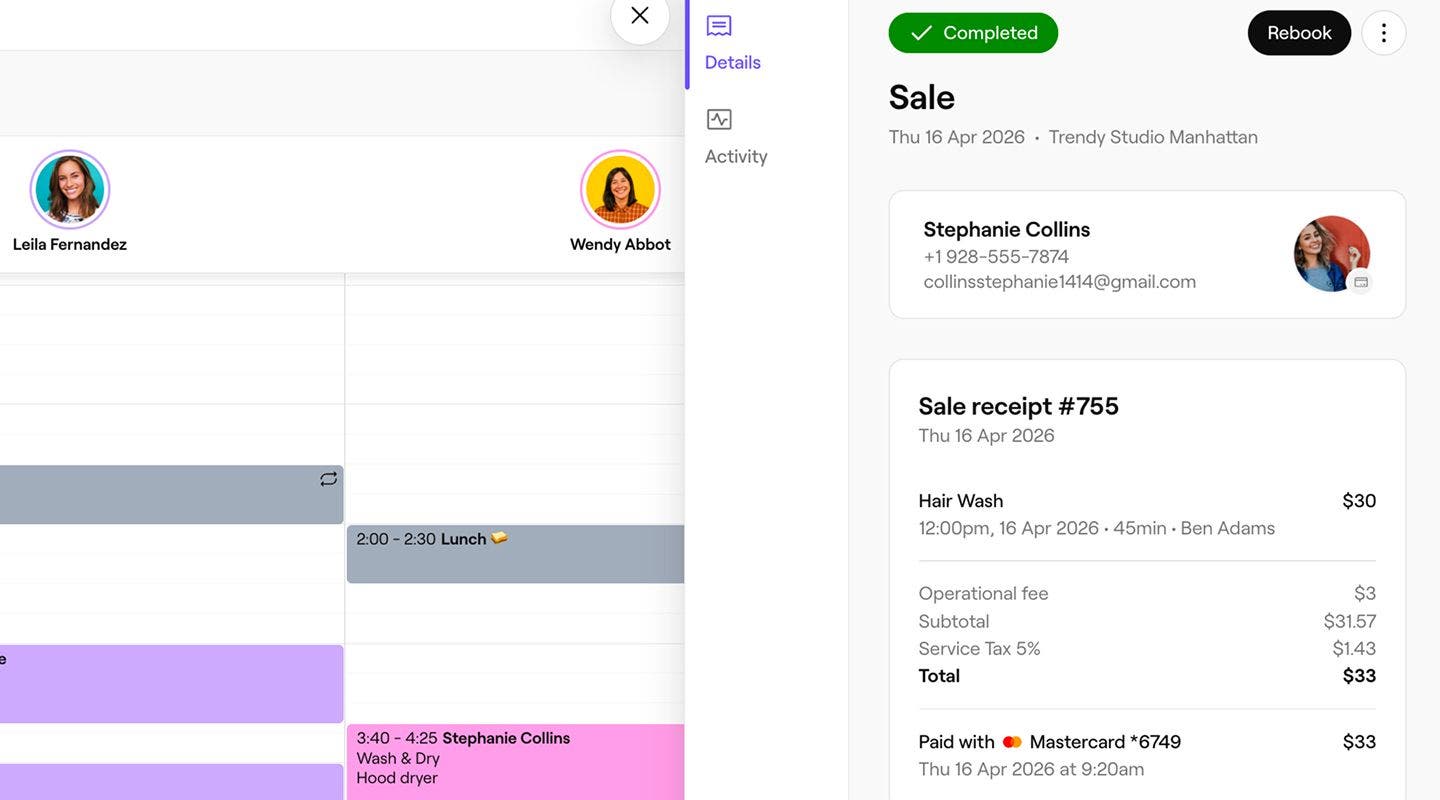


Once the payment is processed, a sale receipt is created, which you can share with the client by email or print.
FAQs
Standard online payment processing fees are applied to each payment made through Pay now. You can view all fees on our pricing page
Pay now payment methods are set at the workspace level. Different methods can be used for each workspace if you manage multiple locations separately.