Update services
Learn how to make updates to your services by managing their availability, assigning the team members who can perform them, and linking the resources they require.
In this article
Allocate locations to services
Set which of your business locations offer a service so clients only see and book it where it’s available.
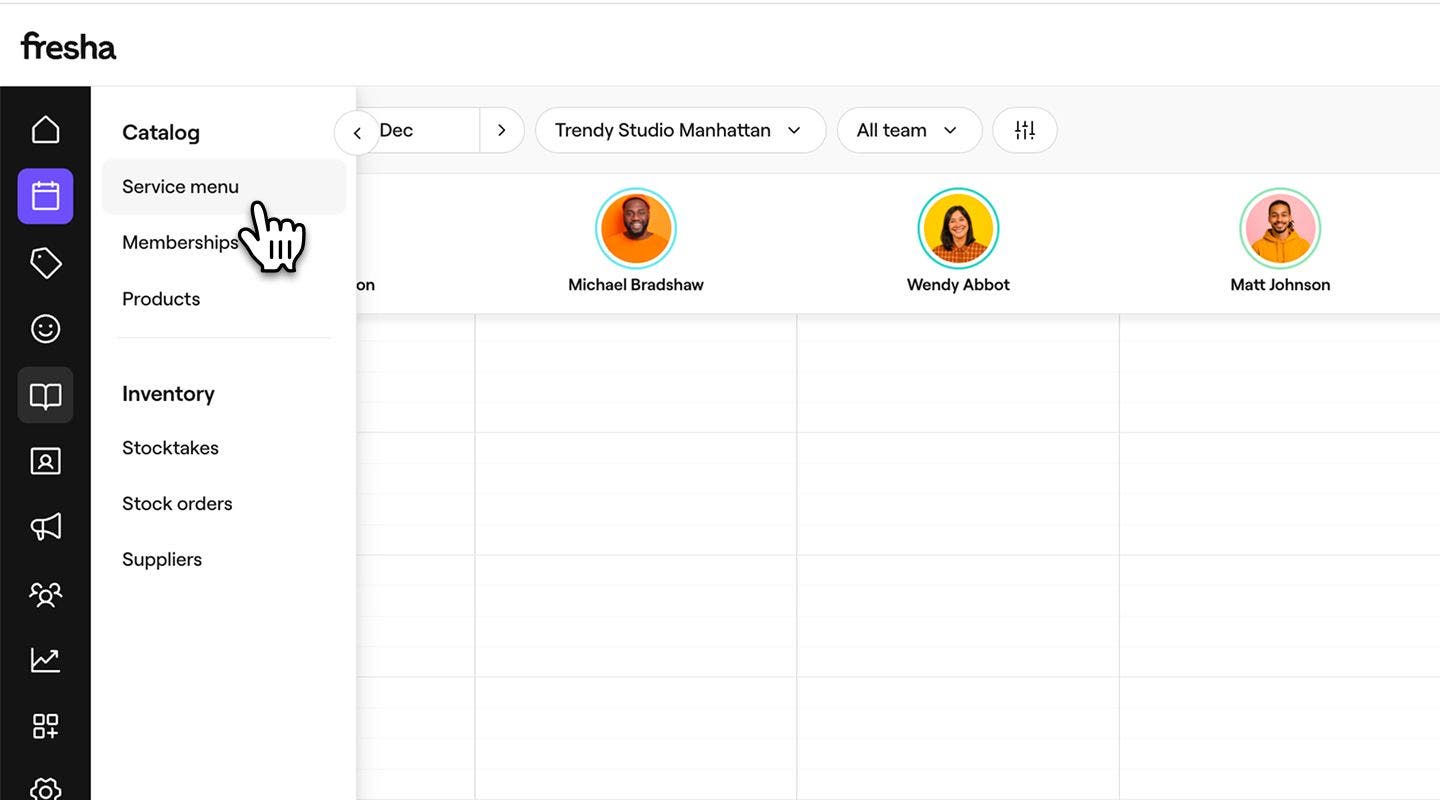
- From the main menu on the left of your screen, go to Catalog.
- Select Service menu from the left menu panel.
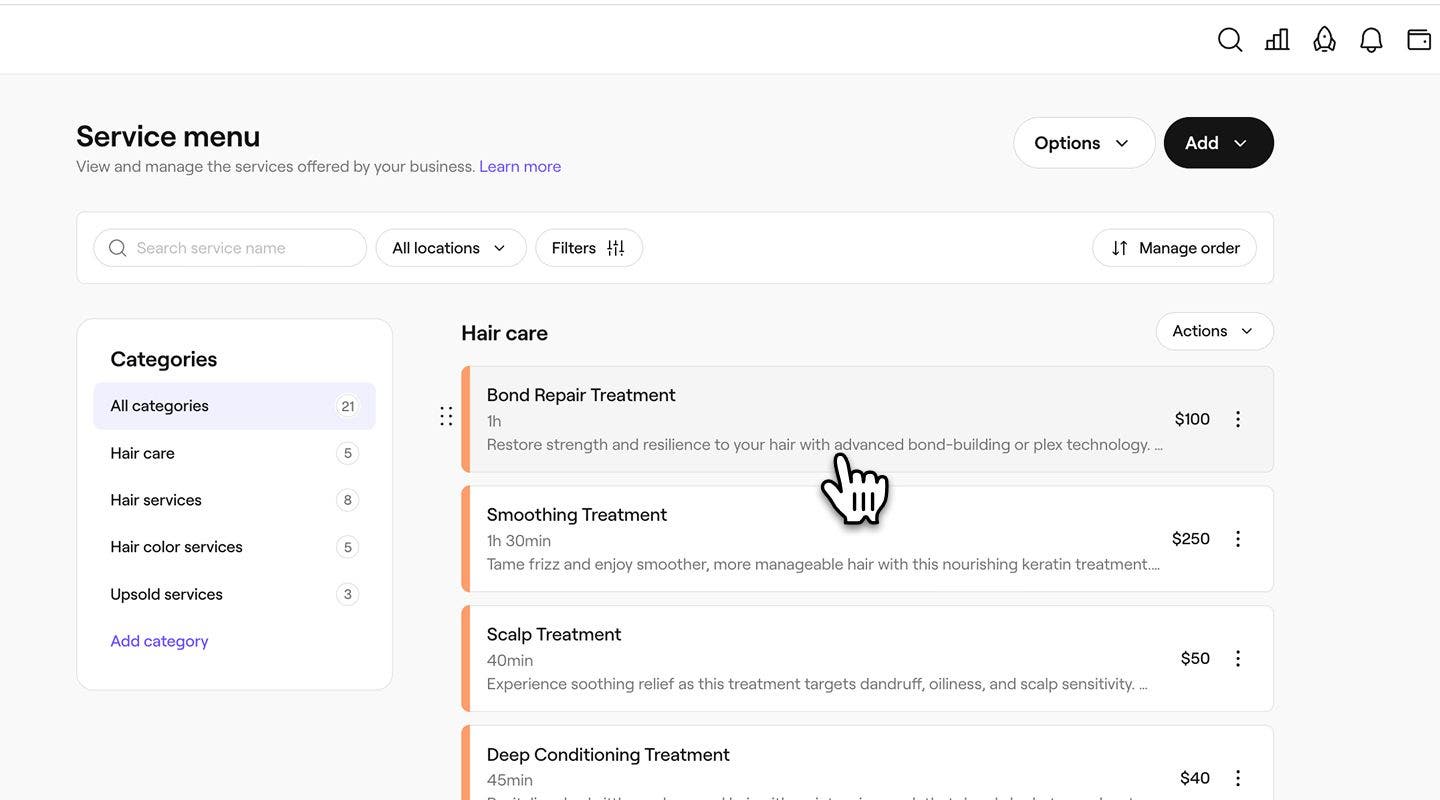
- Click on a service from the service menu to update.
- In the Edit service view, select Locations from the left menu panel.
- Tick the checkbox next to each location where the service will be available.

- Click on the Save button in the top right of the view to update the service.
Once saved, the service becomes available for clients to book at all selected locations. Any location you leave unticked will no longer offer the service in online booking or at in-store.
Assign team members to services
Choose which team members are qualified or available to perform a service so clients can book with the right staff.
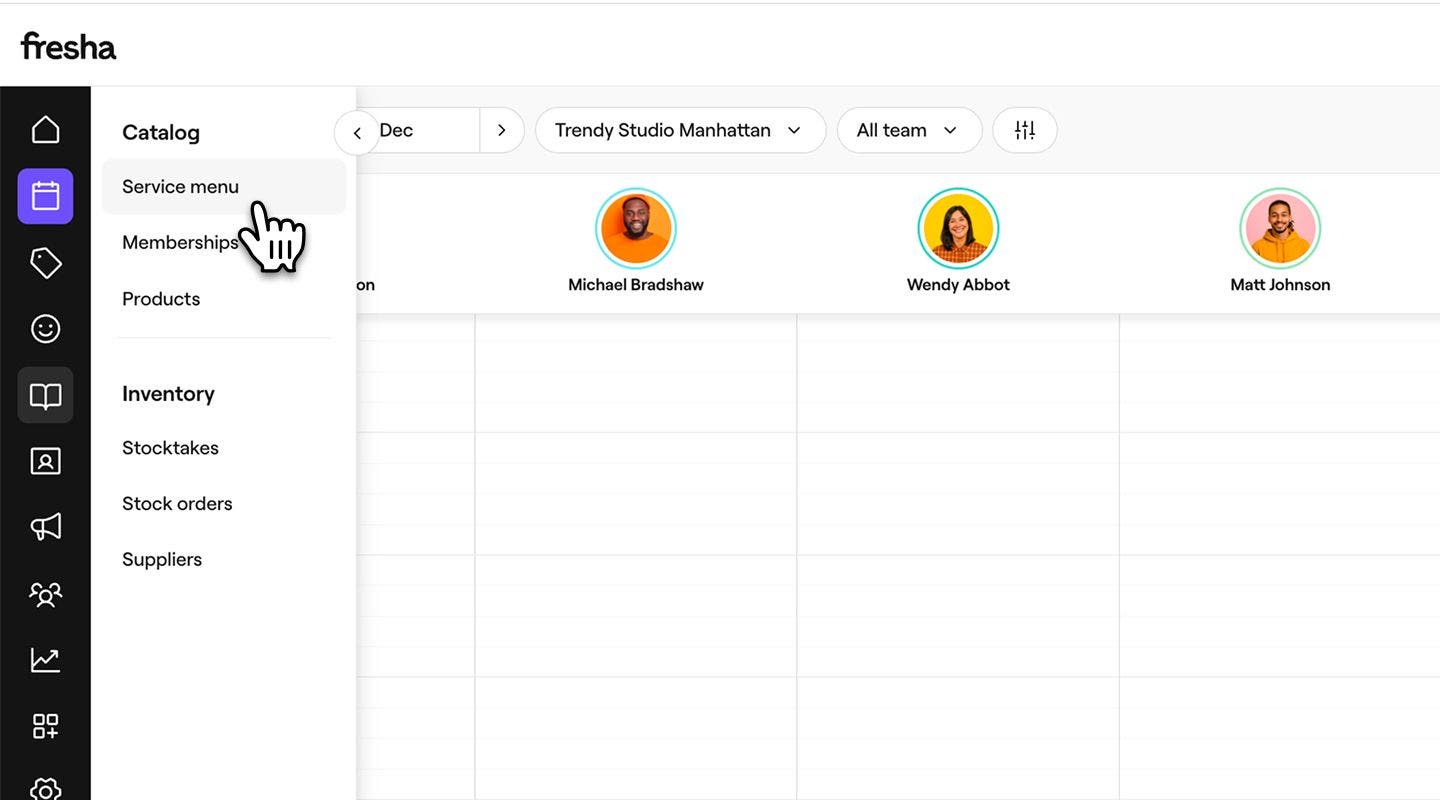
- From the main menu on the left of your screen, go to Catalog.
- Select Service menu from the left menu panel.
- Click on a service from the service menu to update.

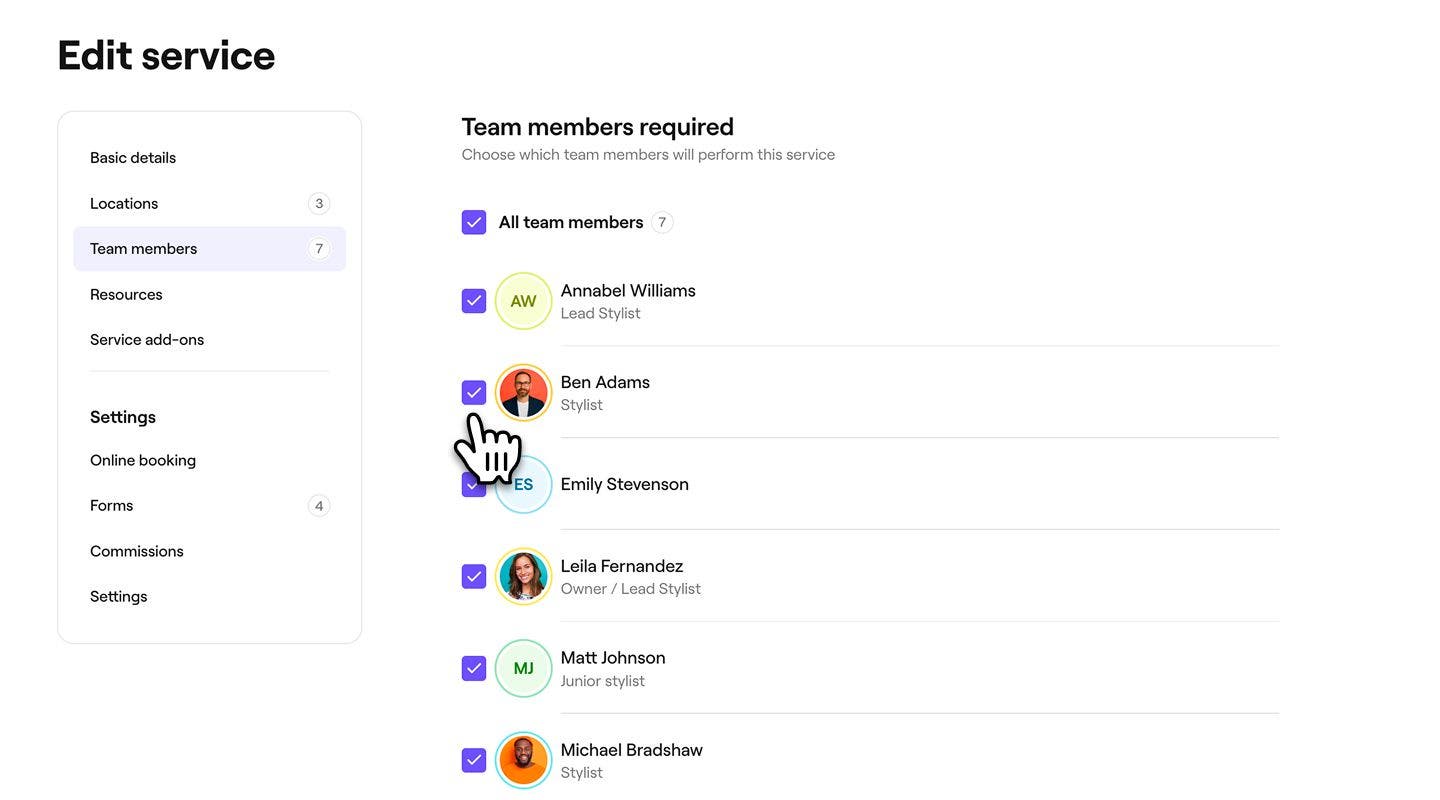
- In the Edit service view, select Team members from the left menu panel.
- Tick the checkbox next to each team that can perform the service.
- Click on the Save button in the top right of the view to update the service.
After updating, the service can be booked with any of the team members you’ve selected.
Assign resources to services
Link any rooms, equipment, or tools a service requires so the right resources are reserved automatically when clients book.
- From the main menu on the left of your screen, go to Catalog.
- Select Service menu from the left menu panel.
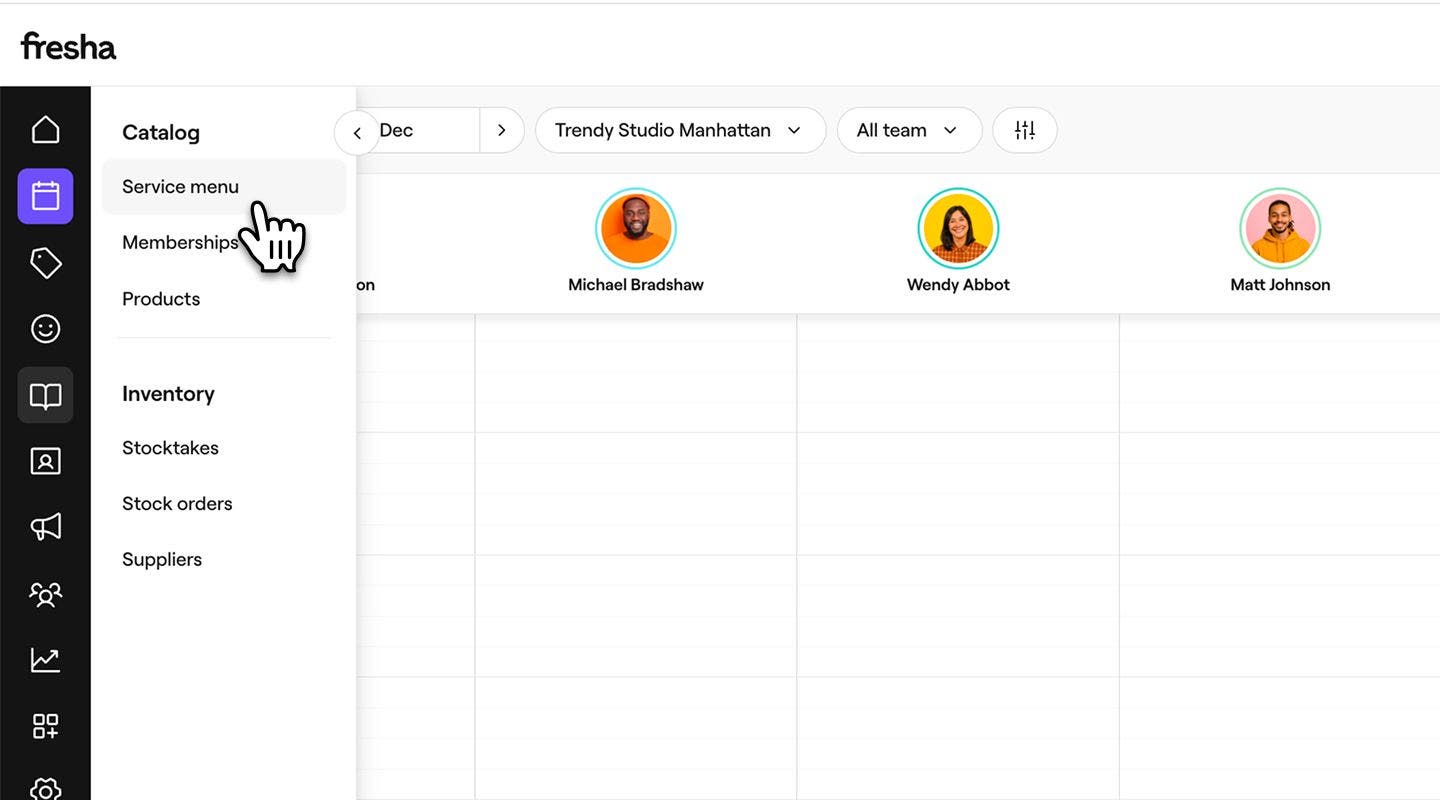
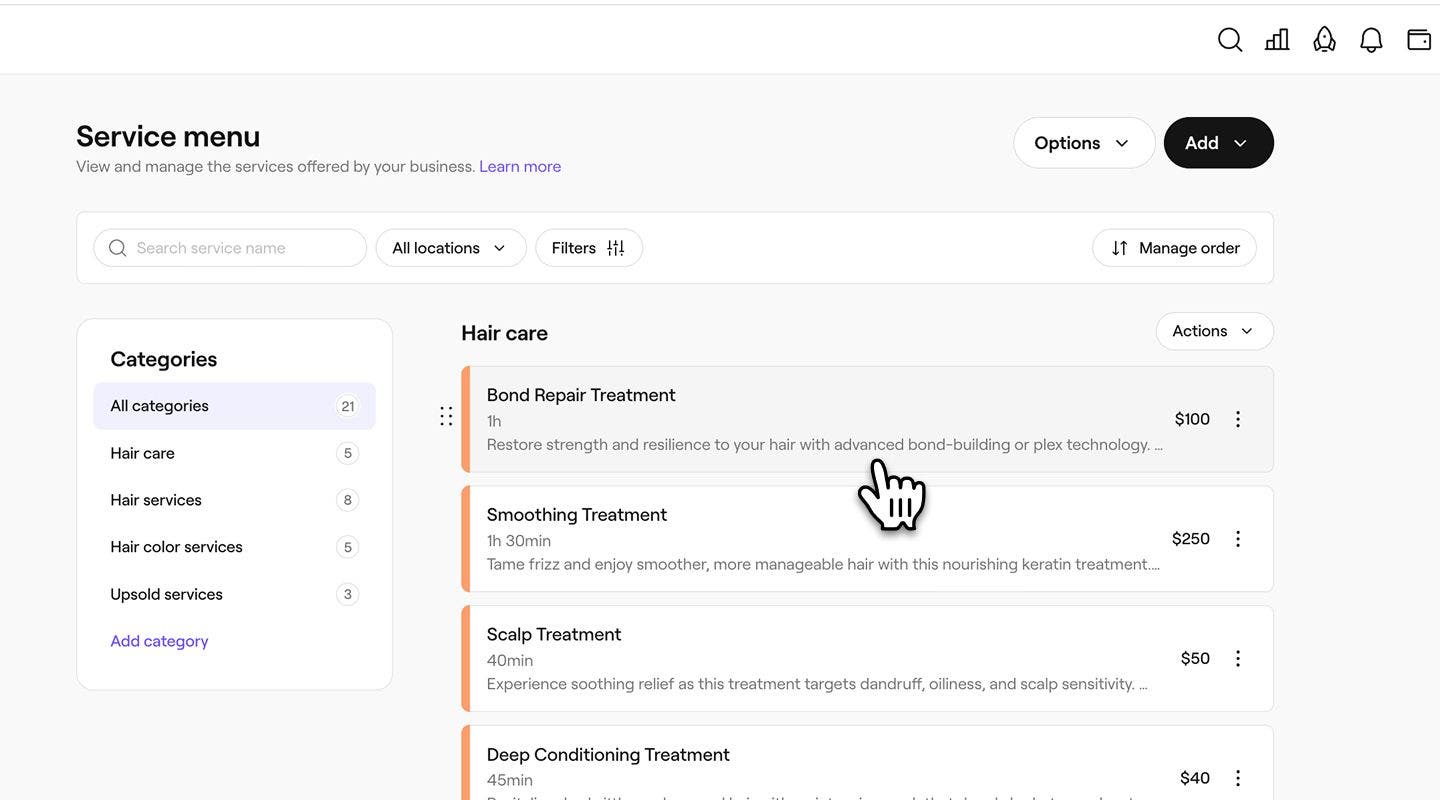
- Click on a service from the service menu to update.
- In the Edit service view, select Resources from the left menu panel.
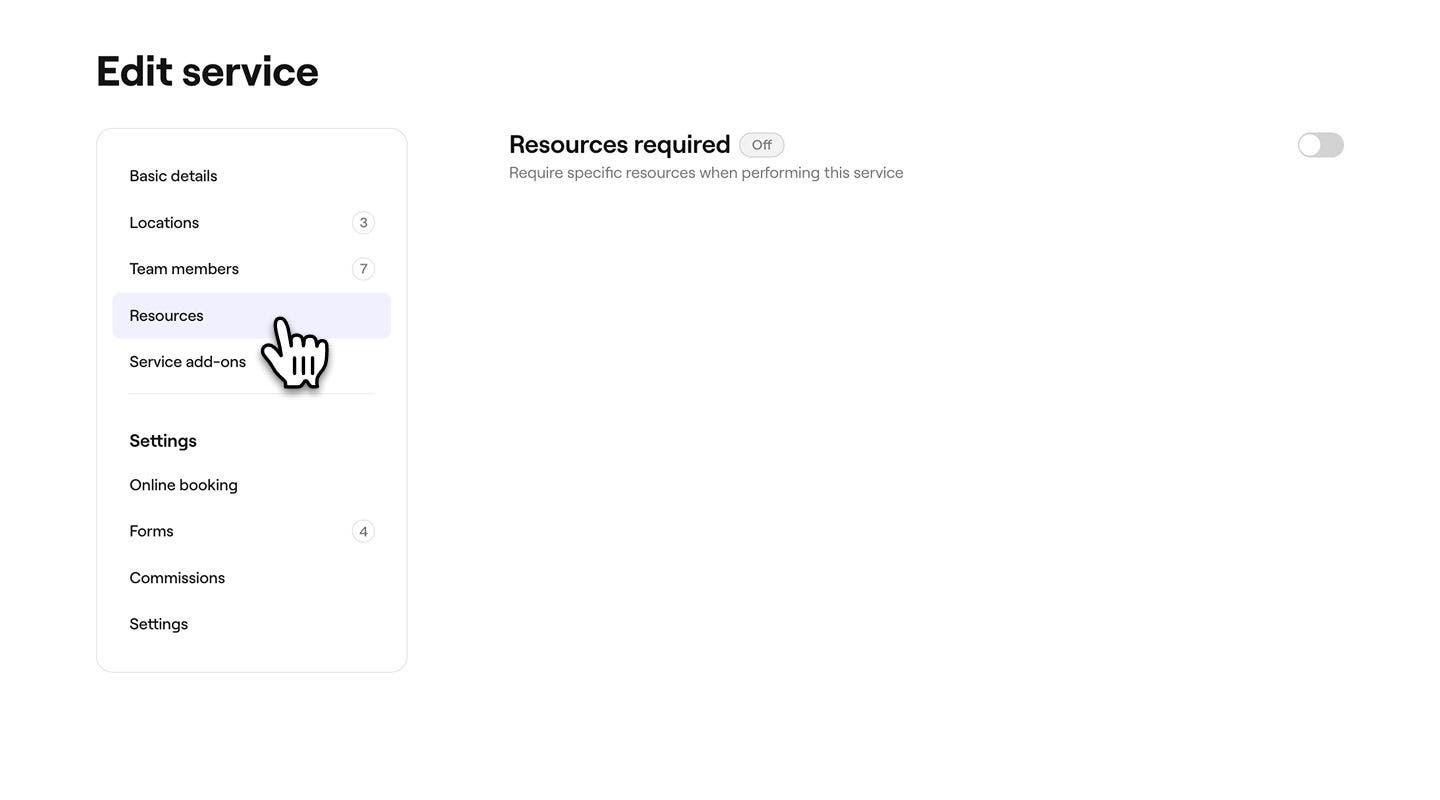
- Tick the checkbox next to each resource that requires the service.
- Click on the Add resource button to create a new resource.

- Click on the Add resource button to create a new resource.
- Click on the Save button in the top right of the view to update the service.
Once updated, the service will automatically reserve the selected resources when booked.
FAQs
Removing a location or team member from a service updates where and who the service can be booked. Once removed, the service will no longer appear as an option for new bookings at that location or with that team member. Any existing appointments stay unchanged and will continue as scheduled.