Manage appointment cancellation reasons
In this guide, you’ll learn how to create and manage cancellation reasons for your team to use when canceling client appointments.
In this article
How cancellation reasons work
Cancellation reasons are custom options that your business provides for clients to select from when canceling an appointment. Cancellation reasons give your business great insight into client behaviour and can be used to shape business decisions - for example, implementing upfront payments for high-cancellation services.
For a summary report based on appointment cancellation reasons, you can use the Appointments Cancellations & No-Show Summary report.
Create appointment cancellation reasons
- From the main menu on the left of your screen, go to Settings.
- Select the Settings tab from the top and click on Scheduling.
- In the left menu panel, select Cancellation reasons to view and manage your list of cancellation reasons.
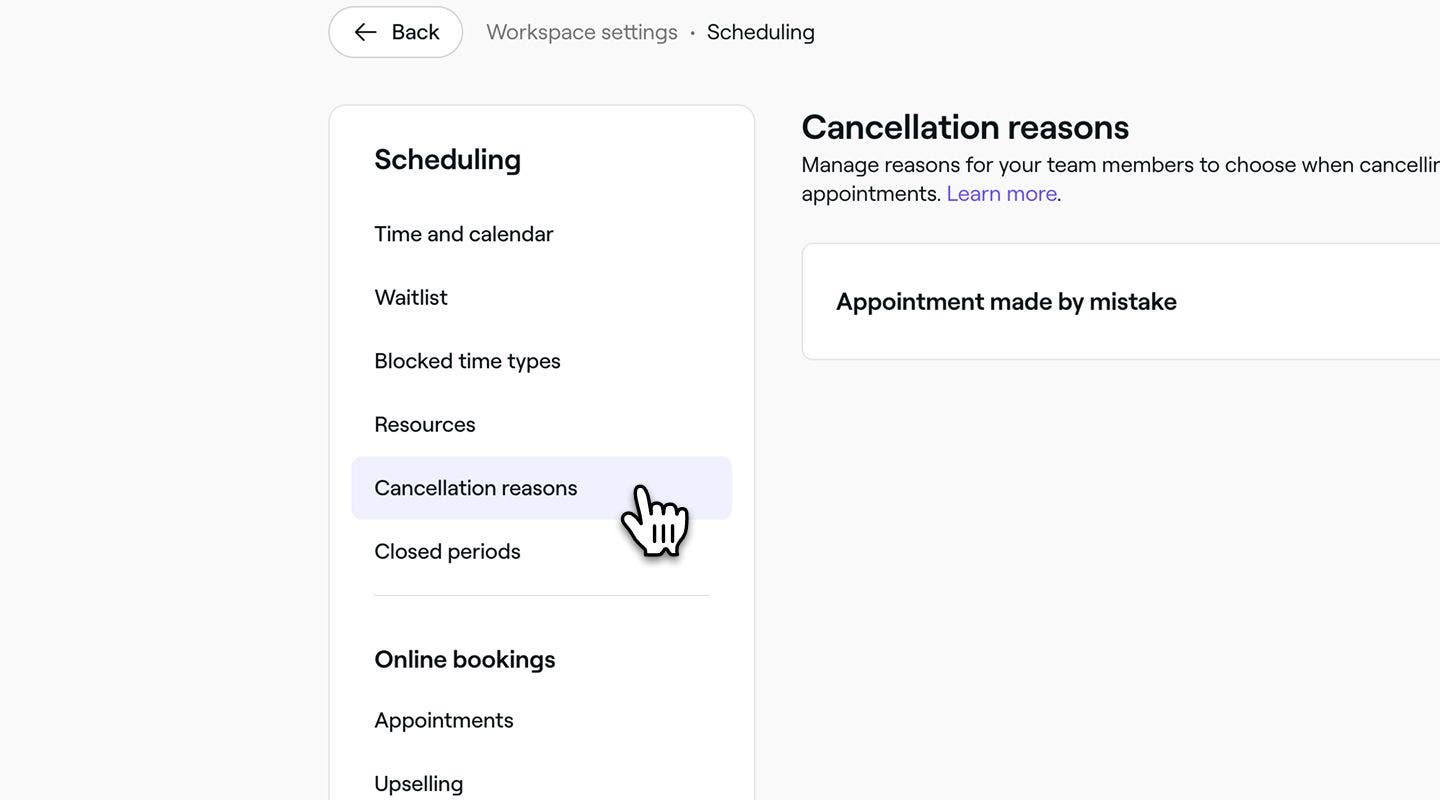
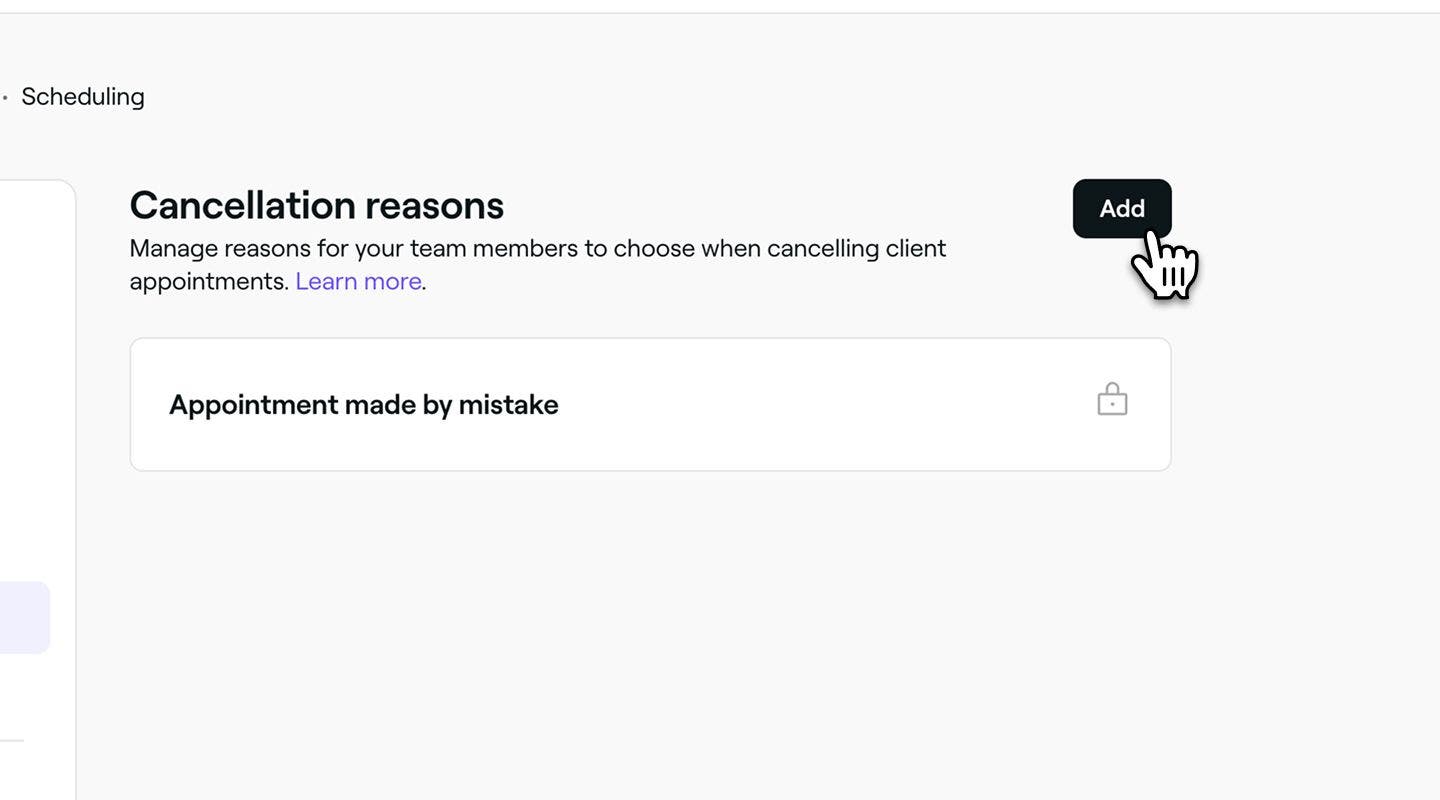
- Click on the Add button in the top right to create a new cancellation reason.
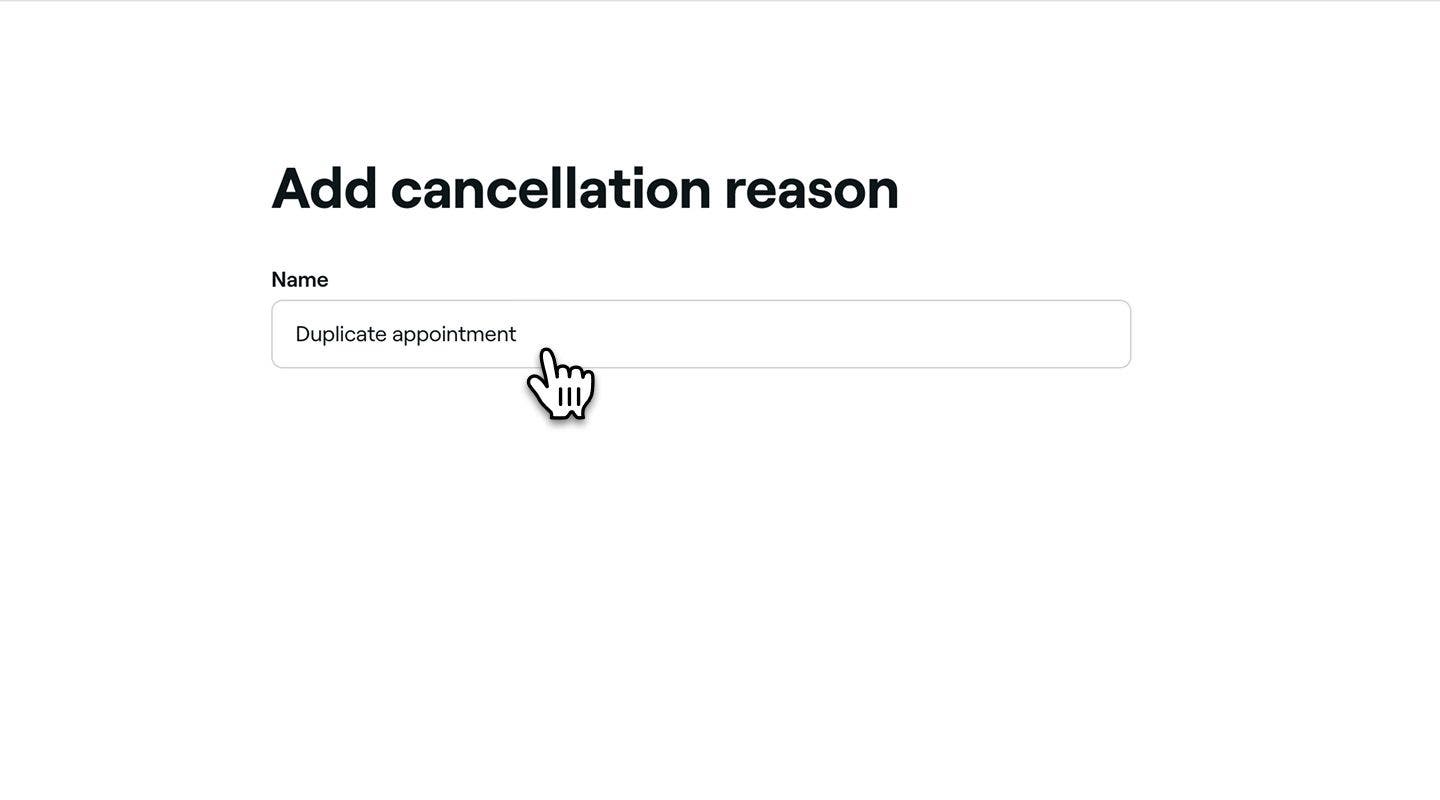
- On the Add cancellation reason page, add a name for the reason. For example, ‘Duplicate appointment’ or ‘Family emergency’.
- Click on the Add button in the top right to save the cancellation reason.
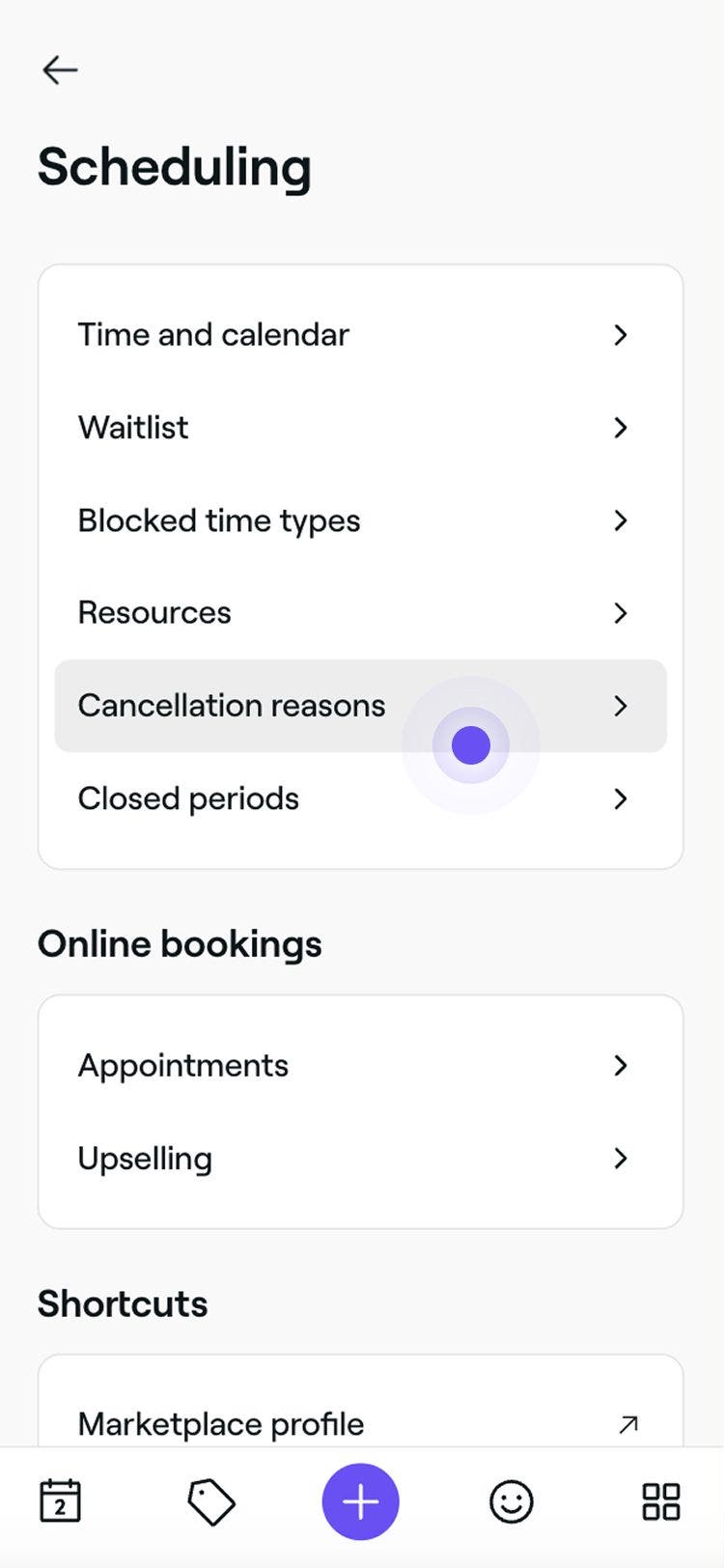
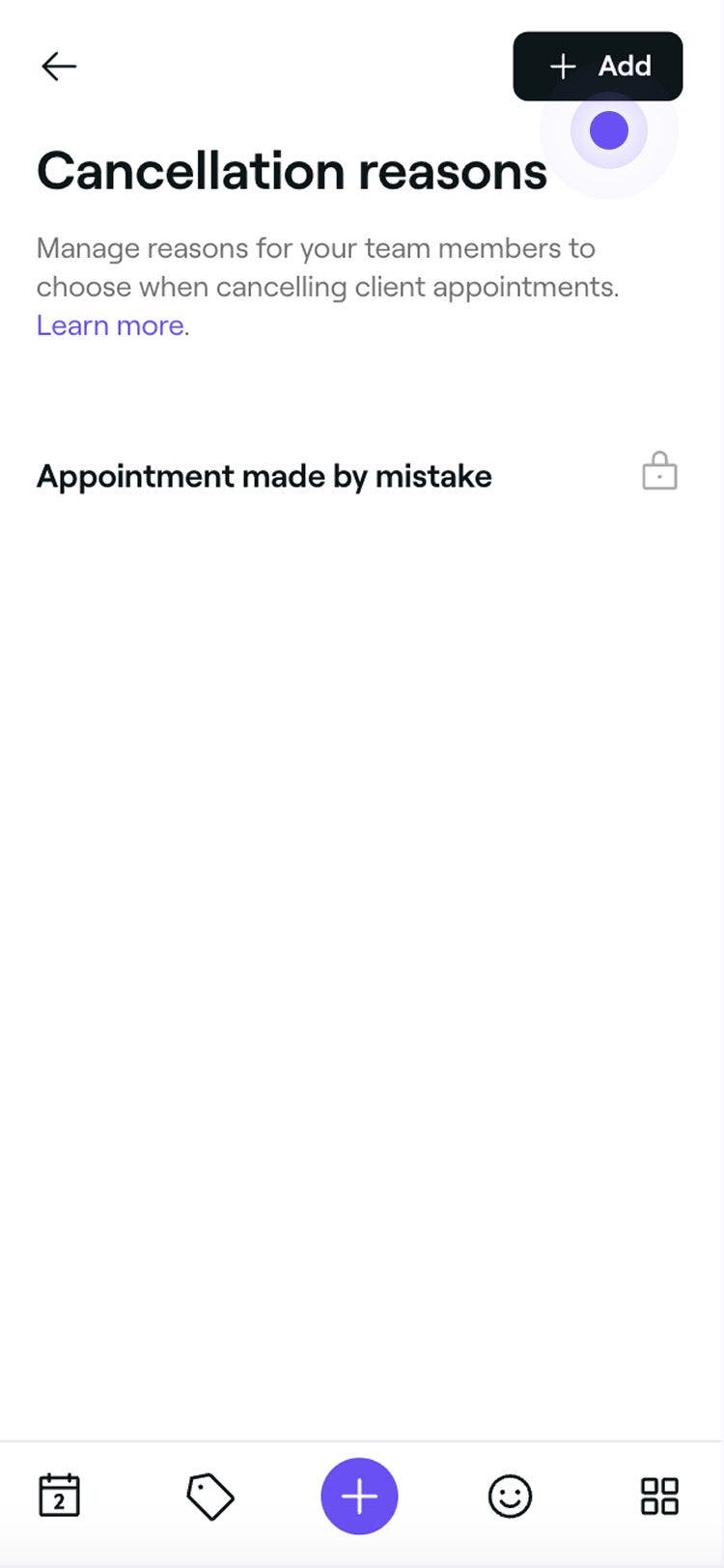
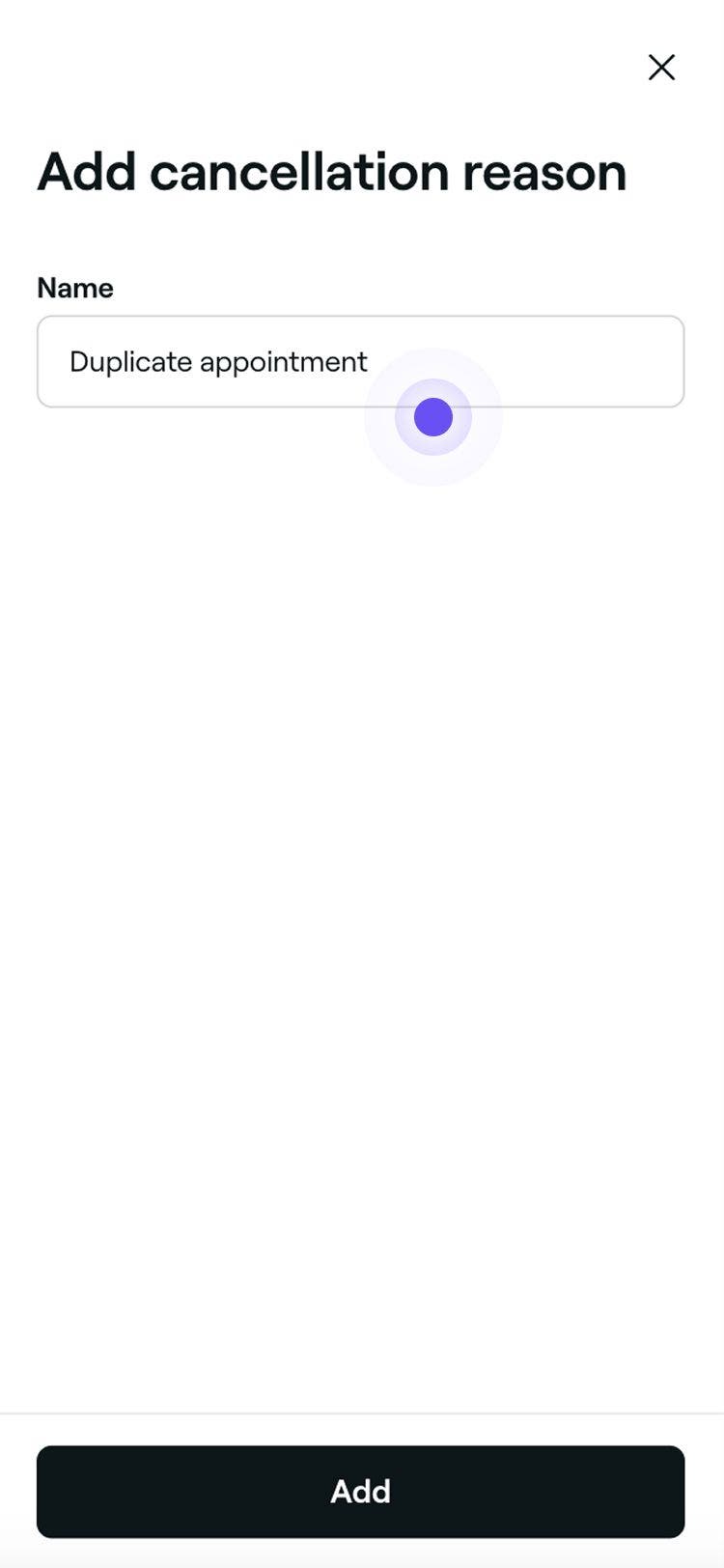
The cancellation reason will be added to the list for your team members to choose from when cancelling client appointments.
Edit, delete, or rearrange cancellation reasons
-
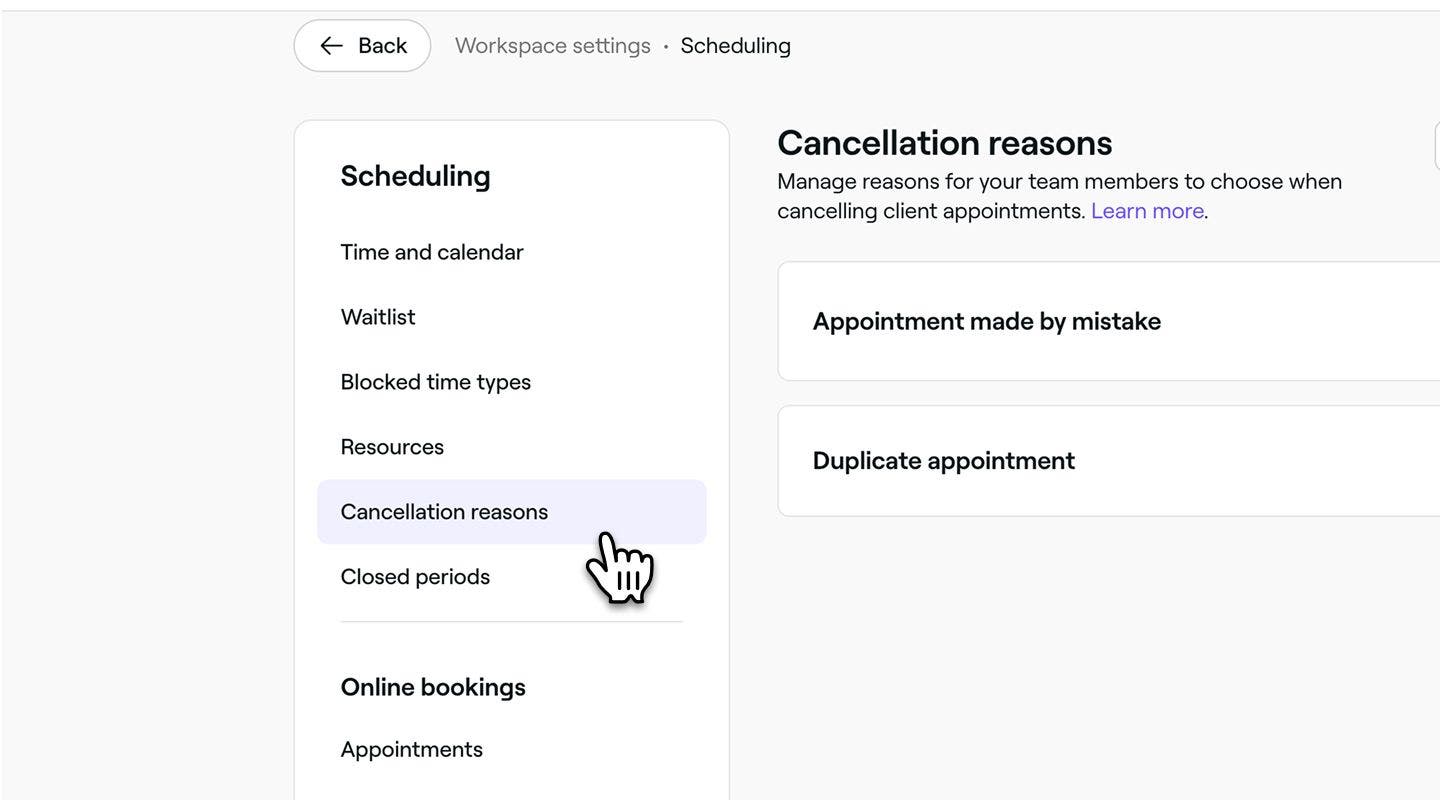
Open your Cancellation reasons from Scheduling settings.
-
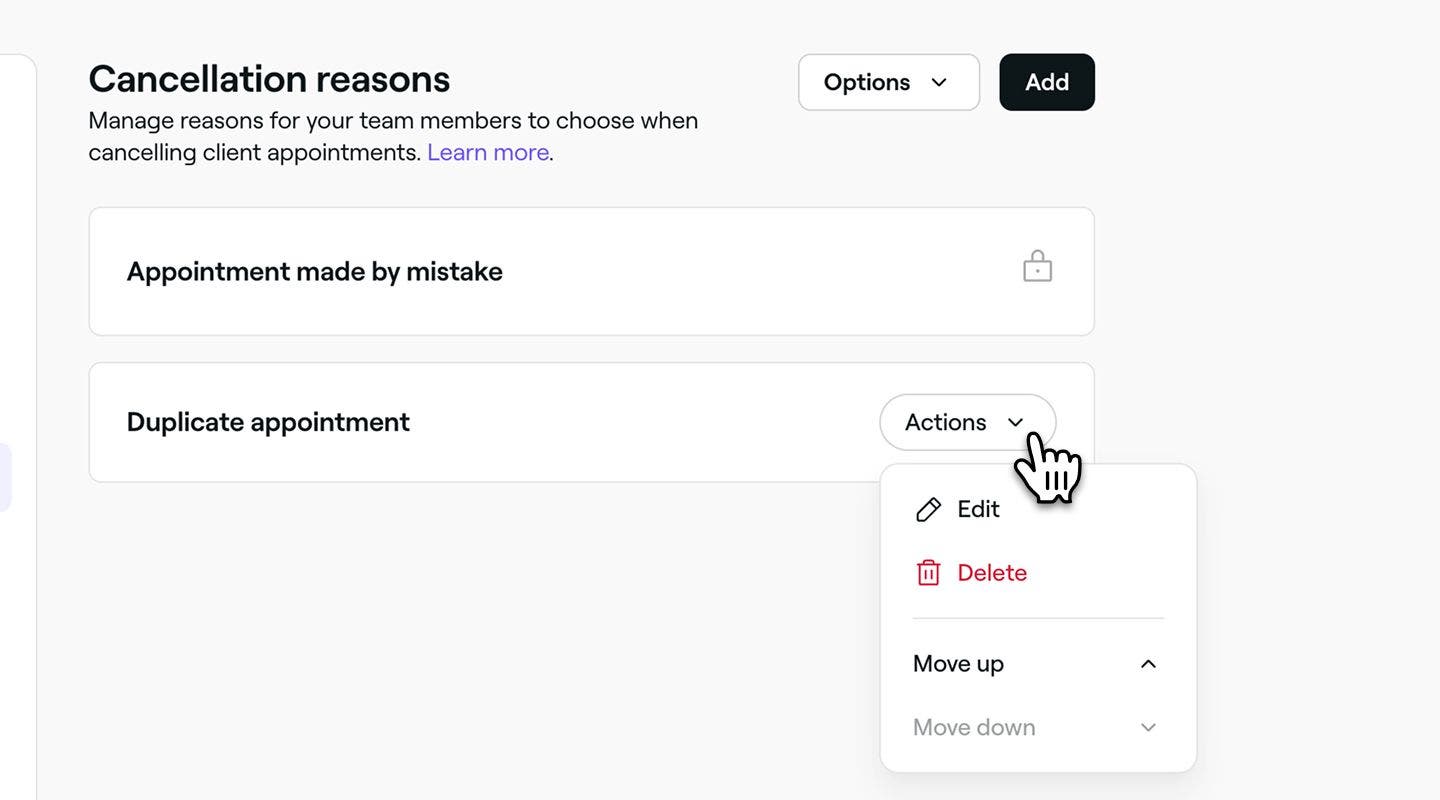
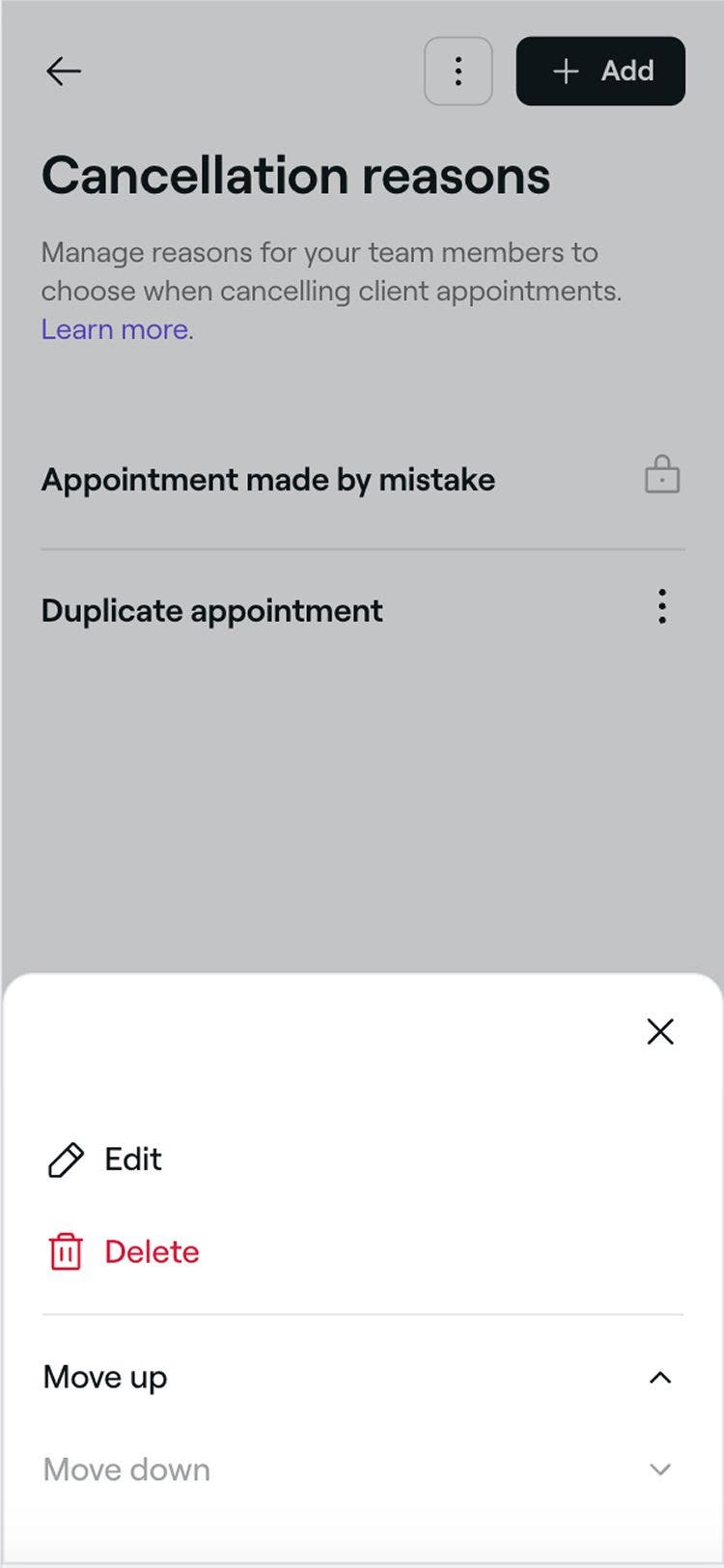
Click on Actions next to a cancellation reason and choose one of the following options from the panel:
- Edit: Update the cancelation reason and tap on the Save button in the top right.
- Delete: Permanently remove the cancellation reason. A confirmation pop-up will appear, asking you to confirm the deletion.
- Move up: Move the cancellation reason higher on the list to adjust its display order.
- Move down: Move the cancellation reason lower on the list to adjust its display order.
FAQs
Once an appointment is cancelled in Fresha, this is logged in your appointment history and cannot be edited.
To maintain accurate records and clear client communication, it's important to select the correct cancellation reason at the time of cancellation. If you missed this step, you can add a note to the client's profile or internal records to document the reason for future reference.
Choosing a cancellation reason helps you maintain accurate records and understand why appointments are being cancelled. It allows you to track trends, such as frequent no-shows or team unavailability, and supports improved reporting for better team and business performance.
It also ensures clear communication with clients when needed, reduces errors, and promotes accountability across your team. Selecting a reason at the time of cancellation leads to more reliable data and smoother day-to-day operations.
For a detailed view, use the Appointments report and filter it by the Cancelled status to see a full list of cancelled appointments.
If you’re looking for a summary based on cancellation reasons, we recommend the Appointments Cancellations & No-Show Summary report. This report also includes the number of no-show appointments, giving you a broader overview of missed bookings.
Team members can select a cancellation reason when cancelling an appointment through the Fresha platform, however, clients are not able to select a cancellation reason when cancelling online.