HomeKnowledge baseFresha academy
Manage your calendar time and date
Back
  1. Knowledge base•
  2. Calendar and schedule•
  3. Manage your calendar time and date

Manage your calendar time and date

In this guide, you’ll learn how to manage your calendar’s time zone, time format, and start of the week to match your business preferences.

In this article

  • How calendar time and date settings work

How calendar time and date settings work

These settings control how your calendar behaves day to day. They make sure your appointments align with your local time, reflect your preferred working hours, and display your schedule in a way that suits how you run your business.

  1. From the main menu on the left of your screen, go to Settings.

  2. Select the Settings tab from the top and click on Scheduling.

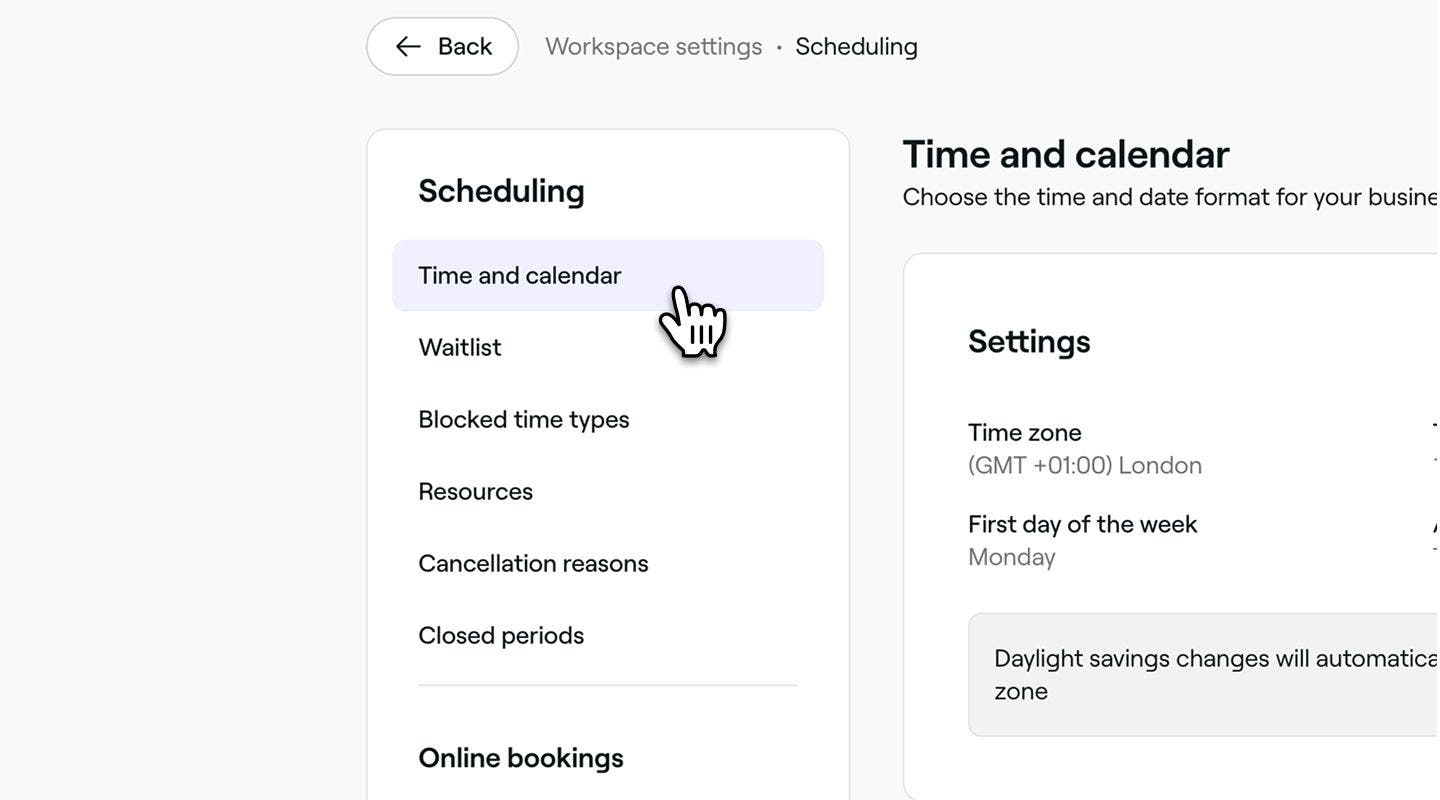
  3. In the left menu panel, select Time and calendar to access your calendar time and date settings. 
    Manage_time_date_calendar_web_3.jpg

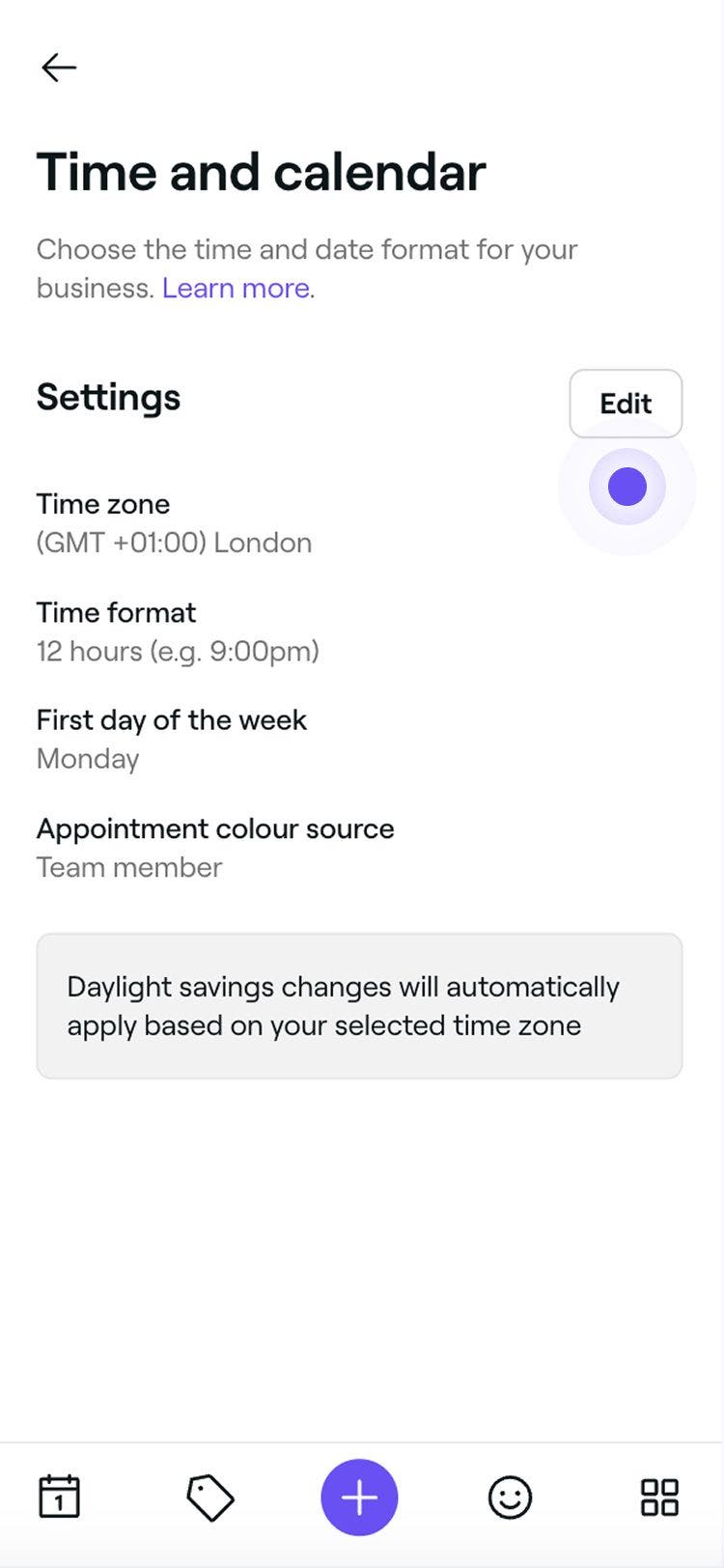
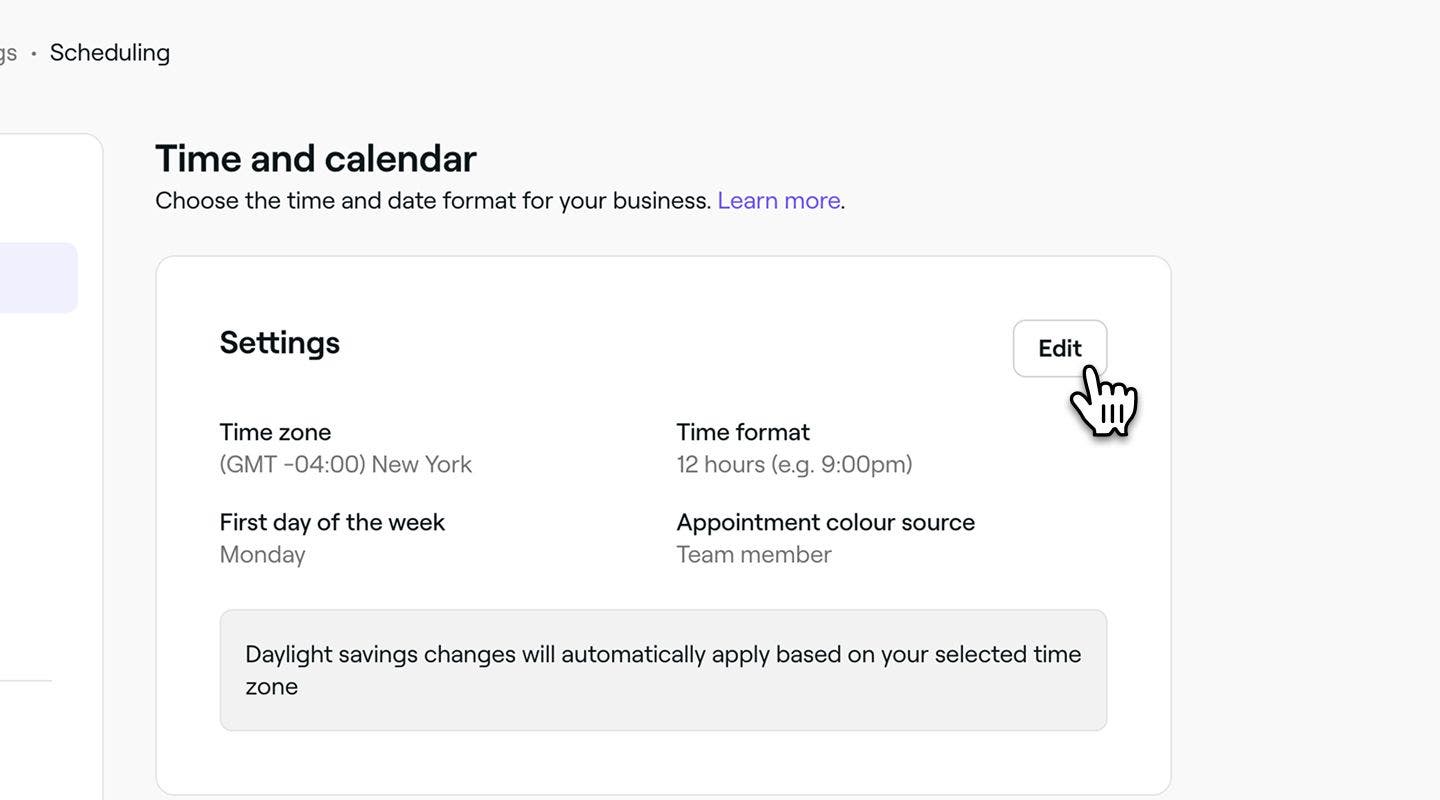
  4. Next to Settings, click on the Edit button to update your preferences.
    Manage_time_date_calendar_web_4.jpg

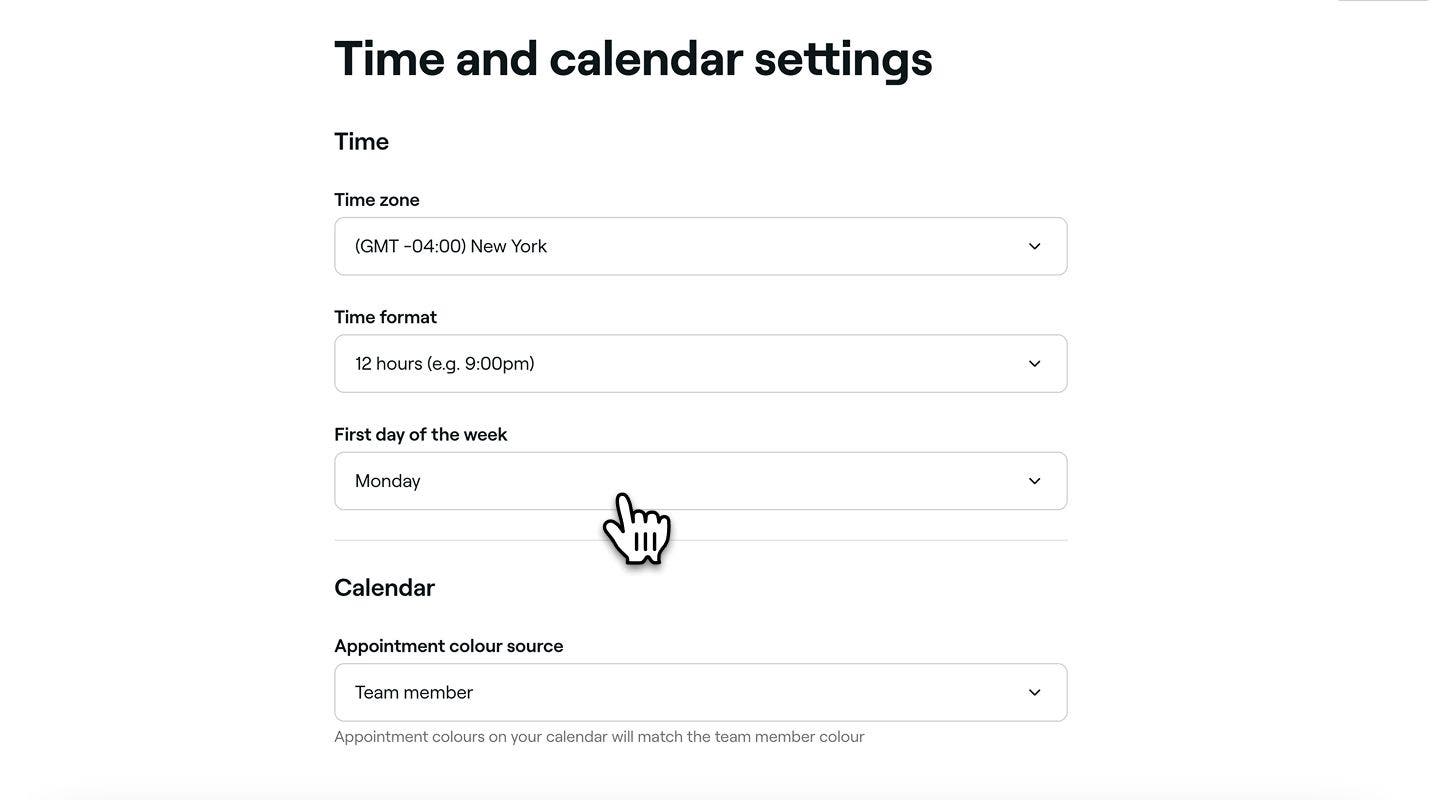
  5. In the Time and calendar page set your preferences for the following:

    1. Time zone: Select the time zone your business operates in.
    2. Time format: Choose your preferred format, either 12 hours or 24 hours.
    3. First day of the week: Select the day you want to start your business week. For example, if your salon is closed on Mondays, set Tuesday as the start of your week.
    Manage_time_date_calendar_web_5.jpg

  6. Click on the Save button in the top right to update your settings.
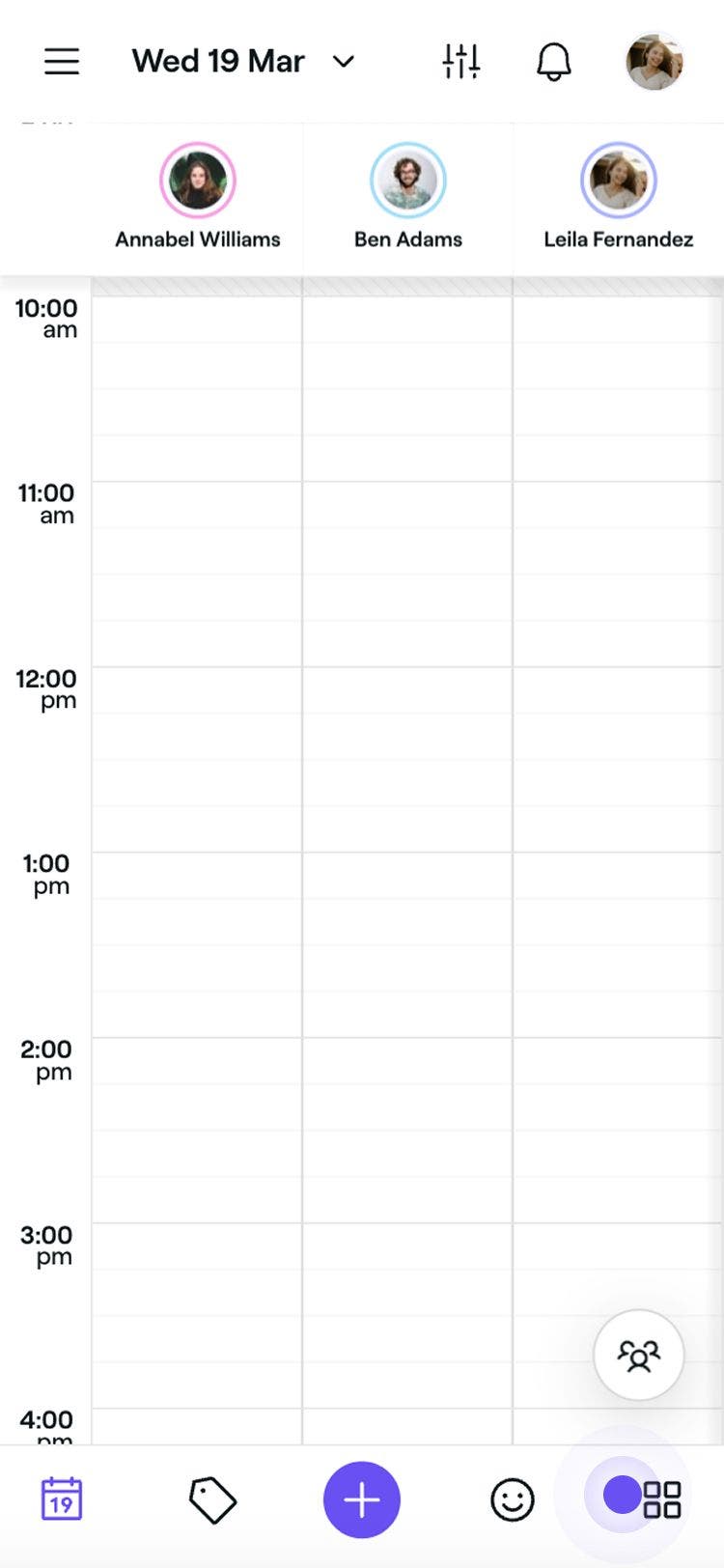
  1. From the main menu at the bottom of your screen, tap on More (grid icon) to open more options.
    tap_more_icon.jpg

  2. Select Settings from the menu, then tap Scheduling from the Workspace settings menu.

  3. In the Scheduling menu tap, Time and calendar to view and manage your settings.

  4. Next to Settings, tap on the Edit button to update your preferences.
    Manage_time_date_calendar_mob_4.jpg

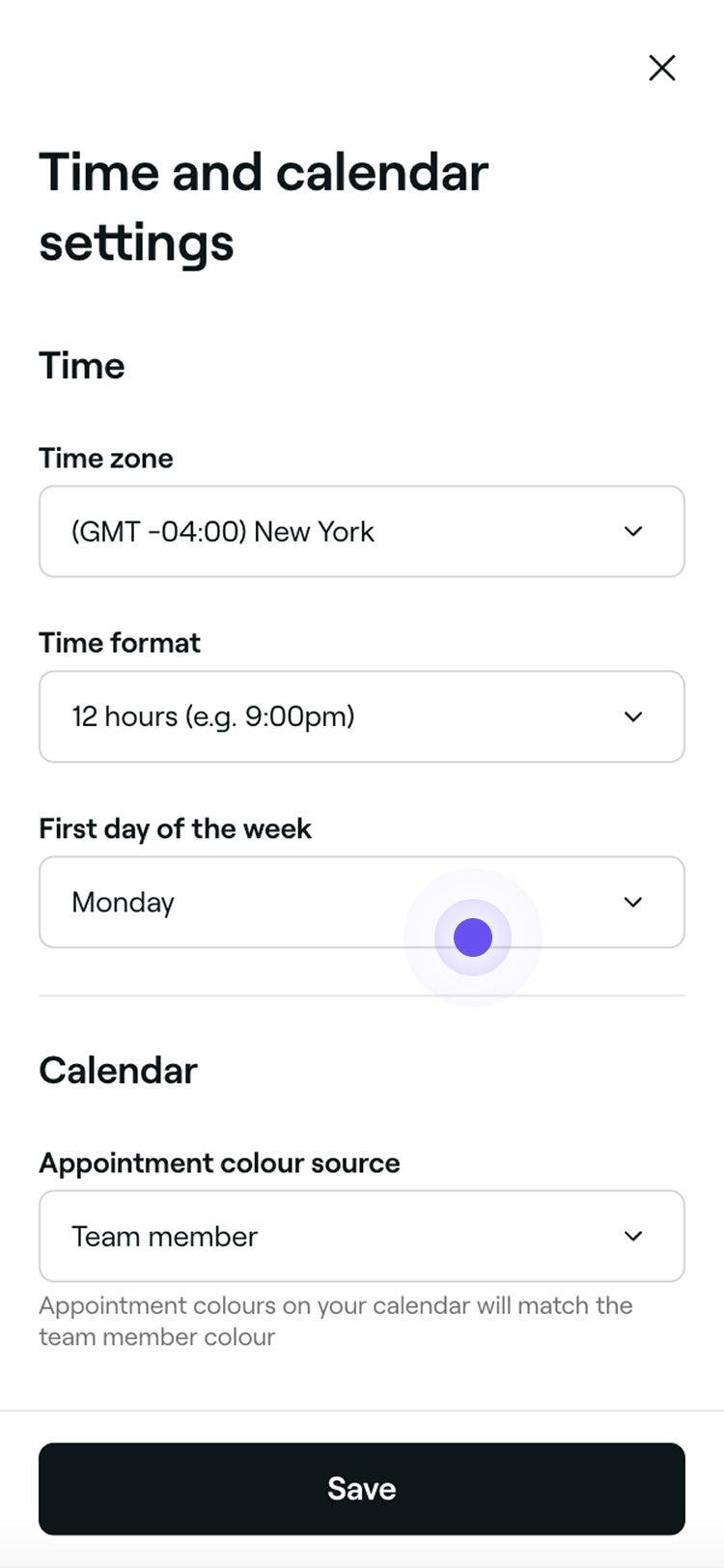
  5. In the Time and calendar page set your preferences for the following:

    1. Time zone: Select the time zone your business operates in.
    2. Time format: Choose your preferred format, either 12 hours or 24 hours.
    3. First day of the week: Select the day you want to start your business week. For example, if your salon is closed on Mondays, set Tuesday as the start of your week.

    Manage_time_date_calendar_mob_5.jpg

  6. Click on the Save button at the bottom to update your settings.

Once updated, your calendar will display the selected time zone, time format, and preferred start day of the business week. For example, if Sunday is set as the first day of the week, the calendar’s weekly view will begin on Sunday.

FAQs

    • If your business is in a region that observes daylight saving time, this could affect the time shown in appointment reminders. Make sure your location’s time zone is correctly set under your time and calendar settings so Fresha can automatically adjust for any seasonal time changes.


Availability setup

Was this guide helpful?

Availability setup

Manage online bookings settings

Enable online bookings for clients and manage settings, notifications, and closures.

Optimize online schedule availability

Make the most of your online booking by reducing gaps and simplifying scheduling.

Manage your calendar time and date

Easily customize calendar settings like time zones, formats, and week start.

Manage appointment cancellation reasons

Stay organized by tailoring and managing appointment cancellation reasons.

Set up booked appointment reassignment

Free up appointment times by automatically moving appointments with no team member preference.

Set up new appointment assignment

Choose how appointments are assigned when clients book with no team member preference.

Fresha
Get the app

About Fresha

Careers

Help and support

Blog

Sitemap

For business

For partners

Pricing

Features

Scheduling

Point of sale

Payments

Capital

Marketplace

Support

Status

Legal

Privacy Policy

Terms of service

Terms of use

Find us on social

Facebook
Linkedin
Instagram

© 2026 Fresha.com SV Ltd