Set up new appointment assignment
Learn how to set rules for online appointments with no team member preference.
How new appointment assignment works
When a client books online without selecting a specific team member, Fresha automatically assigns one for them. New appointment assignment lets you choose who that gets assigned to, like team members with the most availability, fewest reviews or your own custom list, so your appointments are allocated in the way that makes the most sense to your team.
Set up new appointment assignment
-
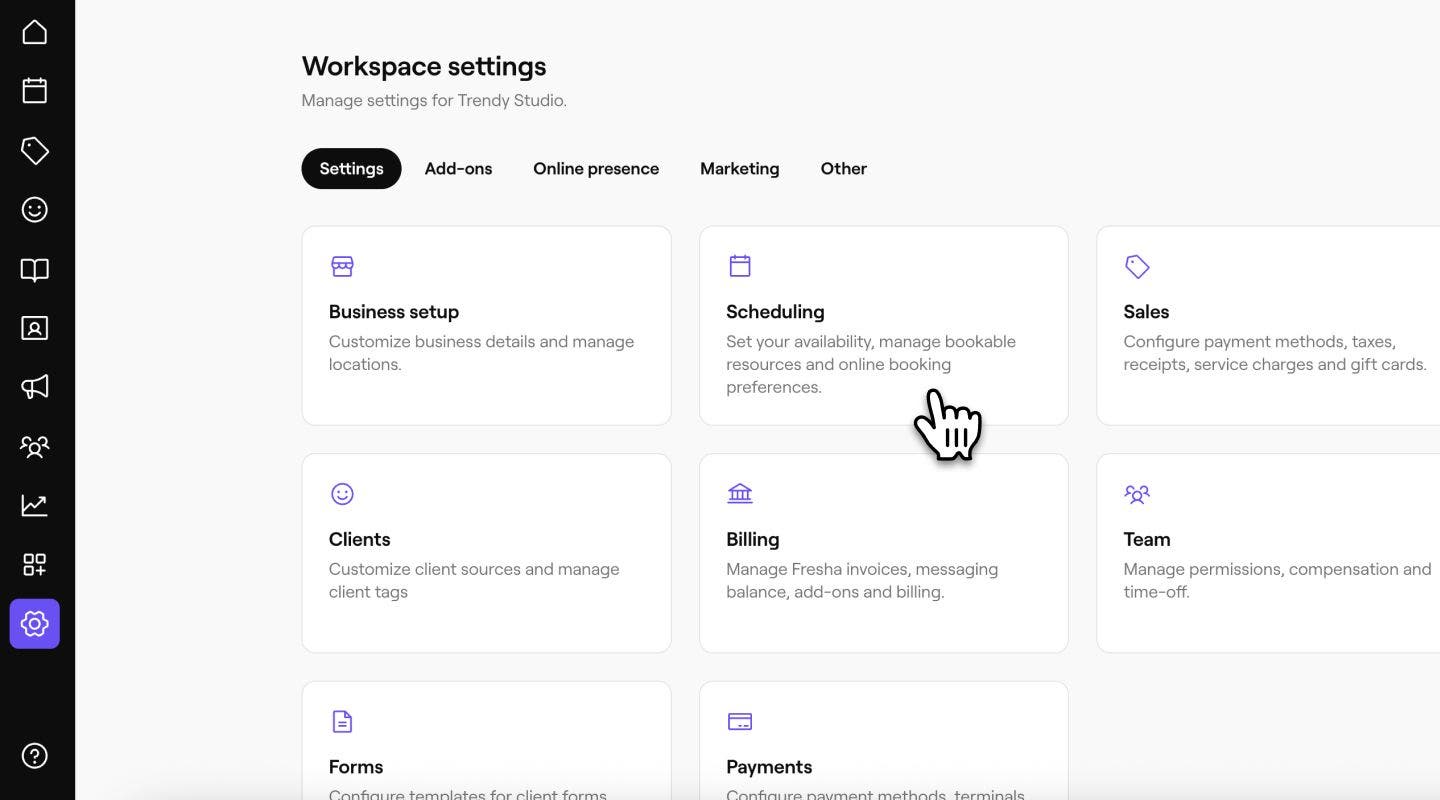
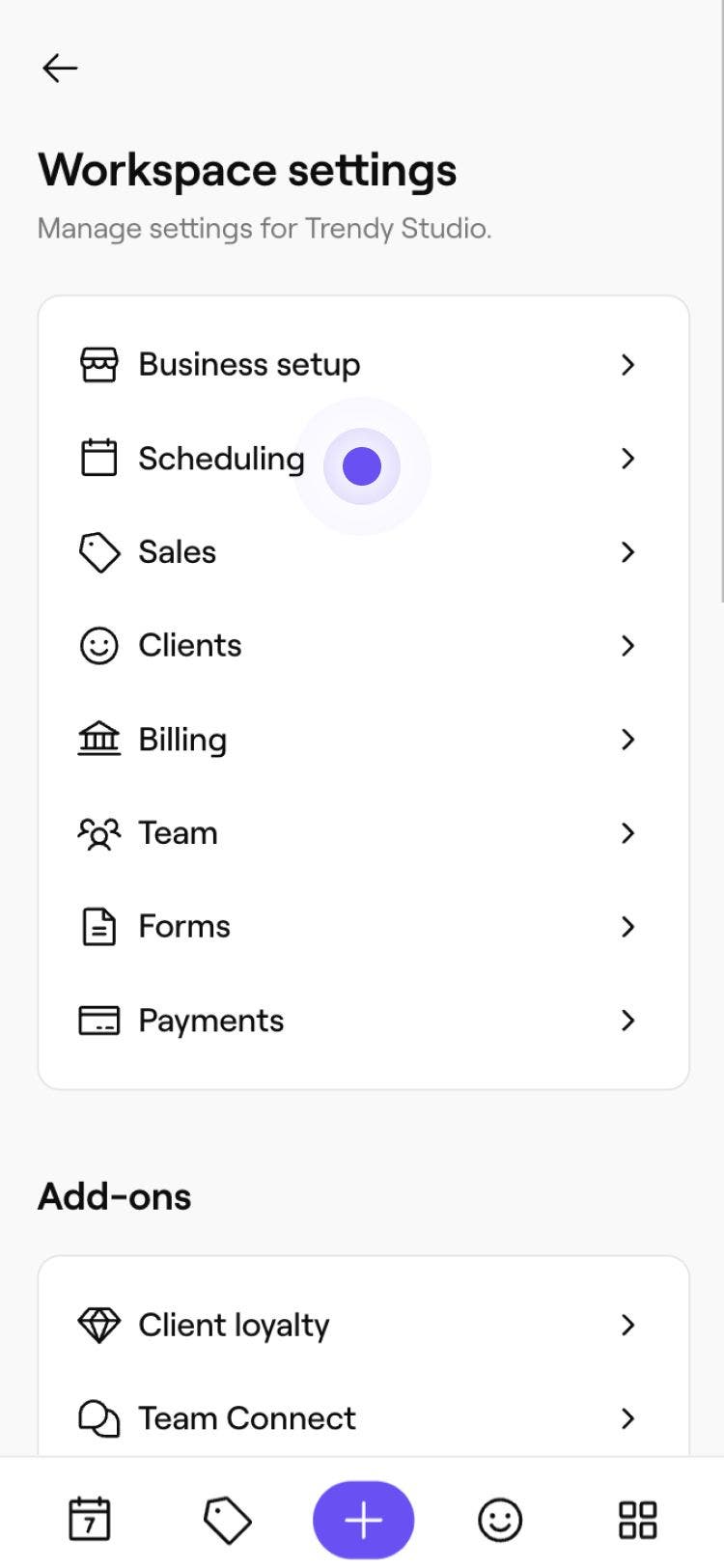
From the main menu on the left of your screen, go to Settings and click on the Scheduling category.
-
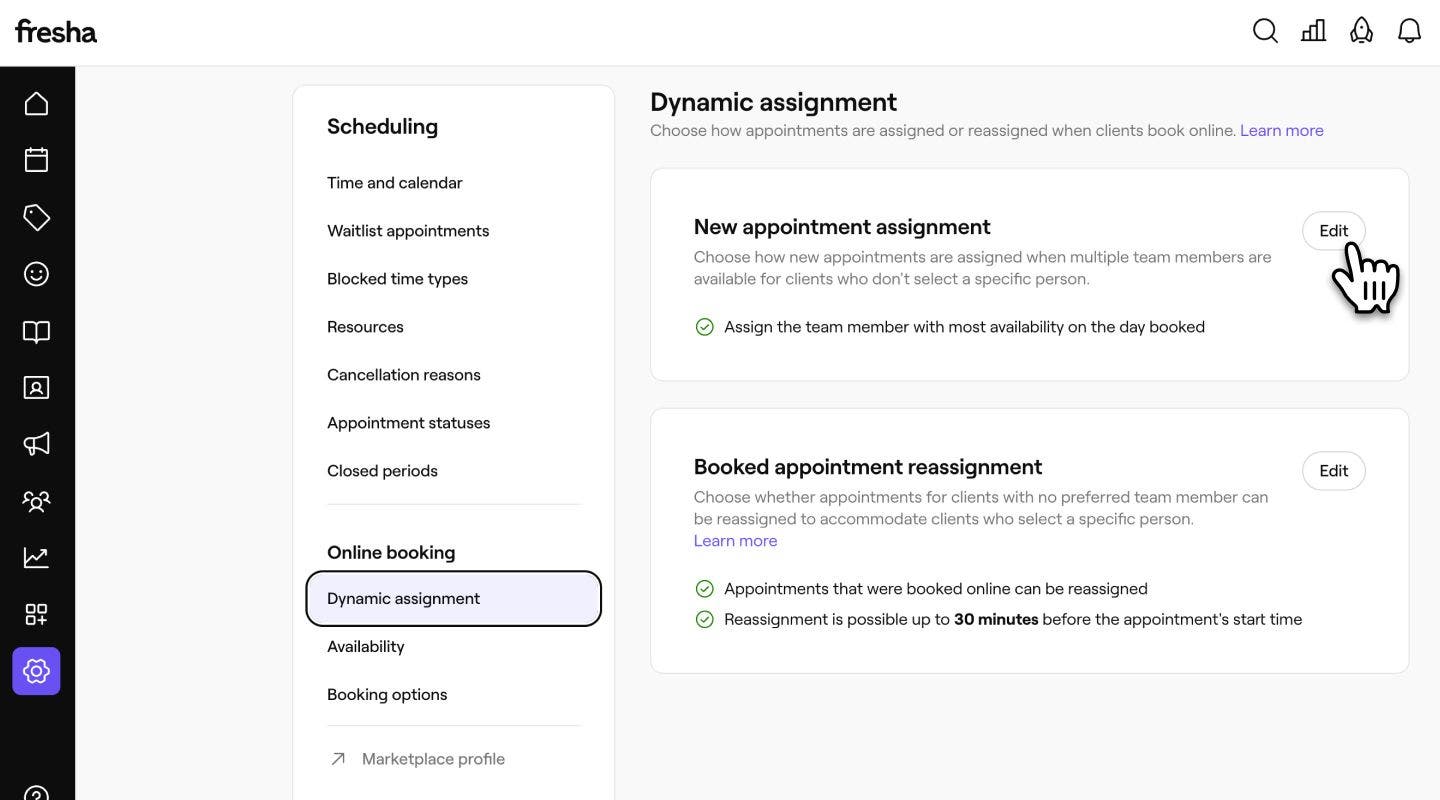
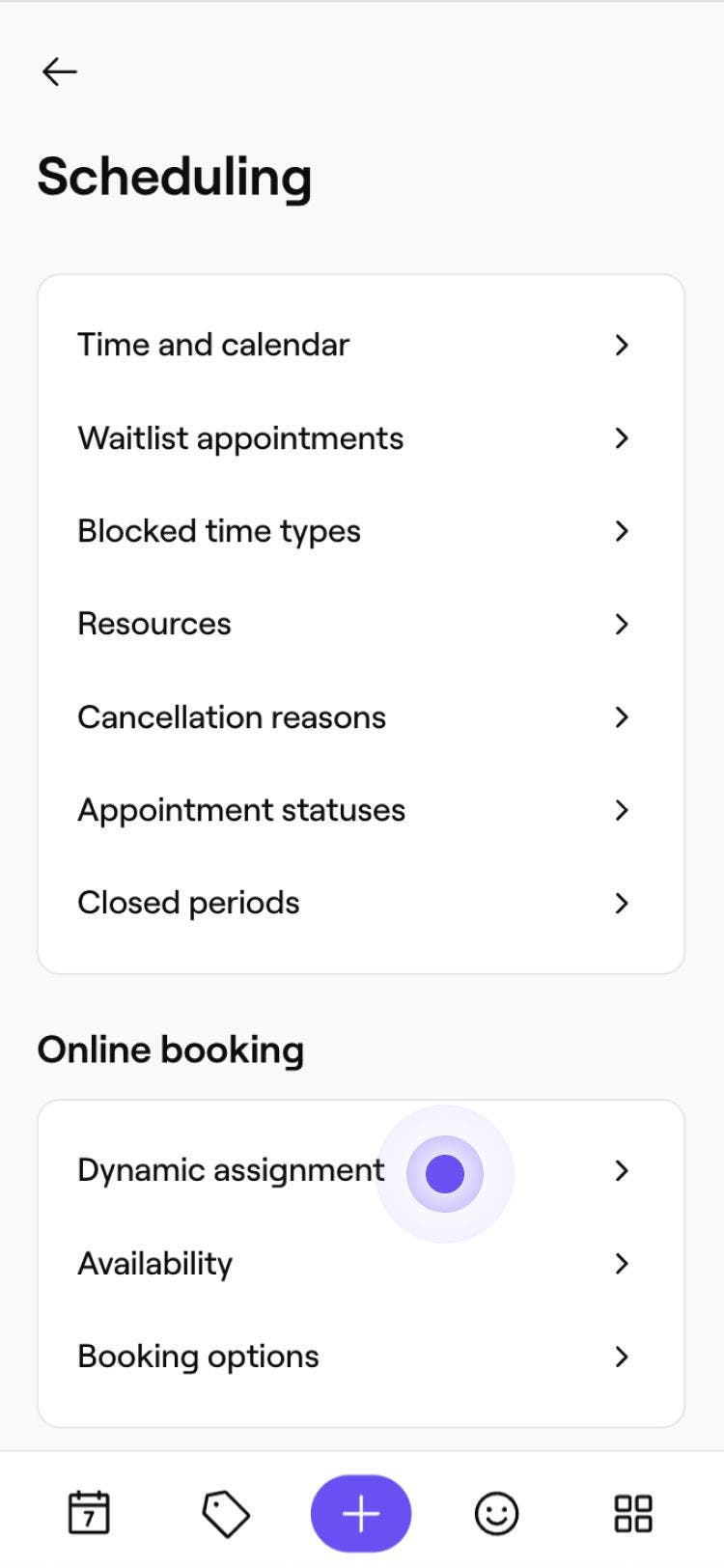
Then, select Dynamic assignment from the left menu panel.
-
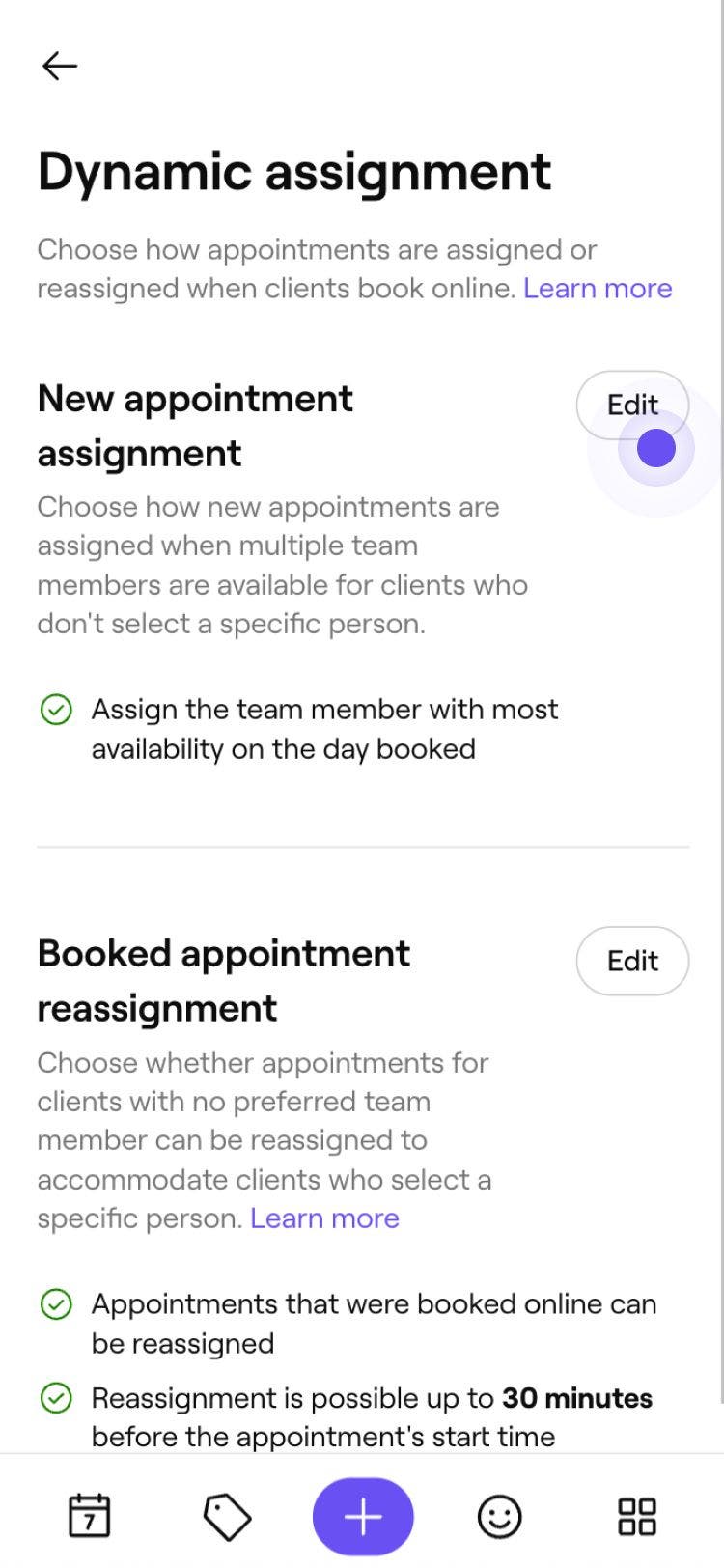
Next to New appointment assignment, click on the Edit button to update the settings.
-
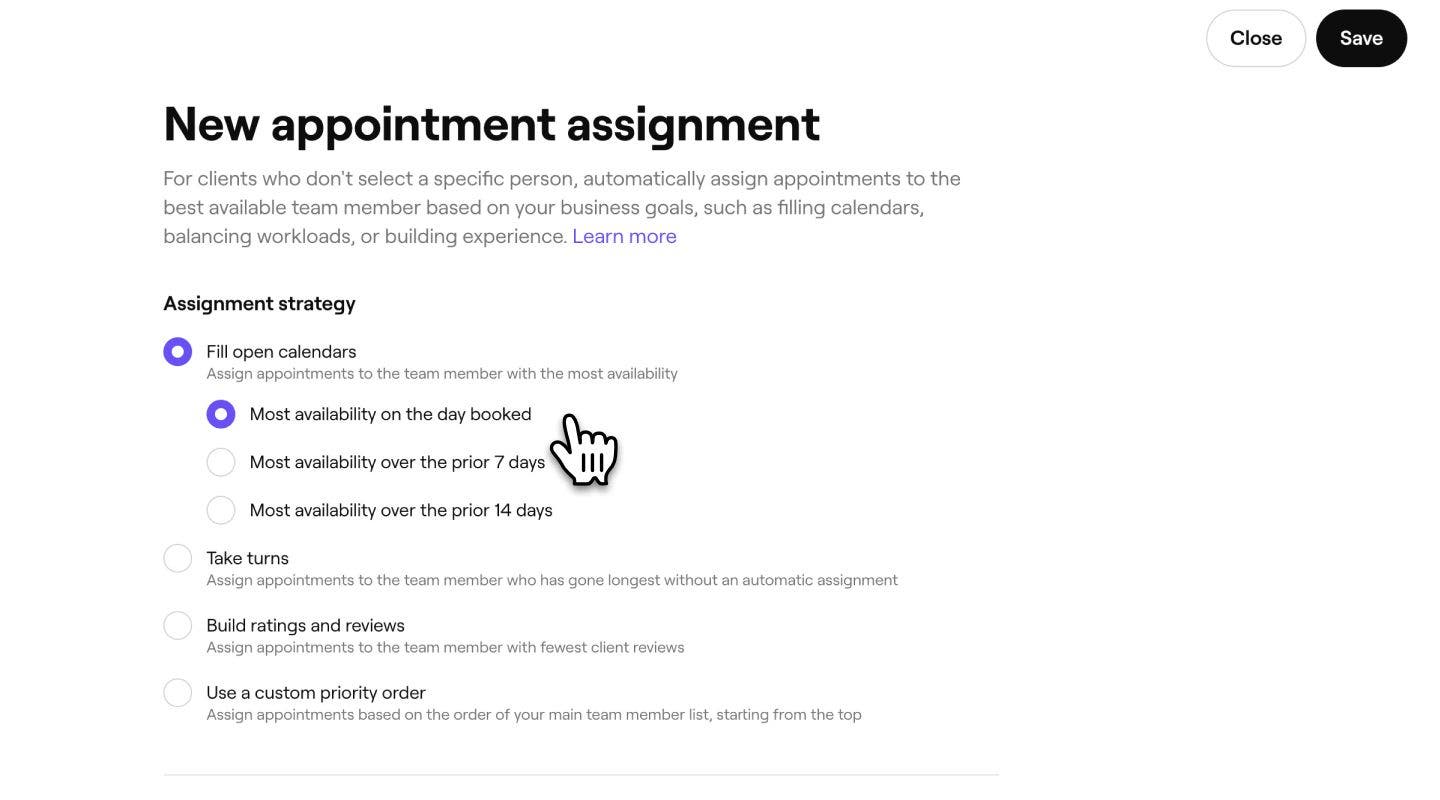
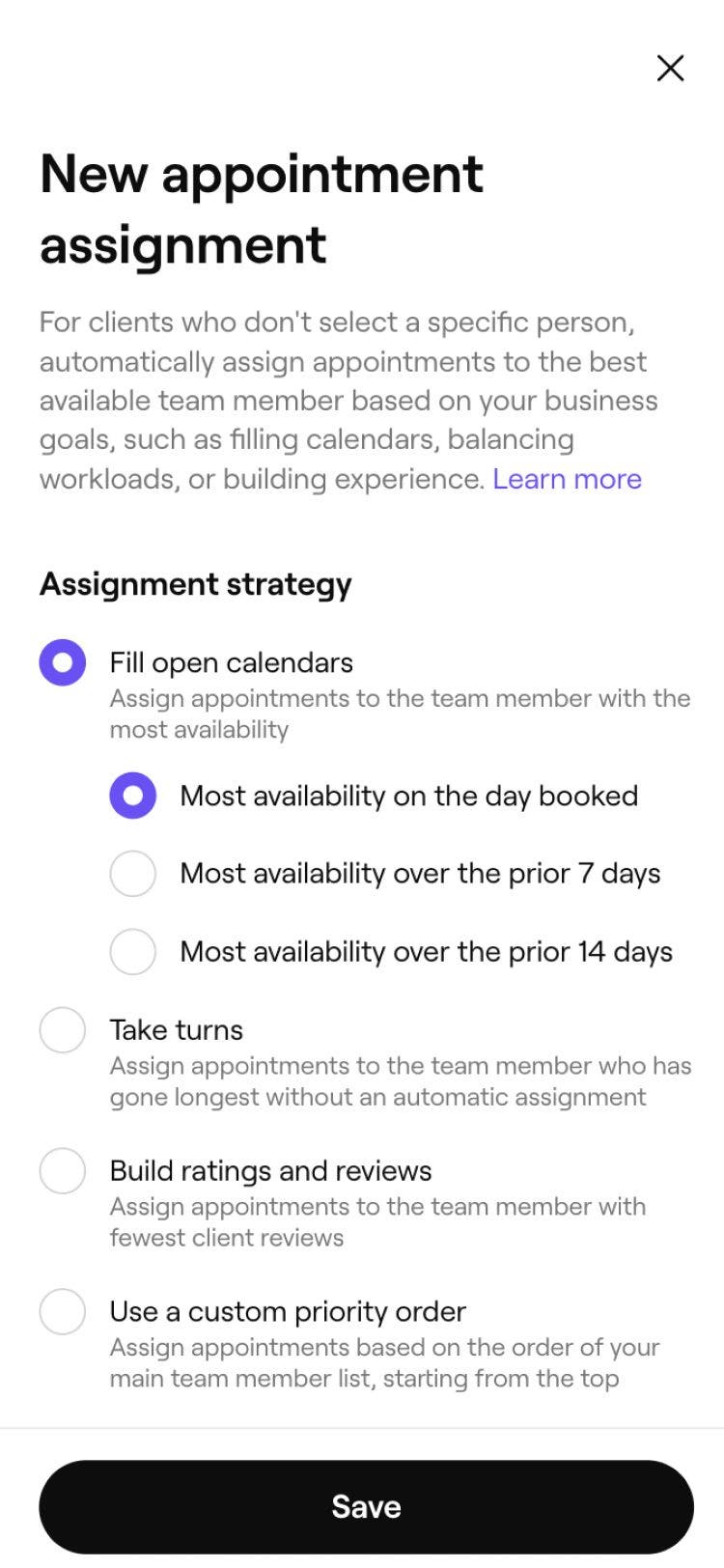
Choose your assignment strategy:
- Fill open calendars: Assign appointments to the team member with the most availability, on either the day of the appointment, the prior 7 days or the prior 30 days.
- Take turns: Assign appointments to the team member who has gone longest without an automatic assignment.
- Build ratings and reviews: Assign appointments to the team member with the fewest client reviews.
- Use a custom priority order: Assign appointments based on the order of your main team member list, starting from the top.
-
Tick the check box next to Prioritize last booked team members to prioritize assigning returning clients to the team member they booked with most recently.
-
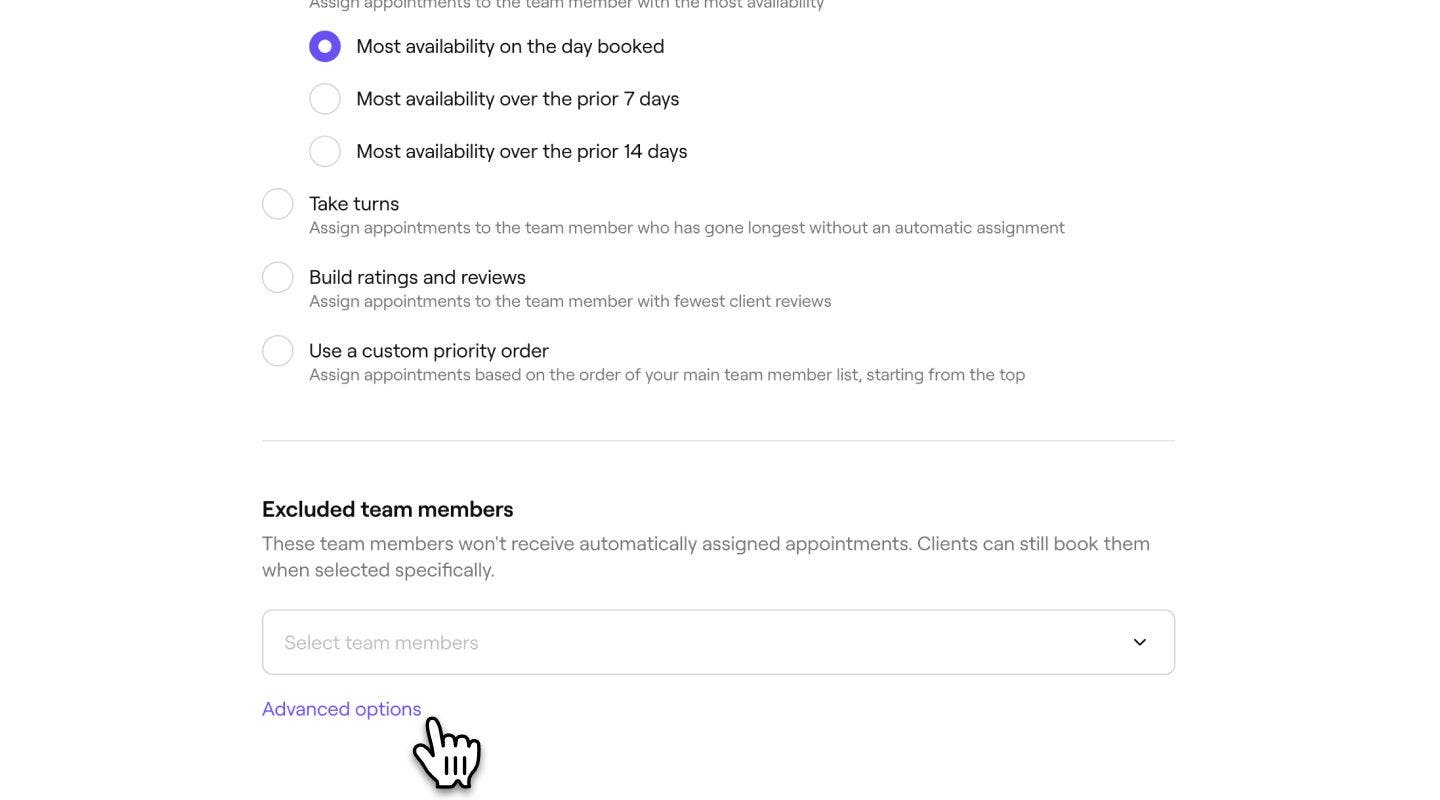
To set different rules for different locations, select Advanced options and select the right assignment strategy per location. Click Save to update your changes.
-
Under Excluded team members, use the dropdown to choose the team members that you’d like to exclude from the appointment assignment. They’ll still be bookable online when clients select them specifically.

-
Below, use the toggle for Allow splitting multi-service appointments across team members. This means that when a client books multiple services without a specific team member, different team members can be assigned to each service.
-
Click on the Save button in the top right to apply the updates.

Your new appointment assignment rules are now active. When clients book without selecting a specific team member, Fresha assigns one automatically based on the rules you've set up.
FAQs
New appointment assignment only applies when a client books online without selecting a specific team member. If a client selects a team member directly, their choice is always honored. Appointments booked by your team in the calendar are not affected by this setting.
Any team member who is available and offers the requested service at the required time is eligible. You can exclude specific team members, for example, a business owner or senior stylist you want to keep available only for direct client requests. Excluded team members still appear in the booking flow and can still be chosen directly by clients.
If no team member is available to take the appointment, the time slot won't be offered to the client during online booking. The assignment rules only apply when at least one eligible team member is free.
Yes, excluding a team member from automatic assignment only prevents them from being selected by Fresha when a client books without a preference. They remain part of your team and can still be booked directly by clients who choose them.
Changes to new appointment assignment only apply to appointments booked after you save the updated settings. Existing appointments in your calendar aren't impacted.
The returning client preference applies when the client's previously booked team member is available at the time they're booking. If that team member isn't available, Fresha falls back to the assignment type you've chosen.