Set up booked appointment reassignment
Learn how to set up booked appointment reassignment to give clients a better chance of booking with their preferred team member.
In this article
About booked appointment reassignment
If a client has requested a specific team member when booking an appointment online, Fresha checks whether any existing appointments (where the client has no team preference) can be reassigned to another available team member. The swap is made automatically, so fewer bookings get turned away.
For an appointment to be reassigned, the new team member must offer the same service at the same price and duration, so your clients are never surprised by unexpected changes at checkout. There's no limit on the number of times an appointment can be reassigned.
For example, a client has booked a hair cut at 2pm with Any team member, which is automatically assigned to the stylist Wendy. If a new client requests the same slot and stylist Wendy, the first client's appointment is automatically reassigned to another available stylist.
Set up booked appointment reassignment
-
From the main menu on the left of your screen, go to Settings.
-
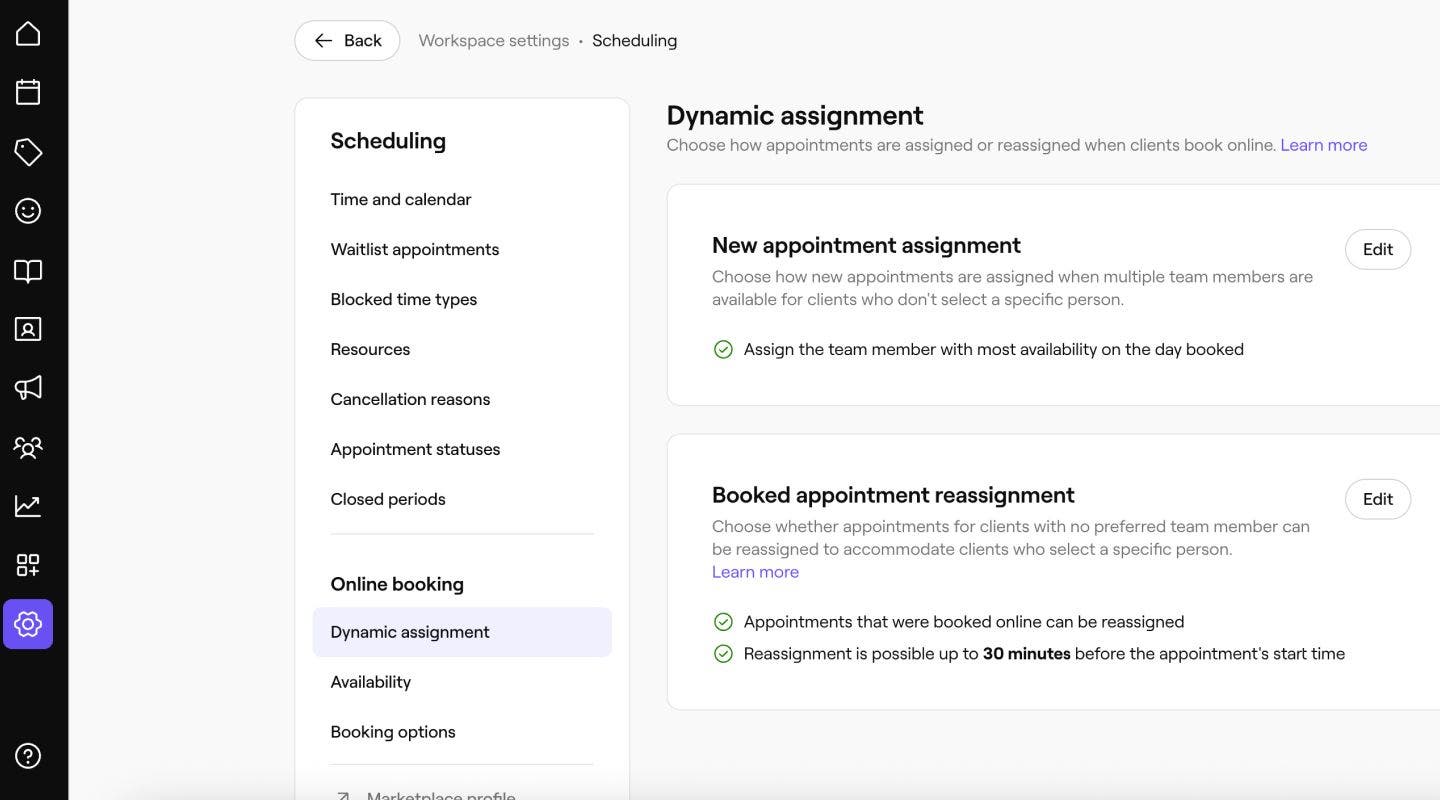
Click on the Scheduling category, and then select Online bookings from the left menu panel.
-
Next to Dynamic reassignment, click on the Edit button to update the settings.
-
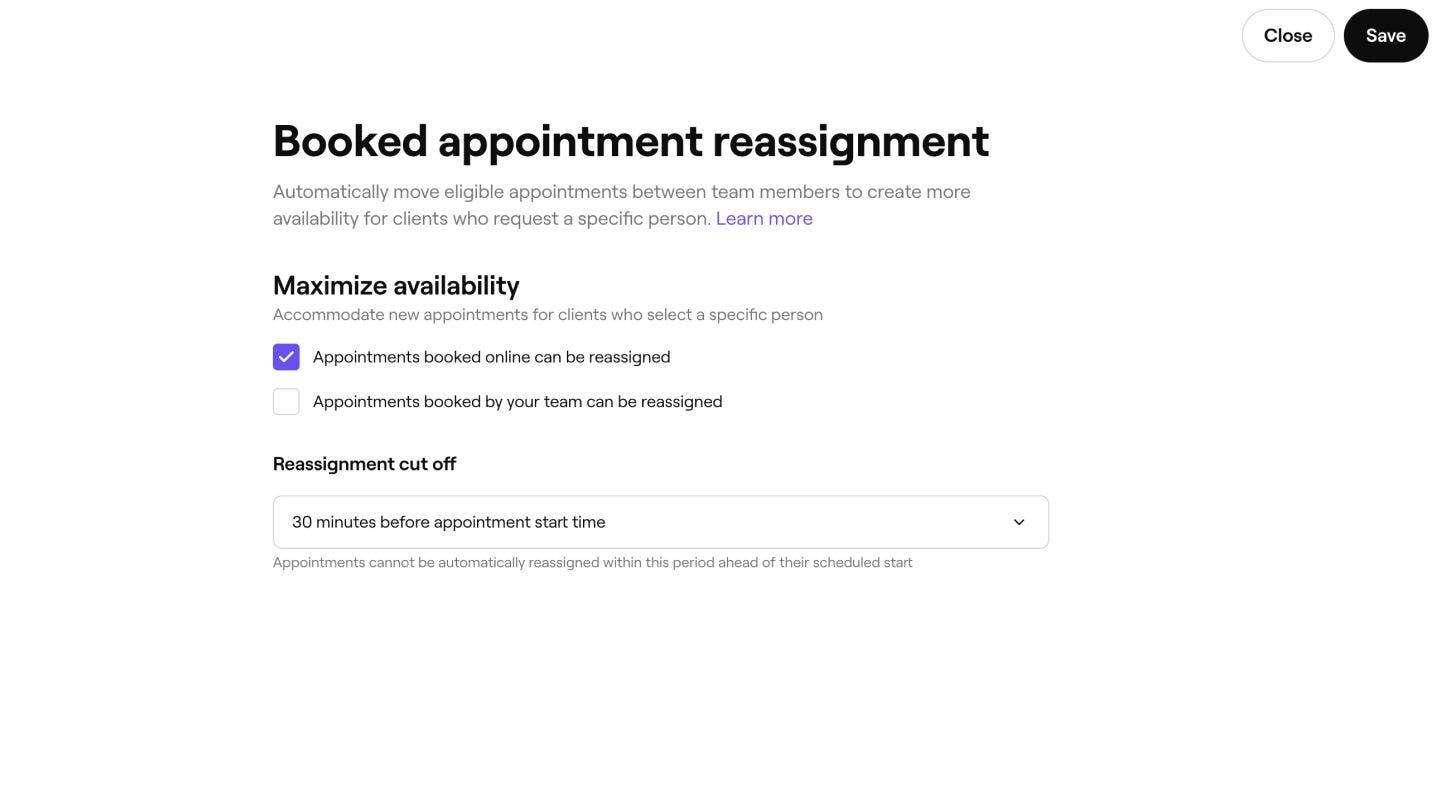
Choose which appointments can be automatically assigned by ticking the checkboxes next to the appointment types you want to include:
- Appointments booked online: Any bookings that clients have made online, where the client has selected Any team member at booking, can be automatically reassigned.
- Appointments booked by your team: Any booking that is scheduled in store can be automatically reassigned to another team member.
-
Under Appointment lead time, use the dropdown to choose how close to the appointment start time appointments can be reassigned.
- Appointments within this time won’t be automatically reassigned.
-
Click on the Save button in the top right to apply the updates.
Once saved, any appointments made after this update will be eligible to be automatically moved to free up space for clients who request a specific team member. A record of every reassignment appears in the appointment's activity log.
Check reassignment activity
When an appointment is automatically reassigned, a timestamped entry is added to the appointment's activity log so you always have a clear record of what changed and why.
-
From the main menu on the left of your screen, go to Calendar.
-
Click on the appointment you want to view.
-
In the right panel of the appointment view, click on Actions (three dots)and select Appointment activity to see a full log of changes, including any reassignments made by dynamic reassignment.
-
An appointment update will show that the appointment was automatically reassigned to a new team member to make space for a new appointment.

Each reassignment entry shows the original team member, the new team member, and the reason for the change.
FAQs
-
No team member preference is set
- For online bookings, the client selected No preference
- For calendar bookings, the heart icon is not selected on the appointment
-
It falls outside the appointment lead-time window. This is the minimum time required before an appointment starts for it to be automatically reassigned to another team member.
-
Another suitable team member is available and offers the same service at the same price and duration
Clients aren't notified of the change when booked appointment reassignment moves an appointment to a new team member. The appointment time, service, and price all remain exactly the same, so there's nothing unexpected for the client when they arrive.
Team members receive a notification when an appointment is assigned to them through booked appointment reassignment, in the same way they're notified for any other new appointment if they have Appointment notifications enabled in their settings.
Booked appointment reassignment never cancels or removes a booking. It only moves an eligible appointment to a different available team member. Every client keeps their appointment at the same time, for the same service and price.
You can choose which appointments are eligible for booked appointment reassignment: Appointments booked online, Appointments booked by your team. Having both of these selected means that any appointments scheduled in store can be reassigned, as well as any appointments booked by clients online where Any team member has been selected.
Booked appointment reassignment can be turned off through your Online booking settings by unticking both the checkboxes for Appointments booked online and Appointments booked by your team.
An appointment can be reassigned using booked appointment reassignment if all of the following criteria are met:
As soon as booked appointment reassignment is enabled, it can apply to both existing and new appointments. This includes any appointments already in your calendar, even if they were booked before the feature was turned on.
-