HomeKnowledge baseFresha academy
Create and manage types of time off
Back
  1. Knowledge base•
  2. Calendar and schedule•
  3. Create and manage types of time off

Create and manage types of time off

In this guide, you’ll learn how to create time off types such as holiday, sick leave, or training.

In this article

  • How types of time of work
  • Create time off types
  • Manage time off types

 How types of time of work 

Types of time off help you stay organised by giving each absence a clear reason. Once created, these can be applied when scheduling time off.

Create time off types

  1. From the main menu on the left of your screen, go to Settings. 
  2. Select the Settings tab from the top and click on Team. 
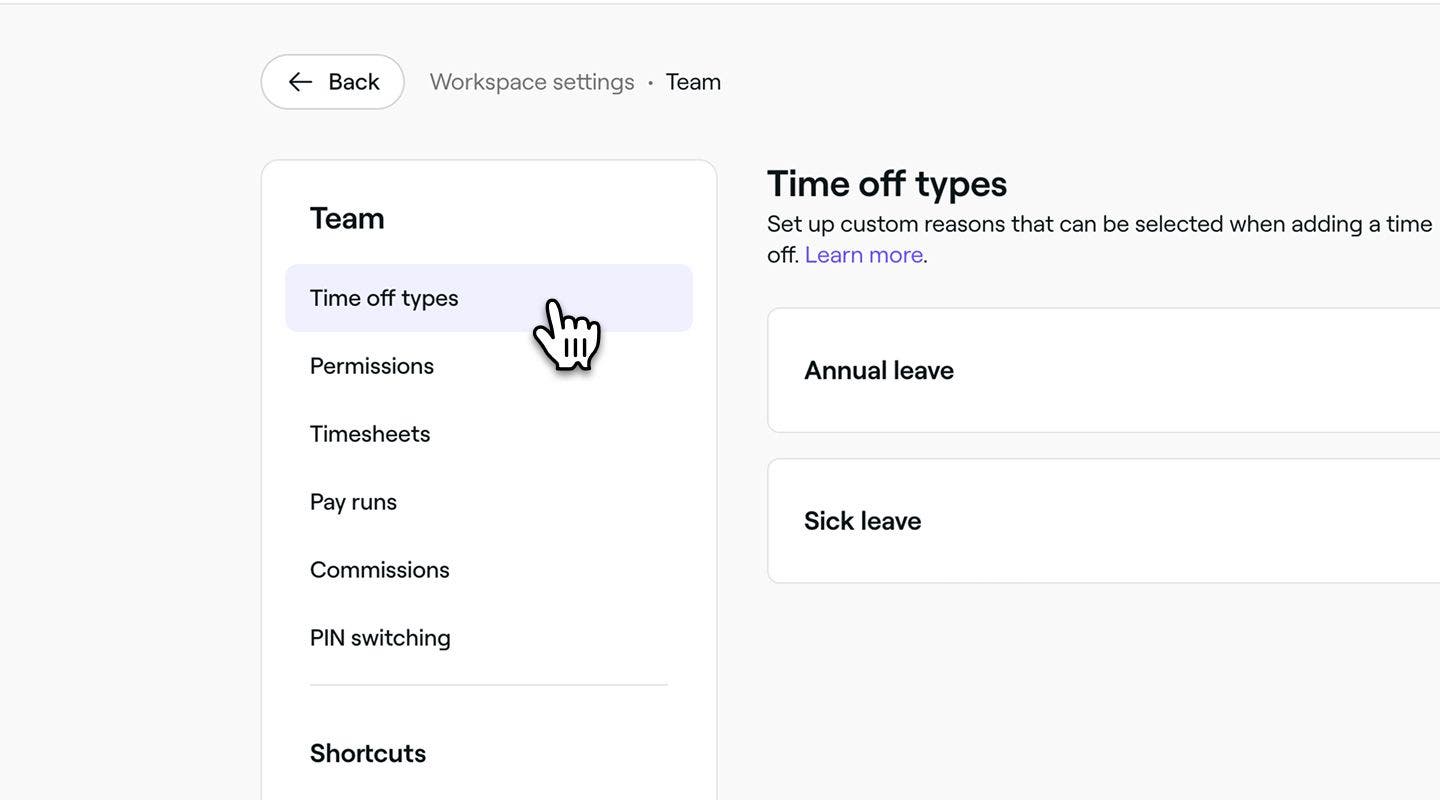
  3. In the left menu panel, select Time off types to view and manage your time off reasons
    Create_time_off_types_web_3.jpg
  4. Click on the Add button in the top right to create a new time off type.
    Create_time_off_types_web_4.jpg
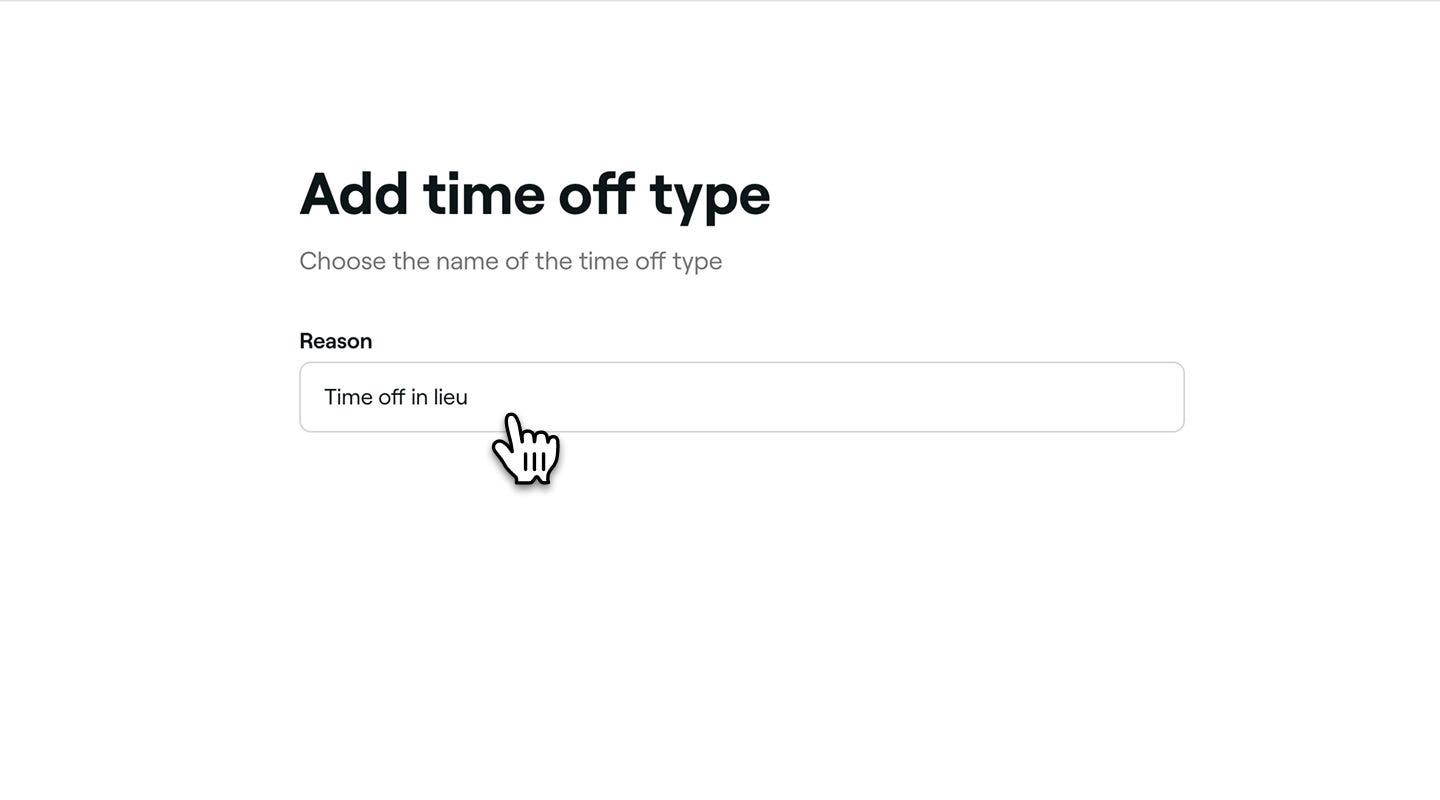
  5. On the Add time off type page, add a reason. For example,’Time off in lieu’ or ‘Jury duty’.
    Create_time_off_types_web_5.jpg
  6. Click on the Add button in the top right to save your new time off type.
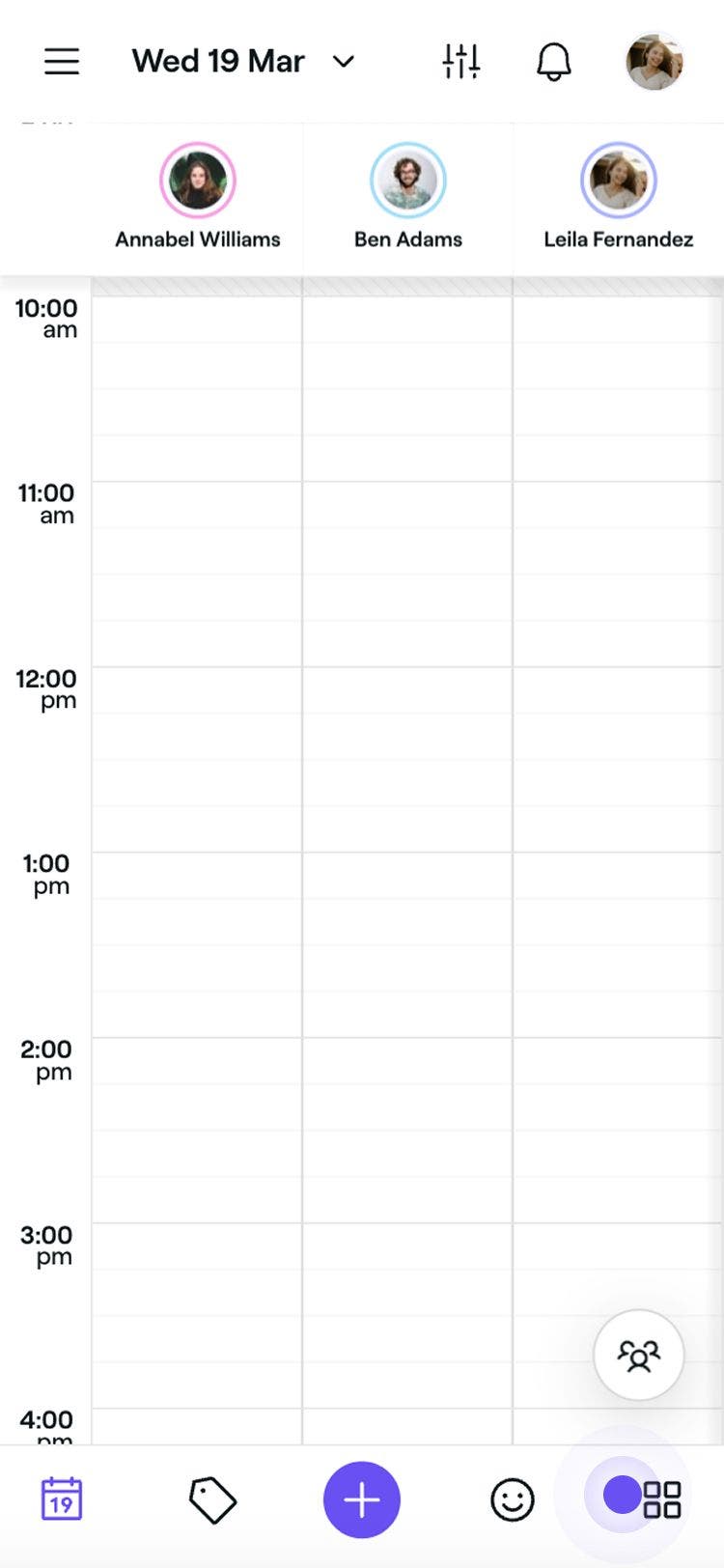
  1. From the main menu at the bottom of your screen, tap on More (grid icon) to open more options.
    tap_more_icon.jpg
  2. Select Settings from the menu, then tap Team from the Workspace settings menu.
  3. In the Team menu, tap Time off types to view and manage your time off reasons.
    Create_time_off_types_mob_3.jpg
  4. Tap on the Add button in the top right to create a new time off type.
    Create_time_off_types_mob_4.jpg
  5. On the Add time off type page, add a reason. For example, ‘Time off in lieu’ or ‘Jury duty’.
    Create_time_off_types_mob_5.jpg
  6. Tap on the Add button at the bottom to save your new time off reason.

Once added, the time off reason will be ready to use when managing adding time off for your team members.

Manage time off types

  1. Open Time off types from Team settings.
    manage_time_off_types_web_3.jpg

  2. Click on Actions next to a time off type and choose one of the following options from the panel:

    1. Edit: Update the time off type reason and tap on the Save button in the top right. 
    2. Delete: Permanently remove the time off type. A confirmation pop-up will appear, asking you to confirm the deletion.
    3. Move up: Move the time off type higher on the list to adjust its display order.
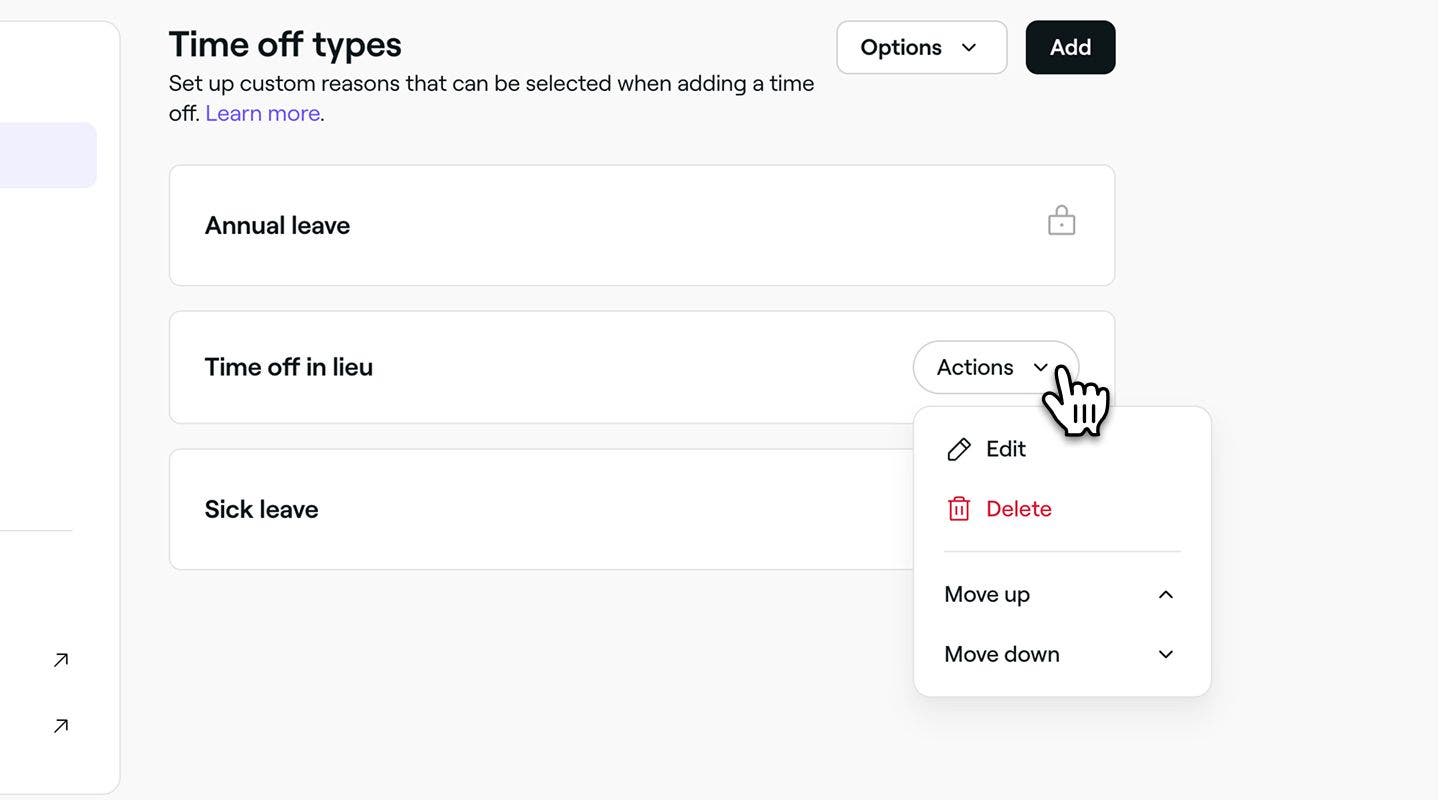
    4. Move down: Move the time off type lower on the list to adjust its display order.

    manage_time_off_types_web_4.jpg

  1. Open Time off types from Team settings.
    Create_time_off_types_mob_3.jpg

  2. Tap on Actions (three dots) and choose one of the following options:

    1. Edit: Update the time off type reason and tap on the Save button at the bottom. 
    2. Delete: Permanently remove the time off type. A confirmation pop-up will appear, asking you to confirm the deletion.
    3. Move up: Move the time off type higher on the list to adjust its display order.
    4. Move down: Move the time off type lower on the list to adjust its display order.

    manage_time_off_types_mob_4.jpg

Schedule management

Was this guide helpful?

Schedule management

Manage scheduled shifts for team members

Learn how to use advanced scheduling to create manageable team shifts.

Manage time off for your team

Take note of your team's time off with customizable reasons for their leave.

Create and manage types of time off

Keep track of your team’s availability by setting up customizable time off types.

Manage bookable resources

Create bookable resources for services and learn how to check availability easily.

Manage business closed periods

Make sure clients know when you're open or closed by updating business closed periods.

Fresha
Get the app

About Fresha

Careers

Help and support

Blog

Sitemap

For business

For partners

Pricing

Features

Scheduling

Point of sale

Payments

Capital

Marketplace

Support

Status

Legal

Privacy Policy

Terms of service

Terms of use

Find us on social

Facebook
Linkedin
Instagram

© 2026 Fresha.com SV Ltd