HomeKnowledge baseFresha academy
Manage time off for your team
Back
  1. Knowledge base•
  2. Calendar and schedule•
  3. Manage time off for your team

Manage time off for your team

In this guide, you'll learn how to create, add, and manage time off for your team, including holidays, sick leave, and personal days.

In this article

  • How scheduling time off works
  • Add time off through scheduled shifts
  • Add time off through your calendar
  • Update or delete time off

How scheduling time off works

Scheduling time off helps you block out days when a team member isn't available to take bookings. Once added, this time appears on the calendar so you can easily see who’s available when scheduling appointments.

If your entire business is unavailable, like during public holidays or maintenance you can set a closed period instead, which blocks bookings for all team members at once.

Add time off through scheduled shifts

  1. From the main menu on the left of your screen, go to Team.

  2. In the left menu panel, select Scheduled shifts.

  3. Add time off using one of the following methods:

    1. Click on a day and select Add time off from the options.
      Add time off through the Fresha Scheduled shifts screen.
    2. Click on the Add button in the top right and select Time off from the panel.
      Group 30876.jpg
  4. In the Add time off pop-up, select the Team member and the Type of absence. 

  5. Set the Start date, Start time, and End time. The total hours off will be displayed.

    1. For multiple days, check the Repeat box and choose an end date.

    Group 30877.jpg

  6. Use the Description section to add any additional information for your team. 

  7. Tick the Approved checkbox if the time off is confirmed.
    Group 30878.jpg

  8. Click on the Save button to add the time off to your team member's schedule.

  1. From the main menu at the bottom of your screen, tap on More (grid icon) to open more options.

  2. Tap Team from the menu, then select Scheduled shifts from the Team menu.

  3. Select a team member to open their shift view. 

  4. Tap on any day and select Add time off from the options. 
    Group 30879.jpg

  5. In the Add time off pop-up, select the Team member and the Type of absence. 

  6. Set the Start date, Start time, and End time. The total hours off will be displayed.

    1. For multiple days, tick the Repeat checkbox and choose an end date.

    Group 30880.jpg

  7. Use the Description section to add any additional information for your team. 

  8. Tick the Approved checkbox if the time off is confirmed.

    Group 30881.jpg

  9. Tap on the Save button at the bottom to add the time off to your team member's schedule.

The time off will appear in the team member’s scheduled shifts and help keep your calendar up to date.

Add time off through your calendar

  1. From the main menu on the left of your screen, go to Calendar.

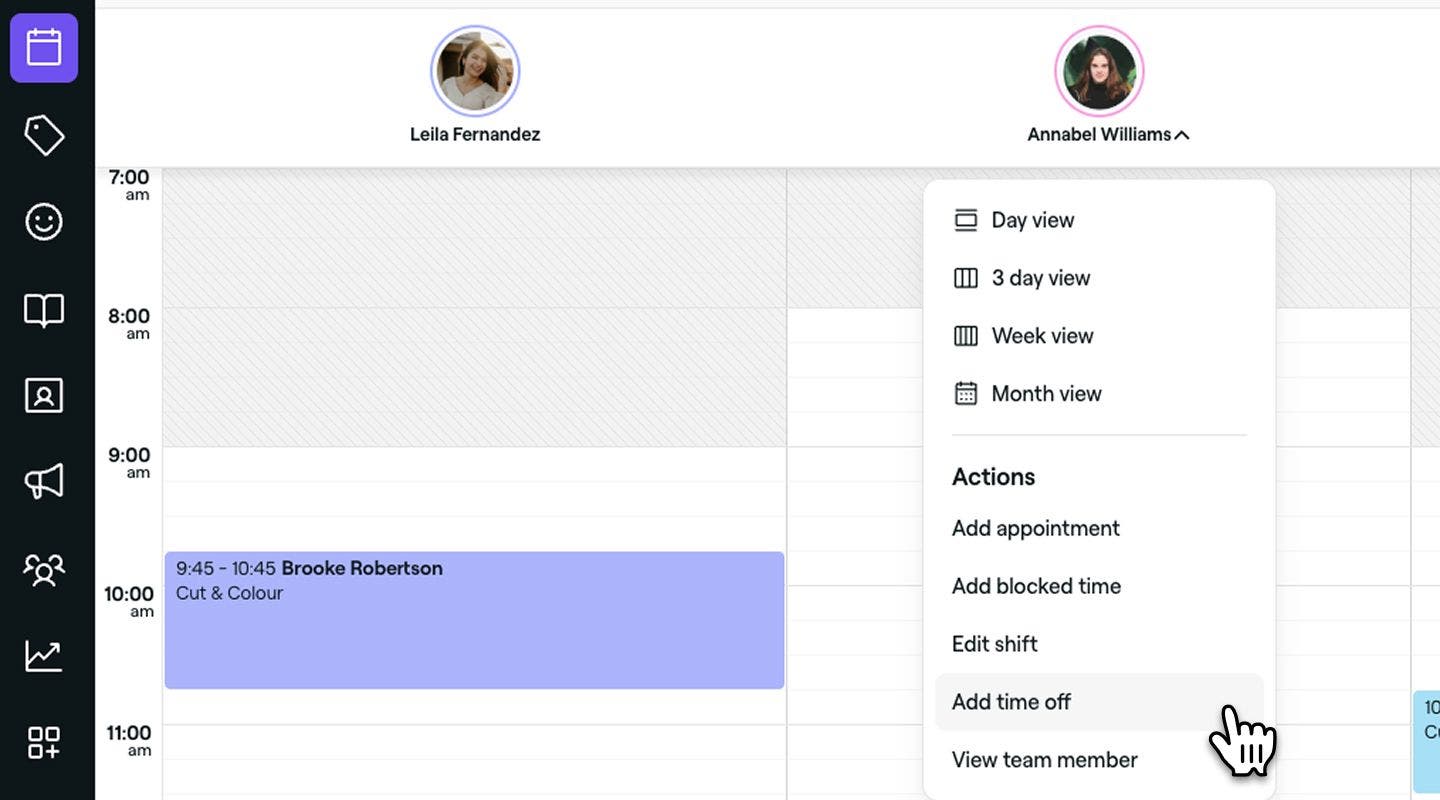
  2. Add a blocked time by clicking on a team member and selecting Add time off from the panel.add_time_off_calendar_desktop.jpg

  3. In the Add time off pop-up, select the Team member and the Type of absence. 

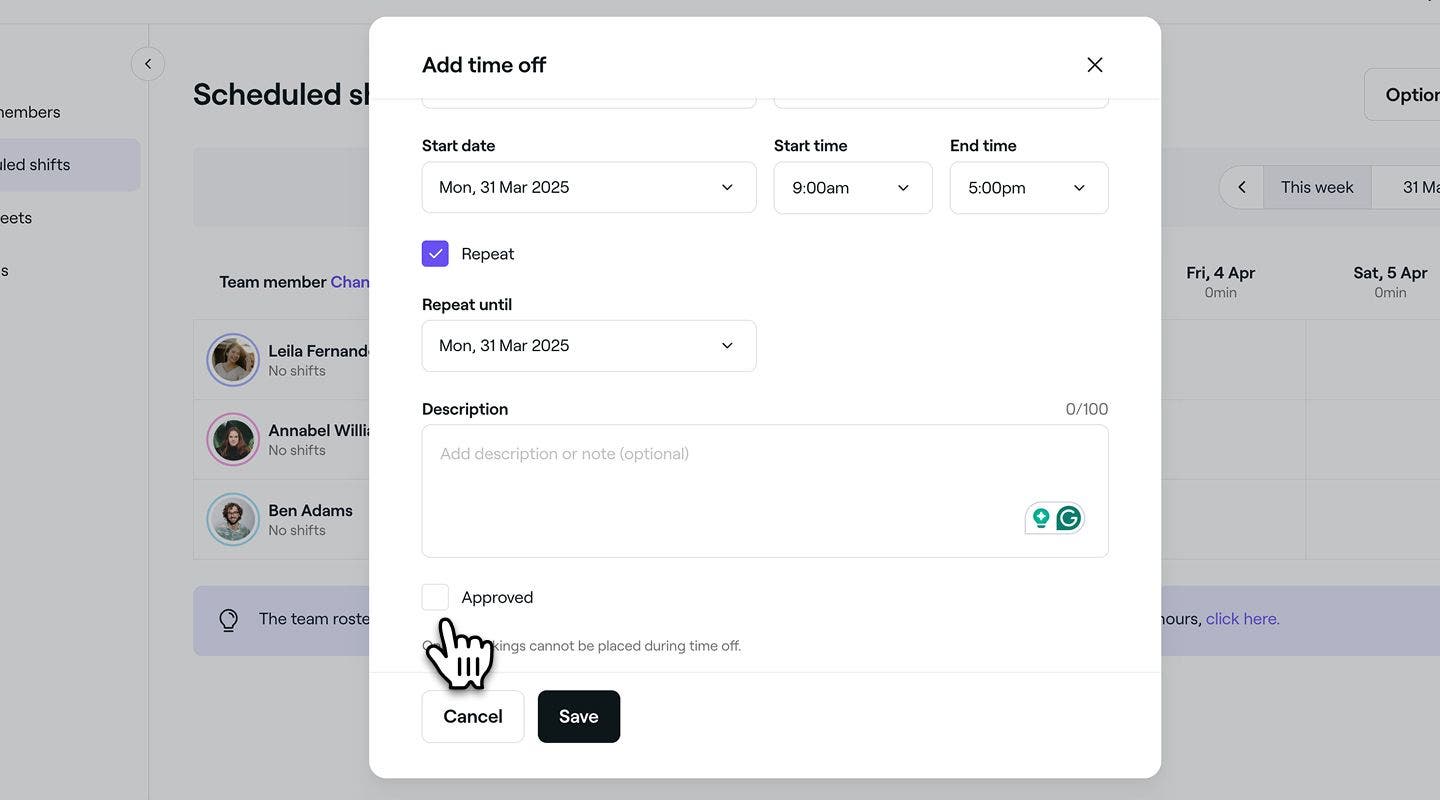
  4. Set the Start date, Start time, and End time. The total hours off will be displayed.

    1. For multiple days, tick the Repeat box and choose an end date.

      time_off_through_scheduled_shifts_web_7.jpg

  5. Use the Description section to add any additional information for your team. 

  6. Tick the Approve box if the time off is confirmed.

    time_off_through_scheduled_shifts_web_7.jpg

  7. Click on the Save button to add the time off to your team member's schedule.

  1. From the main menu at the bottom of your screen, go to the Calendar icon.
  2. Tap on a team member and select Add time off from the options. select_time_off_mobile.jpg
  3. In the add time off pop-up select the Team member and the Type of absence. 
  4. Set the Start date, Start time, and End time. The total hours off will be displayed.
    1. For multiple days, tick the Repeat box and choose an end date.
  5. Use the Description section to add any additional information for your team. 
  6. Tick the Approve box if the time off is confirmed.save_time_off_mobile.jpg
  7. Tap on the Save button at the bottom to add the time off to your team member's schedule.

The time off will appear in the team member’s scheduled shifts and help keep your calendar up to date.

When using a mobile device, you can also add a time off from the main menu along the bottom of your screen by tapping the Plus (+) icon and selecting Add time off from the options.

Update or delete time off

  1. From the main menu on the left of your screen, go to Team.
  2. In the left menu panel, select Scheduled shifts.
    Group 30883.jpg
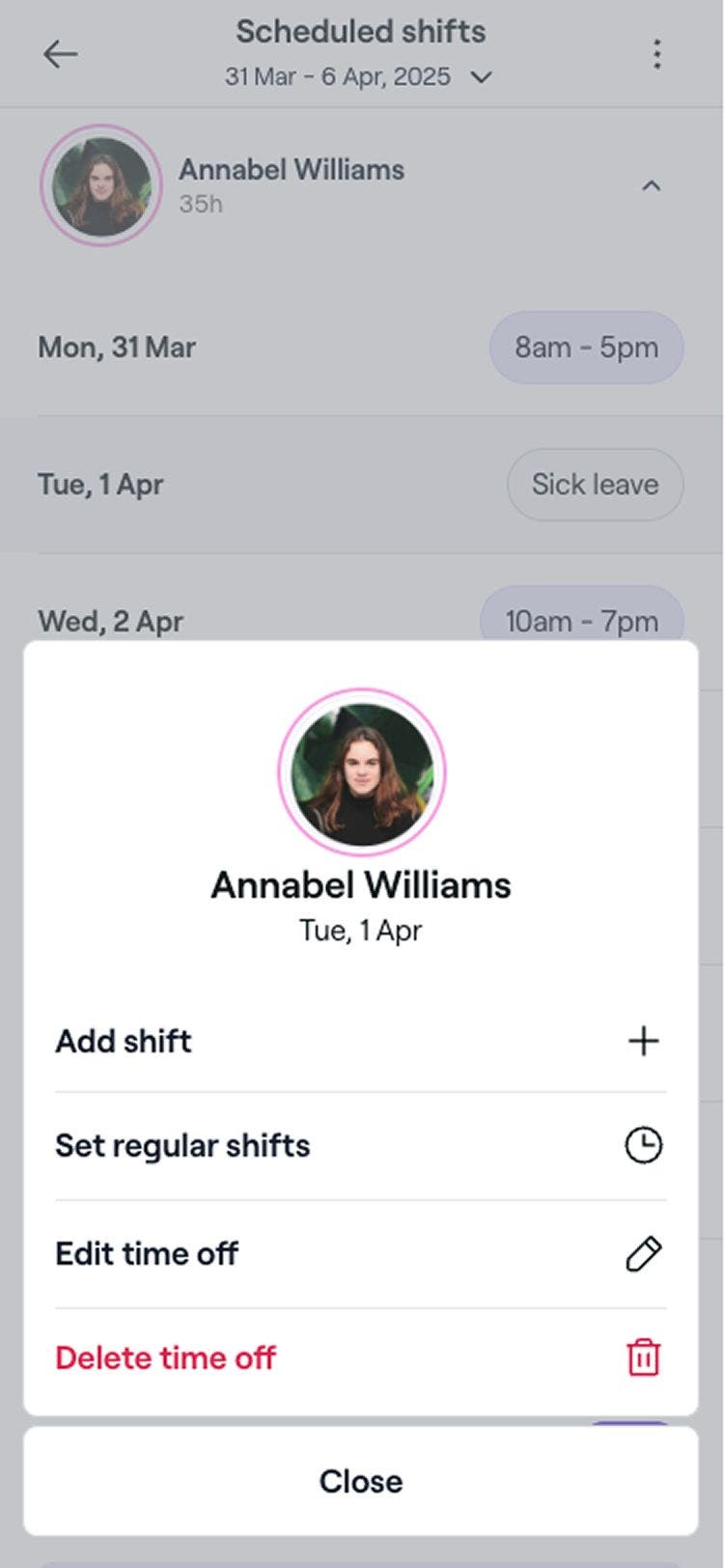
  3. Select a scheduled time off and choose of the following options:
    Group 30882.jpg
    1. Edit: Update the time off and click on the Save button to update it.
    2. Delete: Permanently remove the time off from your team members' calendar. A confirmation pop-up will appear, asking you to confirm the deletion. Click Delete to confirm removal.
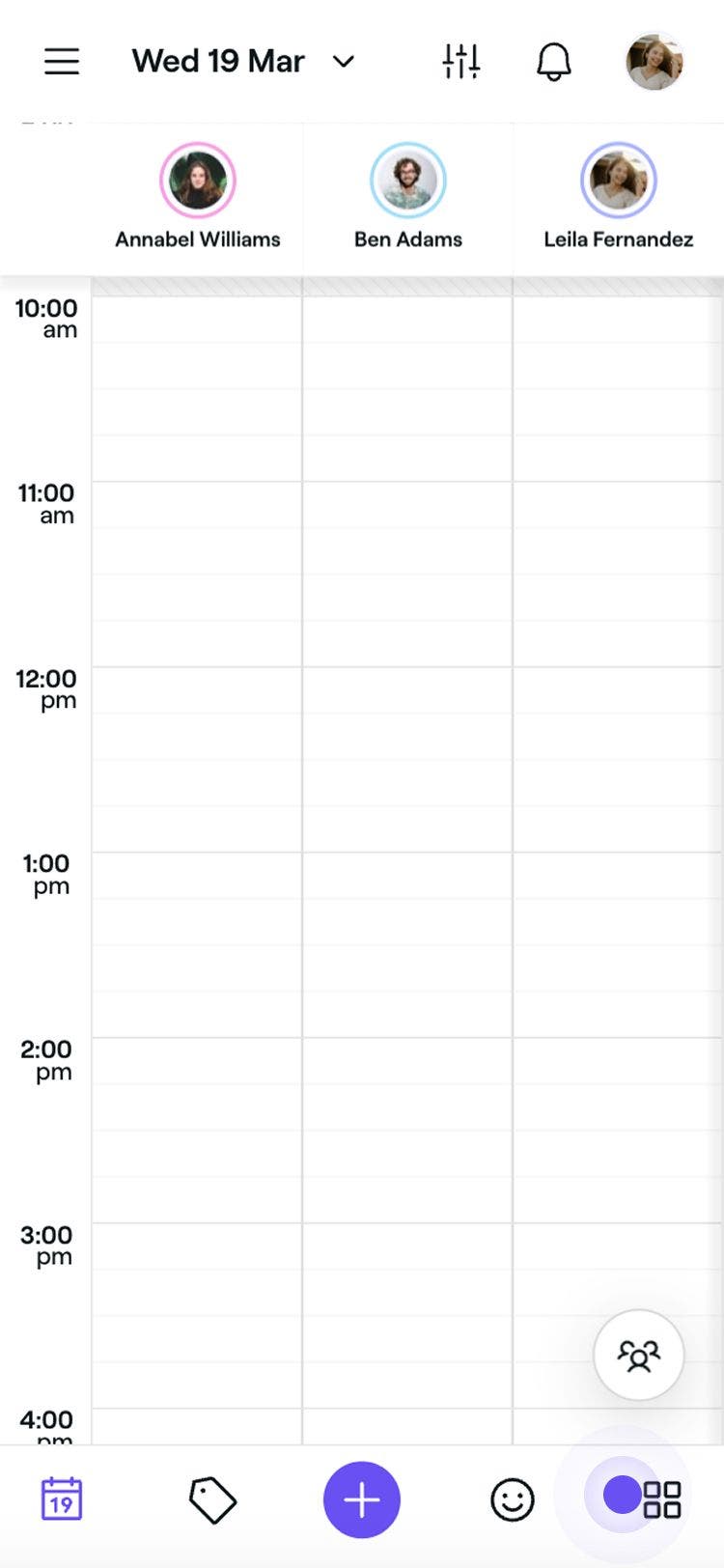
  1. From the main menu at the bottom of your screen, tap on More (grid icon) to open more options.
    tap_more_icon.jpg
  2. Tap Team from the menu, then select Scheduled shifts from the Team menu.scheduled_shifts_mobile.jpg
  3. Select a scheduled time off and choose of the following options:edit_delete_time_off_mobile.jpg
    1. Edit: Update the time off and tap on the Save button to update it.
    2. Delete: Permanently remove the time off from your team members' calendar. A confirmation pop-up will appear, asking you to confirm the deletion. Tap Delete to confirm removal.

FAQs

    • When you edit a time off entry, you can adjust its details. If you delete a time off period, the team member’s original scheduled shifts will be restored for those dates.

      Total time off is based on the scheduled shift hours for the day.  If no shift is scheduled, the system will show zero hours.

      To block out full business days like holidays, use Business closed periods. This keeps team shift schedules intact while preventing clients from booking online.


Schedule management


Related articles

Was this guide helpful?

Schedule management

Manage scheduled shifts for team members

Learn how to use advanced scheduling to create manageable team shifts.

Manage time off for your team

Take note of your team's time off with customizable reasons for their leave.

Create and manage types of time off

Keep track of your team’s availability by setting up customizable time off types.

Manage bookable resources

Create bookable resources for services and learn how to check availability easily.

Manage business closed periods

Make sure clients know when you're open or closed by updating business closed periods.

Related articles

Manage blocked time types

Manage blocked time types with customized titles, durations, and compensation settings.

Manage scheduled shifts for team members

Learn how to use advanced scheduling to create manageable team shifts.

Manage business closed periods

Make sure clients know when you're open or closed by updating business closed periods.

Fresha
Get the app

About Fresha

Careers

Help and support

Blog

Sitemap

For business

For partners

Pricing

Features

Scheduling

Point of sale

Payments

Capital

Marketplace

Support

Status

Legal

Privacy Policy

Terms of service

Terms of use

Find us on social

Facebook
Linkedin
Instagram

© 2026 Fresha.com SV Ltd