HomeKnowledge baseFresha academy
Message clients using AI Concierge
Back
  1. Knowledge base•
  2. AI Concierge•
  3. Message clients using AI Concierge

Message clients using AI Concierge

Learn how to use AI Concierge to manage your client chats in Client Connect, from answering questions to booking appointments.

In this article

  • About AI Concierge in Client Connect
  • Manage AI concierge channels

About AI Concierge in Client Connect

Your AI Concierge replies to every message in Client Connect for you, so every client gets a quick, accurate answer. Conversations are customer-initiated, and AI Concierge responds on your behalf, closing the conversation once it's resolved. When a request falls outside what AI Concierge can handle, or a client asks to speak to a human, it notifies a team member to take over the conversation.

Messages replies on Client Connect are unlimited, so it can always:

  • Share your services, prices and business details, such as your location, opening hours and anything in your knowledge base.
  • Book, reschedule and cancel appointments, following your online booking settings and schedule availability.
  • Let a team member know when a client asks for a person or needs help it can’t give.

Every interaction is visible in the AI Concierge activity log and in Fresha Connect, giving you full visibility into what's been handled. You can take over any conversation at any time, and as soon as you reply, AI Concierge stops responding so you can continue the conversation yourself.

Manage AI concierge channels

Choose whether AI concierge replies on phone, chat, or both. AI Concierge uses the same name and knowledge base, and escalation rules across both channels.

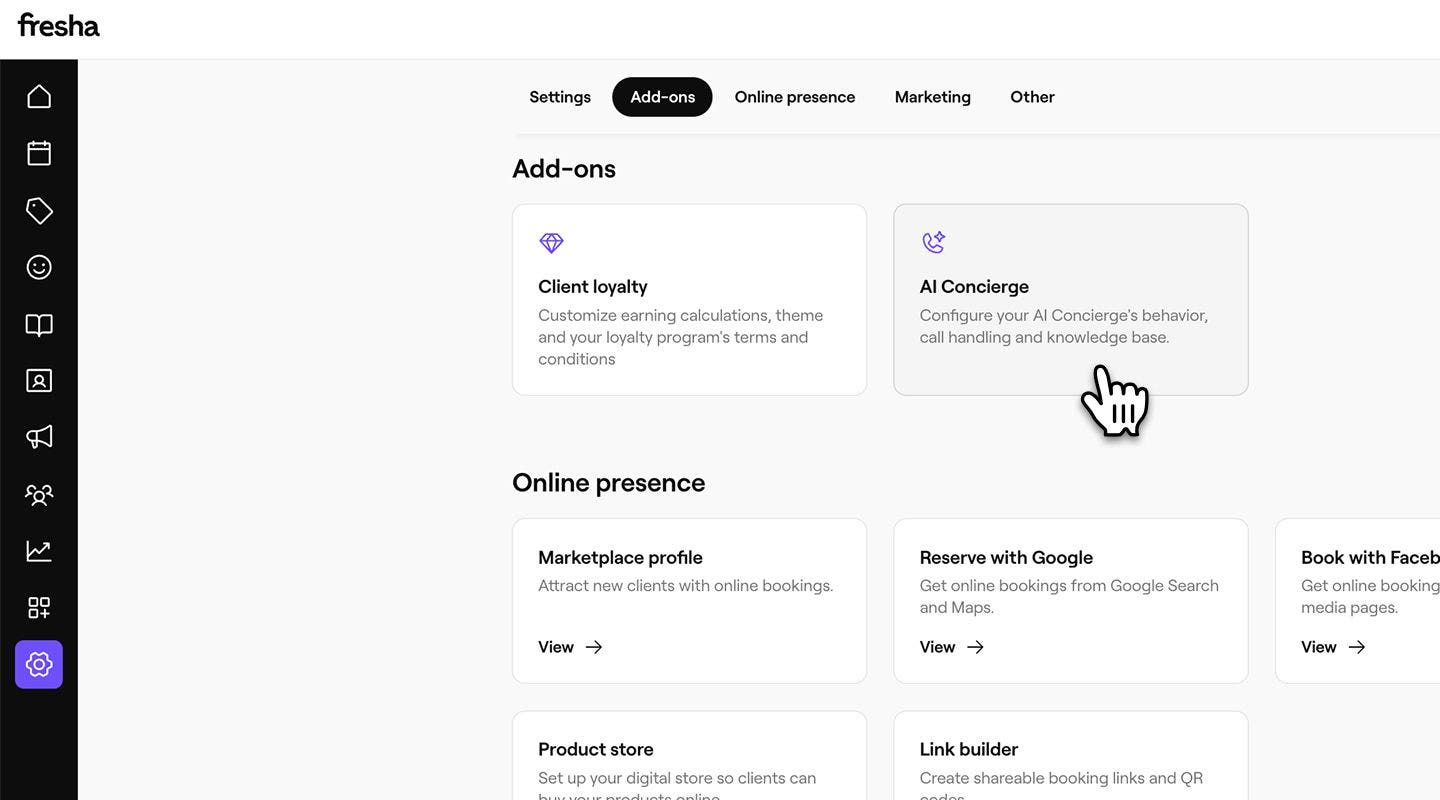
  1. From the main menu on the left of your screen, go to Settings.

  2. In the Add-ons section, click on AI Concierge to update your settings. Channel_web_2.jpg
  3. From the menu on the left panel, select Channels to manage the ways AI concierge supports your clients.  Channel_web_3.jpg
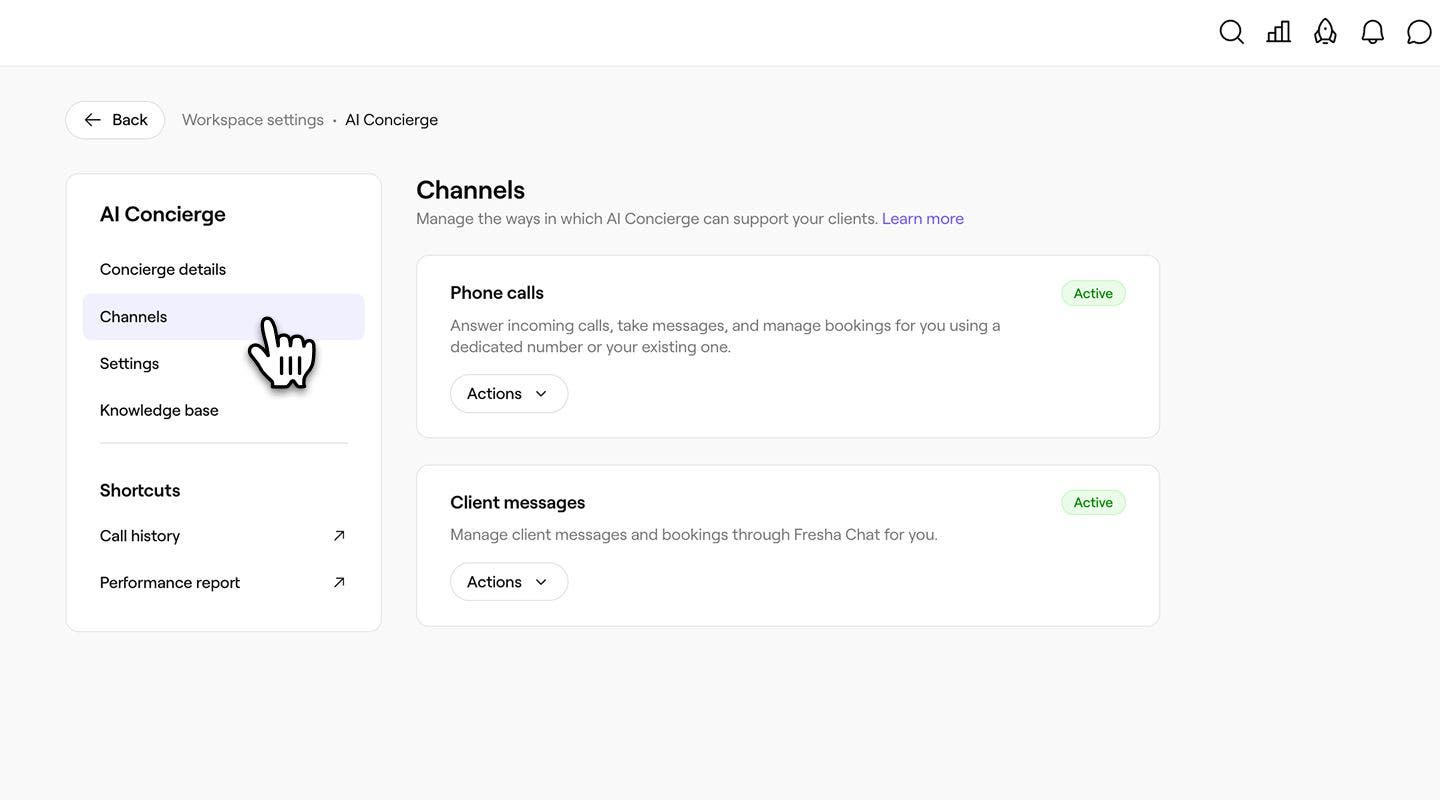
  4. Under Phone calls or Client messages, and select one of the following options:

    1. Enable phone calls: Click on the Enable button to start the AI Concierge setup flow. Once you complete setup, AI Concierge starts handling your phone calls.
    2. Enable client messages: Click on the Enable button to turn on AI Concierge for chat. You'll see a page outlining what AI Concierge will handle, and no extra setup is needed because chat uses the same settings as phone. Channel_web_4_2.jpg
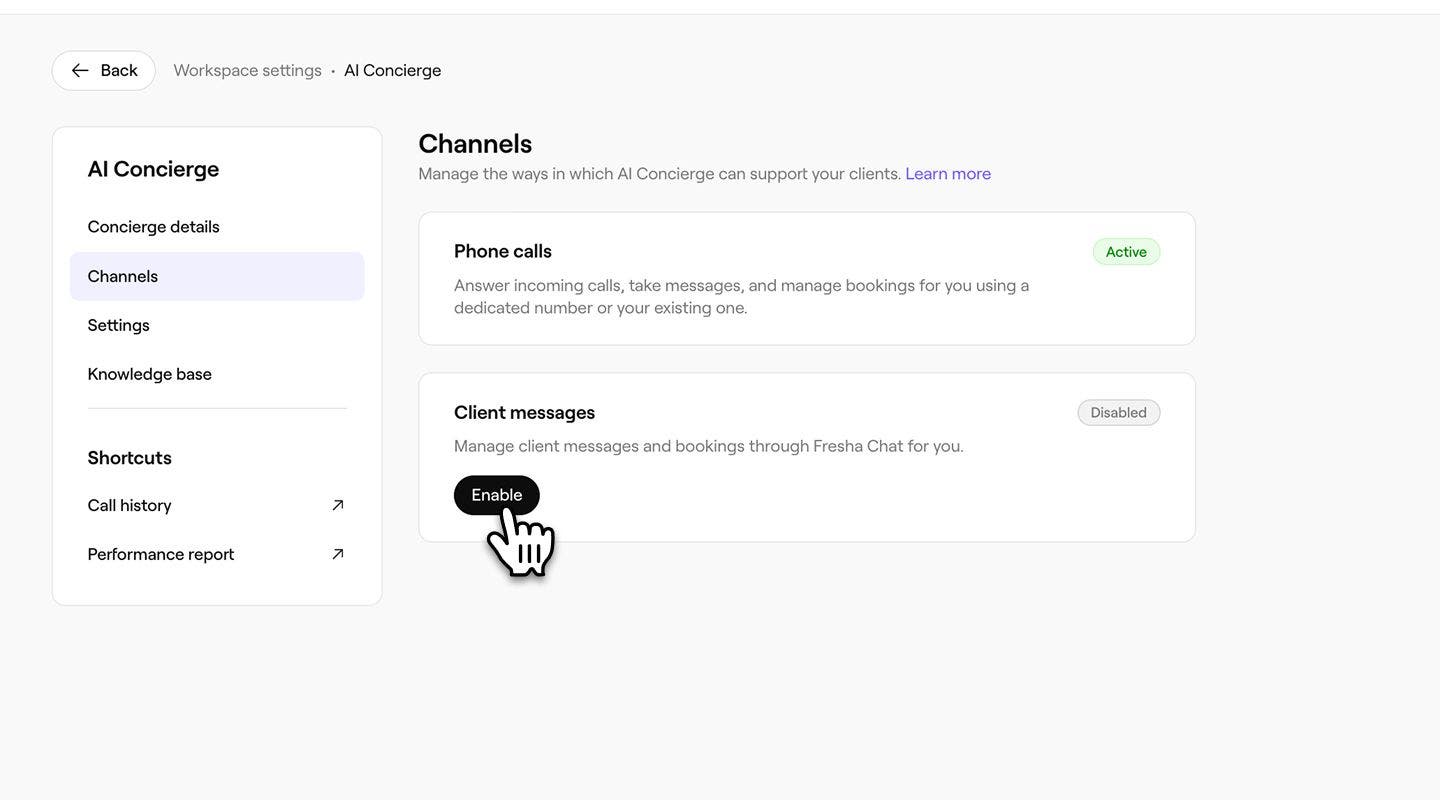
    3. Disable: Click on the Actions button, then select Disable. Click on the Disable button in the pop-up to confirm. AI Concierge will stop responding on that channel, and any new messages or calls will come straight to your team. Channel_web_4_3.jpg
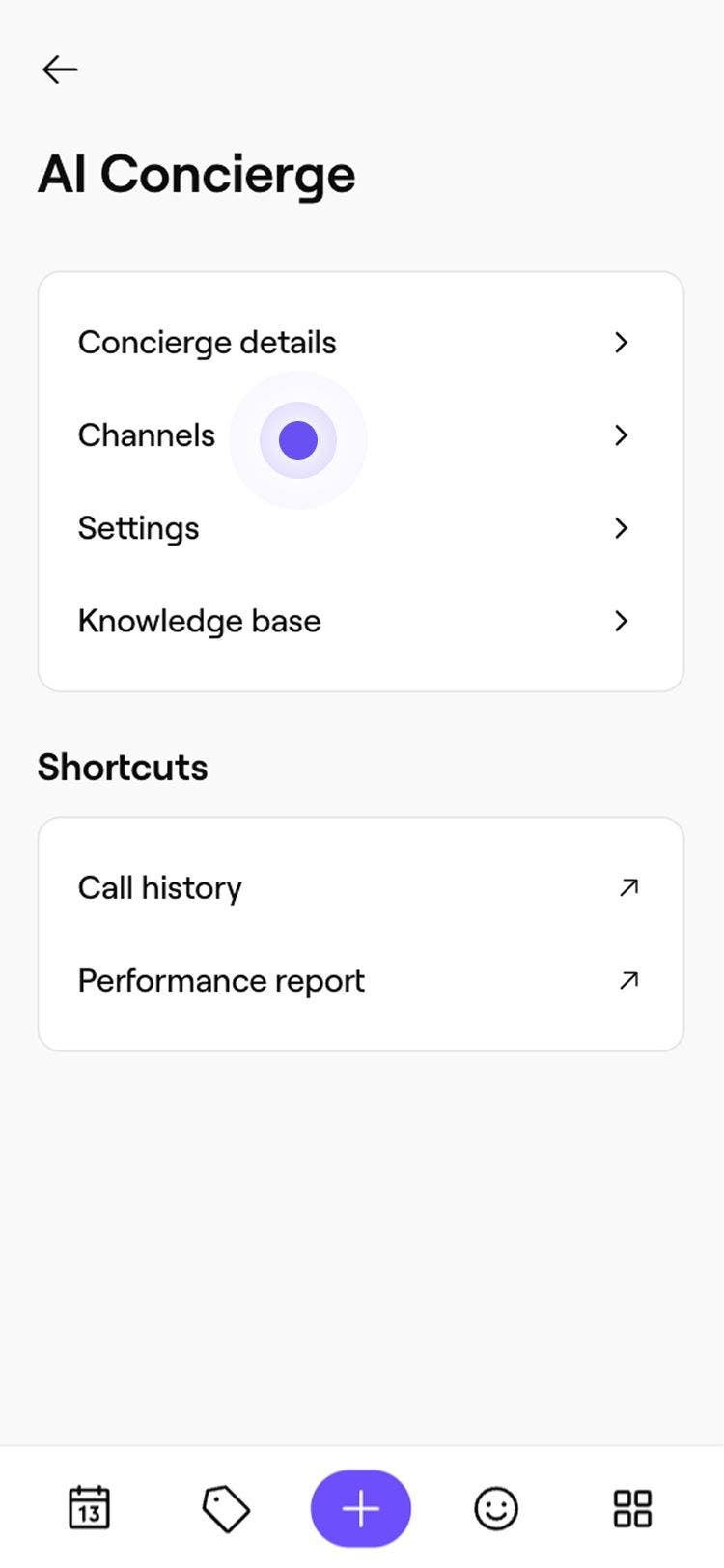
  1. From the main menu at the bottom of your screen, tap on More (grid icon) and open Settings.  Group 31281.jpg

  2. Under Add-ons, tap on AI Concierge, then select Channels to manage the ways AI Concierge supports your clients.  Channel_mob_2.jpg

  3. Under Phone calls or Client messages, select one of the following options:

    1. Enable phone calls: Tap on the Enable button to start the AI Concierge setup flow. Once you complete setup, AI Concierge starts handling your phone calls.
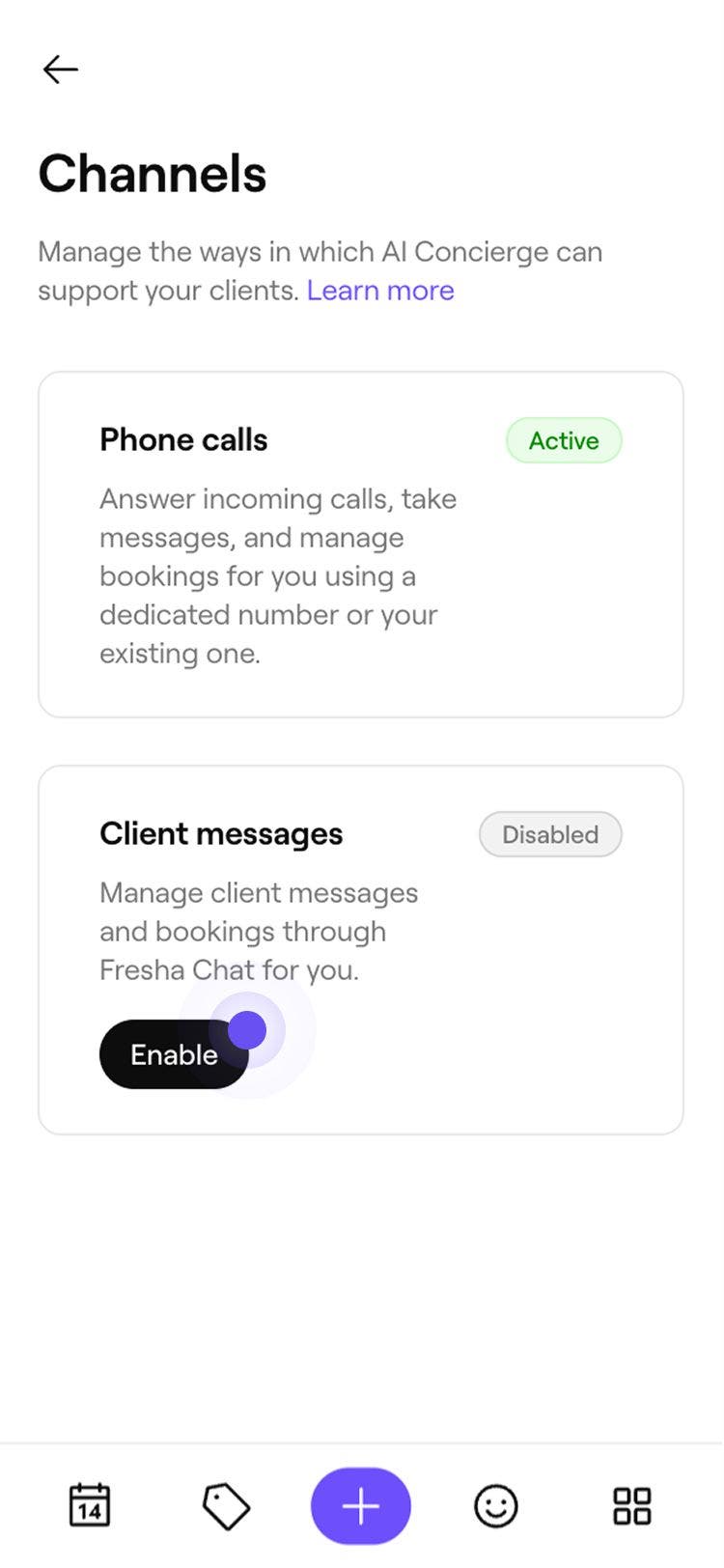
    2. Enable client messages: Tap on the Enable button to turn on AI Concierge for chat. You'll see a page outlining what AI Concierge will handle, and no extra setup is needed because chat uses the same settings as phone. Channel_mob_3_2.jpg
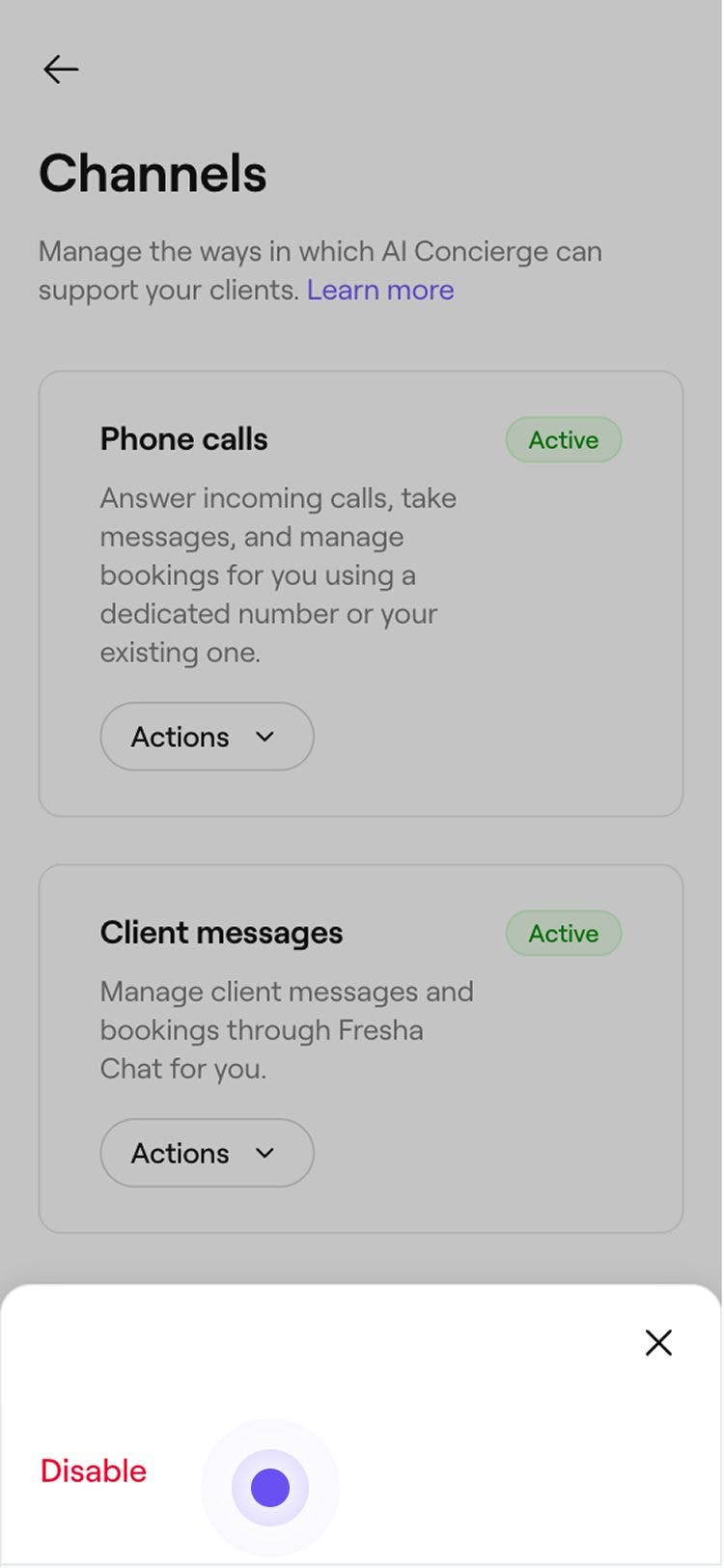
    3. Disable: Click on the Actions button, then select Disable. Click on the Disable button in the pop-up to confirm. AI Concierge will stop responding on that channel, and any new messages or calls will come straight to your team. Channel_mob_3_3.jpg

Customize client interactions


Related articles

Was this guide helpful?

Customize client interactions

Message clients using AI Concierge

Save time by letting AI Concierge handle client chats and bookings on your behalf.

Reply to reviews using AI concierge

Save time replying to client reviews with AI-prepared and automatic replies.

Set up call forwarding for your AI Concierge

Set up call forwarding from your business number to seamlessly redirect client calls to your AI Concierge.

Update call transferring details for your AI Concierge

Set up call tranferring for your AI receptionist, to seamlessly transfer client calls to members of your team.

Enable auto top-ups for your AI Concierge

Learn how to enable auto top-ups for your AI receptionist so you never miss a client call and your business continues to take bookings around the clock.

Related articles

AI Concierge overview

Never miss a booking with your AI Concierge that answers messages, schedules appointments, and handles client questions 24/7.

Set up your AI Concierge

Choose a plan and personalize your AI Concierge to start instantly responding to more clients.

Message clients using Client Connect

Chat with clients directly in Fresha. Answer questions, confirm details, and follow up after a visit, all from one inbox.

Fresha
Get the app

About Fresha

Careers

Help and support

Blog

Sitemap

For business

For partners

Pricing

Features

Scheduling

Point of sale

Payments

Capital

Marketplace

Support

Status

Legal

Privacy Policy

Terms of service

Terms of use

Find us on social

Facebook
Linkedin
Instagram

© 2026 Fresha.com SV Ltd