Set up call forwarding for your AI Concierge
Learn how to set up call forwarding for your AI Concierge, so clients can continue calling your existing business number while calls are automatically routed to your AI Concierge.
About call forwarding
If you already have a business number and want to keep it, you can choose to set up call forwarding to automatically route calls from your existing number to your AI Concierge, ensuring a seamless experience for your clients.
When you set up your AI Concierge, you’ll receive a dedicated phone number that clients can call to directly reach your business. This number needs to be provided when setting up call forwarding for your business number.
Call forwarding is set up either directly in your device settings or through your service provider. For example, if your existing number is a mobile number, you can find call forwarding in your phone settings.
When you choose your number for call transferring, make sure it is not the same as your call forwarding number, as this would route the call back to your AI Concierge.
Set up call forwarding for your AI Concierge
-
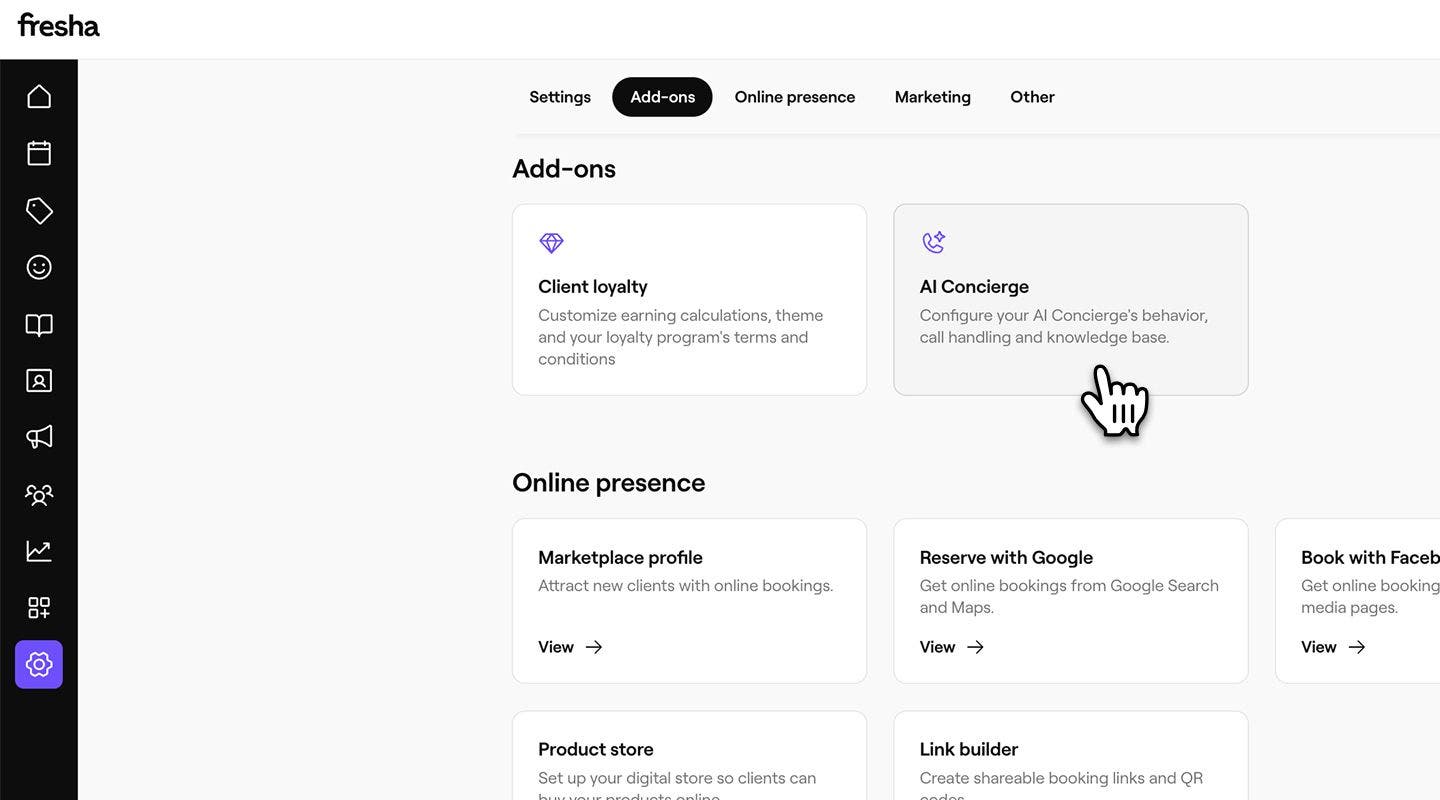
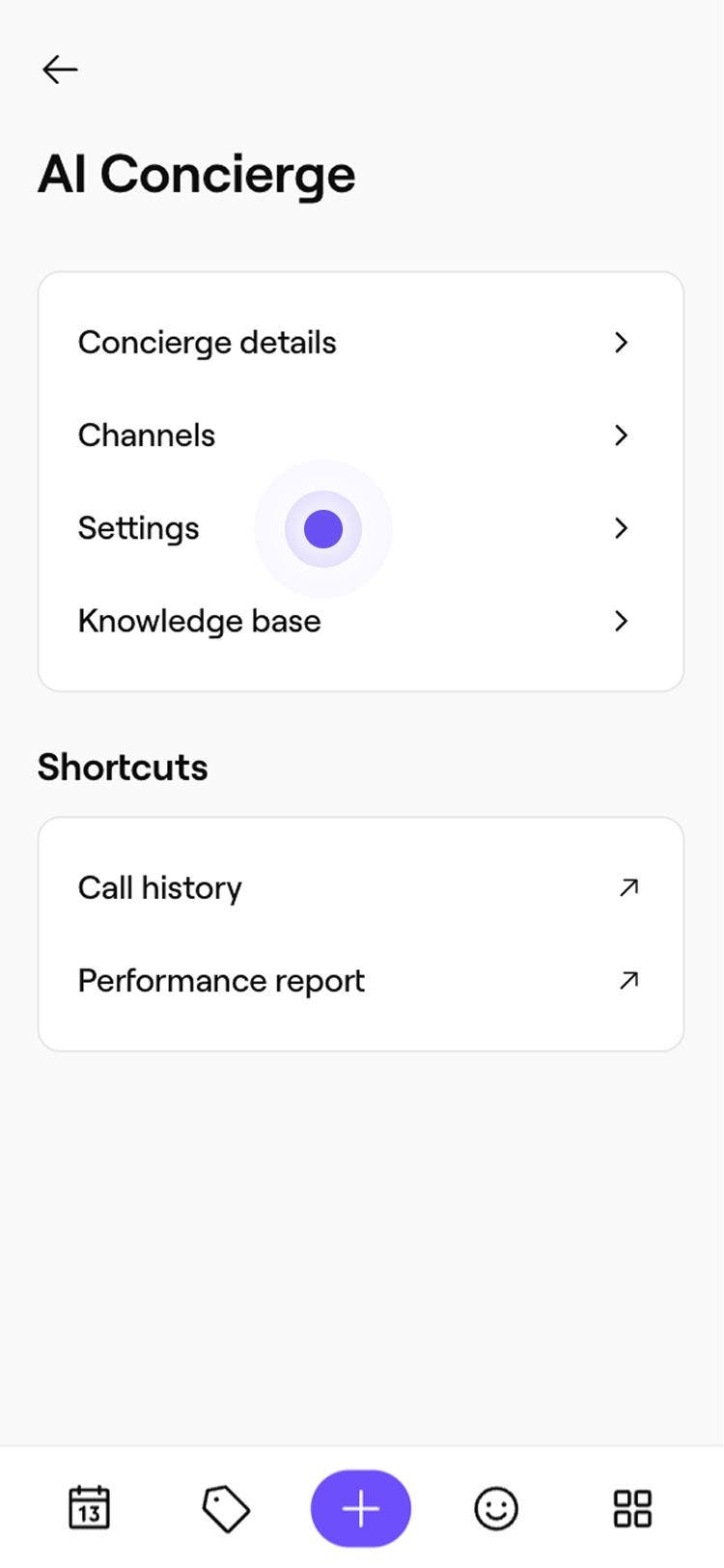
From the main menu on the left of your screen, go to Settings.
-
In the Add-ons section, click on AI Concierge to update your settings.
-
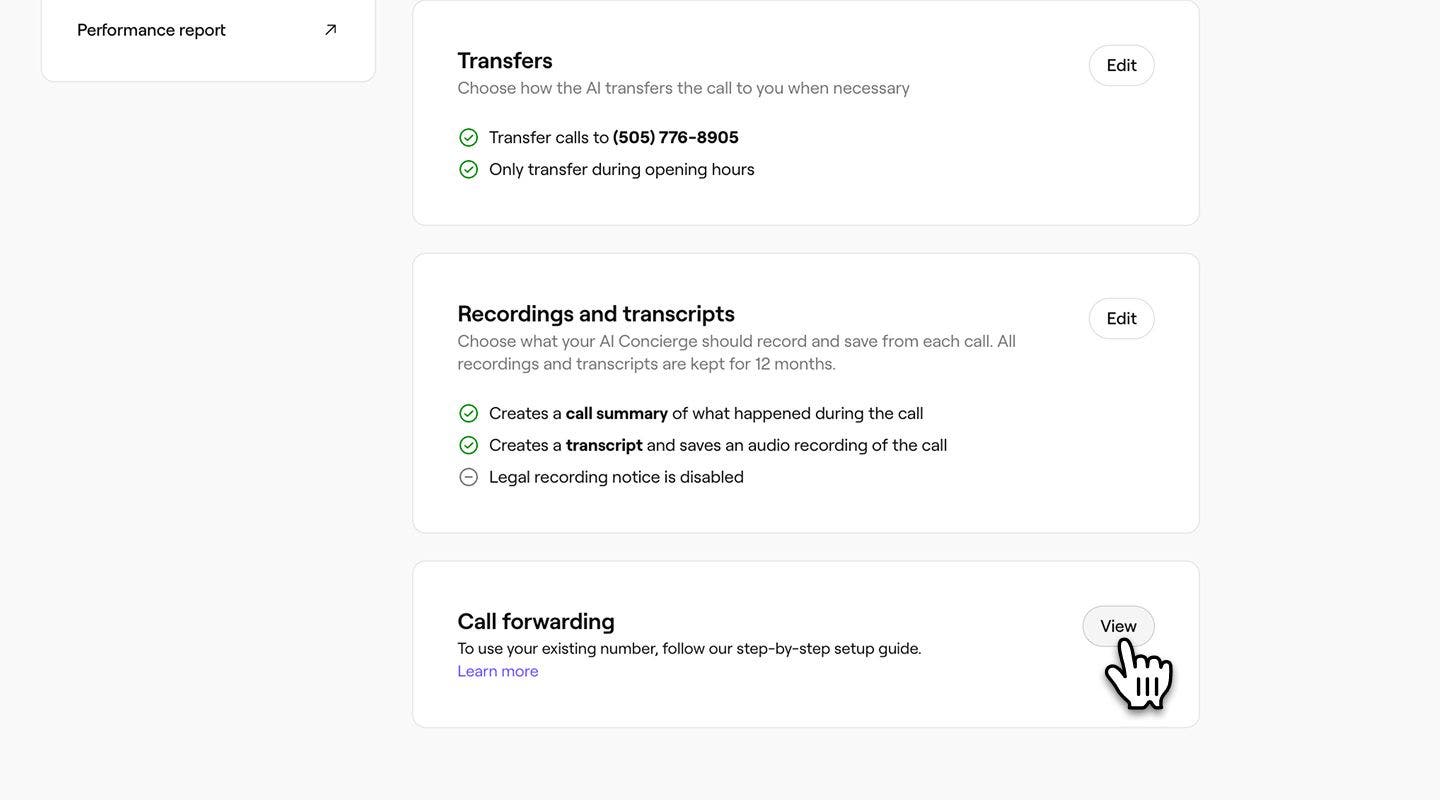
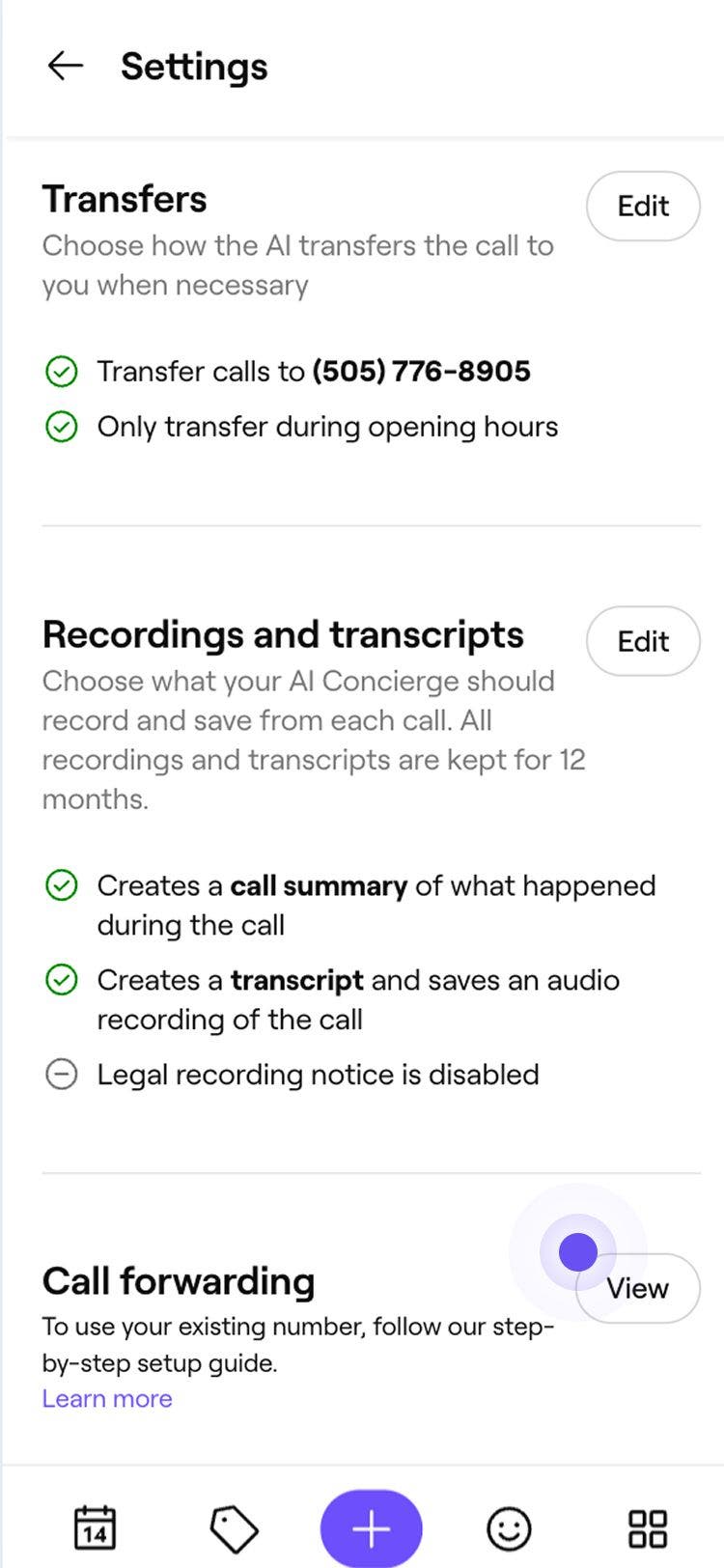
From the left menu panel, select Settings to access your call forwarding options.
-
Click on View next to Call forwarding to set it up.
-
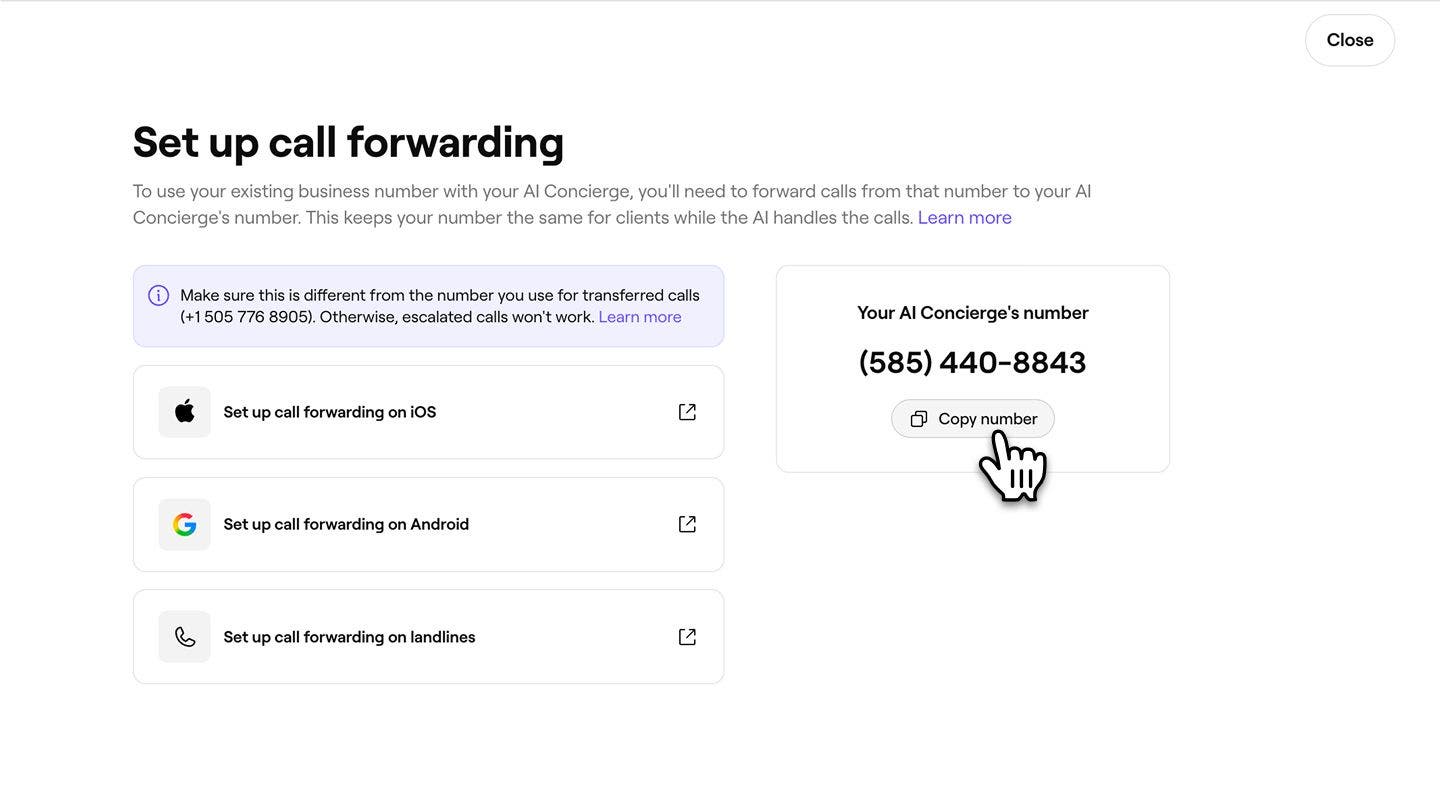
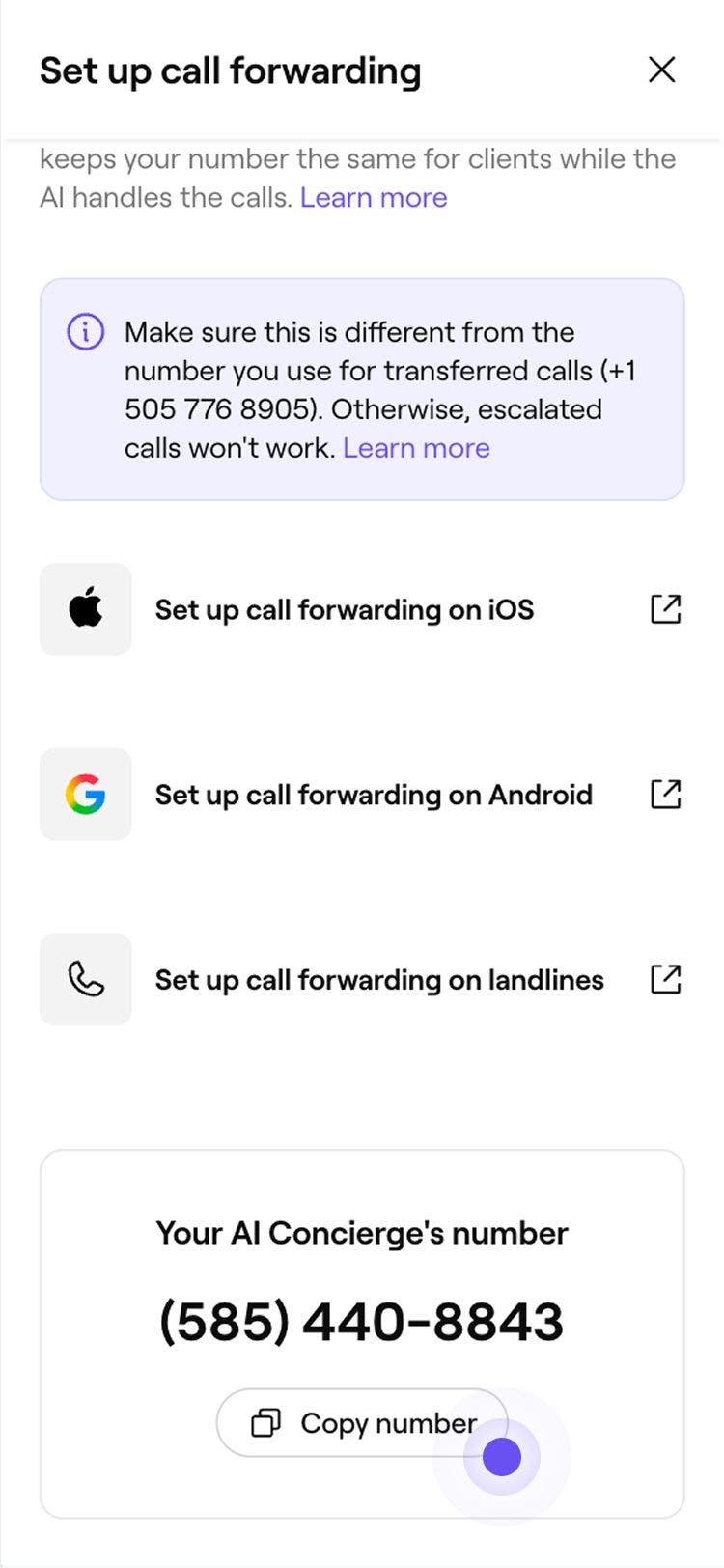
Click Copy number under your AI Concierge number. You will need to use this number when enabling call forwarding through your specific device type.
-
To enable call forwarding you will need to follow steps specific to your phone type.
- Mobile: If your business number is a mobile, you can set up call forwarding in your phone settings by enabling it and entering your AI Concierge number. For device specific steps, refer to guides provided by your mobile’s brand. For example, for the iPhone, use Apple’s guide here.
- Landline: If your business number is a landline, you can enable call forwarding through your handset settings. Alternatively, contact your service provider for assistance.

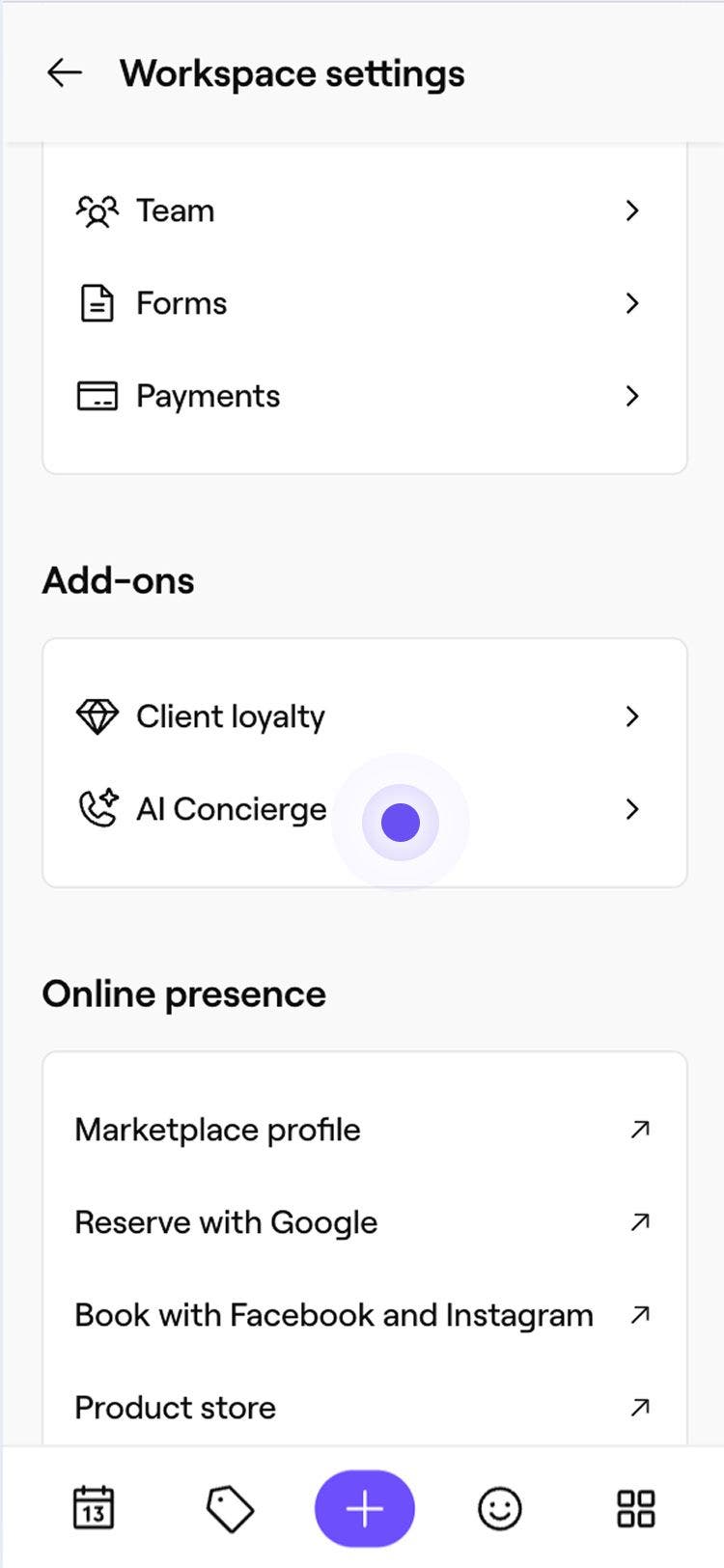
Once call forwarding is set up, all calls to your existing business number will be automatically routed to your AI Concierge number.
FAQs
- If you use one main business number across all locations, you can simply forward that number to your new AI Concierge number.
- If each location has its own business number, you’ll need to set up call forwarding for each one, linking it to the correct AI Concierge number.
Your AI Concierge offers two ways to manage incoming calls, depending on how you want calls to be handled and when your team needs to step in.
Call forwarding This allows you to keep your existing business number while routing incoming calls to your AI Concierge number.
Call transferring This allows calls to be passed to you or your team when needed, within a transfer availability of your choosing. For example, if the AI Concierge cannot answer a question or a caller requests to speak to someone directly. If a call cannot be transferred, a message will be taken and sent to you by email. Learn more about call transferring.
Make sure the number you use for call transferring is not the same as your call forwarding number, as this would route the call back to your AI Concierge.
If you have multiple business locations, you can set up call forwarding based on how your business numbers are structured.