Update call transferring details for your AI Concierge
Learn how to update call transferring settings for your AI Concierge, so that calls and messages can be passed to you when callers ask to speak with you directly.
In this article
About call transferring
Your AI Concierge is designed to answer every call using the information in your workspace and knowledge base. If a caller requests to speak with someone directly, the call can be transferred to you or a member of your team. For example, personal calls from friends and family.
When setting up call transferring, enter a phone number you can be reached on and choose the timeframe that you’re available to take calls.
If a caller requests to speak to you outside of these hours, or you’re unavailable to answer, your AI Concierge will take a message and send it to you by email, giving you a full description of the conversation to review when you’re free.
Make sure the number you use for call transferring is not the same as your call forwarding number, as this would route the call back to your AI Concierge.
Update your call transfer details for your AI Concierge
-
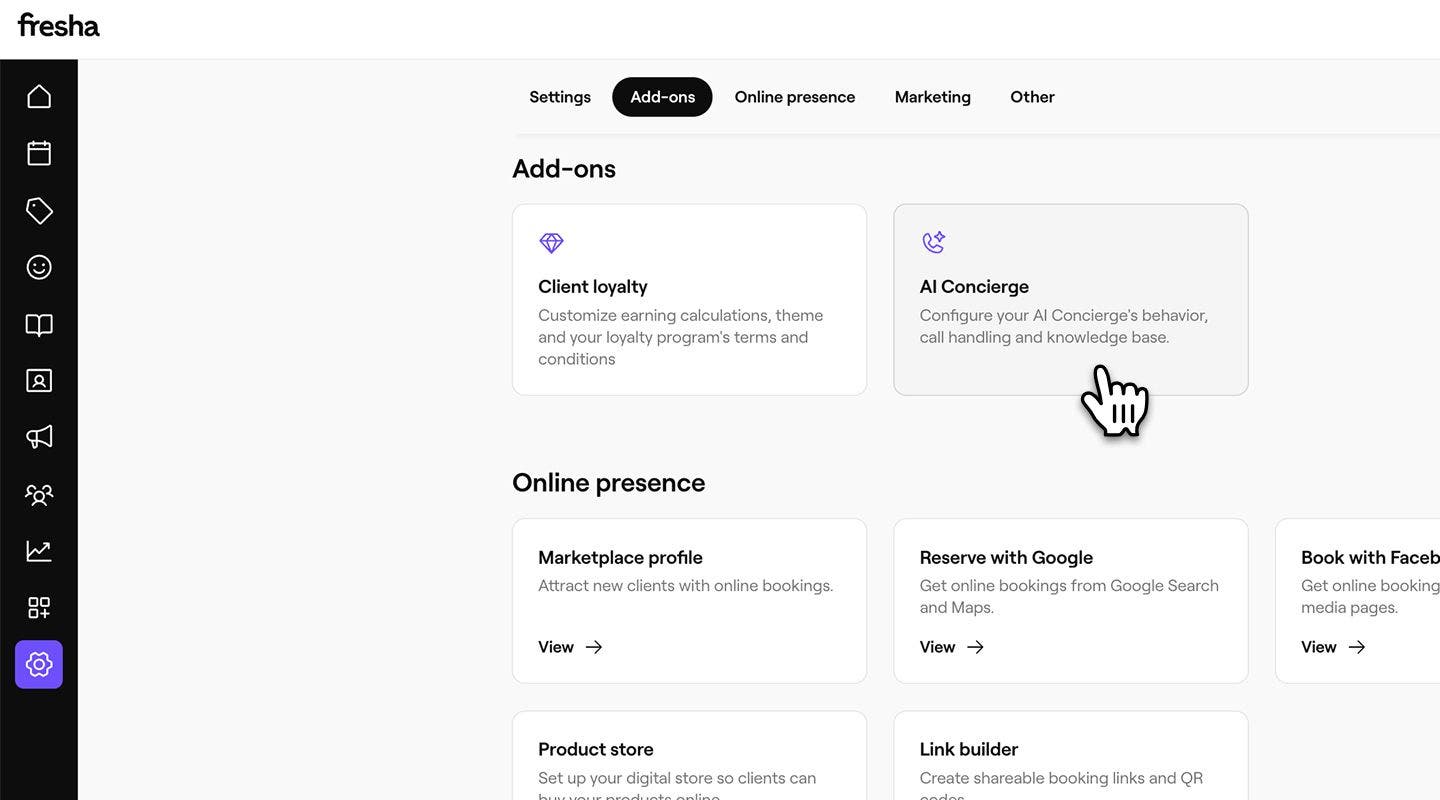
From the main menu on the left of your screen, go to Settings.
-
In the Add-ons section, click on AI Concierge to update your settings.
-
From the left menu panel, select Settings to access your call transferring options.
-
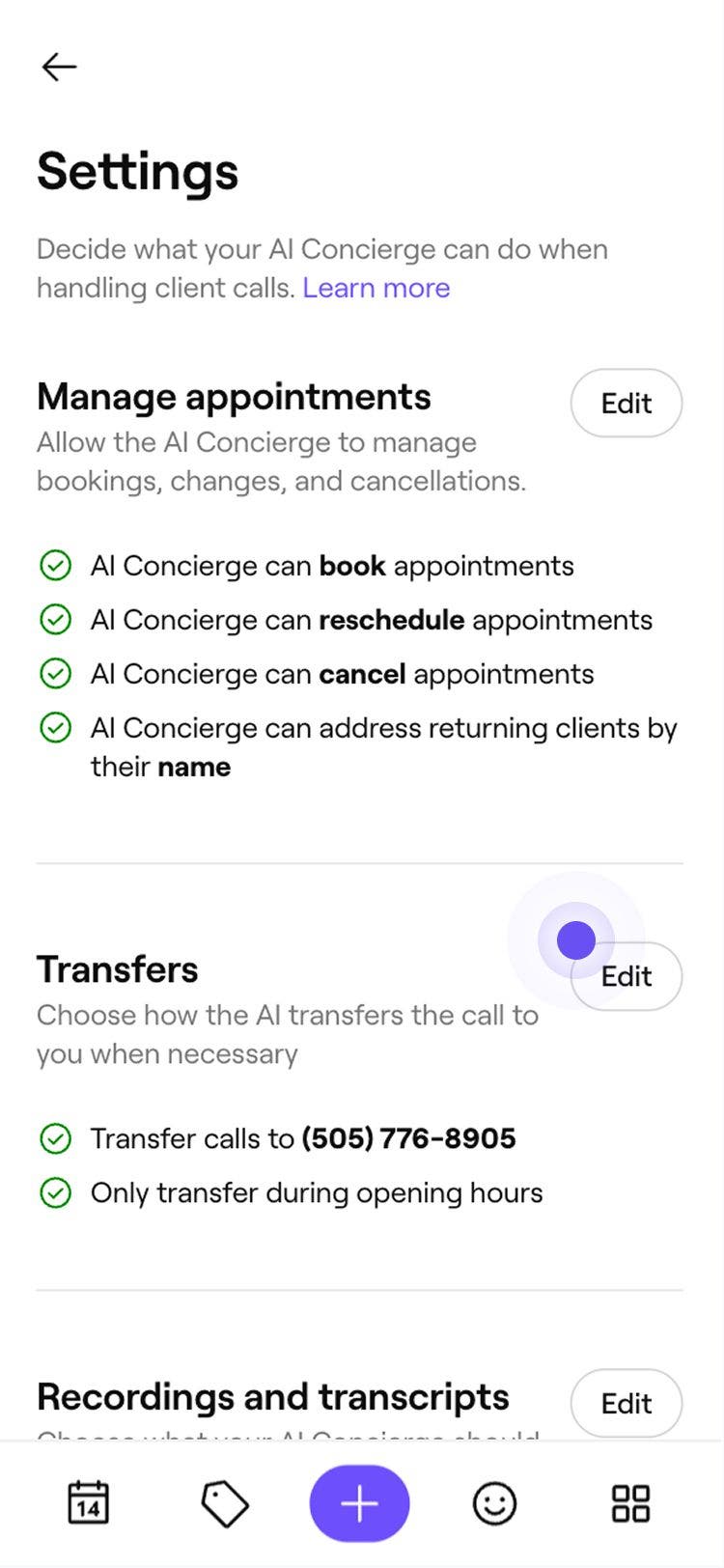
Click on Edit next to Transfers to update your settings.

-
Set up when are where calls can be transferred by entering:
- Phone number: Update the number your AI Concierge will use to transfer calls to you or your team.
- Transfer availability: Use the dropdown menu to set when you’re available to receive transferred calls. For example, you can choose to accept calls only during your business open hours.

-
Click Save in the top right corner to update your settings.



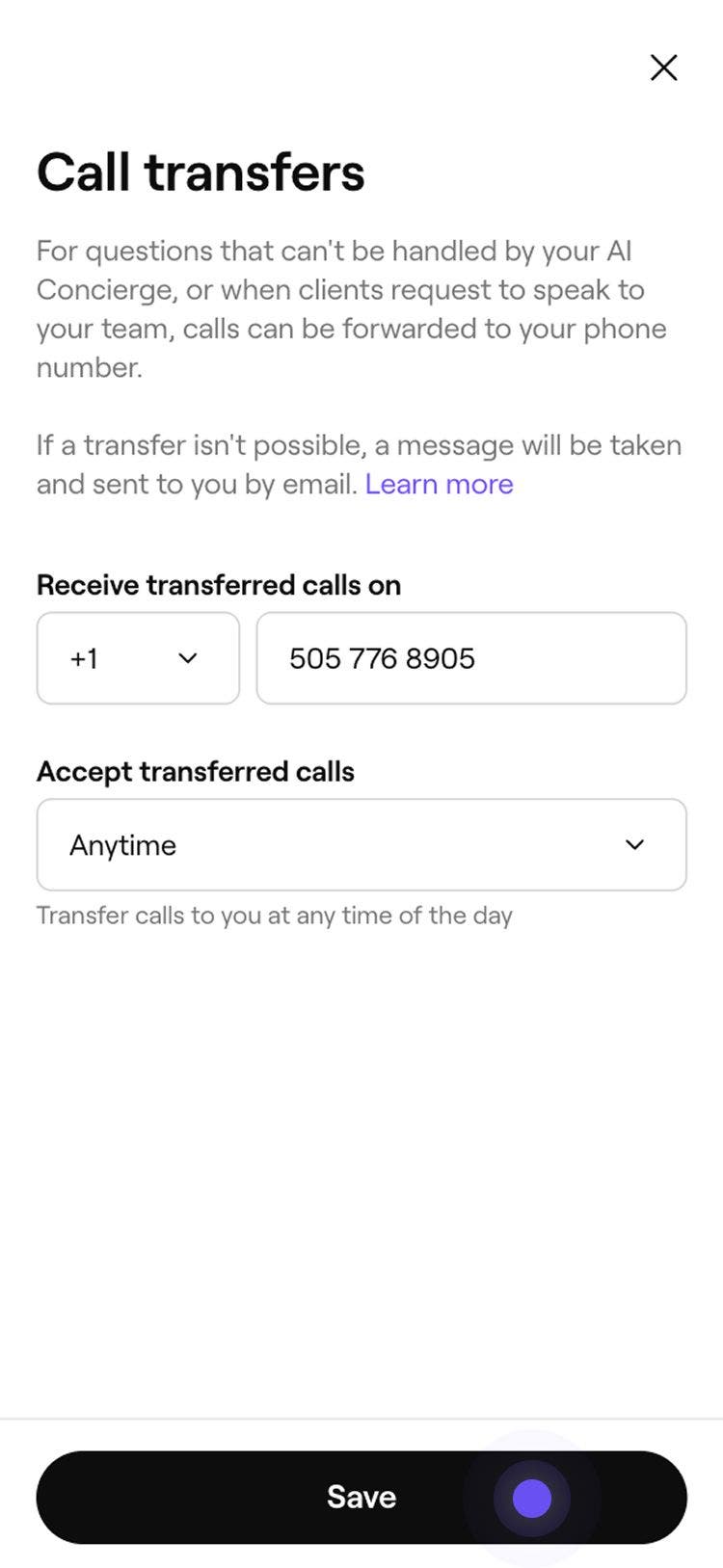
Once your call transfer settings are updated, calls to your AI Concierge will be transferred to your chosen number during your available hours. Outside of these hours, the caller will be prompted to leave a message, which will be sent to you by email.
Update your notification settings
When a client leaves a message with your AI Concierge, you can choose who receives a notification by email.
-
From the main menu on the left of your screen, go to Settings.
-
In the Add-ons section, click on AI Concierge.
-
From the left menu panel, select Settings to access your call transferring options.
-
Click on Edit next to Notifications to update your settings.
-
Choose who gets notified when a client leaves a message:
- Notify the workspace owner: Tick the checkbox to send a notification to the workspace owner’s email address.
- Send to specific emails: Enter the email addresses you’d like to get notified, and press enter after each email address to add.
-
Click Save in the top right corner to update your settings.
If you have multiple business locations with their own AI Concierge numbers, you’ll need to set up call transferring for each location. You can use the same phone number for all locations or assign different numbers to each.
FAQs
Your AI Concierge offers two ways to manage incoming calls, depending on how you want calls to be handled and when your team needs to step in.
Call forwarding This allows you to keep your existing business number while routing incoming calls to your AI Concierge number. Learn more about Call forwarding.
Call transferring This allows calls to be passed to you or your team when needed, within a transfer availability of your choosing. For example, if the AI Concierge cannot answer a question or a caller requests to speak to someone directly. If a call cannot be transferred, a message will be taken and sent to you by email.