Manage permission roles
Manage your team’s permission roles to keep daily operations running smoothly.
In this article
Edit a permission role
- From the main menu on the left of your screen, go to Settings.
- Click on the Team category to access permission settings.

- In the left menu panel, select Permissions roles to view the permission roles you have created.
- To edit a permission role, click on Actions (three dots) next to the role, and select from the following options:

- Edit: to update multiple areas of the permission role, such as name, access, and team member allocation. Once updated, click on the Save button in the top right to update the permission role.

- Manage team members: to add or remove team members from this permission role. Tick the checkbox next to each team member to assign them to this permission role, or untick to remove and then click on the Save button in the top right to update your settings.

- Rename: to update the name of the permission role. Once updated, click on the Save button in the top right to update the permission role name.

- Duplicate: to copy the permission role name and access areas, this can be used to quickly recreate a permission role, and to enable additional areas for a higher role responsibility.

- Edit: to update multiple areas of the permission role, such as name, access, and team member allocation. Once updated, click on the Save button in the top right to update the permission role.
Delete a permission role
- From the main menu on the left of your screen, go to Settings.
- Click on the Team category to access permission settings.
- In the left menu panel, select Permissions roles to view the permission roles you have created.
- To edit a permission role, click on Actions (three dots) next to the role and select Delete.

- Team members assigned to this role will need to be reassigned to another permission role to continue accessing your workspace. To reassign them, click the access level next to their name and choose a role from the available options.

- If a team member is left with No access, they will no longer be able to access the workspace.
- Once you have updated the team members’ permission levels, click Confirm to delete the role.
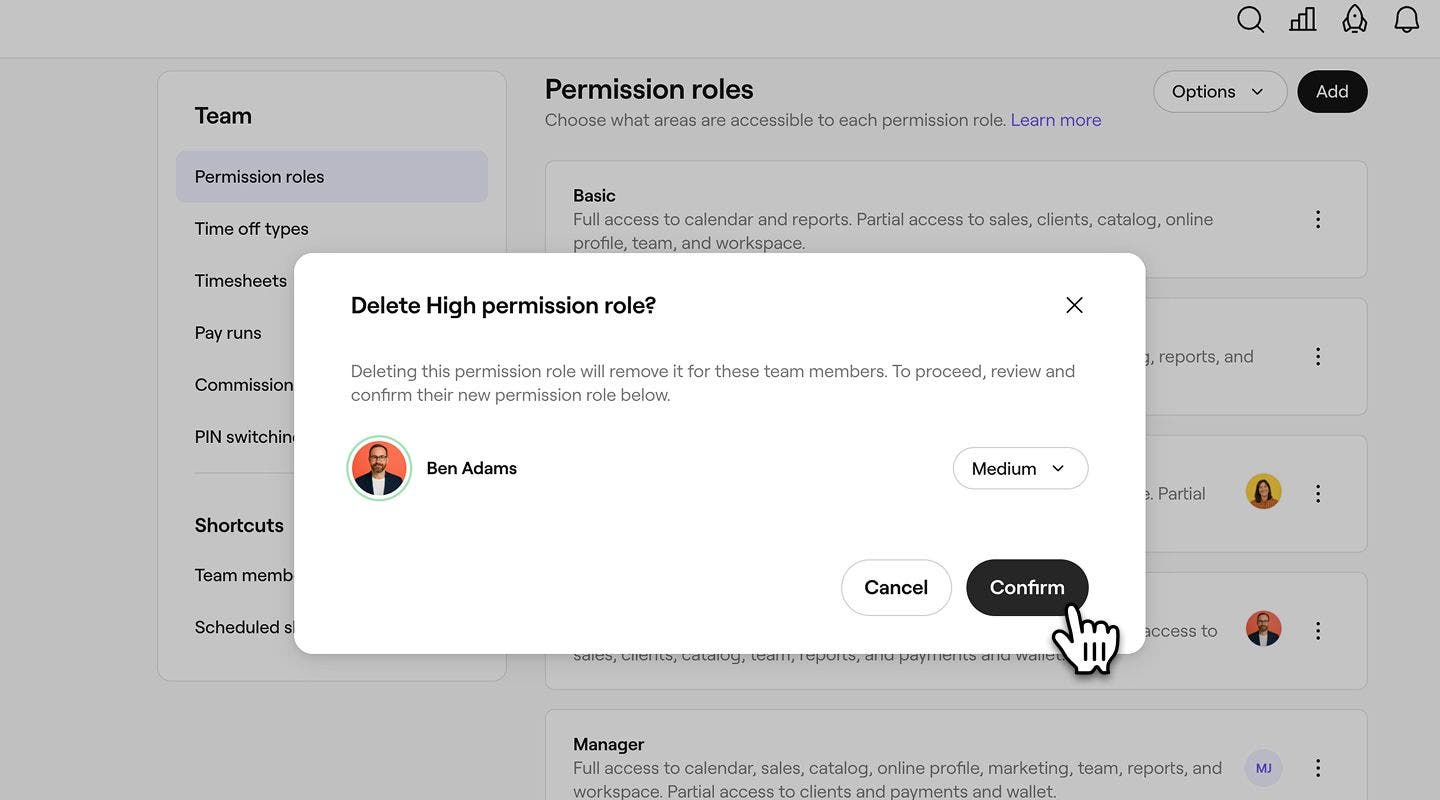
Once you have removed a permission role, your permissions will reflect this. You are unable to delete No Access and Owner, as these are default permissions.
FAQs
When you duplicate a role, it copies the same permissions and access settings**,** but it isn’t assigned to any team members. You’ll need to rename the role (if needed) and assign team members to it manually.
Any changes you make to a permission role will apply immediately to all team members assigned to that role. If you only want to change permissions for specific team members, duplicate the role, adjust the permissions in the copy, and assign the new role to those team members instead.
To change the order your permission roles are displayed, open Permission roles, then click Options and select Change order. Drag and drop each role to arrange them in your preferred order, and click Save order to update your changes.
When transferring workspace ownership to an existing team member, the team member taking ownership will receive a Workspace owner permission role, and your permission role will be changed to High.