Set up and manage PIN switching
Learn how to set up, enable, and manage PIN switching in your workspace, allowing team members to securely access and manage their workspace from a shared device using their unique PIN.
In this article
How PIN switching works
PIN switching provides you and your team members with individual PIN codes that are required to access your Fresha workspace.
Enabling PIN switching adds an extra layer of protection when accessing your workspace in Fresha and also allows team members to quickly log in to their workspace when using a shared device in your salon. For example, on a shared device, team members can enter their PIN to access their individual workspace and check out their clients’ appointments.
PIN switching allows you to:
- Choose which team members receive a PIN code. Each member will get an email with a secure link to access their account and generate their PIN.
- Enable automatic screen locking when the device is inactive or after checkout, requiring the next user to enter their PIN to regain access.
If a team member doesn't have PIN switching enabled and the account is locked, they need to log out and log back into their own account using their email.
Setting up PIN switching
Anyone with permission to configure PIN switching can enable this setting for the workspace.
-
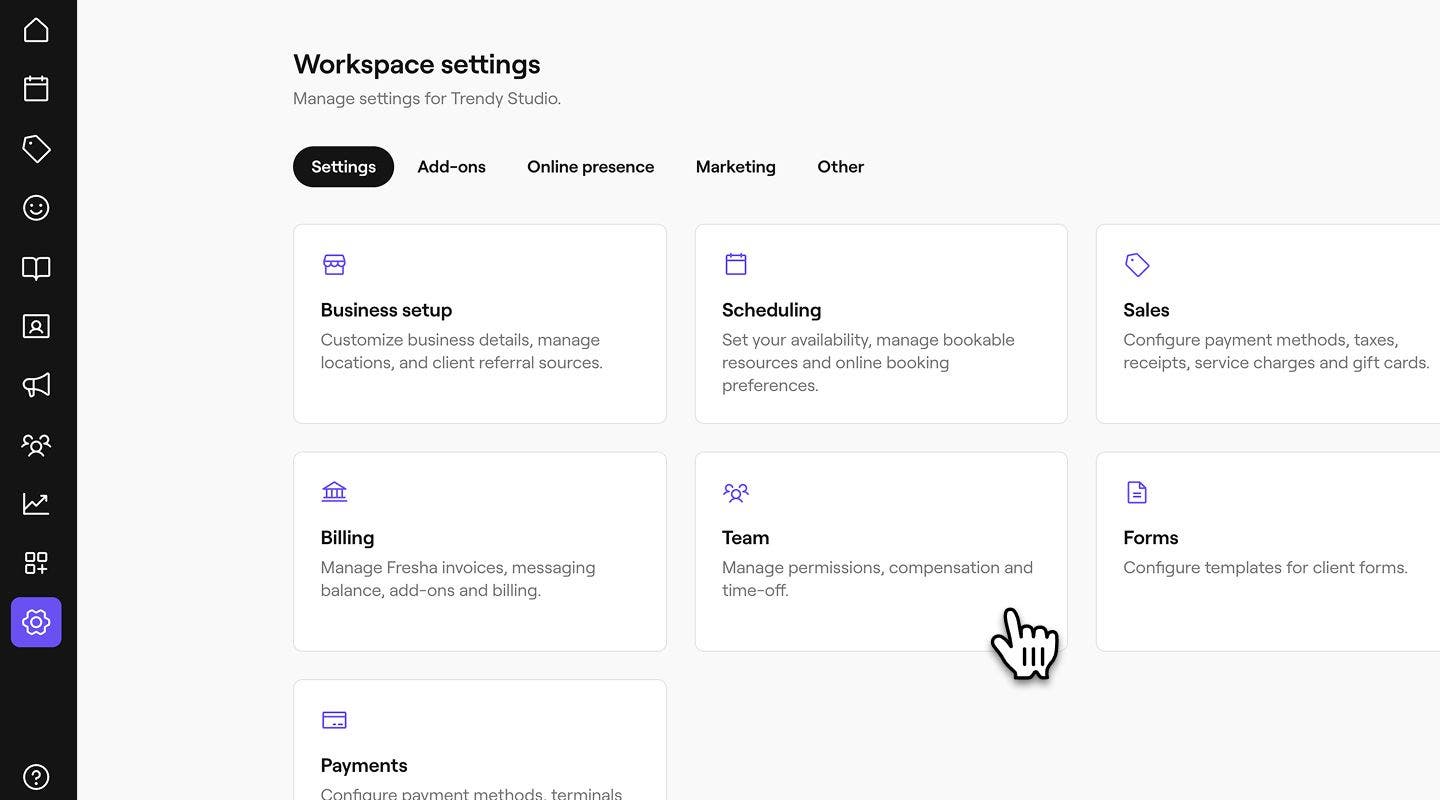
From the main menu on the left of your screen, go to Settings.
-
Click on the Team category to access permission settings.
-
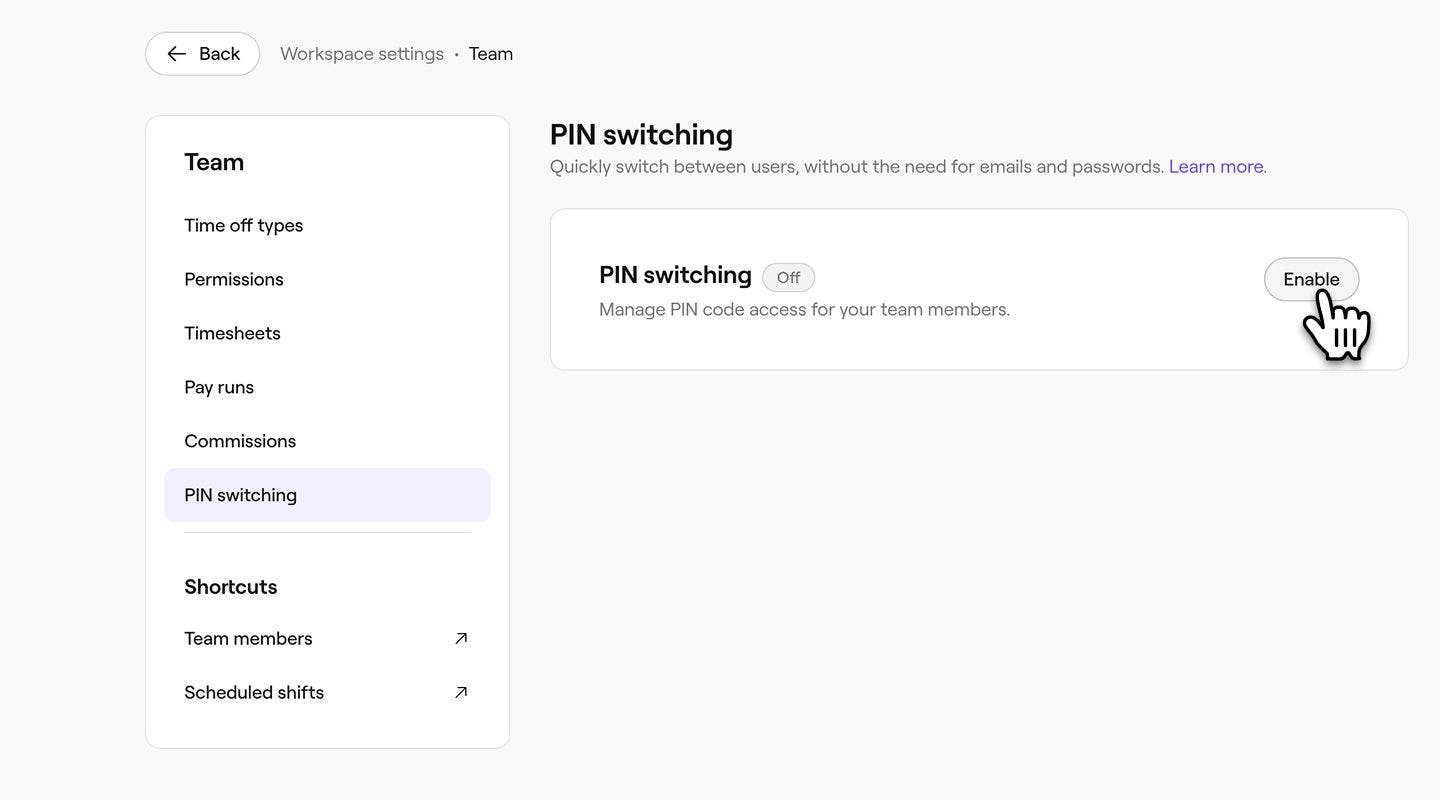
In the left menu panel, select PIN switching and click on the Enable button to activate this for your workspace.
-
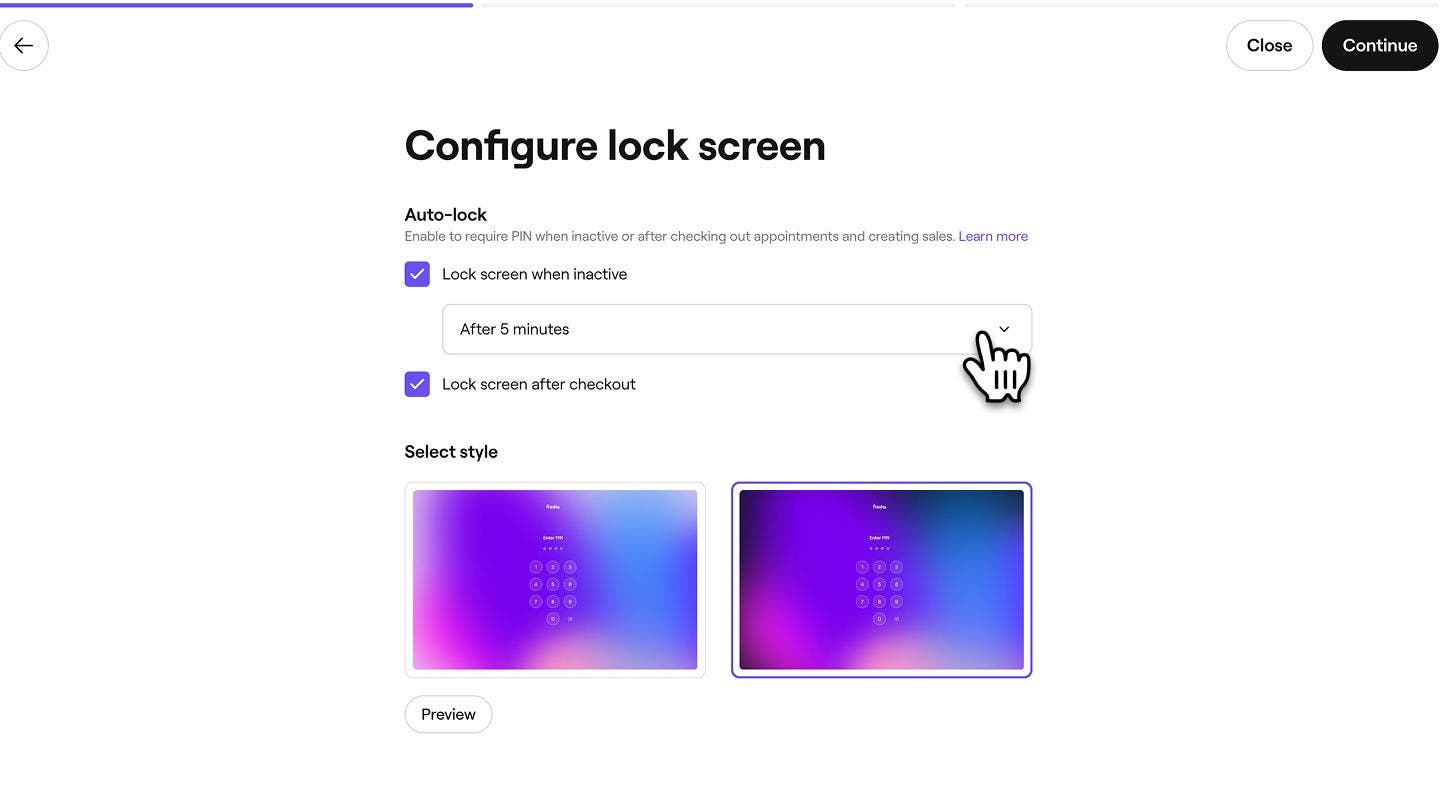
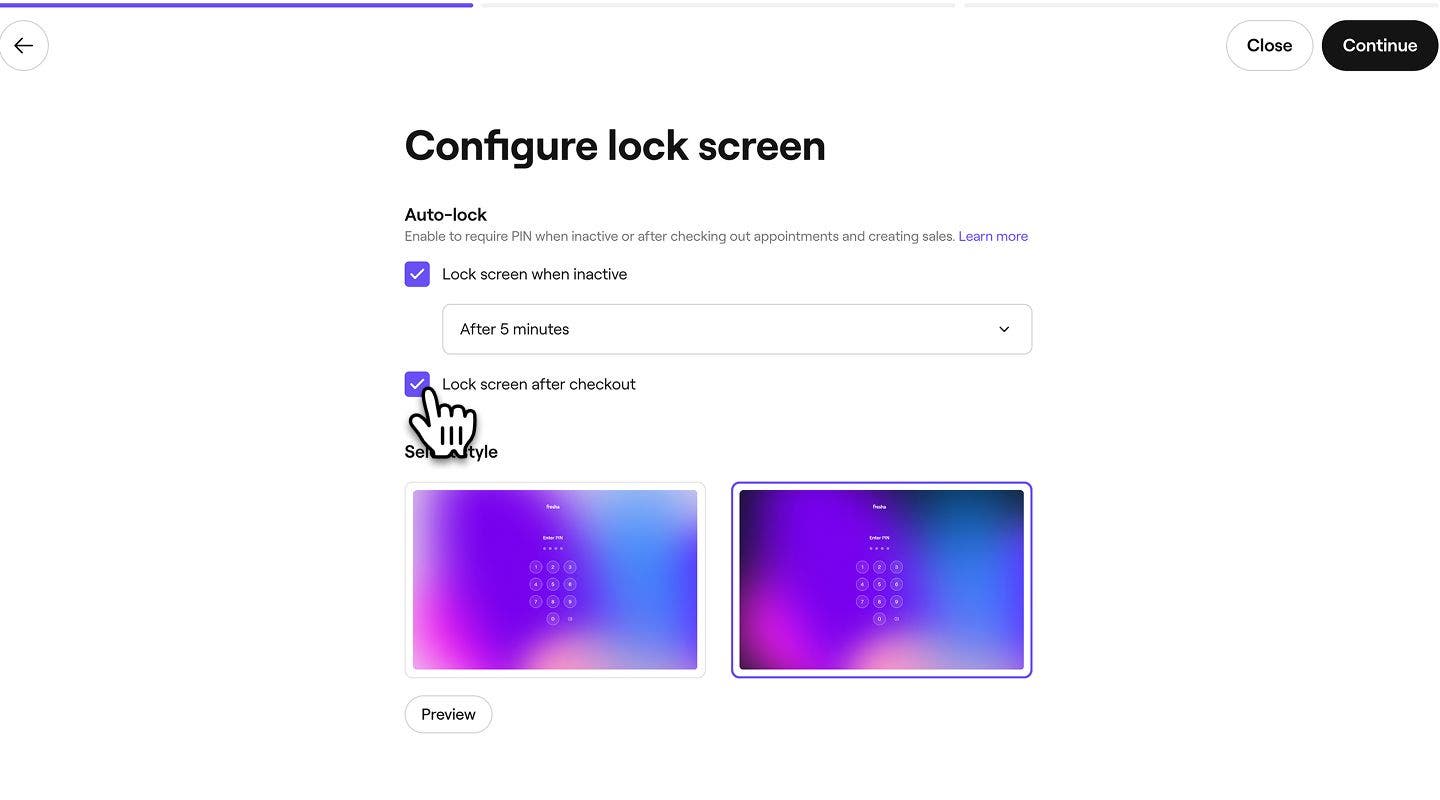
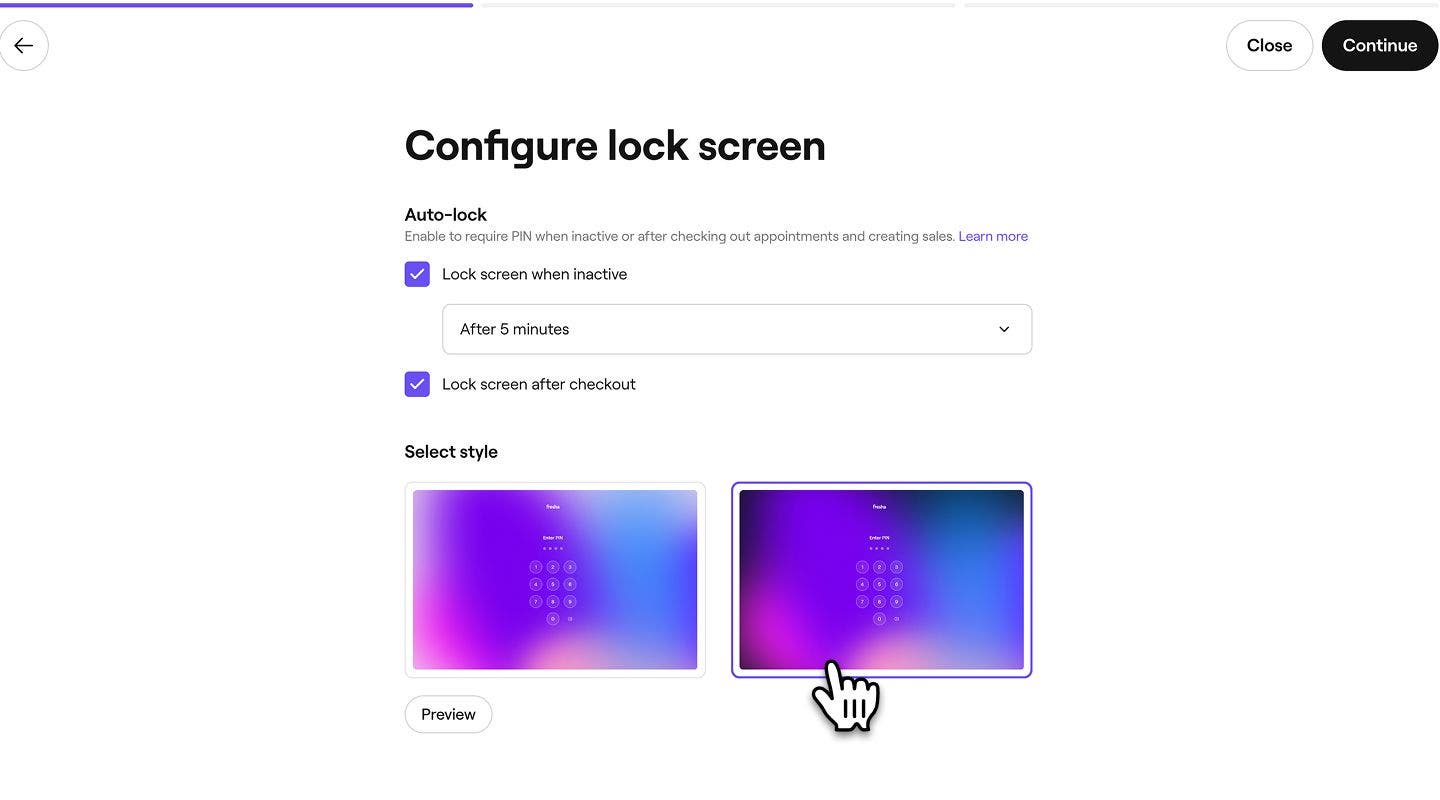
Under Auto-lock tick the checkbox next to each of the following:
- Lock screen when inactive: tick the checkbox to enable, and use the dropdown menu to set inactivity duration before the screen locks.
- Lock screen after checkout: tick the checkbox to require team members to enter their PIN after checking out any appointment.
- Lock screen when inactive: tick the checkbox to enable, and use the dropdown menu to set inactivity duration before the screen locks.
-
Under Select style, choose a theme for your lock screen appearance. Click on the Preview button to view each selected style.
-
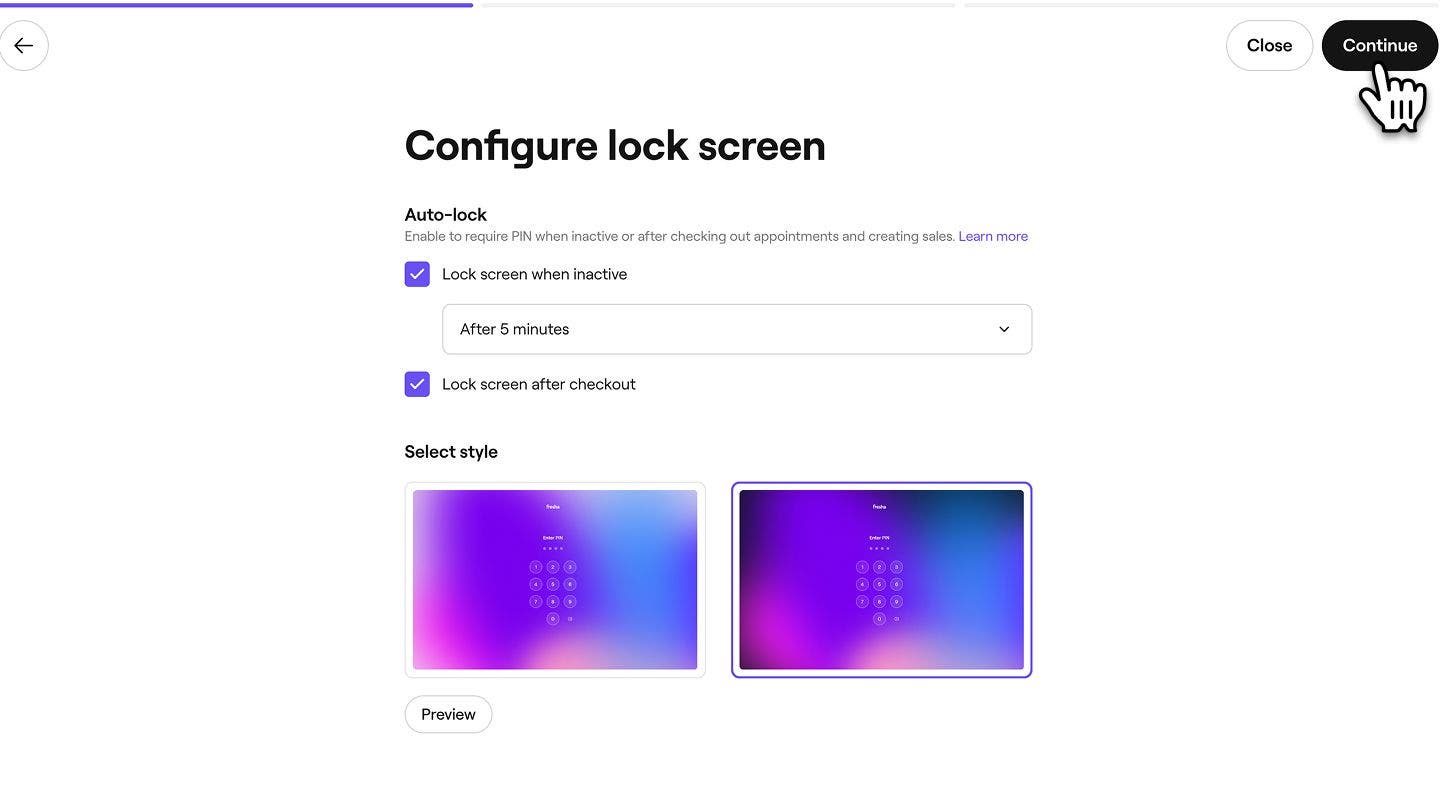
In the top right of your screen, click on Continue to save your changes.
-
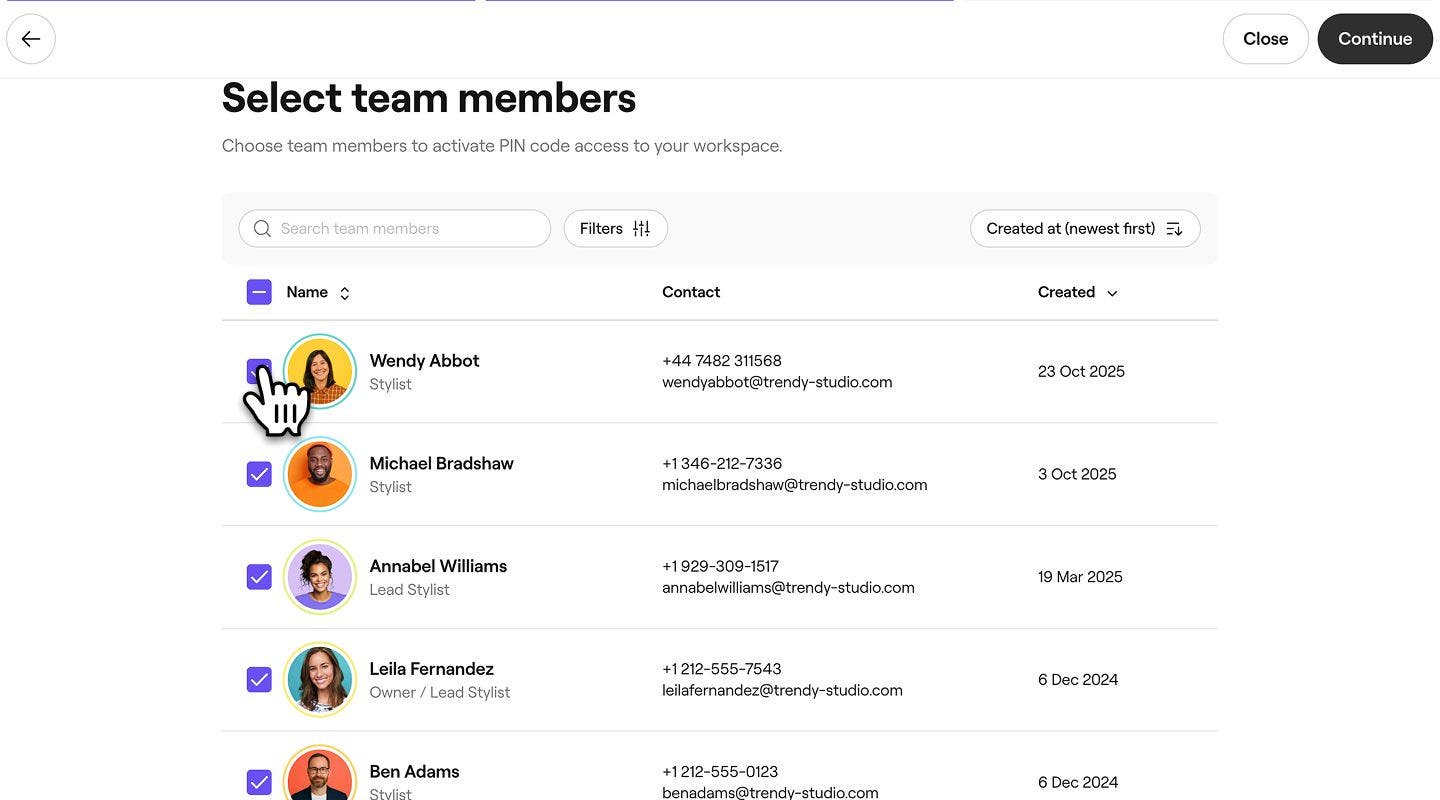
Next, unselect the checkboxes to remove team members from receiving a PIN code. By default, all team members will be selected for PIN switching.
-
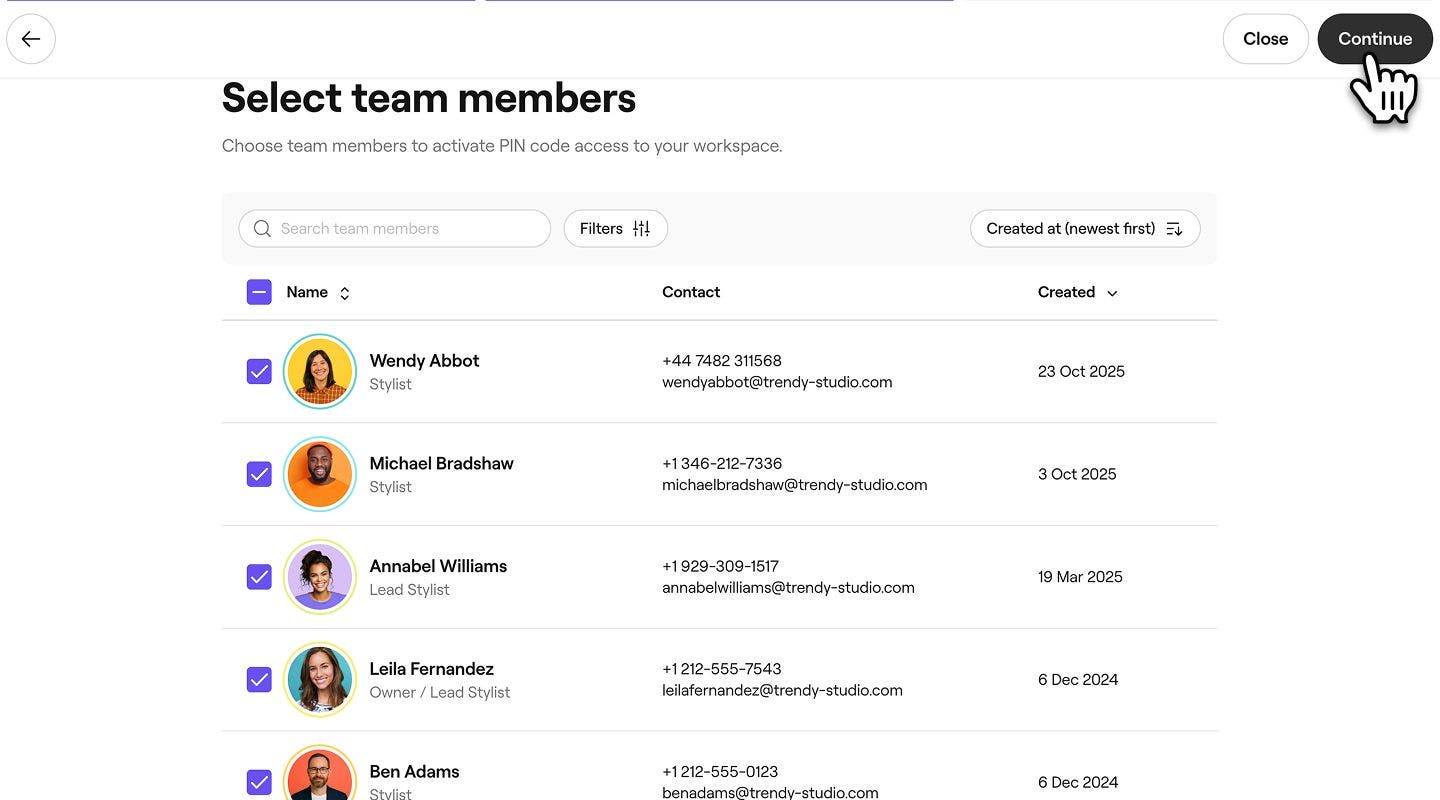
In the top right of your screen, click on Continue to review your PIN code settings.
-
Click on Enable in the top right of your screen, to activate PIN switching for your account.
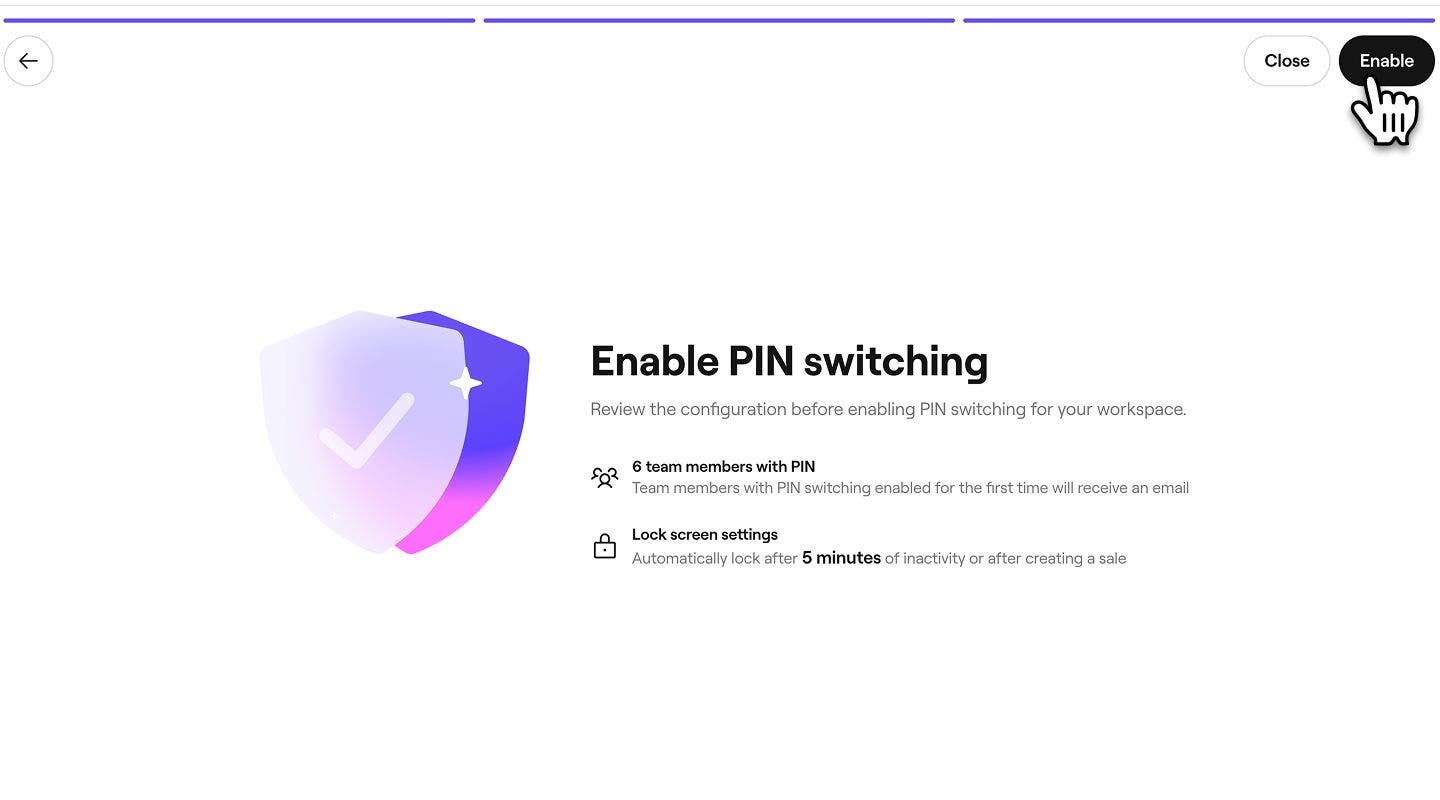
Each team member selected during the initial setup will receive an email with a secure link to access their PIN code. This link is only sent once. After that, team members won’t receive new emails if you edit, add members, or disable and re-enable PIN switching. They can always access their PIN through their personal profile.
Enabling PIN switching
- From the main menu on the left of your screen, go to Team.
- Select Team members from the left menu panel.
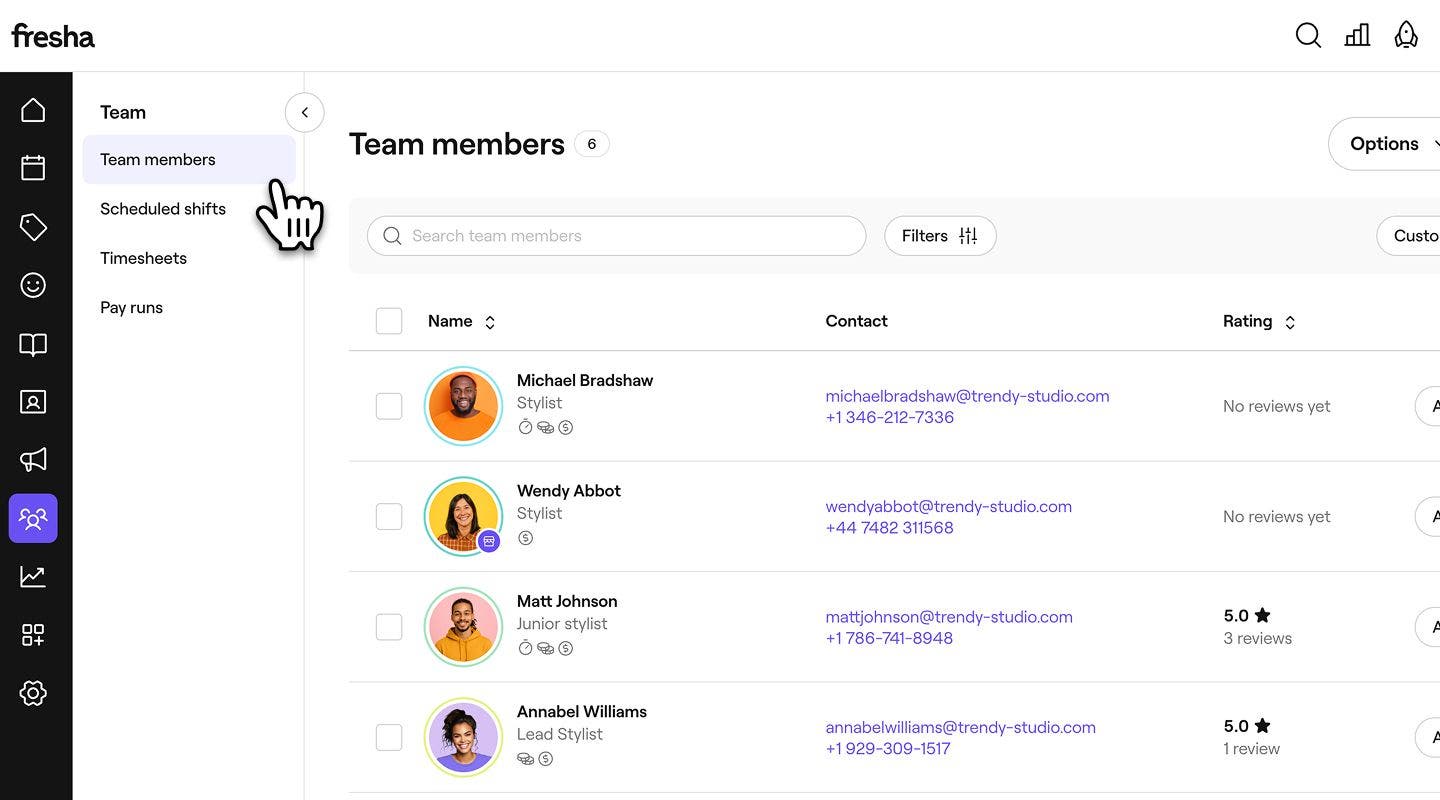
- Click on a team member to open their team member profile, then click on the Actions button and then Edit.
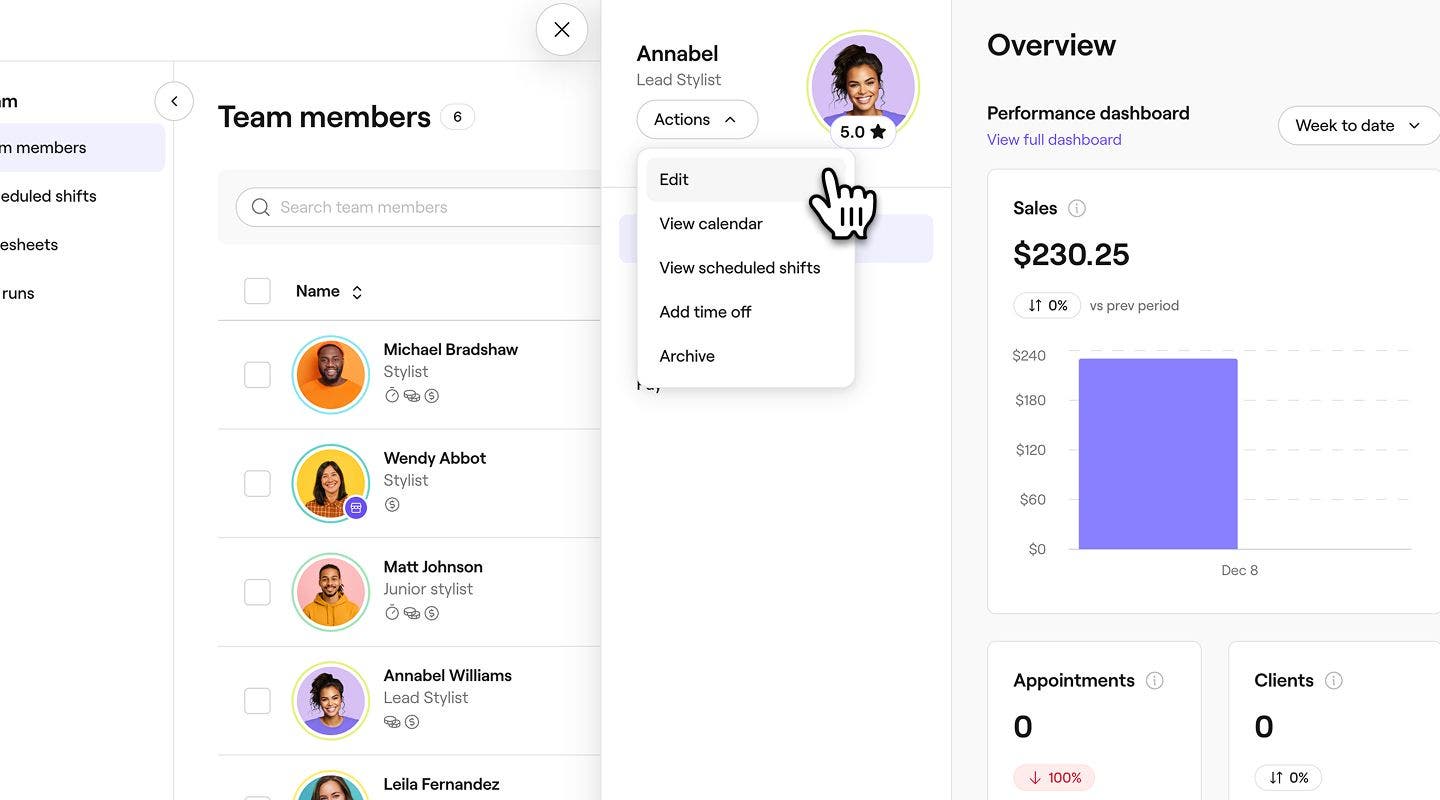
- In the left menu panel of their team member profile, select Settings.
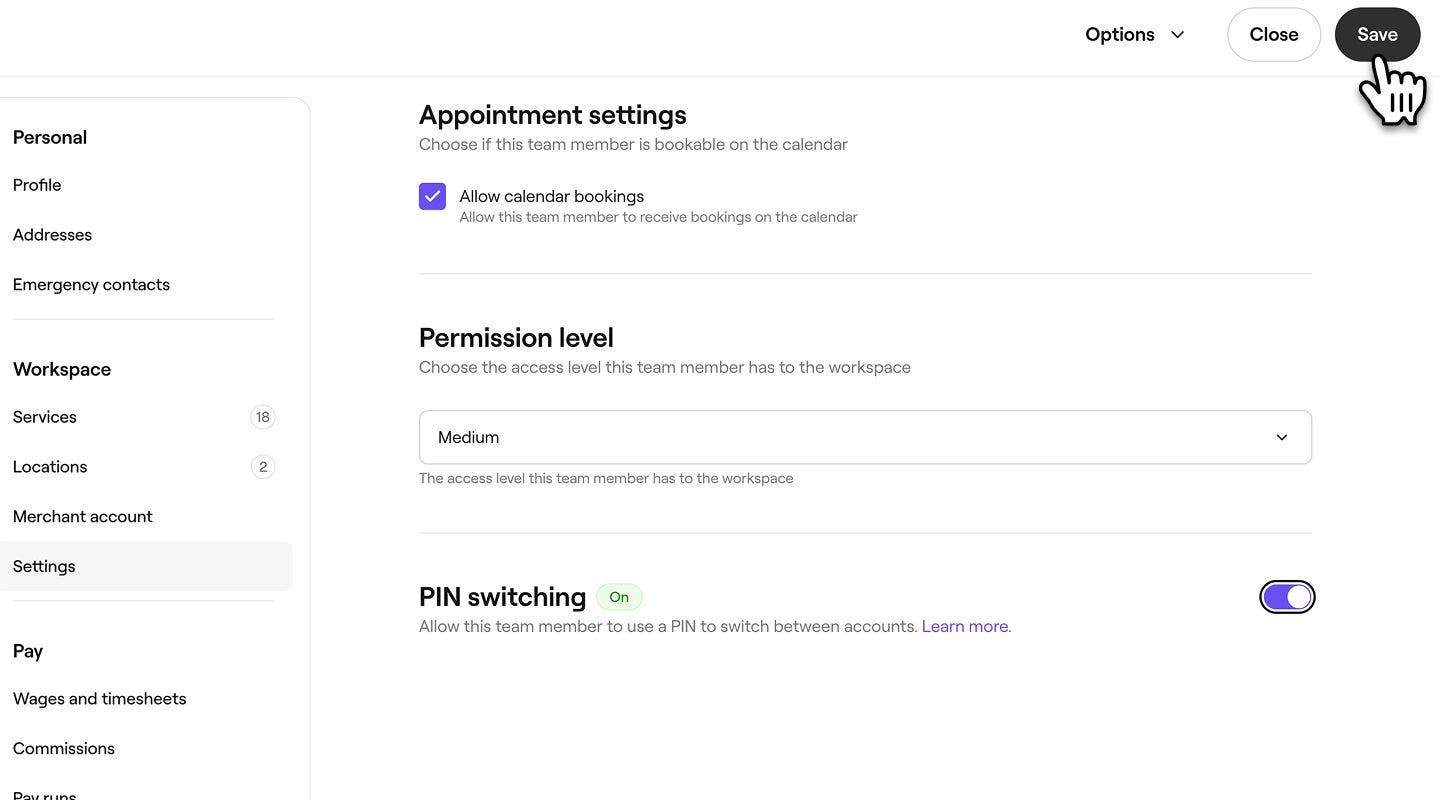
- Toggle on the PIN switching feature to enable it for this team member.
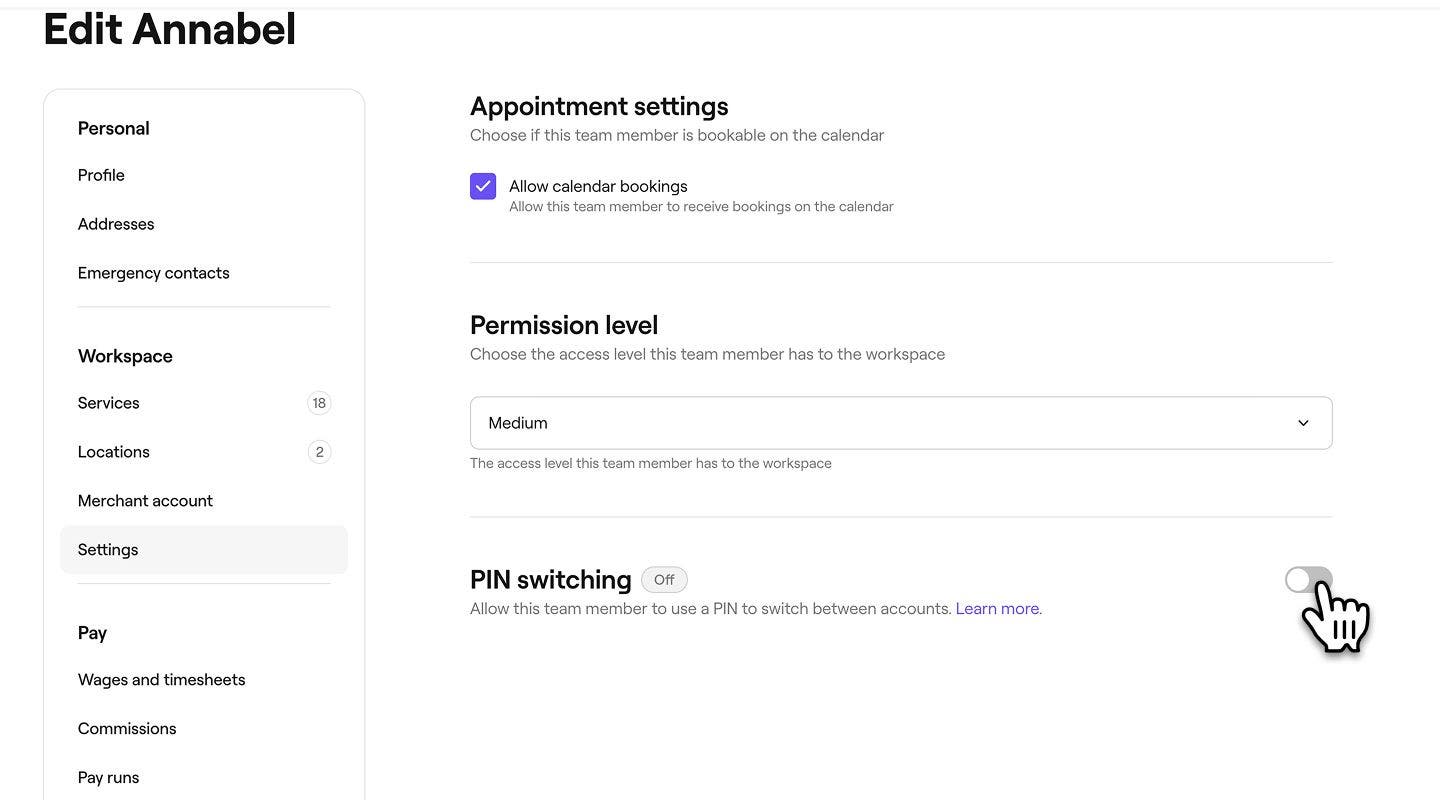
- In the top right of your screen, click Save to update your changes.
View your PIN code
Members with a PIN code can also access it from their account profile.
-
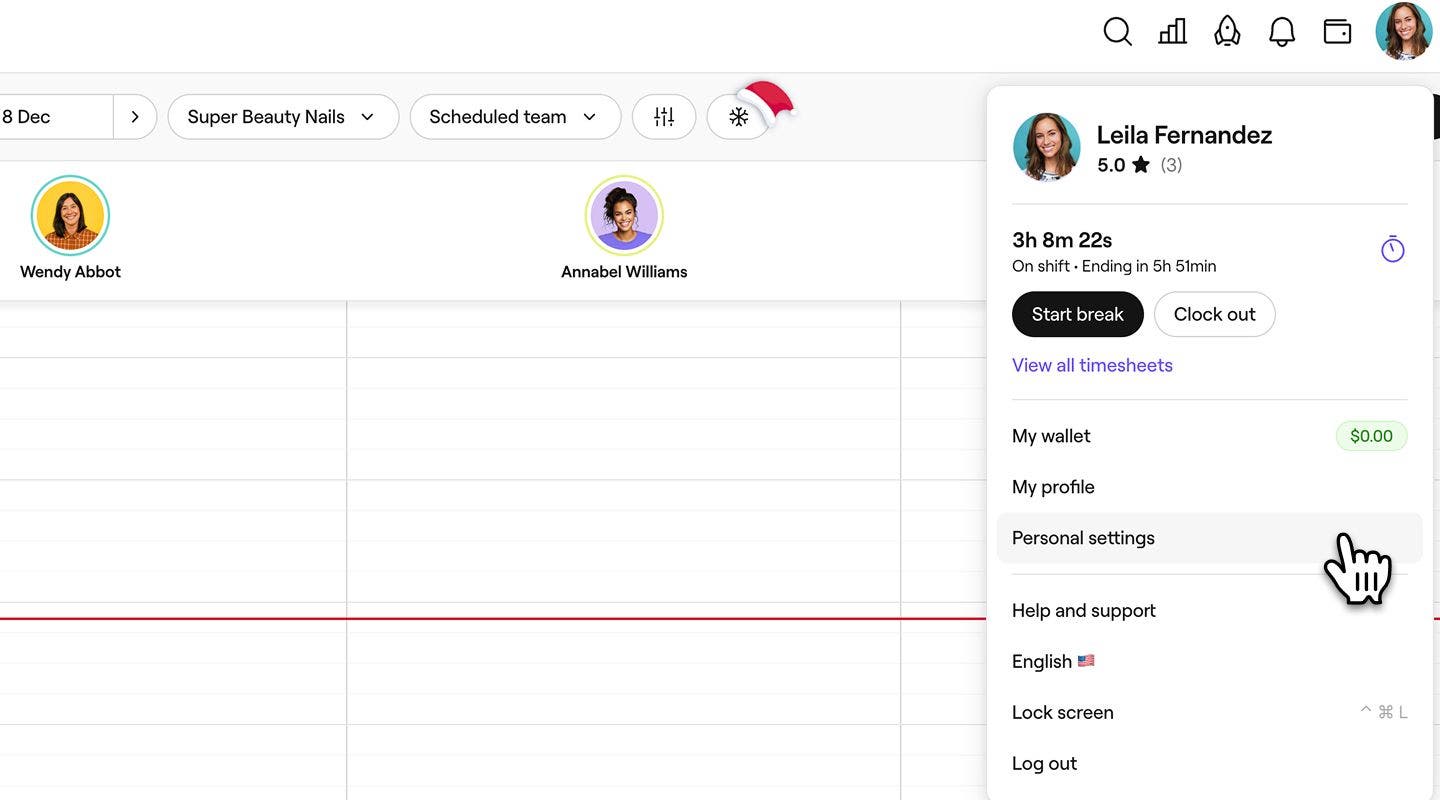
From the toolbar in the top right of your screen, click the Profile icon and select Personal settings.
-
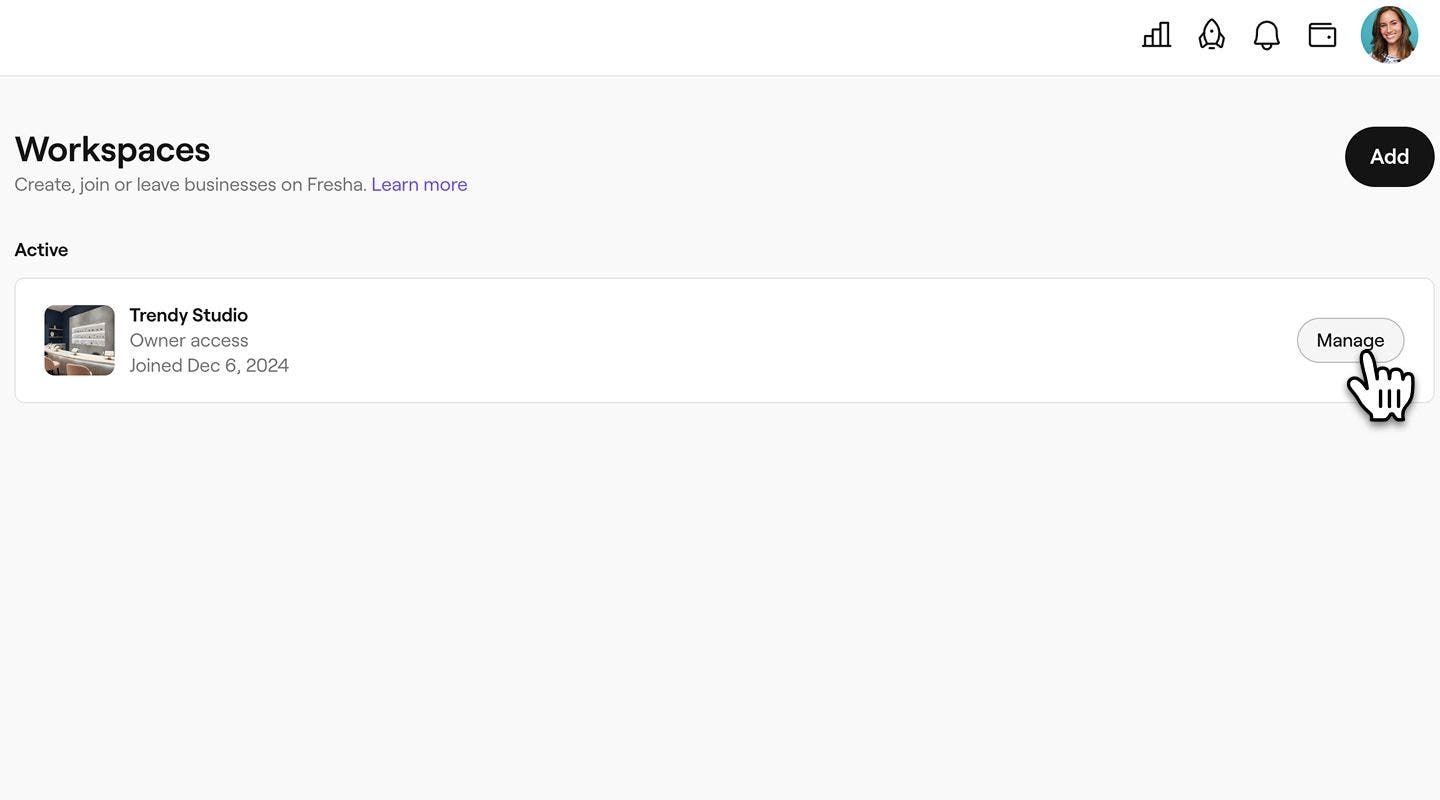
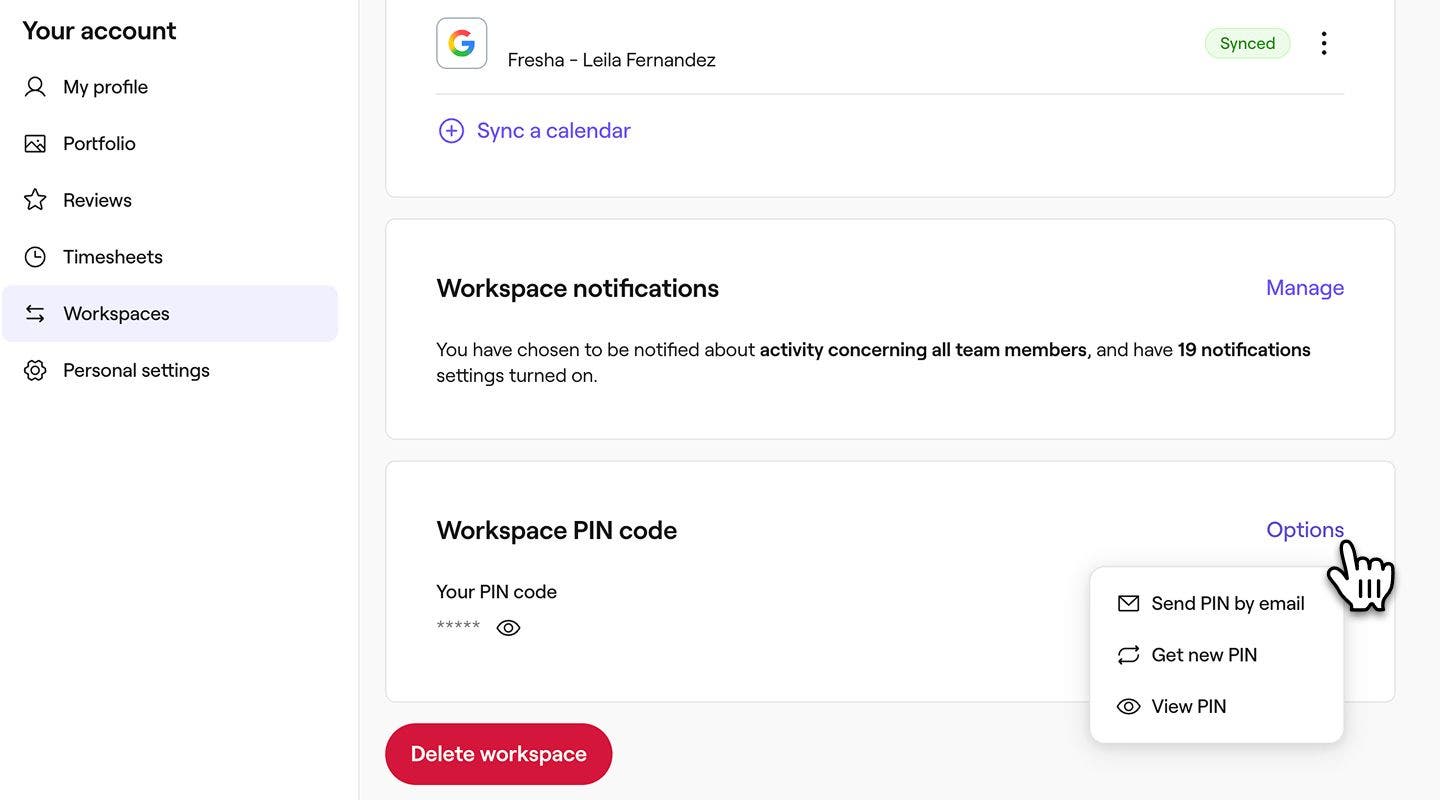
In the left menu panel, click on Workspaces and select Manage next to the workspace you want to view the PIN for.
-
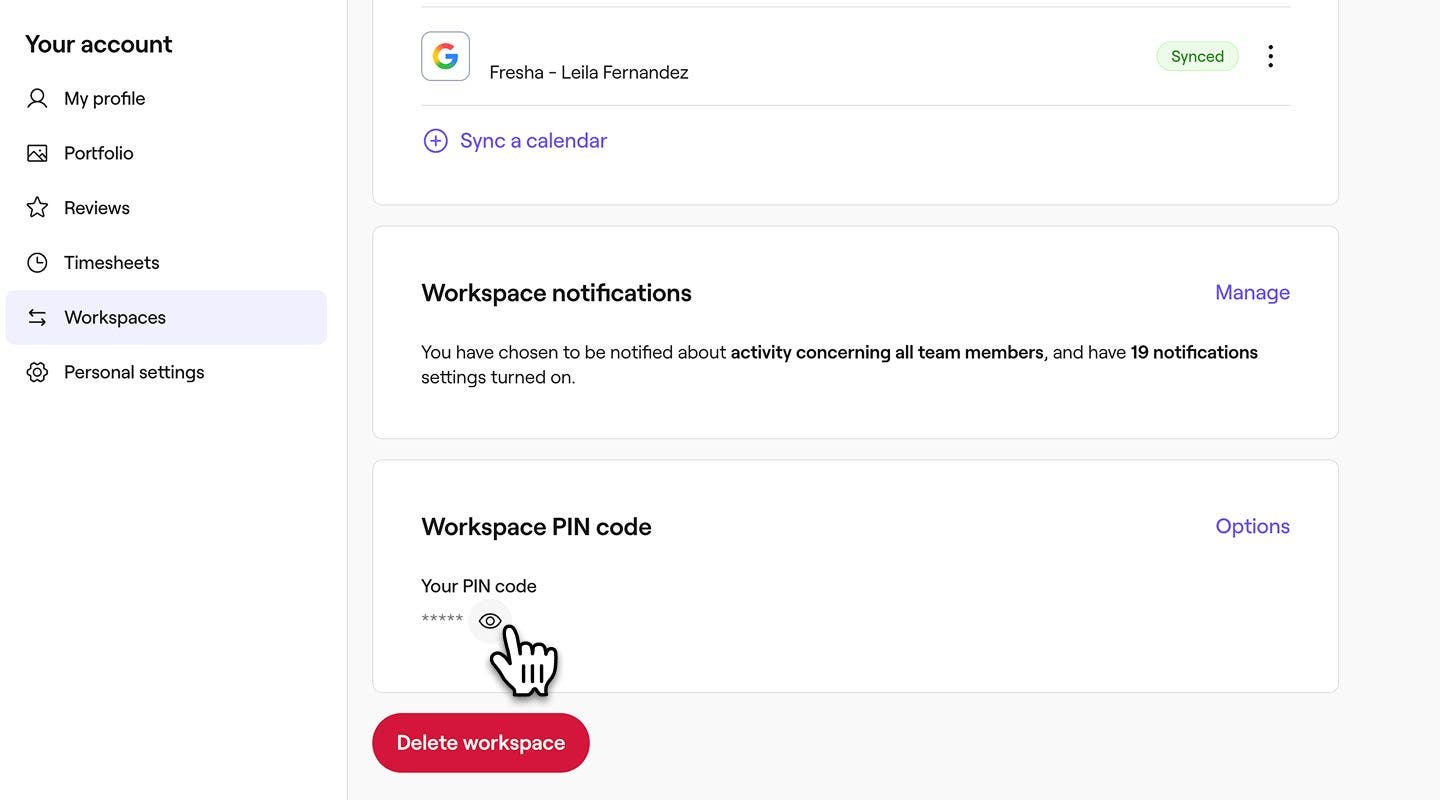
Under Workspace PIN code, click on the visibility eye icon for your PIN code.
-
Enter your account password and select View PIN.
-
You can also access your PIN code by selecting Options and choosing either:
- Send PIN by email: Resend yourself the email containing the link to view your PIN.
- Get new PIN: Request a new PIN to be sent via email.
- View PIN:
A verification code is sent to you via SMS. Enter the 4-digit code into the boxes provided.
Lock the workspace screen
Once PIN switching is enabled, you need to manually lock your screen to activate the feature. This works on any signed-in device. Remember to retrieve your PIN code before locking the screen.
- From the toolbar in the top right of your screen, click the Profile icon and select Lock screen.
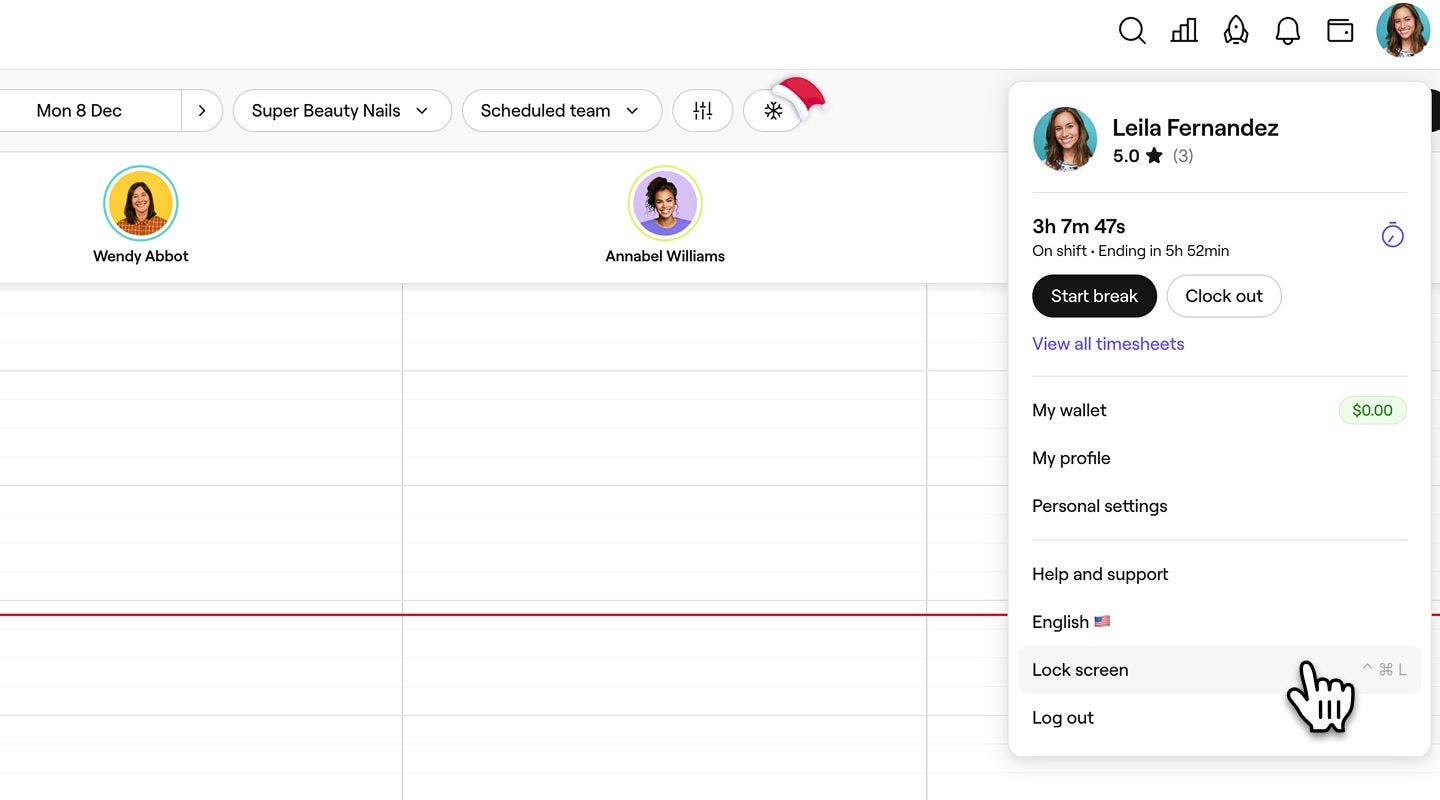
- The lock screen will appear, prompting you to enter your PIN to re-enter the workspace.

Managing PIN switching
To activate updates to your PIN switching settings, lock your screen once the changes have been made.
Edit PIN switching settings
- From the main menu on the left of your screen, go to Settings.
- Click on the Team category to access permission settings.
- In the left menu panel, select PIN switching and select Edit to update your PIN switching settings.
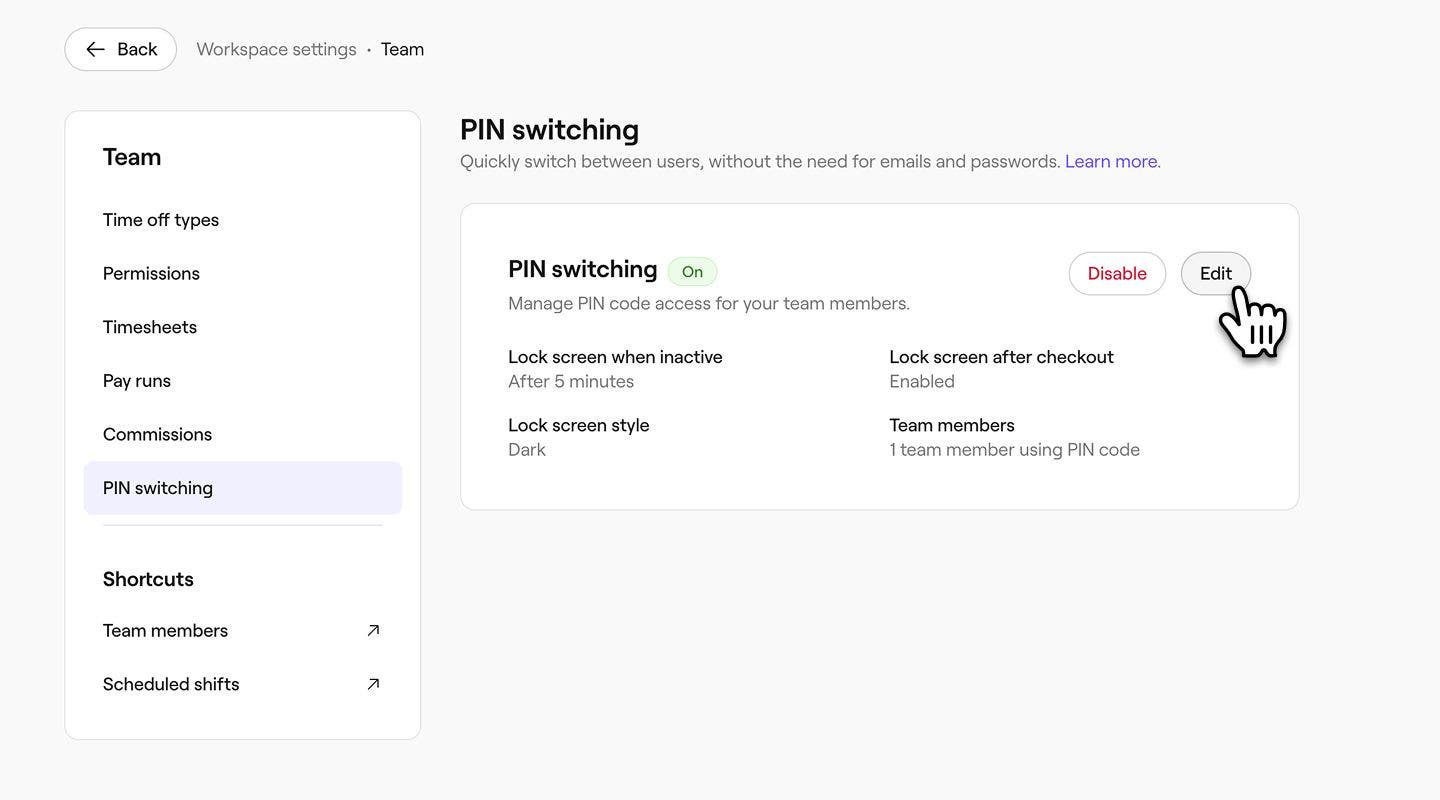
- Update the PIN switching settings as needed and in the top right of your screen, click Save to update your changes.
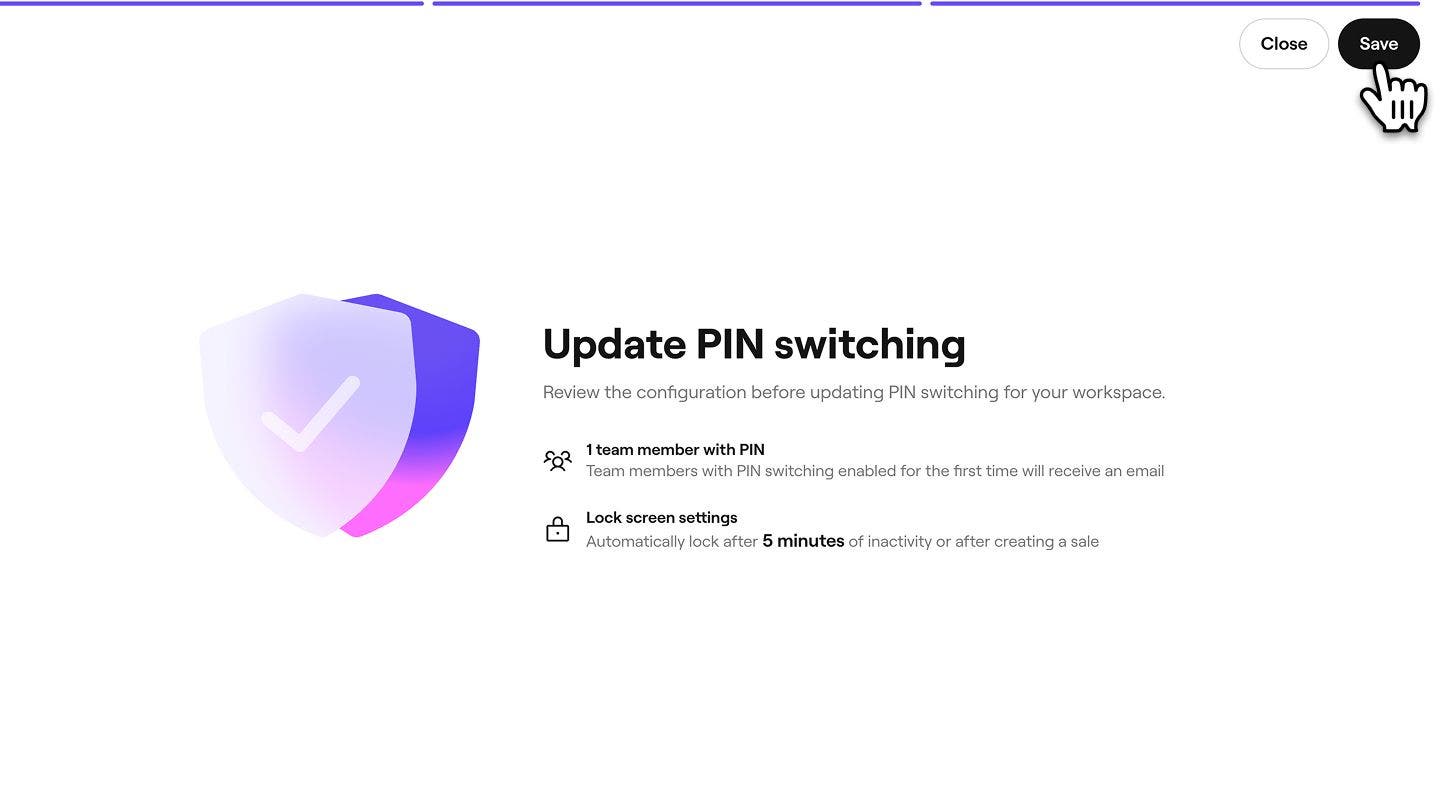
When you add a new team member, you must edit your PIN switching settings to manually send them a PIN.
Reset PIN codes for team members
Resetting PIN codes sends a new PIN to team members via email, enabling them to access the workspace.
- From the main menu on the left of your screen, go to Team.
- Select Team members from the left menu panel.
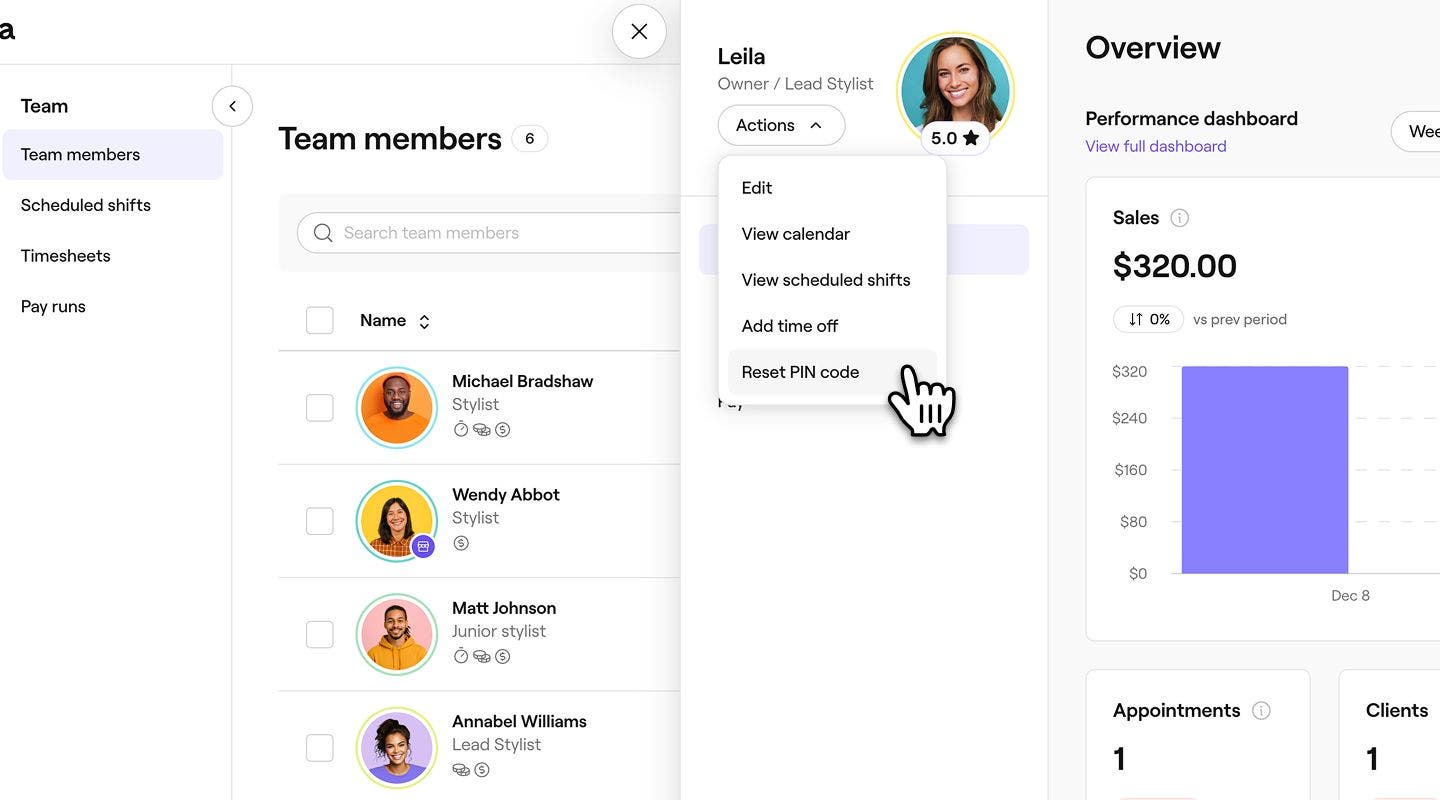
- Click on a team member to open their team member profile, then click on the Actions button and Reset PIN code to reset the PIN for the team member.
- In the pop-up, click Reset to confirm changes.
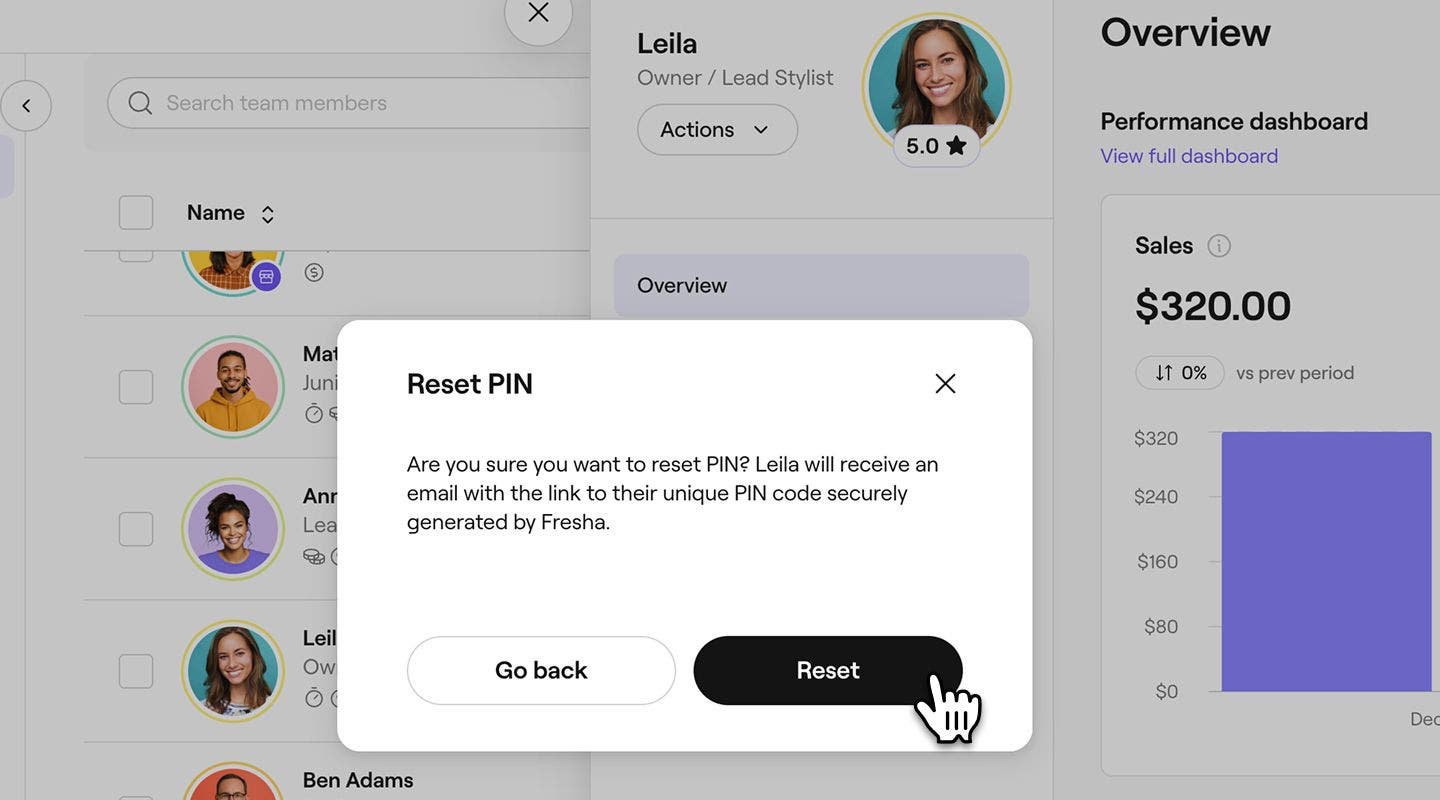
Team members will receive an email with a link to view their new PIN codes once reset.
Disabling PIN switching
You can choose to disable the PIN switching feature for your whole workspace or or individual team members.
Disable PIN switching for your workspace
- From the main menu on the left of your screen, go to Settings.
- Click on the Team category to access permission settings.
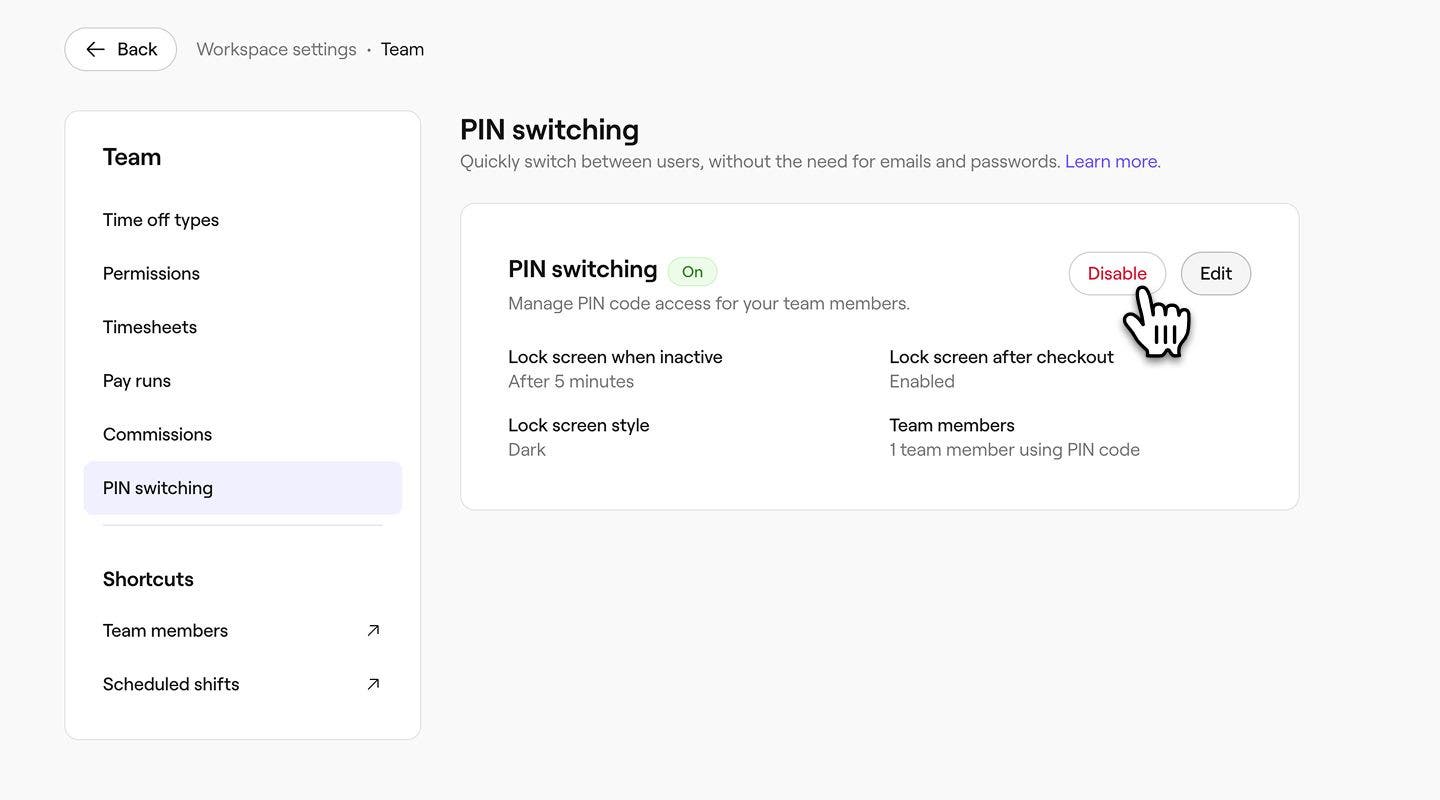
- In the left menu panel, select PIN switching and select Disable to remove PIN requirements to access your workspace.
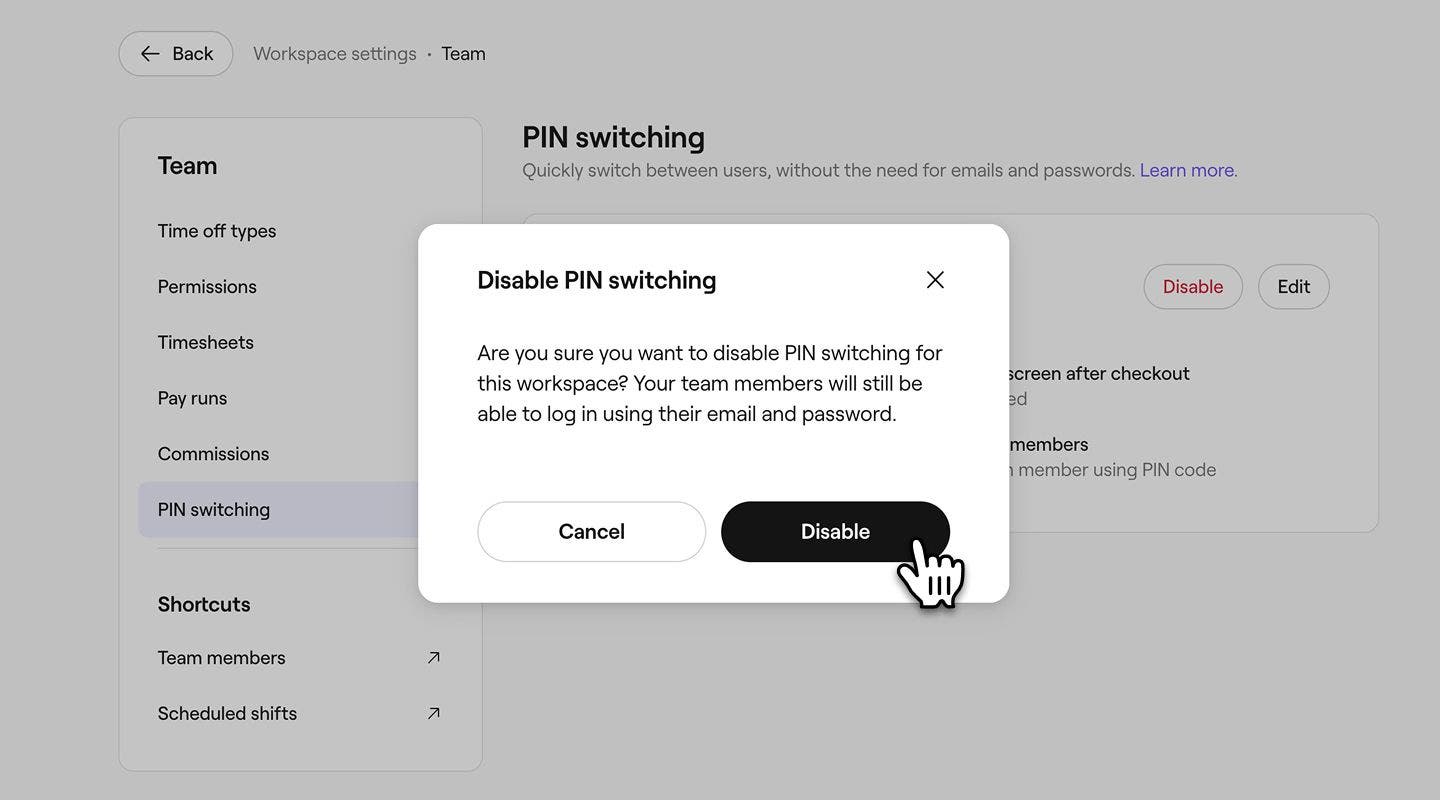
- In the pop-up, click on Disable again to confirm your changes.
Disable PIN switching for team members
- From the main menu on the left of your screen, go to Team.
- Select Team members from the left menu panel.
- Click on a team member to open their team member profile, then click on the Actions button and then Edit.
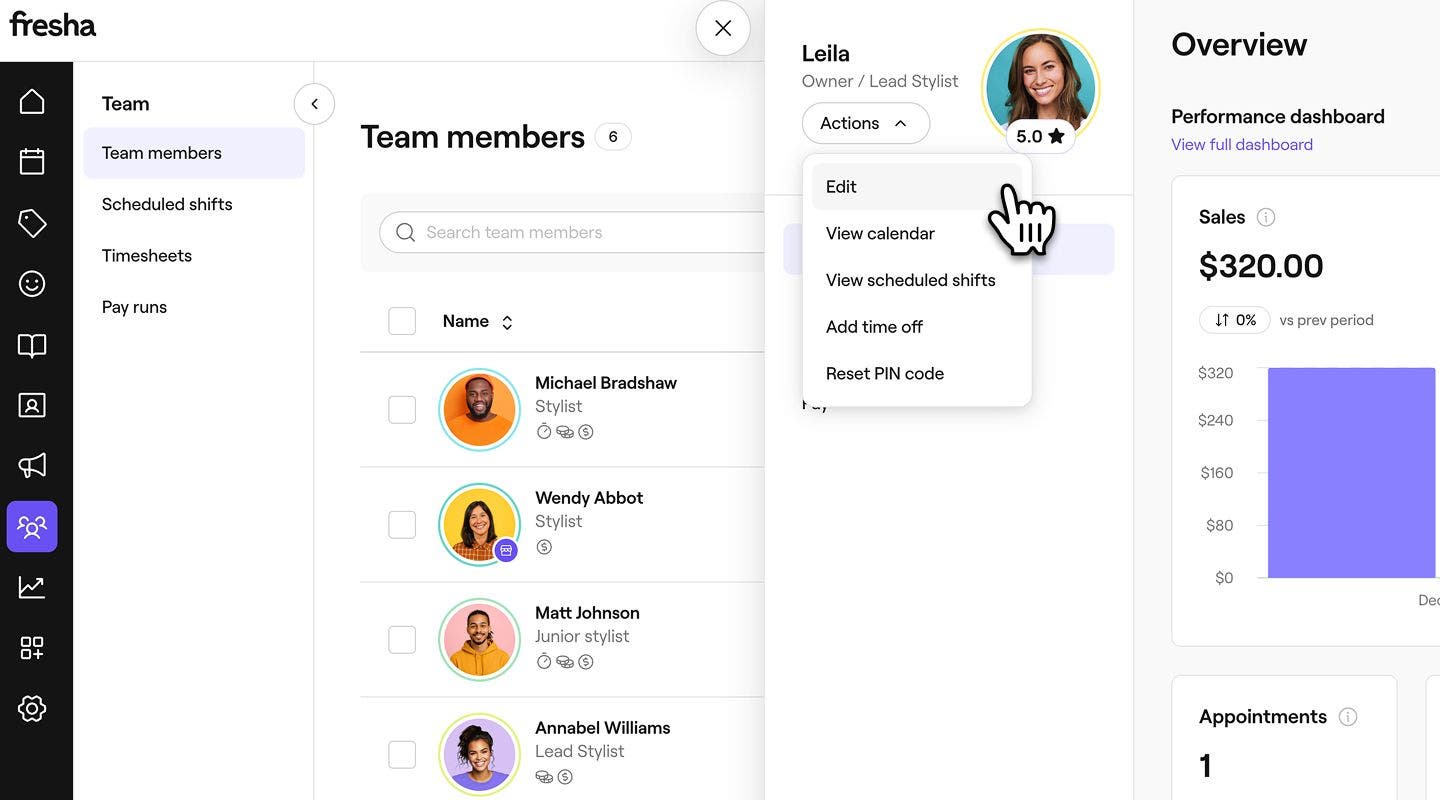
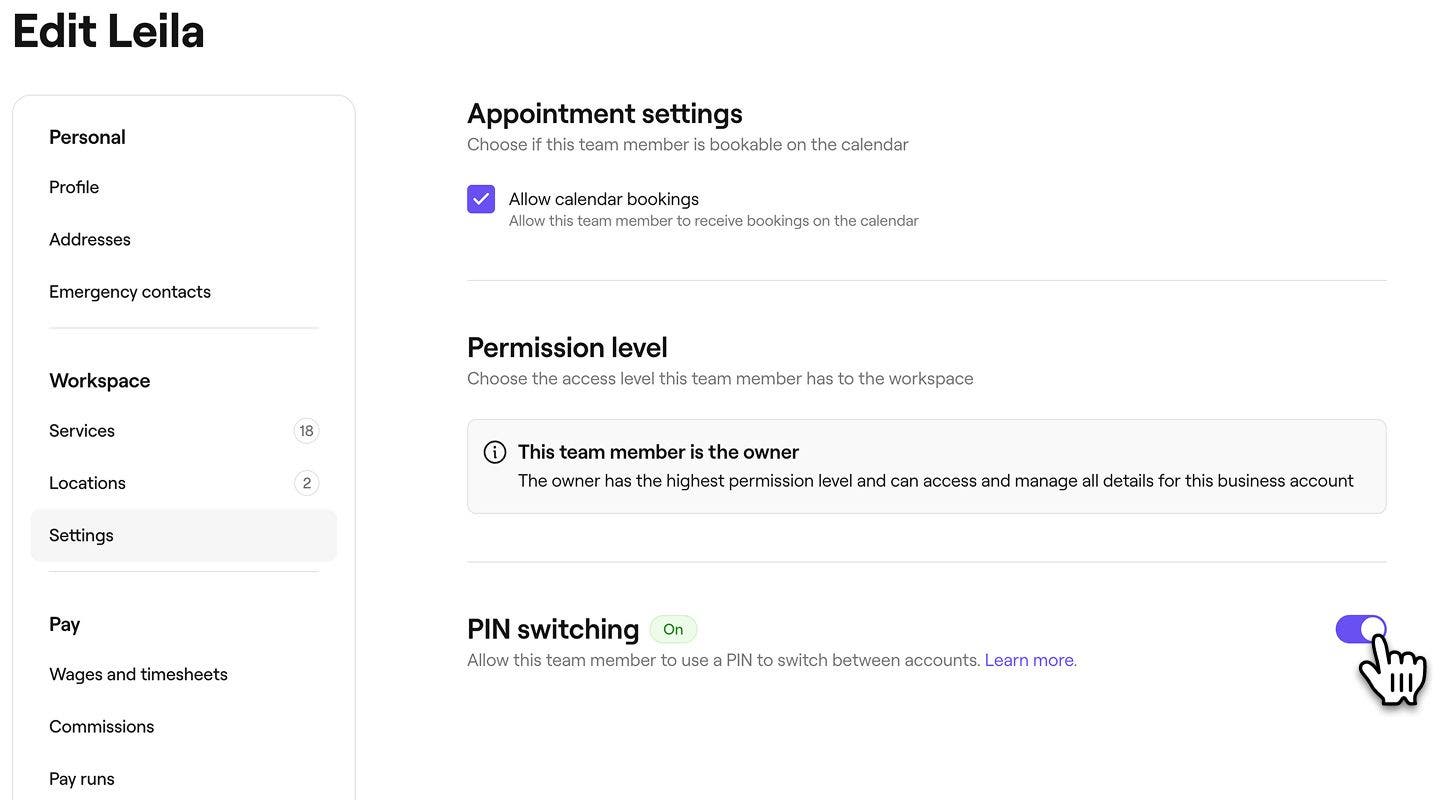
- In the left menu panel of their team member profile, select Settings.
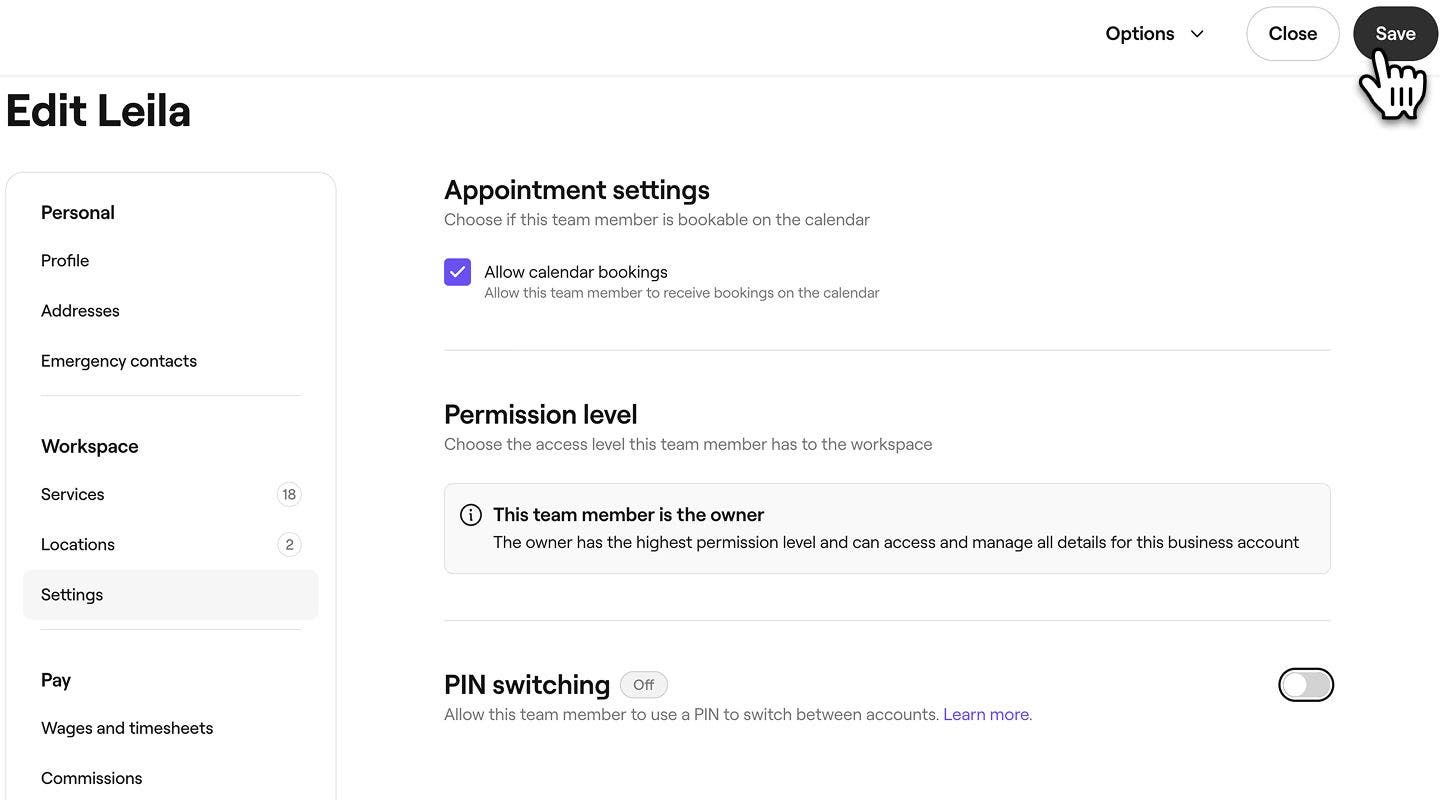
- Toggle off the PIN switching feature to disable it for this team member.
- In the top right of your screen, click Save to update your changes.
FAQs
- Login with email:
Log in manually using the account email address and password.
If a member forgets their PIN code when trying to log in, they can access the workspace using the following option on the lock screen:
No, it’s not possible to switch between different workspaces. PIN codes are linked to a specific personal account which has access to one workspace.
- Login with email: