Set up wallet transfers authorization
Password protect transfers from your business wallet. Learn how to configure your business wallet settings in Fresha, ensuring approval for each business wallet transfer.
In this article
Enable transfer autherization
Setting up transfer authorization adds an extra layer of security by requiring a password each time money is sent from your wallet.
- From the toolbar in the top right of your screen, click on your profile icon and select Wallet.

- In the left menu panel, select Wallet settings, and click Enable to activate verification on all transactions.

- Enter your Fresha account password to and click Continue.
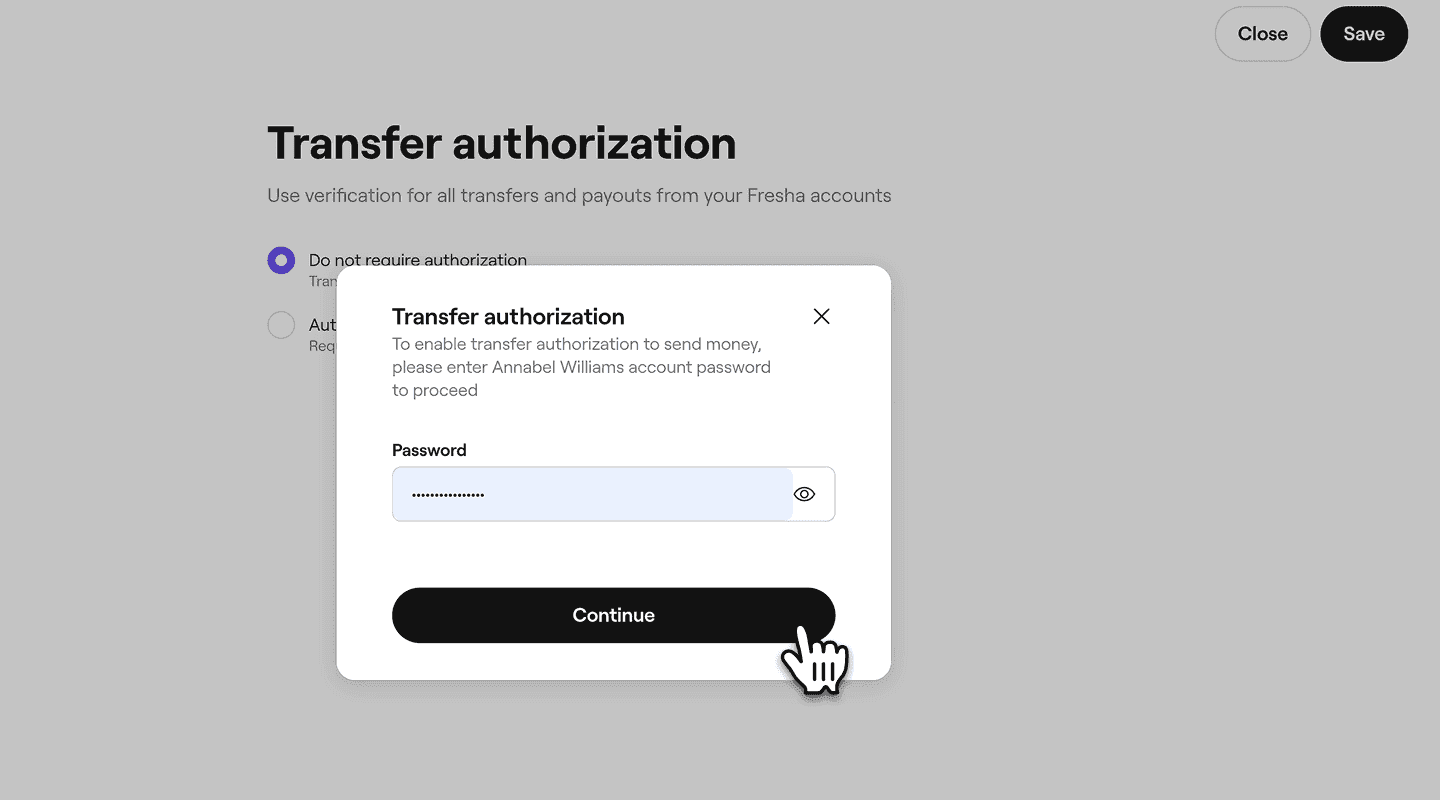
- Toggle on Authorize with your Fresha password to require you to verify every transfer and payout with your Fresha password.

- Click on the Save button in the top right of your screen to confirm your changes.

- You will then see this enabled under your Wallet settings.
