HomeKnowledge baseFresha academy
Refund a sale
Back
  1. Knowledge base•
  2. Sales and checkout•
  3. Refund a sale

Refund a sale

Learn how to easily correct payment errors or offer compensation by refunding sales directly to your clients.

In this article

  • How refunds work
  • Refund an item
  • Refund an amount

How refunds work

Refunding a sale lets you return money to clients or correct completed transactions by reversing all or part of the sale.

There are two ways to refund a sale:

  • Refund items: Refund individual items such as services or products from a sale.  
  • Refund an amount: Return the transaction's full or partial value without specifying the items. This is useful when an itemized refund is not necessary, like offering compensation.

Refunding a specific amount instead of an individual item may affect reporting, as it isn’t linked to a product or service. This can be useful when a sale includes a single item, and you need to partially refund it, however refunding by item is recommended to keep reporting clear and accurate.

If you need to change the team member assigned to the sale or adjust the tip allocation, you can edit the sale instead.

Refund an item

  1. From the main menu on the left of your screen, go to Sales, then select Sales from the left menu panel. 
    select_sales_web.jpg
  2. Above the Sales list, use the search bar and filters in the toolbar to find the sale.
    refund_an_item_web_3.jpg
  3. Click on the Sale reference number to view its details. 
    refund_an_item_web_4.jpg
  4. In the right panel of the sale view, click on Quick actions (three dots), then select Refund sale.
    refund_an_item_web_5.jpg
  5. On the Refund view, tick the checkboxes next to each item you want to refund, then select Continue in the top right. 
    refund_an_item_web_6.jpg
  6. Under Refund method, choose to refund the payment to the client's original payment method or Cash. 
    refund_an_item_web_7.jpg
  7. Use the drop-down to select a Reason for refund. 
  8. Click on the Issue refund button in the top right to process the refund.
  9. Once processed, a record of the refund will be listed in your Sales list and appear in the original sale details, with the status as Refunded.
    refund_an_item_web_9.jpg
  1. From the main menu at the bottom of your screen, tap on the Sales icon.
  2. Select Sales from the menu. 
  3. Above the Sales list, use the search bar and filters in the toolbar to find the sale.
  4. Tap on the Sale # to view its details. 
  5. At the top of the sales view, tap on Quick actions (three dots), then select Refund sale.
  6. On the Refund view, tick the checkboxes next to each item you want to refund, then select Continue at the bottom. 
  7. Under Refund method, choose to refund the payment to the client's original payment method or Cash. 
  8. Use the drop-down to select a Reason for refund. 
  9. Tap on the Issue refund button at the bottom to process the refund.
  10. Once processed, a record of the refund will be listed in your Sales list and appear in the original sale details, with the status as Refunded.

Refund an amount

  1. From the main menu on the left of your screen, go to Sales, then select Sales from the left menu panel. 
    select_sales_web.jpg
  2. Above the Sales list, use the search bar and filters in the toolbar to find the sale.
    refund_an_amount_web_3.jpg
  3. Click on the Sale reference number to view its details. 
    refund_an_amount_web_4.jpg
  4. In the right panel of the sale view, click on Quick actions (three dots), then select Refund sale.
    refund_an_item_web_5.jpg
  5. On the Refund view, select the Refund amount tab. 
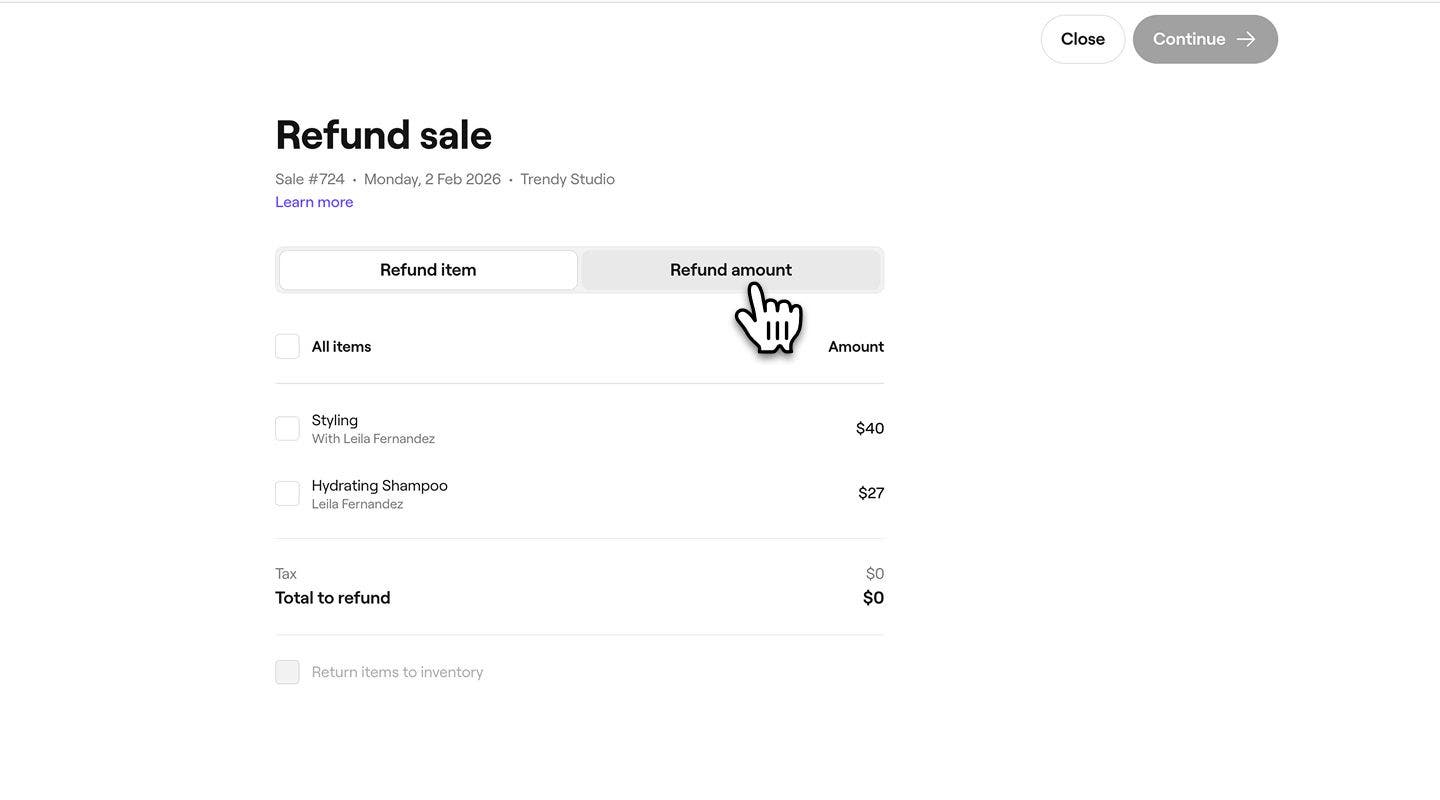
    refund_an_amount_web_6.jpg
  6. Under Refund method, choose to refund the payment to the client's original payment method or Cash.
  7. Enter the Refund amount to issue to the client. 
    refund_an_amount_web_8.jpg
  8. Use the drop-down to select a Reason for refund. 
  9. Click on the Issue refund button in the top right to process the refund.
  10. Once processed, the item's refund is recorded as a new transaction in your Sales list and appears in the original sale details, with the status as Refunded.
    refund_amount_web_11.jpg
  1. From the main menu at the bottom of your screen, tap on the Sales icon.
  2. Select Sales from the menu. 
  3. Above the Sales list, use the search bar and filters in the toolbar to find the sale.
  4. Tap on the Sale # to view the details. 
  5. At the top of the sales view, tap on Quick actions (three dots), then select Refund sale.
  6. On the Refund view, select the Refund amount tab. 
  7. Under Refund method, choose to refund the payment to the client's original payment method or Cash.  
  8. Enter the Refund amount to issue to the client. 
  9. Use the drop-down to select a Reason for refund. 
  10. Tap on the Issue refund button in the top right to process the refund.
  11. Once processed, the item's refund is recorded as a new transaction in your Sales list and appears in the original sale details, with the status as Refunded.

FAQs

    • Card payment refunds usually appear in the client’s account within 3 to 5 working days. Refunds to a Fresha gift card are applied instantly.

      When a recurring membership is canceled and refunded, it remains redeemable until the next renewal date. The membership stays cancelled, but it will remain active and available to use through the end of the current renewal period.

      If a refund was issued by mistake,  you can create a new sale with the refunded services or items and complete checkout again as normal.

      When a client pays using a business gift card, refunds are handled outside the gift card balance. In these cases, the refund is issued as cash rather than being added back to the gift card.


Point of sale


Related articles

Fresha academy courses
Course video preview

Record a sale

6 lessons•9 mins

See all courses

Was this guide helpful?

Point of sale

Raise a sale

Efficiently manage sales transactions for products, services, memberships, and gift cards.

Apply Deals and discounts at checkout

Manage cart Deals and discounts to adjust totals at checkout.

Refund a sale

Easily correct payment errors or offer compensation by refunding sales directly.

Unpaid and part-paid sales

Save sales without full payment and collect the remaining balance later.

Create a draft sale

Save and edit sales anytime before checkout. Learn to create, manage, and complete draft sales.

Collect payments using multiple methods

Enable clients to pay using multiple payment methods with Fresha's split payment feature.

Collect quick payments

Easily process one-time payments from clients using Fresha's Quick Payment feature.

Edit a sale

Ensure accurate record-keeping and correct any errors by editing sales receipts.

Void a sale

Keep your financial records accurate by voiding incorrect sales.

Related articles

Raise a sale

Efficiently manage sales transactions for products, services, memberships, and gift cards.

Manage manual payment types

Simplify the checkout process by offering clients multiple payment options.

Fresha academy courses
Course video preview

Record a sale

6 lessons•9 mins

See all courses
Fresha
Get the app

About Fresha

Careers

Help and support

Blog

Sitemap

For business

For partners

Pricing

Features

Scheduling

Point of sale

Payments

Capital

Marketplace

Support

Status

Legal

Privacy Policy

Terms of service

Terms of use

Find us on social

Facebook
Linkedin
Instagram

© 2026 Fresha.com SV Ltd