Collect payments using multiple methods
Learn how to take payment for a sale using multiple manual payment methods.
In this article
How split payments work
Split payments let you take payment for a single sale using multiple payment methods, such as a card terminal and cash. During checkout, you can enter separate amounts for each payment method until the full balance is paid.
If a client wants to pay using multiple cards, you can split the payment across more than one card.
Collect a split payment
- Open an existing appointment from your calendar.
- In the right panel of the appointment view, click on the Checkout button at the bottom.

- You can also:
- Add more items to the cart using the Add to cart button in the right panel.
- Click on Quick actions (three dots) at the bottom of the right panel, where you'll find options to Apply a discount to the whole cart or individual services and Adjust service charges.
- You can also:
- In the left panel under Payment methods, select Split payment.
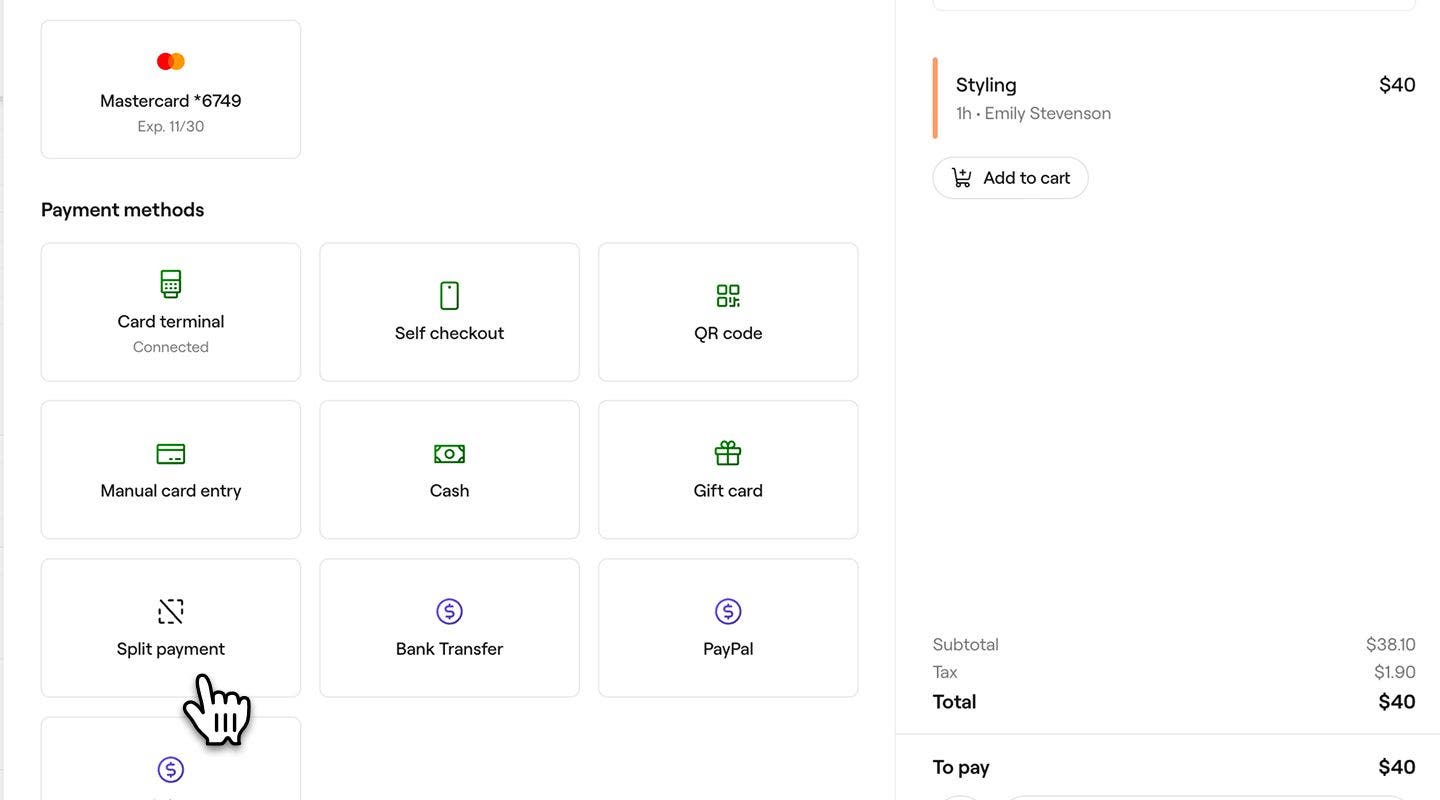
- In the payment pop-up, choose a payment method.

- Enter the payment amount, then click on the Add button.
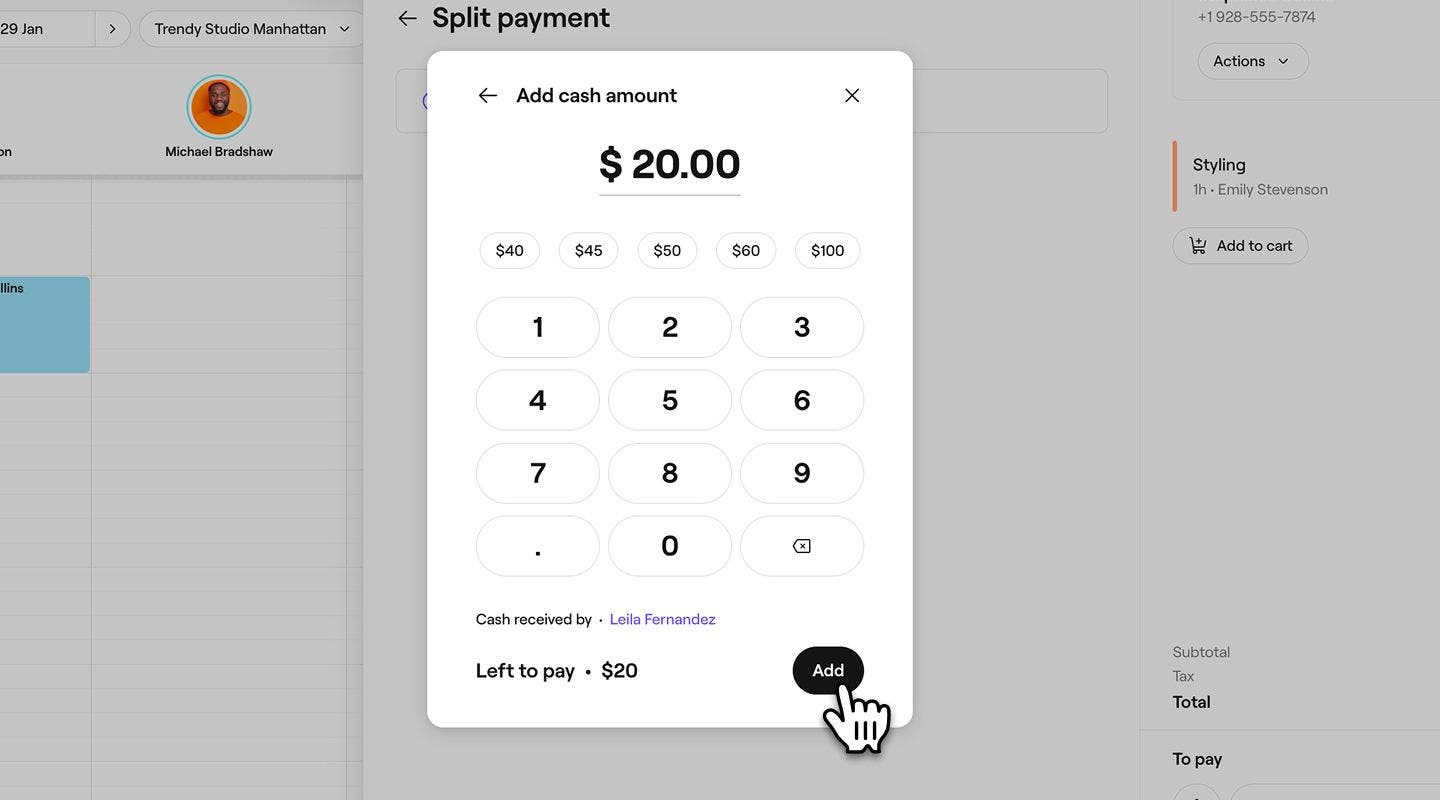
- In the left panel of the payment view, select Add payment method to process the remaining balance using another payment method.
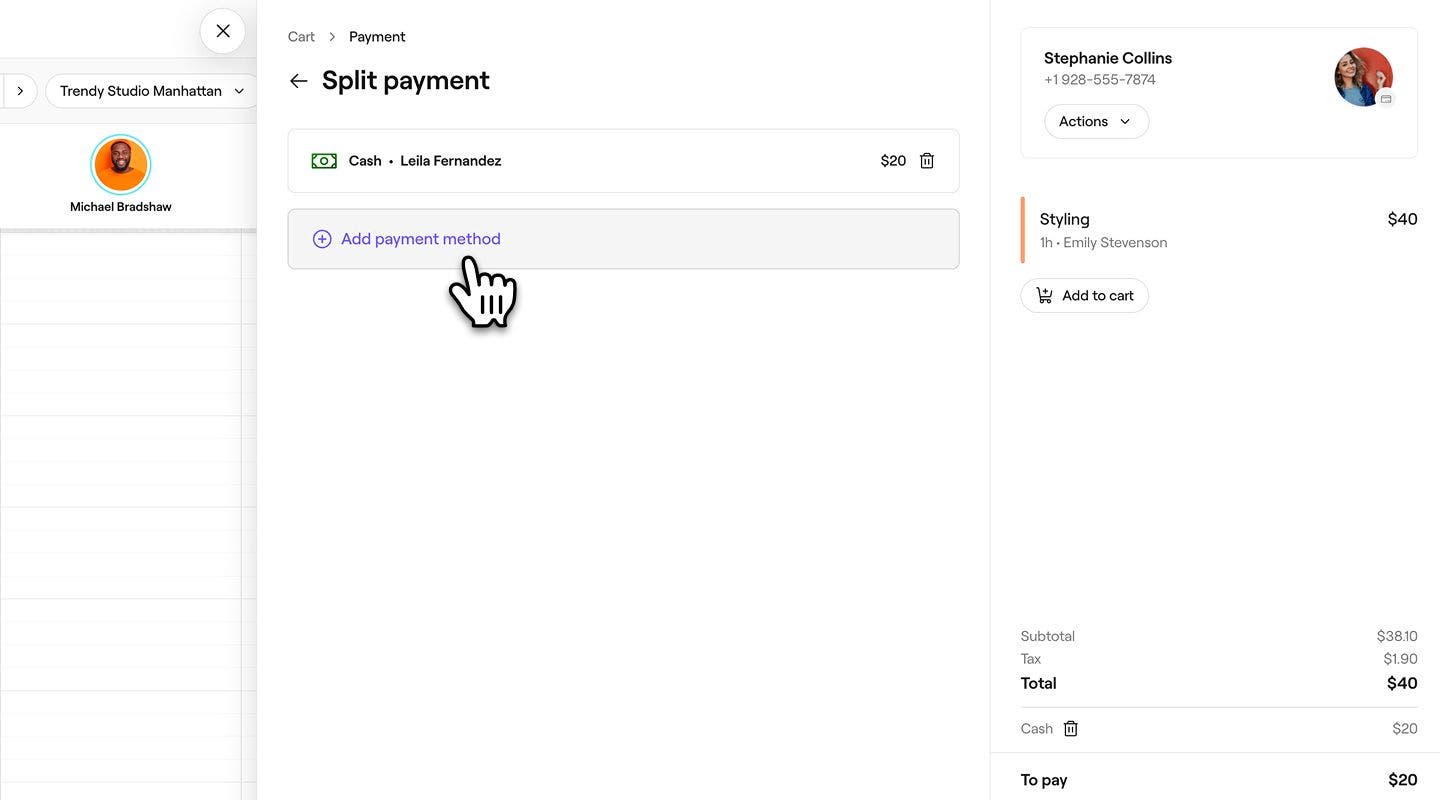
- Click on the Pay now button at the bottom of the right panel to process the client's payments and complete the sale.
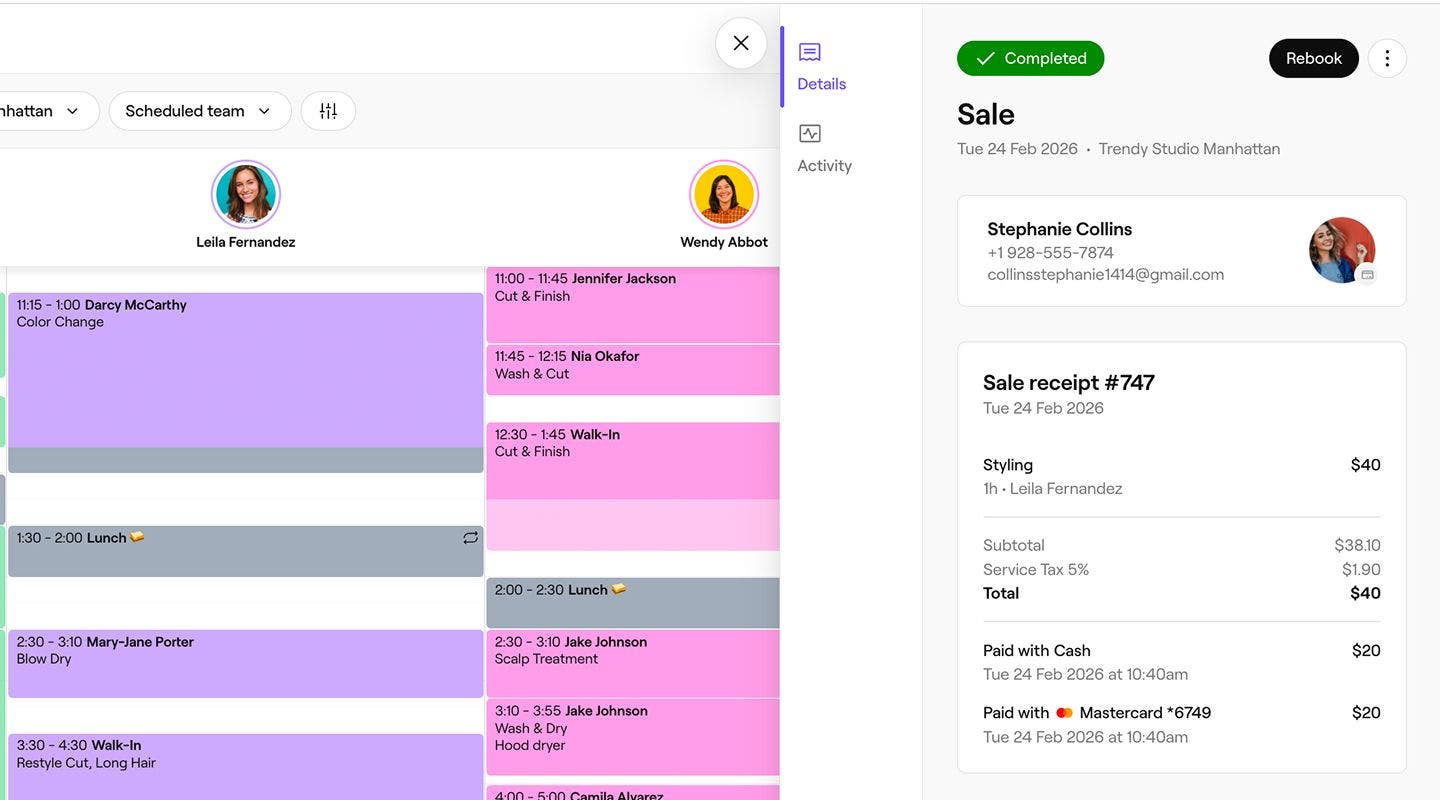
Once the payment is processed, a sale receipt is created, which you can share with the client by email or print.
To create a new sale, click on the Add button in the Calendar toolbar, then select Sale.