Set up and manage tips
Learn how to set up tipping options, adjust default values, and choose how tips are calculated.
In this article
About tips
Tips are optional amounts that clients can add to a sale as a thank you to team members for great service. Clients can add a tip during payment in person, as well as after checkout, by enabling the Thank you for visiting automated message. Once an appointment is completed, clients receive a notification to leave a review and add a tip.
When using a Fresha card terminal, tip options are shown directly on the terminal screen, making it easy for clients to add a tip during payment. You can control how tipping works by customising the default tip options shown at checkout.
Set tipping options for clients
-
From the menu on the left of your screen, go to Settings.

-
Click on the Sales category to manage your tipping settings.

-
In the left menu panel, select Tipping to manage your tipping options, values, and calculations.
-
Under Tipping options, use the toggles to enable when you want to ask clients for a tip from the following:
- Display a tip option screen at the point of sale: During checkout, a tip screen appears with preset percentages and a custom amount option, so you can show it to the client and let them choose before continuing to payment.
- Display tip options on card terminals and self checkout: Tip options appear on your card terminal during payment, or on the self-checkout payment page that opens when clients tap the link sent to their phone, and they can choose an appointment before paying.
- Allow client to leave a tip online: A Leave a tip option appears within the completed appointment in the client's Fresha account, where they can choose an amount or set a custom tip.

Once set up your selected tipping options, they will now be applied at checkout.
Edit default tip values
- Open Tipping from your Sales workspace settings.
- Next to Default values, click on the Edit button to update your tip settings.

- On the Tip value view, enter the default percentages you want to offer at checkout. These appear as preset options for clients, who can also add a custom amount. To encourage more tipping, we recommend offering no more than three values.
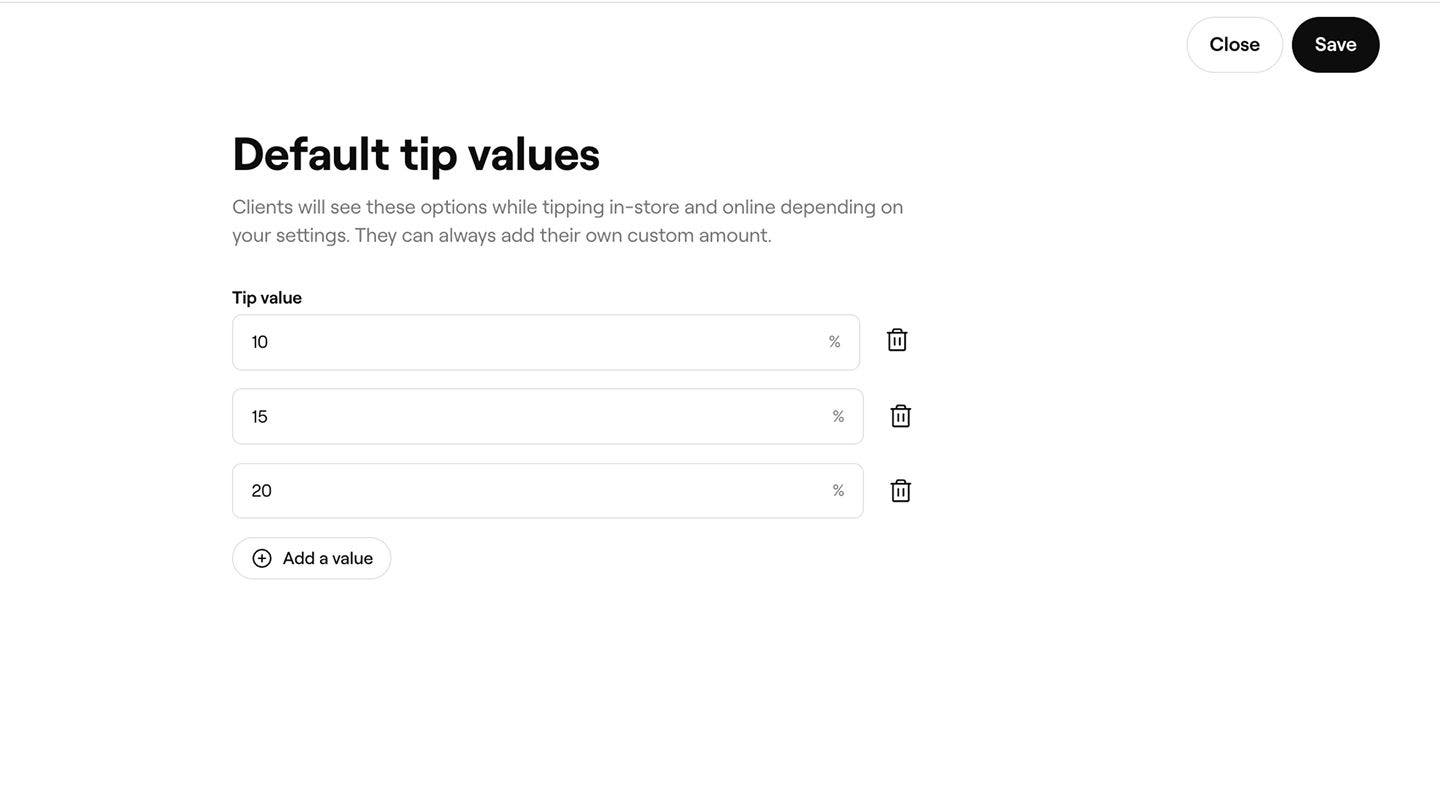
- Click on the Save button in the top right to confirm your changes.
Once updated, the tip values will automatically appear based on your tipping options for clients.
Edit default tip calculation method
- Open Tipping from your Sales workspace settings.
- Next to Tip calculation, click Edit to adjust how tips are calculated at checkout.

- On the Tip calculation view under Cart items, select the item types you want to include when calculating tips.
- Choose whether Service charges, Discounts, and Taxes are Included or Excluded when calculating tips.

- Click on the Save button in the top right to apply your updated tip calculation settings.
Once updated, your tip calculation preferences will be applied at checkout based on the item types and charges you’ve chosen.
Edit tip options for a location
- Open Tipping from your Sales workspace settings.
- Under Tip calculation, click on Advanced options to edit tip options, values, and calculations for your locations.

- In the Advanced tipping options view, adjust the settings per location
- Click on the Save button in the top right to adjust your tip settings for a location.
Once updated, the tip values and calculation method for the locations will be applied at checkout.
To bulk edit tip options for multiple locations, select the checkbox next to each location and select the Bulk edit button from the toolbar.
FAQs
Tips are split proportionally based on the value of the services each team member provided during the sale. For example, if one service accounts for one-third of the sale and another for two-thirds, the tip is distributed in the same ratio. You can update the ratio of a split during checkout or by editing the sale after checkout.
Tips can be reviewed in the Finance summary report, which shows a breakdown of all charges applied across your sales.