Access your Performance insights
Learn how Fresha’s Performance insights summary gives you a high-level overview of your business’s performance, helping you make well-informed decisions every day.
In this article
How the Performance insights panel works
Fresha’s Performance insights provides you with an easily accessible overview of your business productivity, including daily, weekly and monthly data views.
The Performance insights panel helps you visualise your sales, appointments, occupancy, client trends, and top performing locations. Within the performance drawer, you can access the following:
Business performance summary: Get a real-time snapshot of your key business metrics, including sales, appointments, client activity, and channel performance, so you can quickly understand what’s driving your results.
Team summary: See which team members are generating the most revenue and bookings with a quick overview of occupancy rates and top team members, helping you understand who’s driving business growth.
Clients summary: Get a clear breakdown of your client activity, including total confirmed appointments, how many are new or returning and where new clients are coming from across all channels.
Fresha Marketplace summary: Monitor the long-term value of clients acquired through the Fresha marketplace and view predicted sales for the next seven days to stay ahead of upcoming demand.
Team members need to have the Access reporting & insights and View all team members' data permissions enabled to access the Performance insights feature.
Filter Performance insights by date
- From the toolbar on the top right of your screen, click on the Performance insights icon to open the Performance insights panel.

- To adjust the data you’re viewing, choose from the dates displayed across the top panel. You can filter your insights by the following ranges:
- Yesterday
- Today
- Week
- Month

Once you choose a time period, the reports in the panel will automatically update to reflect your selection.
Filter Performance insights using location
- From the toolbar on the top right of your screen, click on the Performance insights icon to open the Performance insights panel.
- Click the filter icon at the top-right of the panel.

- Choose a specific location.
- To view all active locations, select All locations.

- To view all active locations, select All locations.

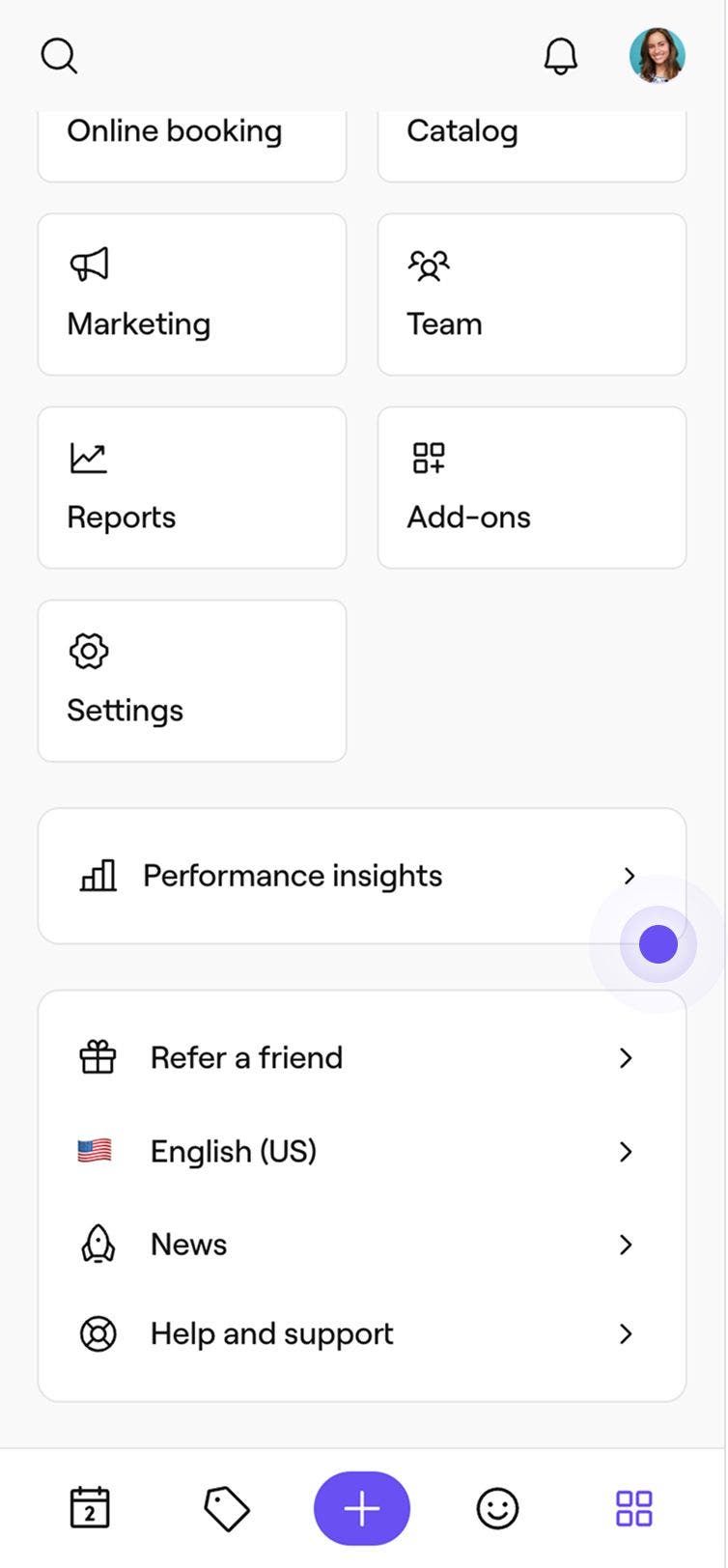


Once you exit the Performance insights summary, any filters you applied will reset. By default, the panel shows today's data and includes all locations.
FAQs
To give your team members access to the Performance insights summary, update their permission level to include Access to Performance summary and View all team members’ data in the Permissions tab.