Set up your professional profile
In this guide, you’ll learn how to create, customize, and manage your professional profile to highlight your skills, grow your brand, and connect directly with clients.
In this article
What are professional profiles?
Your professional profile gives you a dedicated space to showcase your work and connect directly with both new and existing clients. Whether you’re a hairstylist, nail guru, or fitness coach, your profile highlights your skills and services, helping you stand out in the Fresha marketplace.
Your profile is fully customizable, giving you the freedom to express your personality and professional style. Clients can explore your:
- Profile
Show clients the person behind the service. Share your story, interests, languages, and social media links to build trust and connection before they even book with you. - Services
Put your expertise front and center. Highlight the services you’re qualified to perform so clients can easily find and book the right professional for their needs. - Reviews
Let your reviews speak for themselves. Every review and star rating you earn will be displayed on your profile, helping you build credibility and attract more bookings. - Professional portfolio
Showcase your talent with a visual gallery. Upload photos of your work to create a lasting professional portfolio that highlights your craft and inspires clients to book with confidence.
Set up your professional profile
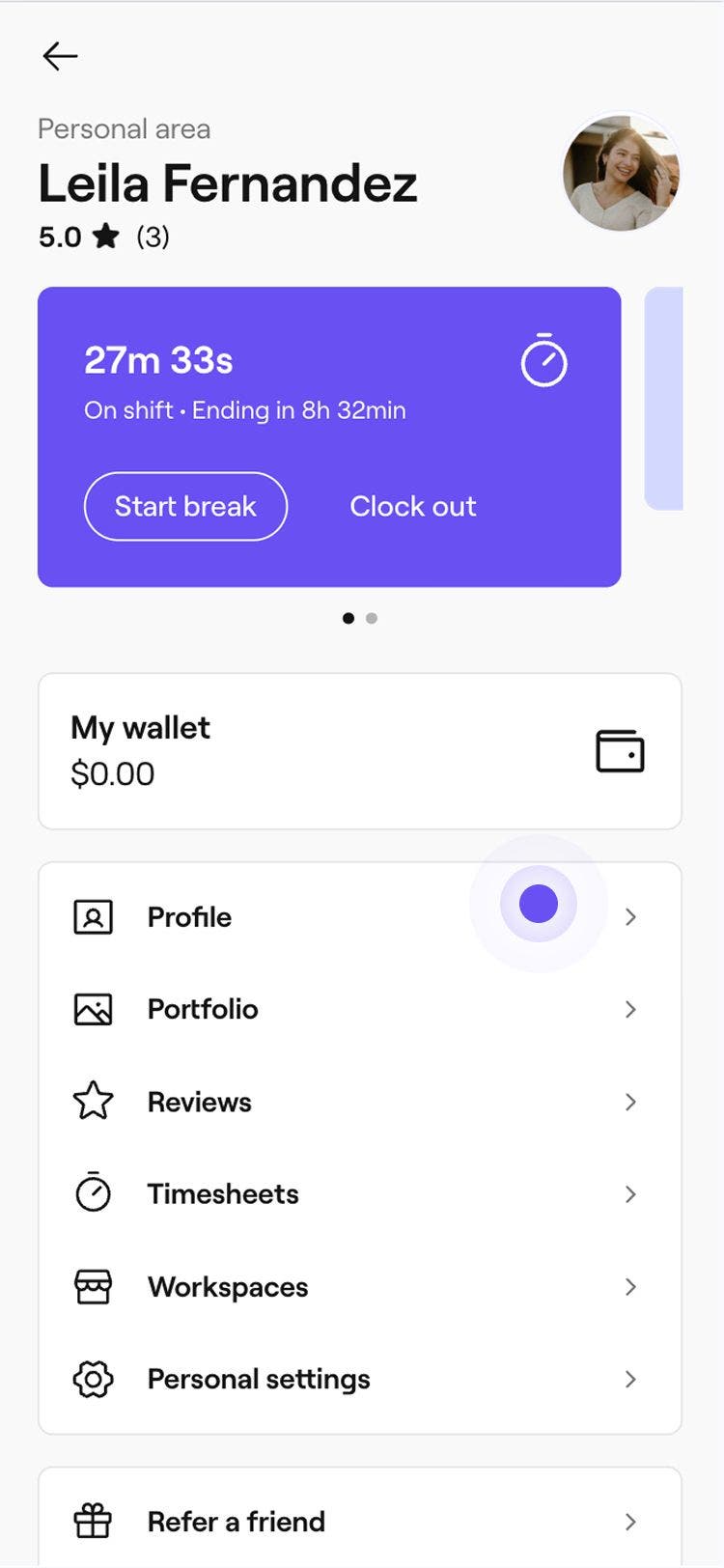
- From the toolbar on the top right of your screen, click on your Profile picture and select My profile from the panel.
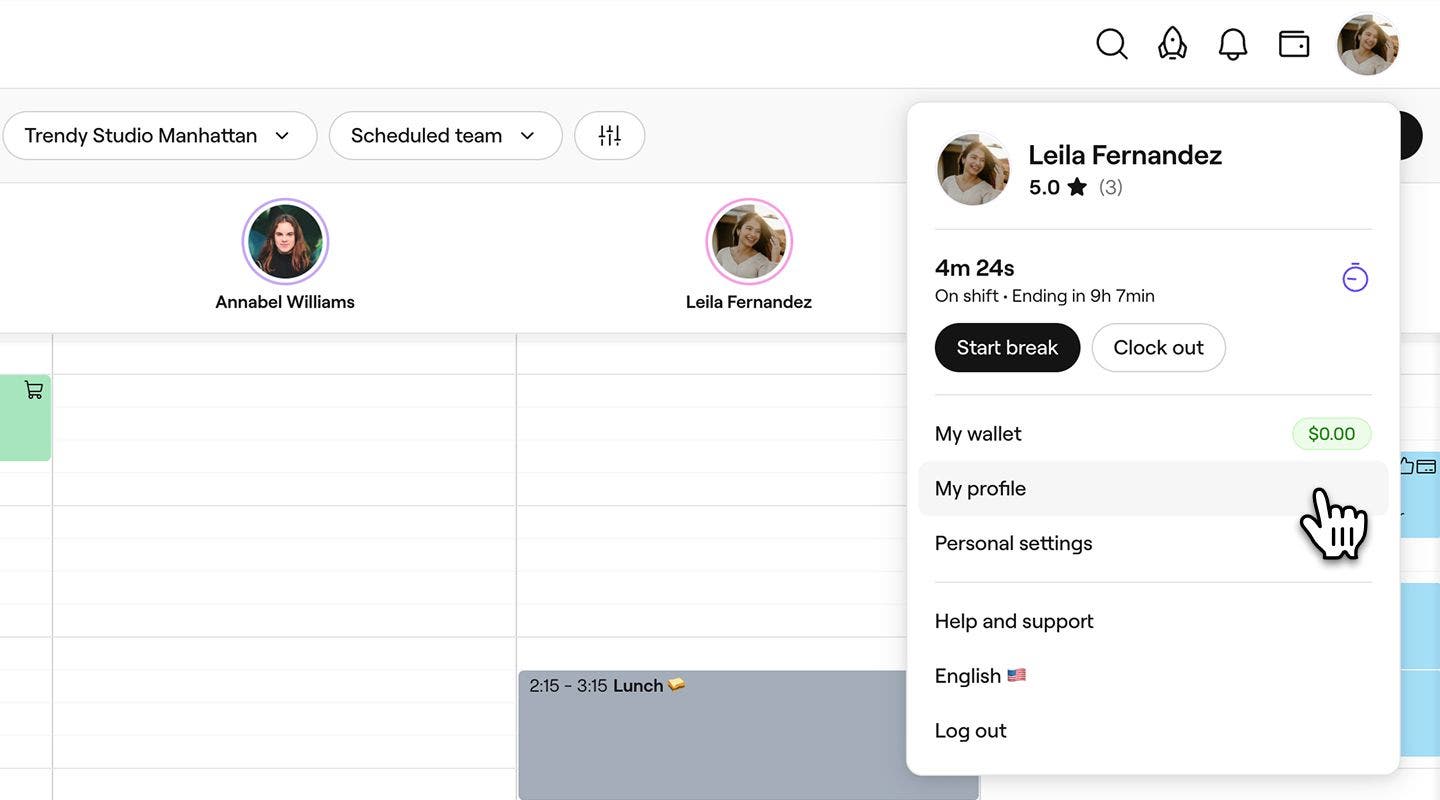
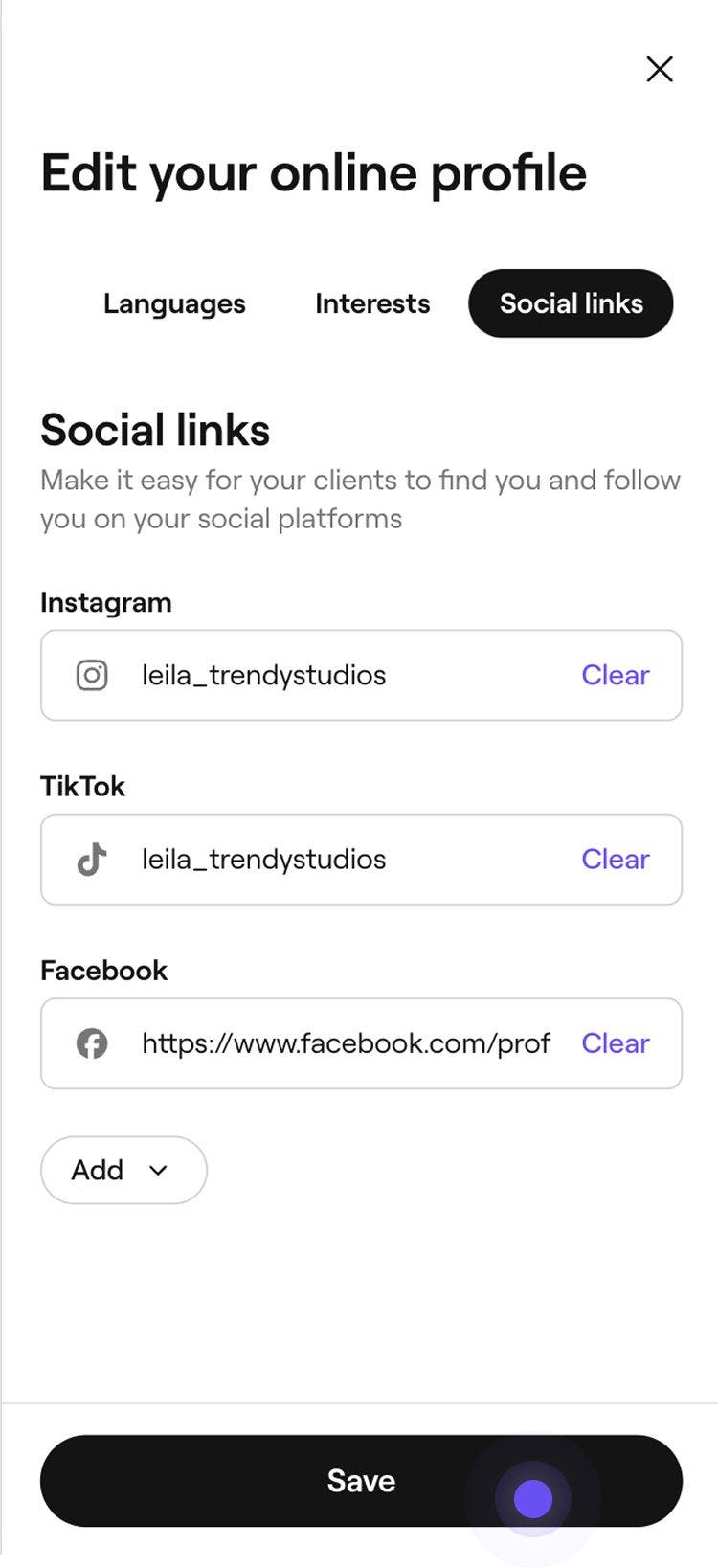
- Under My profile, click the Edit button to update your professional profile information, including the following:
- Personal details: Enter your display name, job title, and a short introduction about yourself.
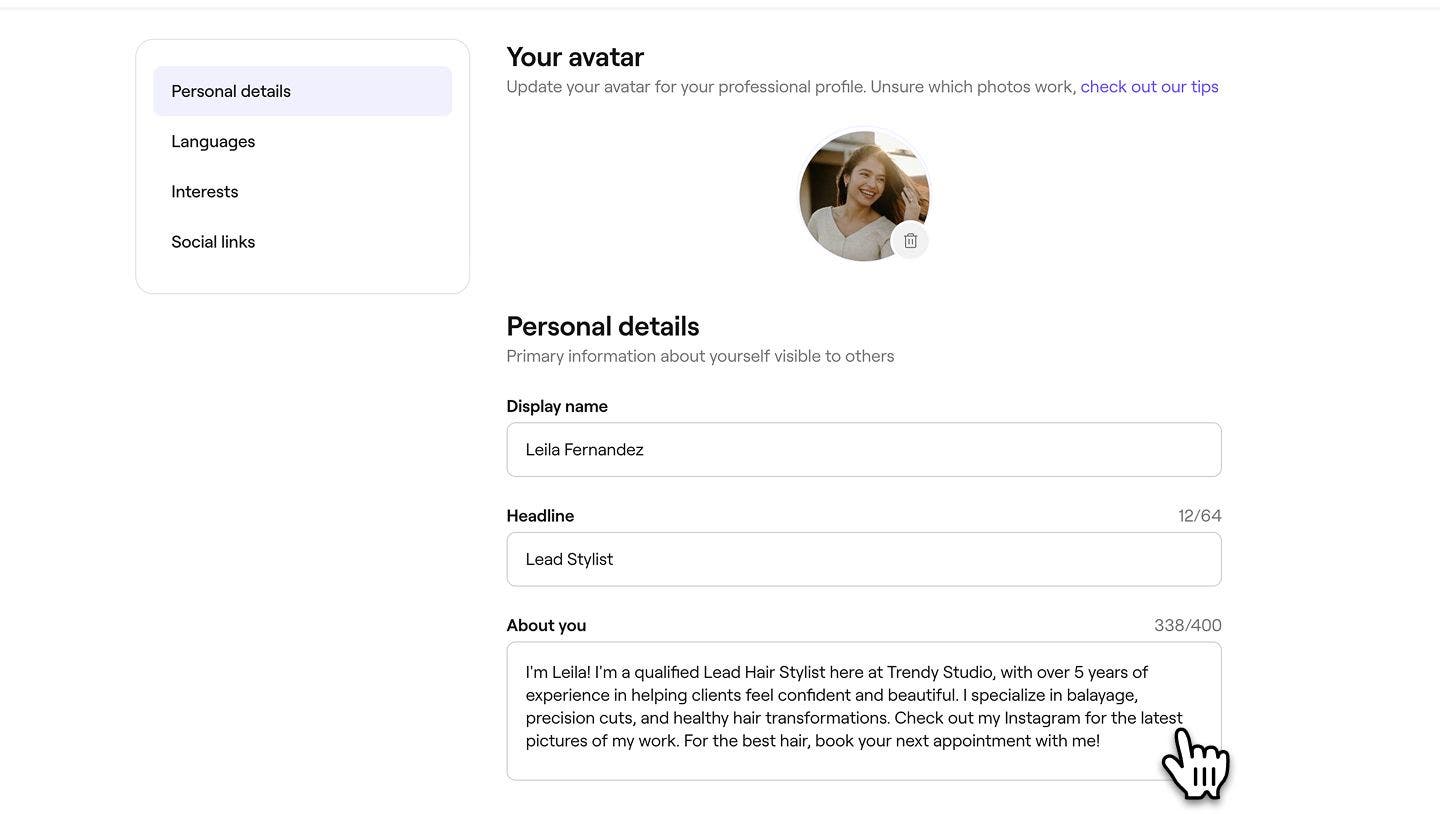
- Languages: Add any additional languages you speak. These will appear on your profile.
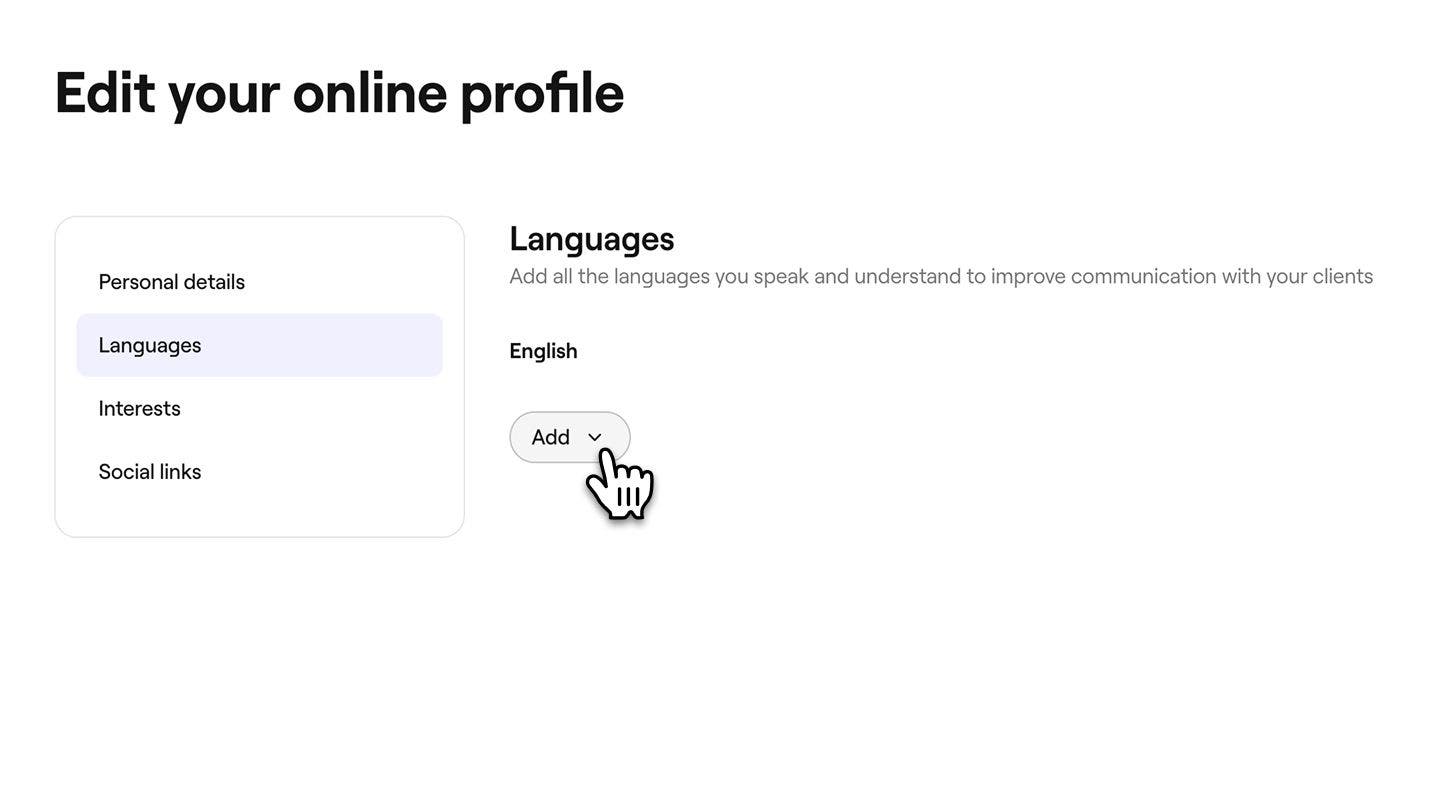
- Interests: Include any personal interests or values you’d like to share.
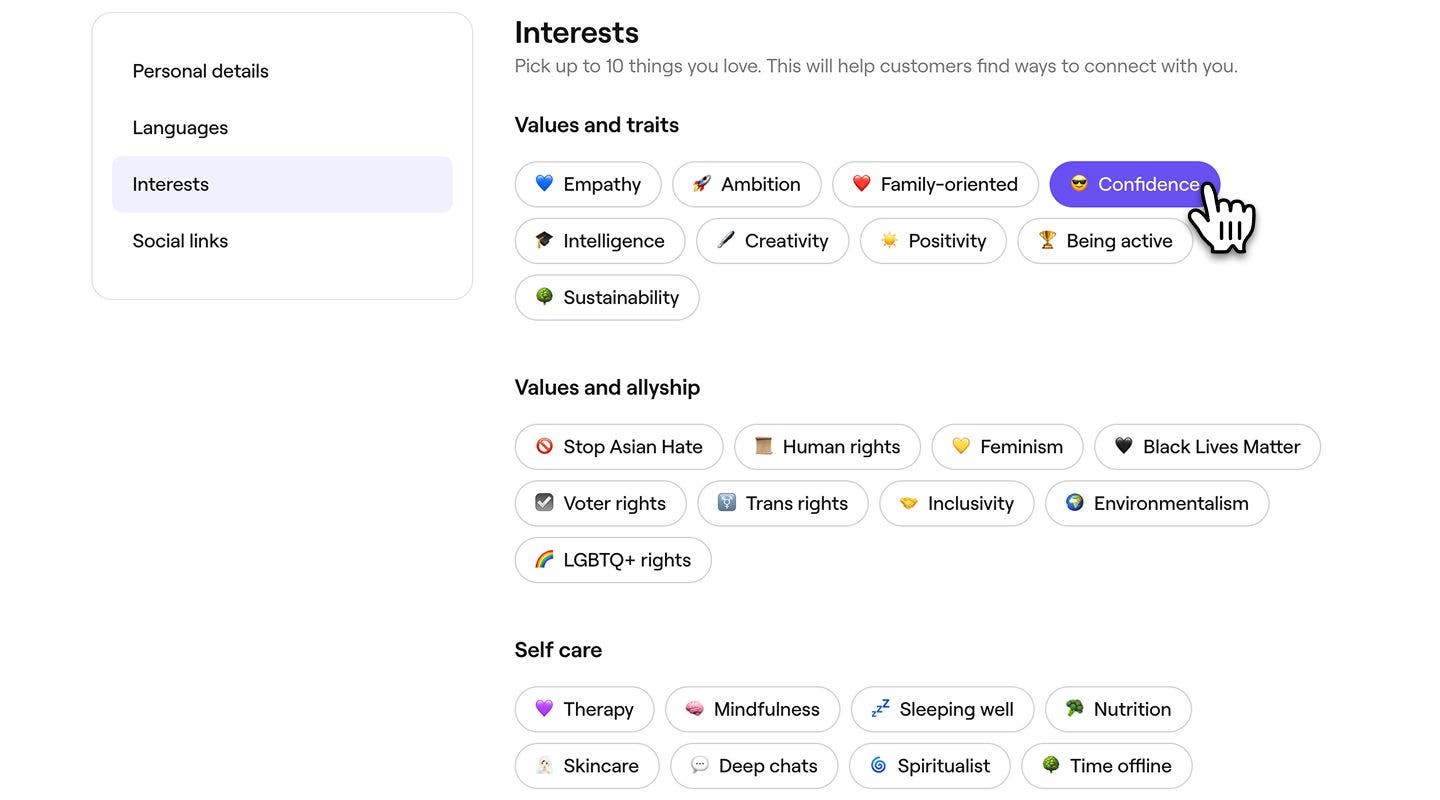
- Social links: Connect your social media accounts to your professional profile. Clients will be able to access these pages to view your work.
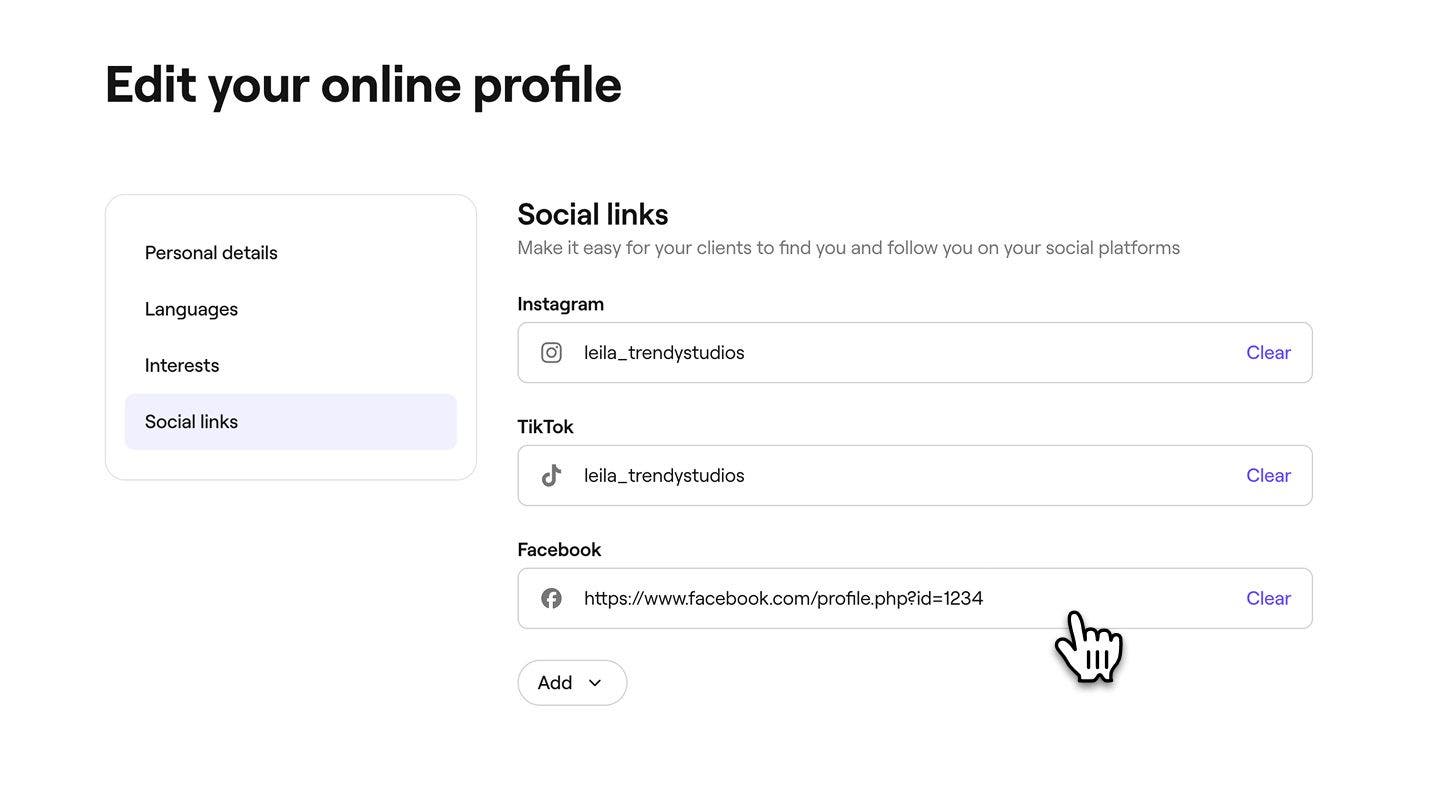
- Personal details: Enter your display name, job title, and a short introduction about yourself.
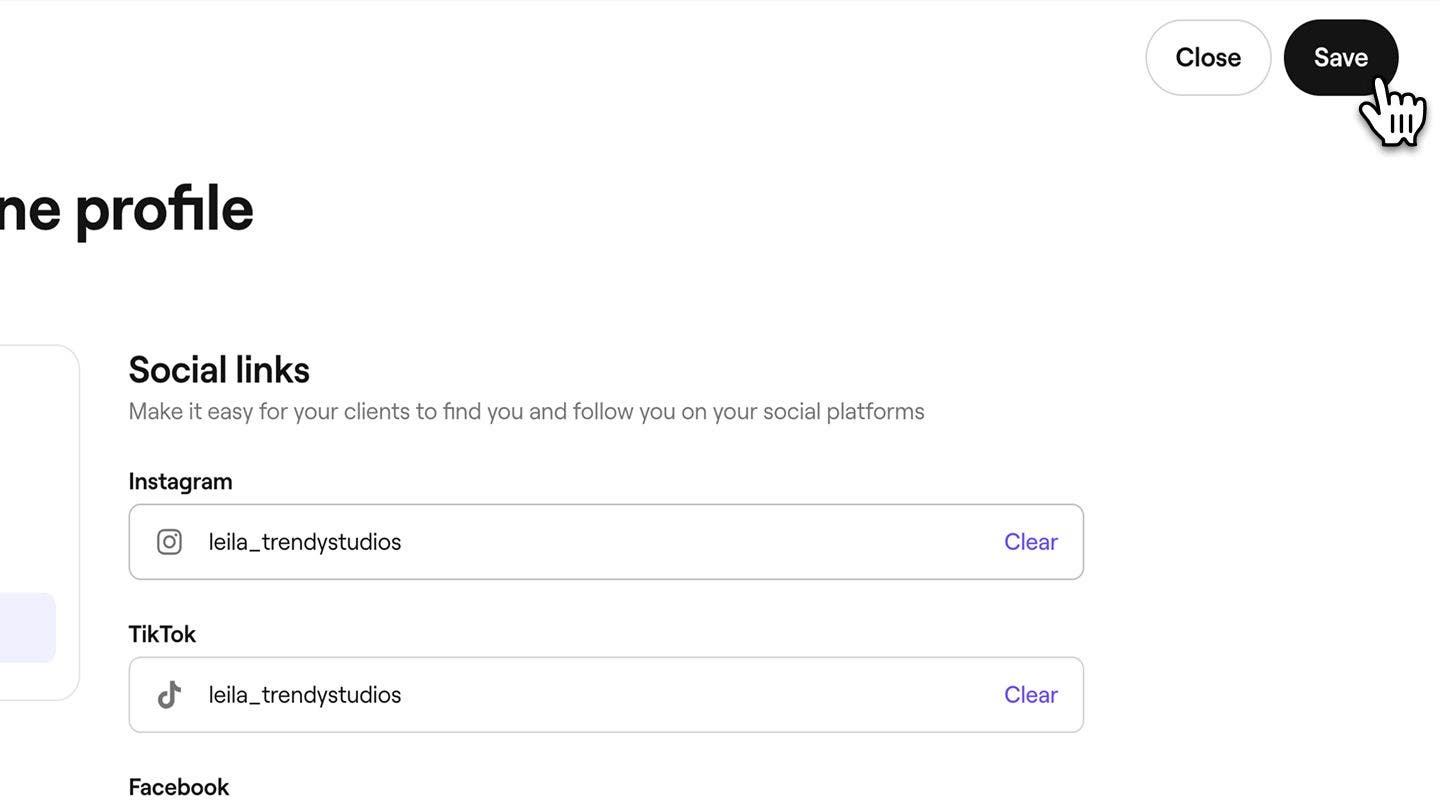
- When you’re finished, click Save in the top right of your screen to apply your updates.
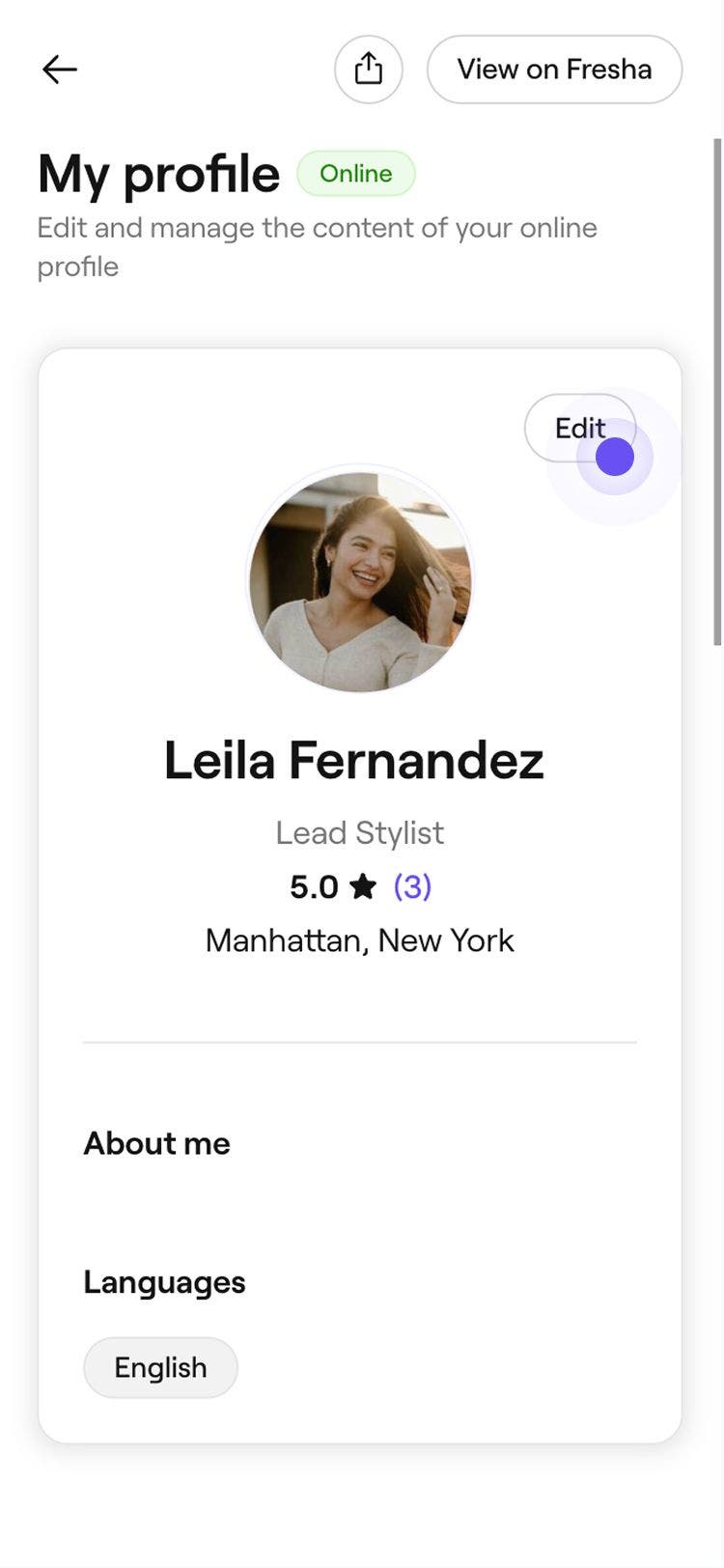
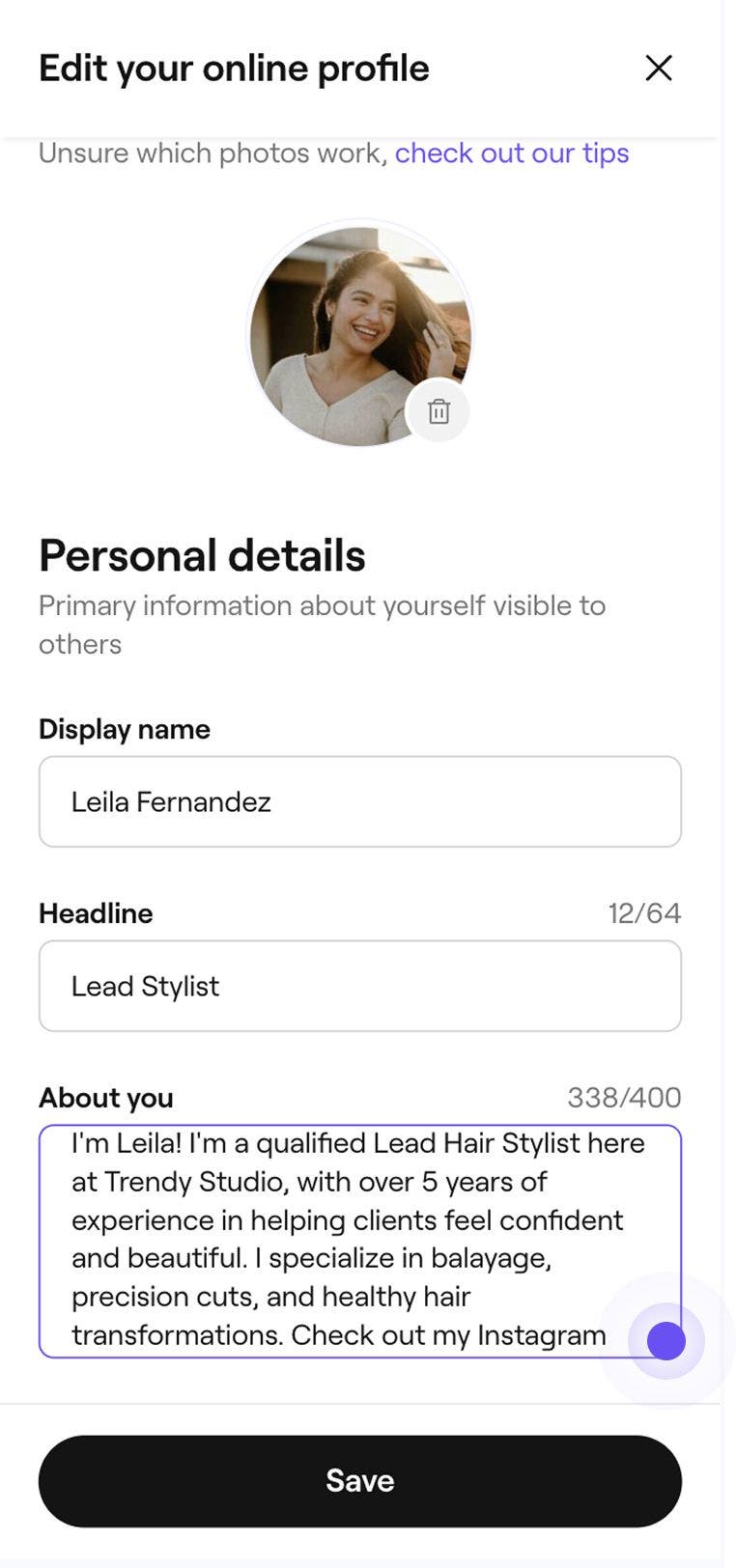
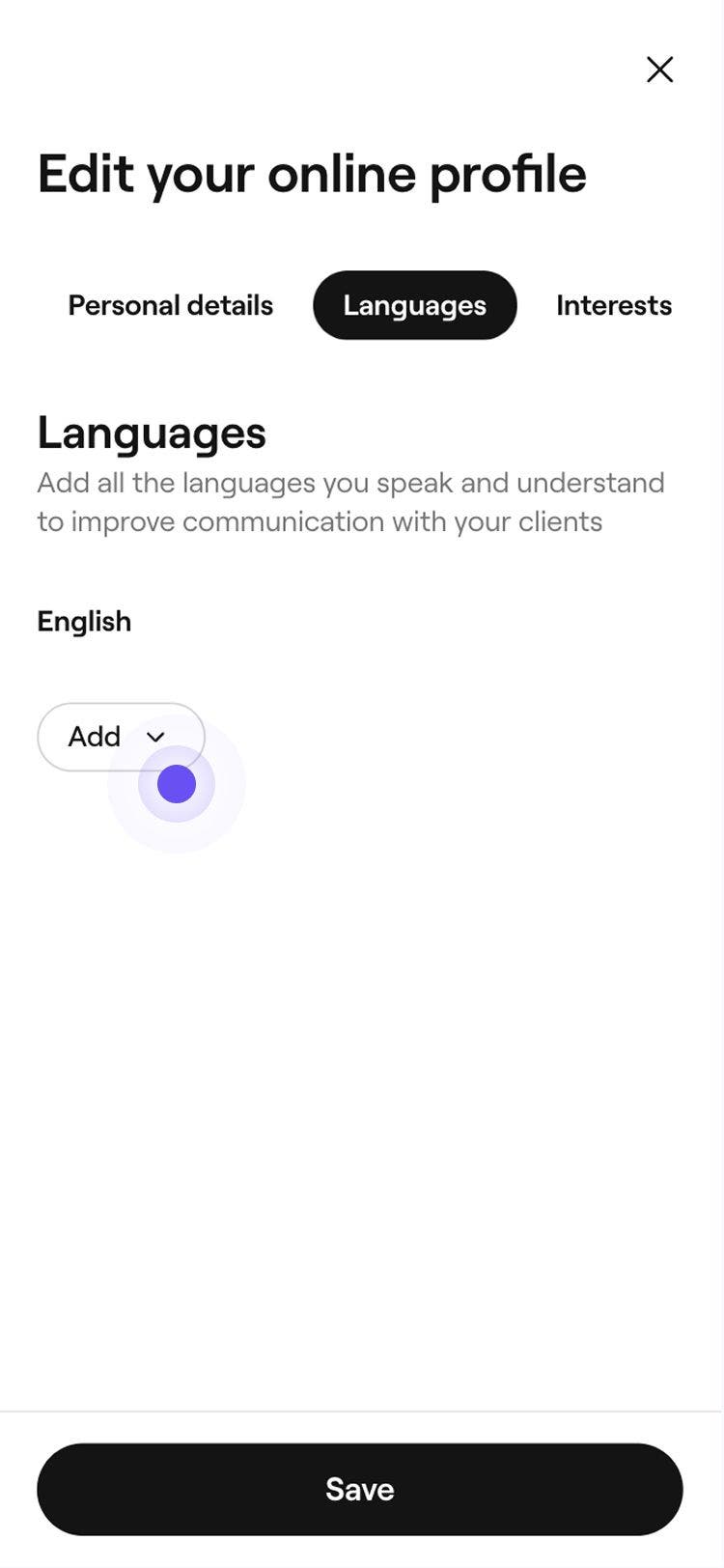
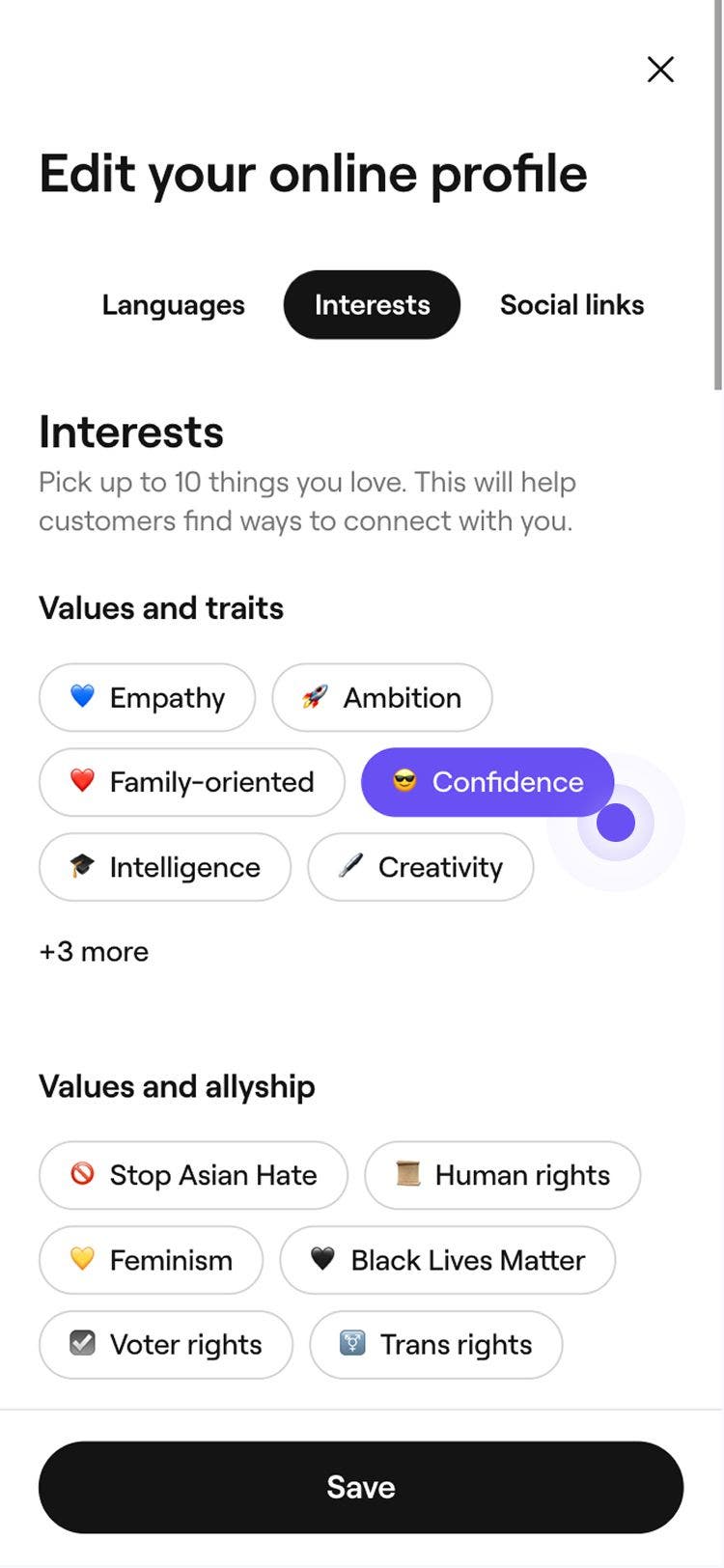
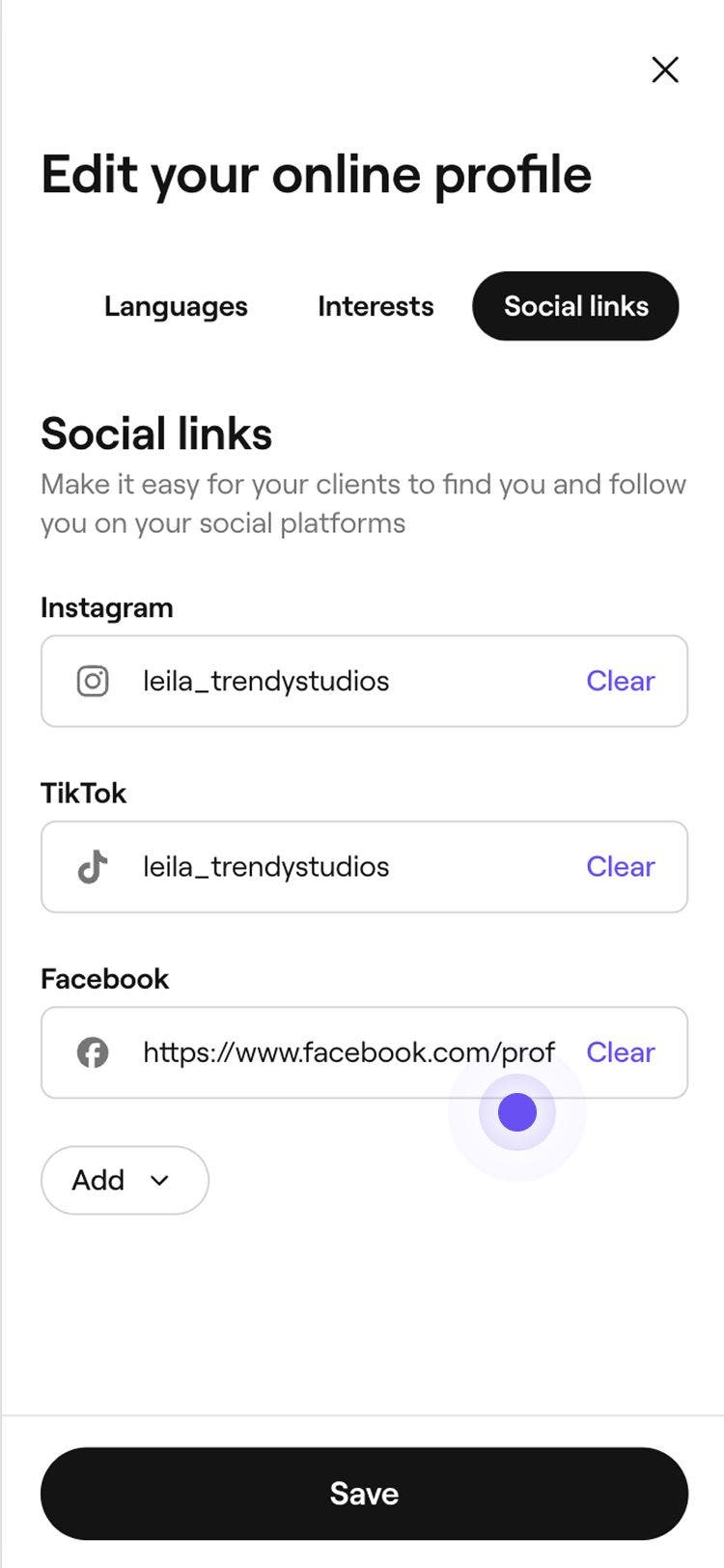
Once you’ve saved your professional profile, click View in Fresha in the top right of your screen to preview how your profile will appear in the Fresha marketplace.
When updating your profile photo, follow our tips to choose and upload a professional photo that represents you at your best.
To complete your professional profile, build your professional portfolio to showcase your service results and inspire clients to book with you.
Manage your professional profile visibility
- From the toolbar on the top right of your screen, click on your Profile picture and select My profile from the panel.
- Select Personal settings from the left menu panel and click on Personal info.
- Under Online profile visibility, select Hide profile so that clients won't be able to access and view your profile, on the Fresha marketplace.
- In the pop-up, click on the Hide profile button to confirm.
Your professional profile will not show on the Fresha marketplace and clients won't be able to access and view your profile, even if they have the direct link to this profile. You can unhide it at any time using the same steps and selecting Unhide profile.
FAQs
- Exploring the Fresha marketplace and visiting the business venue you work at.
- Booking an appointment with your business and selecting which professional will provide their service.
- Viewing their past appointments with you in their Fresha account after their visit, where they can click on your profile directly.
- Your avatar: your profile must have a profile photo of you added.
- Display name: a name you'd like to be referred to as by clients.
- Headline: a short title describing your role or specialism.
- At least one service with online booking enabled: clients need to be able to book with you directly from the Marketplace.
Clients can view your professional profile when:
If your location isn’t showing on your professional profile, make sure you’re assigned to services and have set scheduled shifts at the correct location within your workspace.
If you don’t have permission to edit these, reach out to your workspace owner for assistance.For your professional profile to appear in Fresha marketplace search results, your profile needs to meet some requirements. Check your professional profile to make sure you’ve added full details for: