Set up your professional portfolio
Learn how to upload service images to your professional profile so clients can explore your work and confidently book their next appointment with you.
Upload images for your professional portfolio
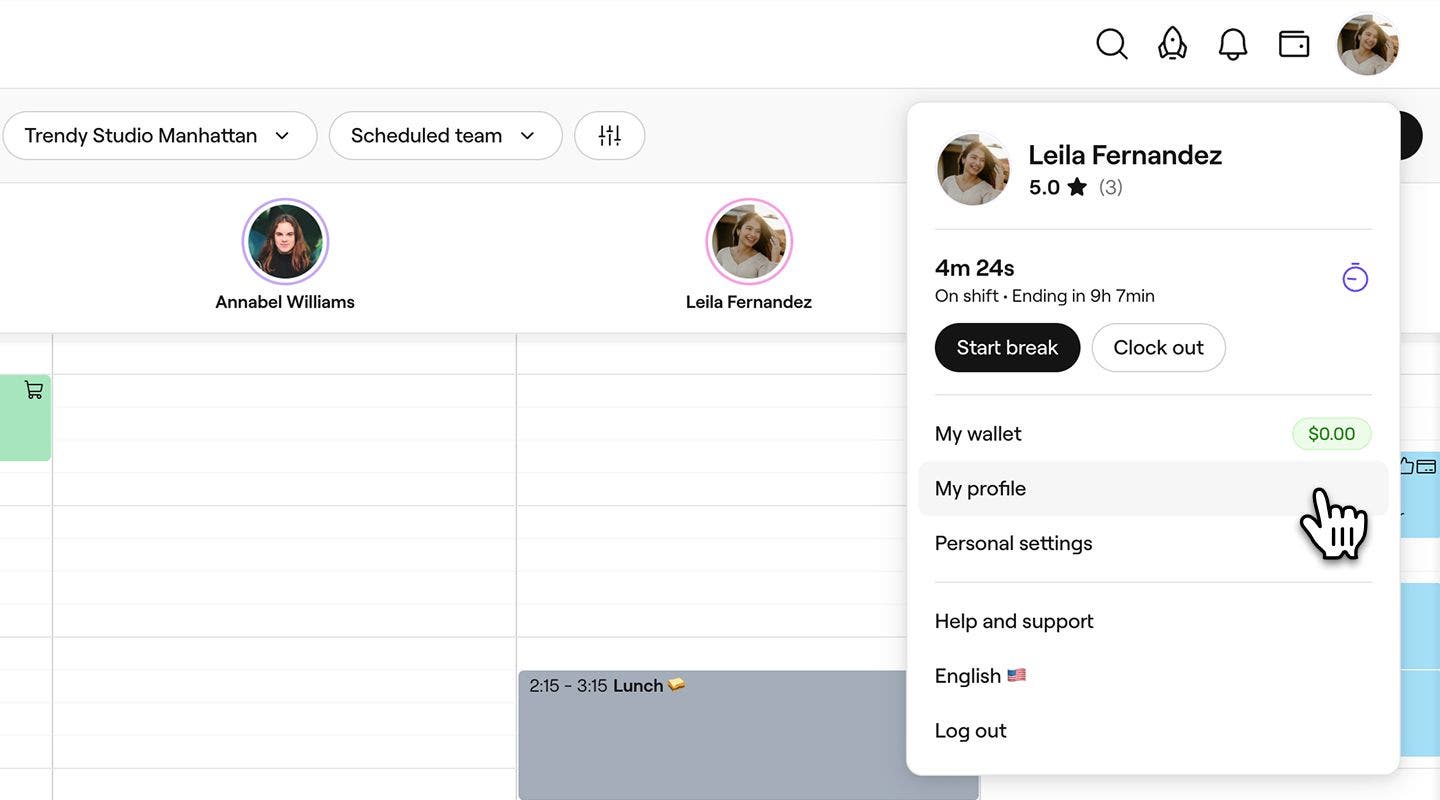
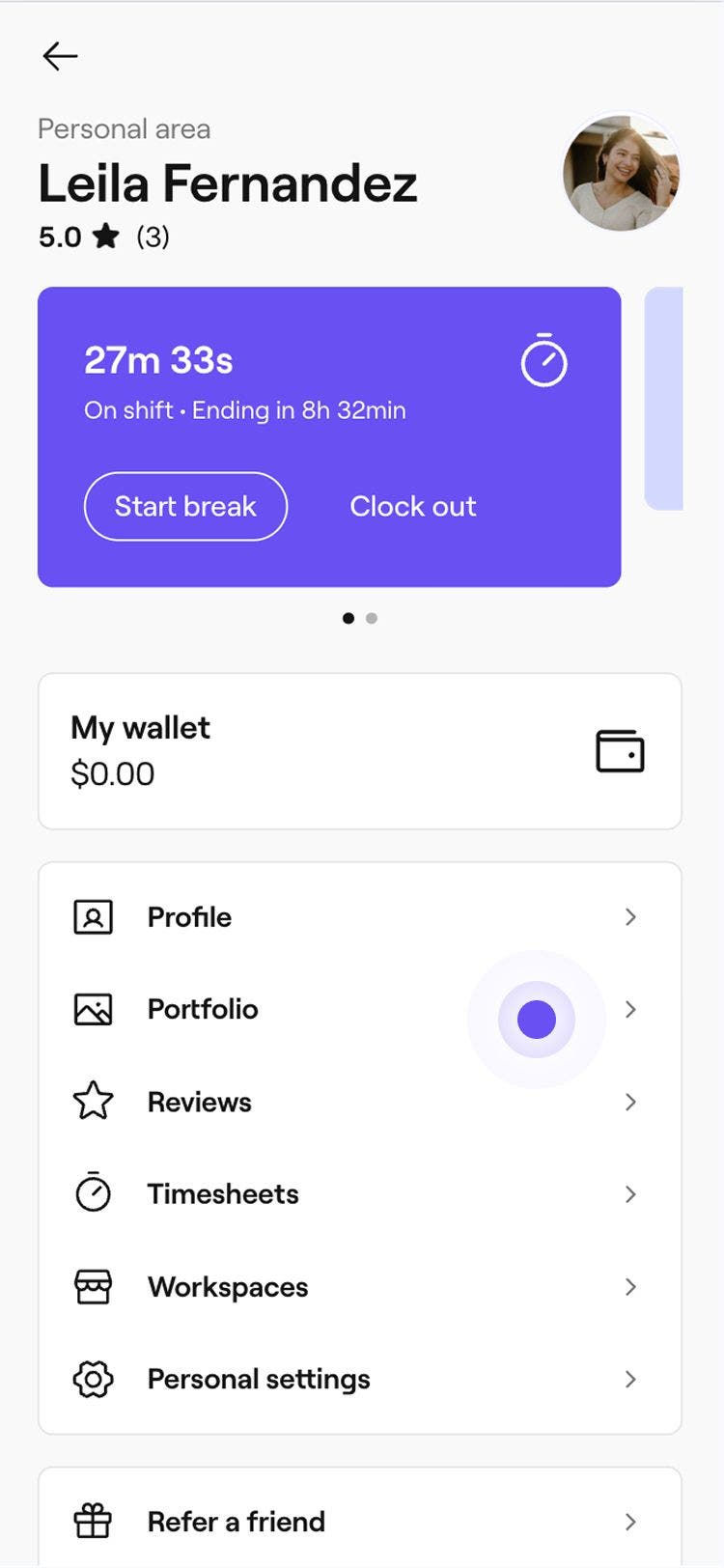
- From the toolbar on the top right of your screen, click on your profile picture and select Profile from the panel.
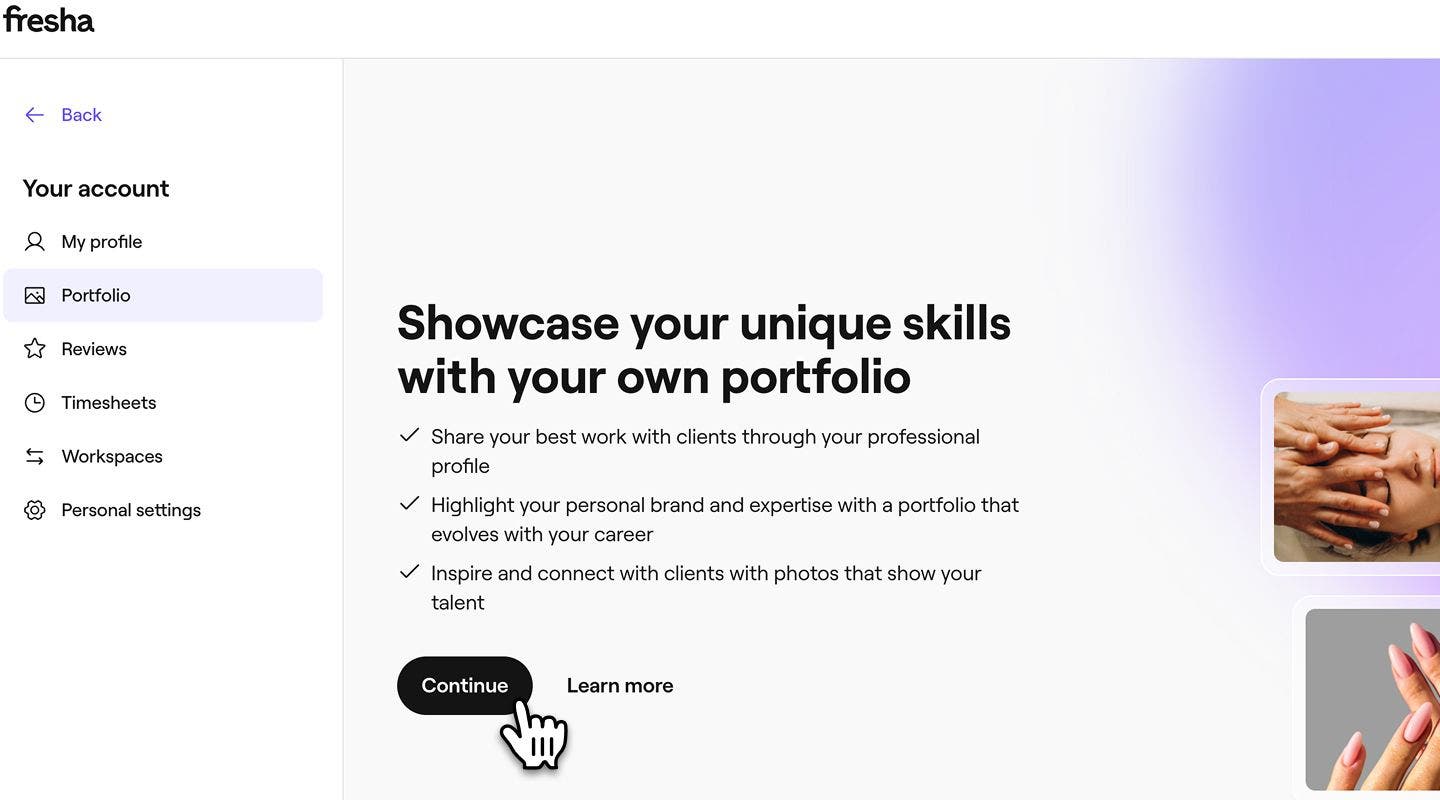
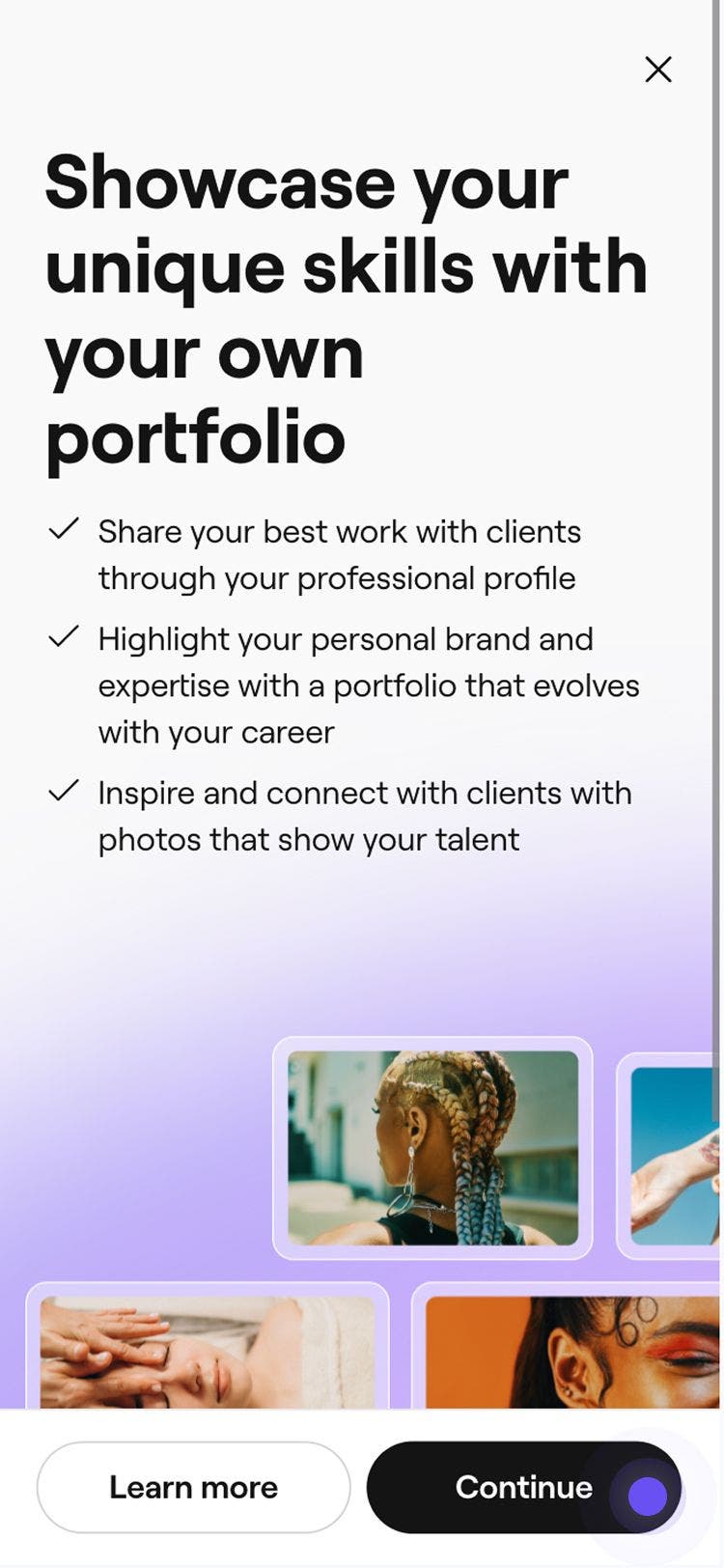
- In the left panel, select Portfolio and click on the Continue button to upload a photo library of your work.
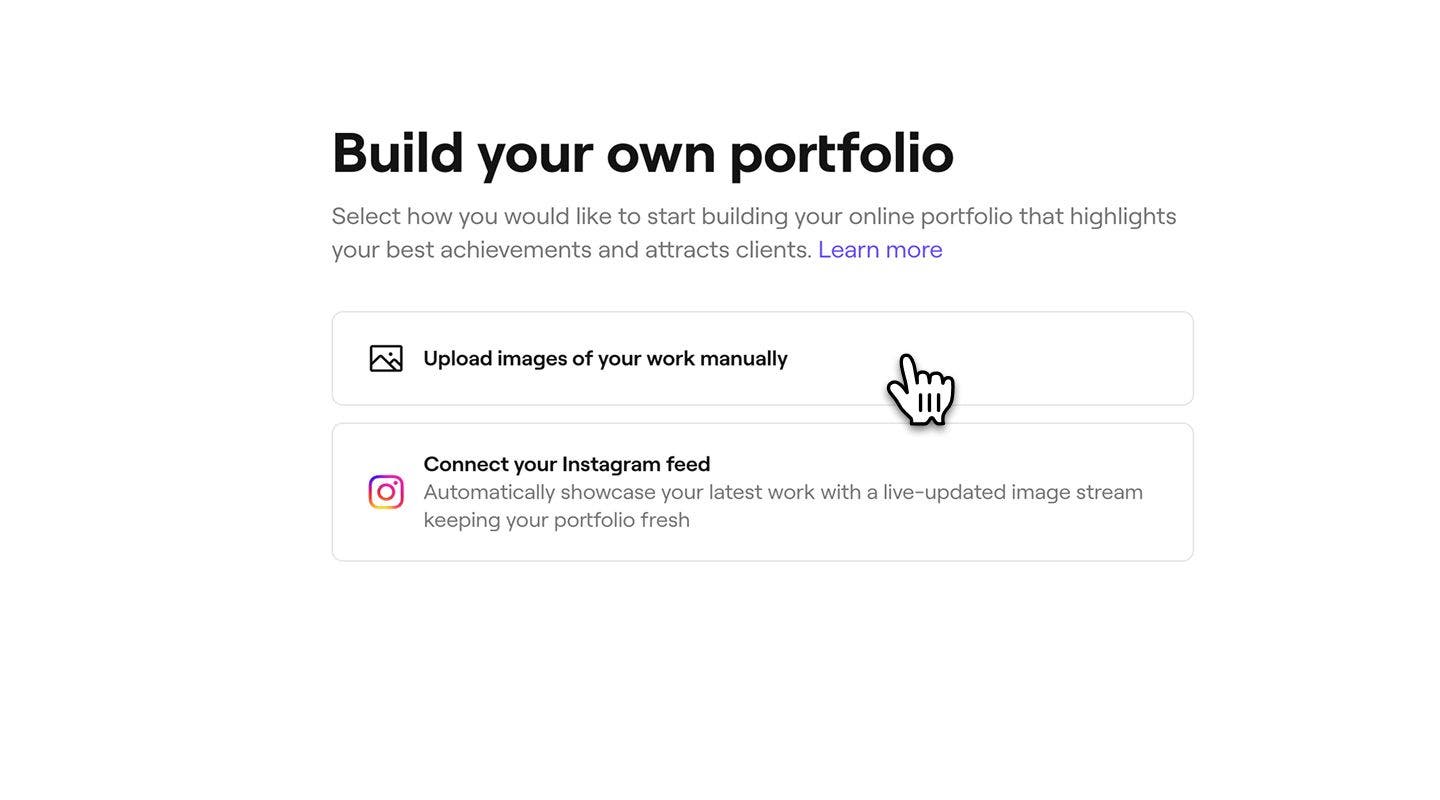
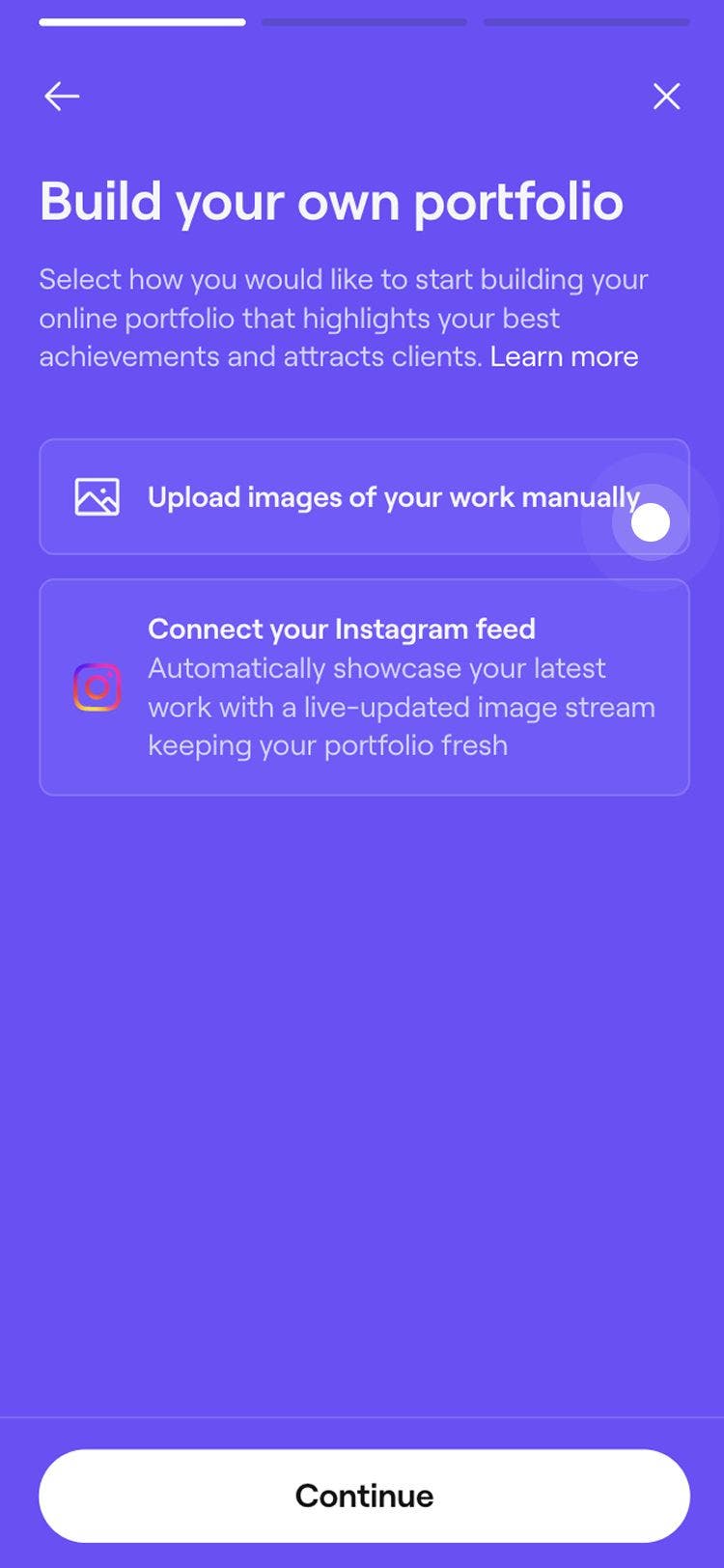
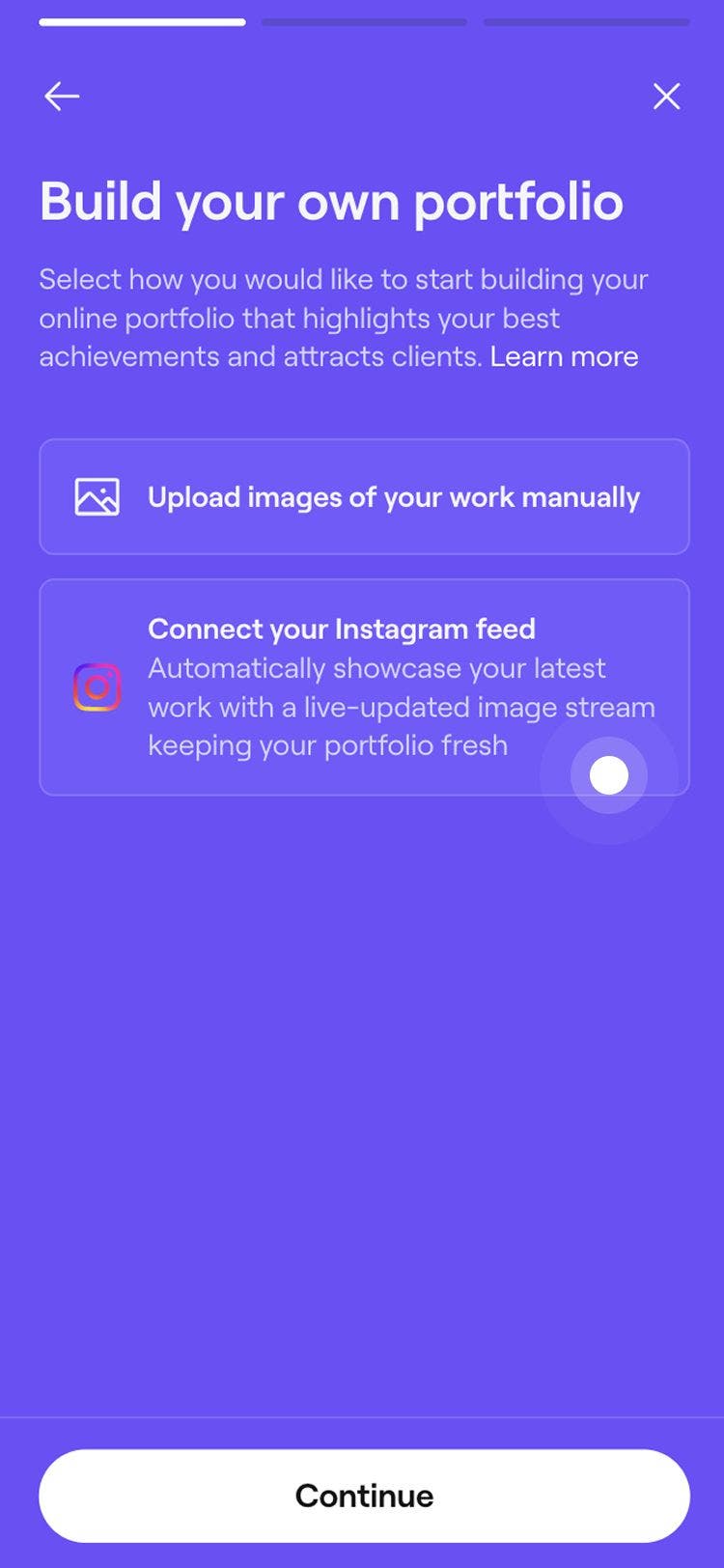
- Next, choose how you’d like to upload your images:
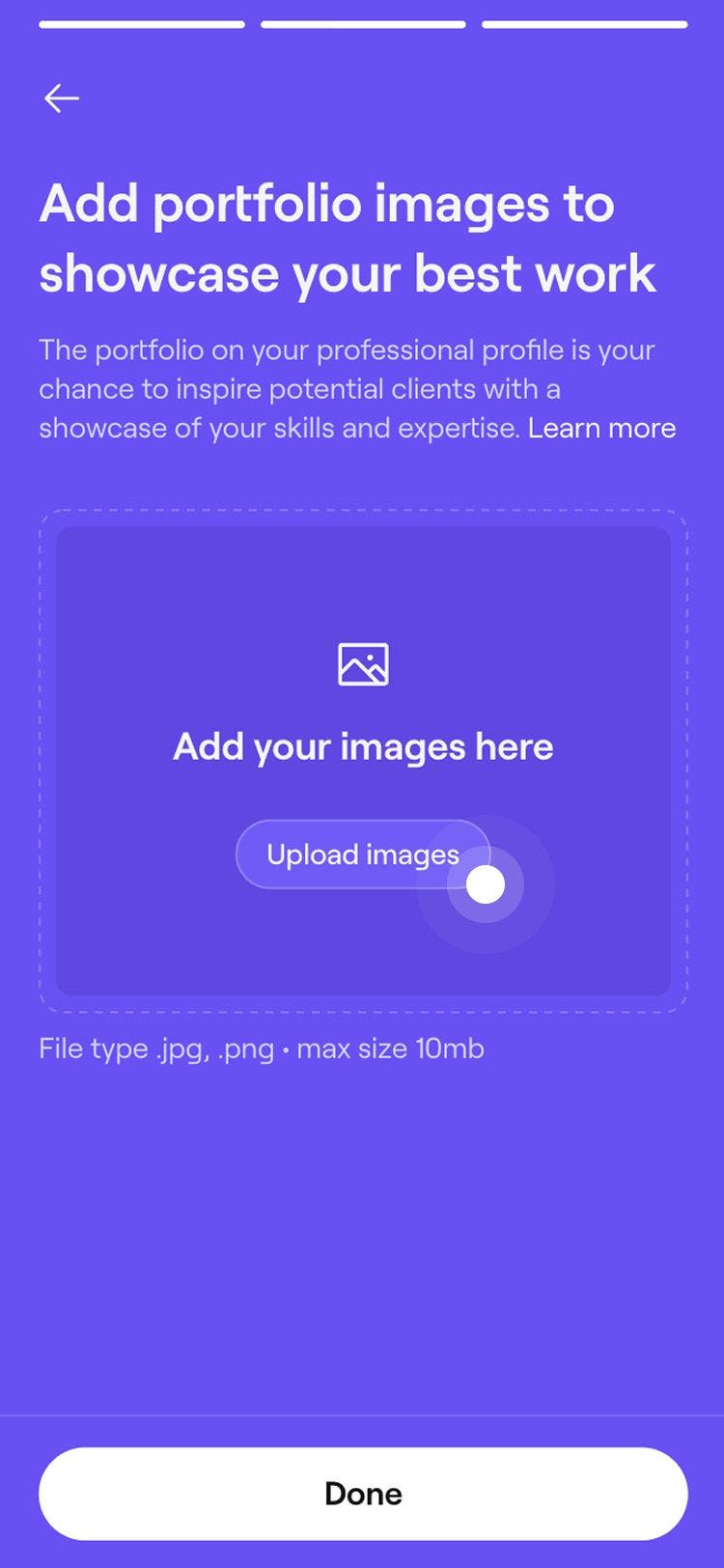
- Upload images manually: To upload images directly from your device, click on the Upload images manually option.
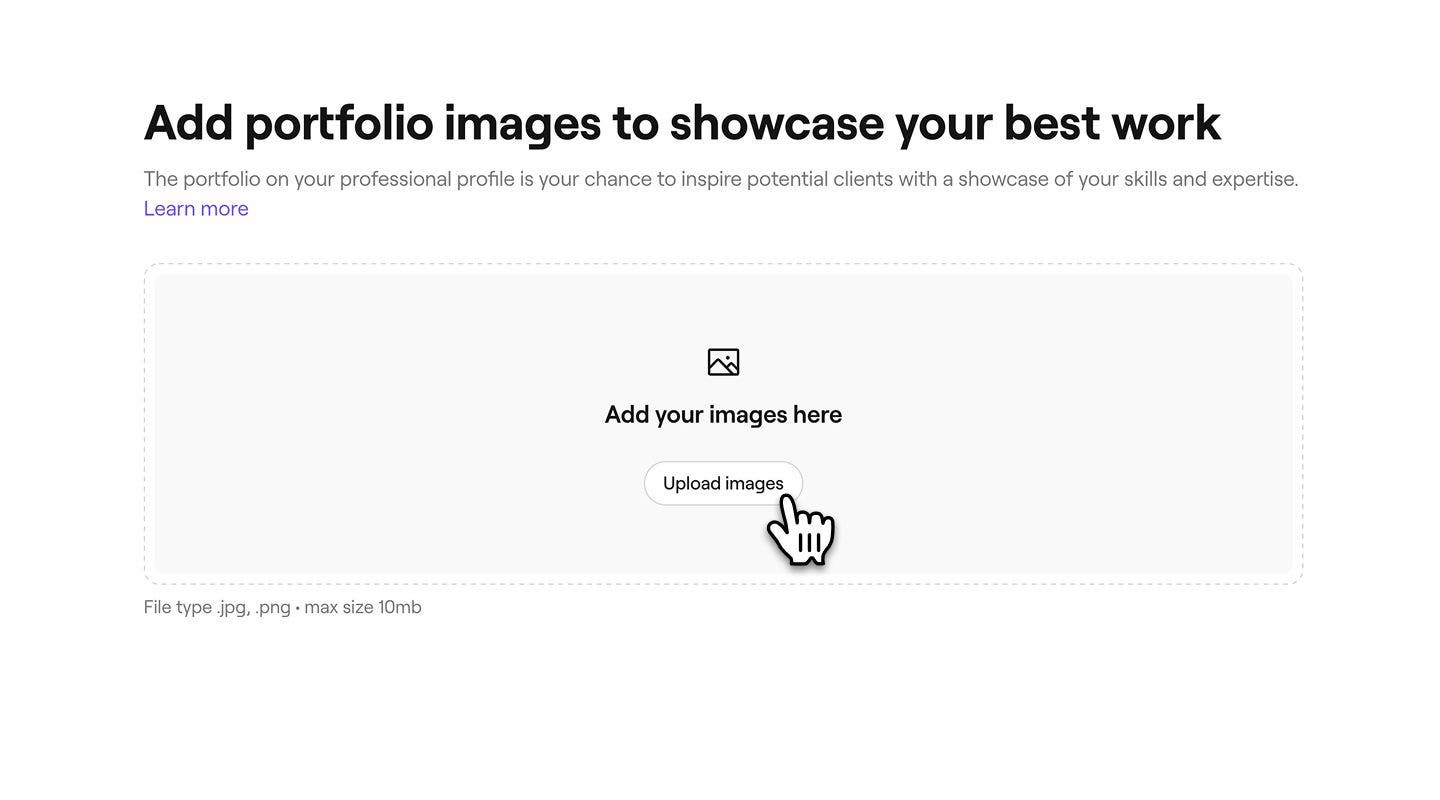
- After reviewing our photography tips, click Continue in the top right corner. Then, click Upload images to select and upload photos from your device.
- Connect your Instagram feed: To upload images that you have in your Instagram account, click on the Connect your Instagram feed option.
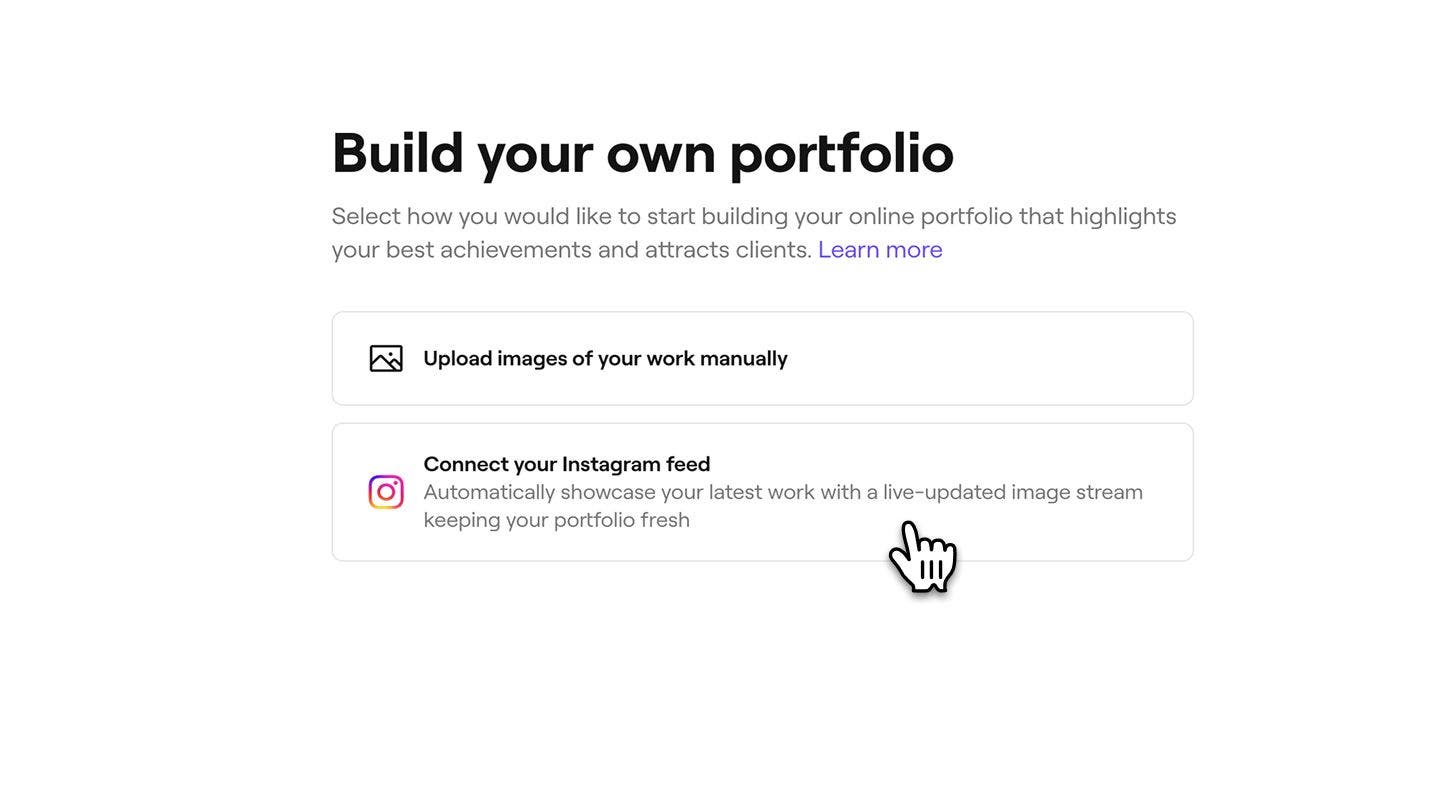
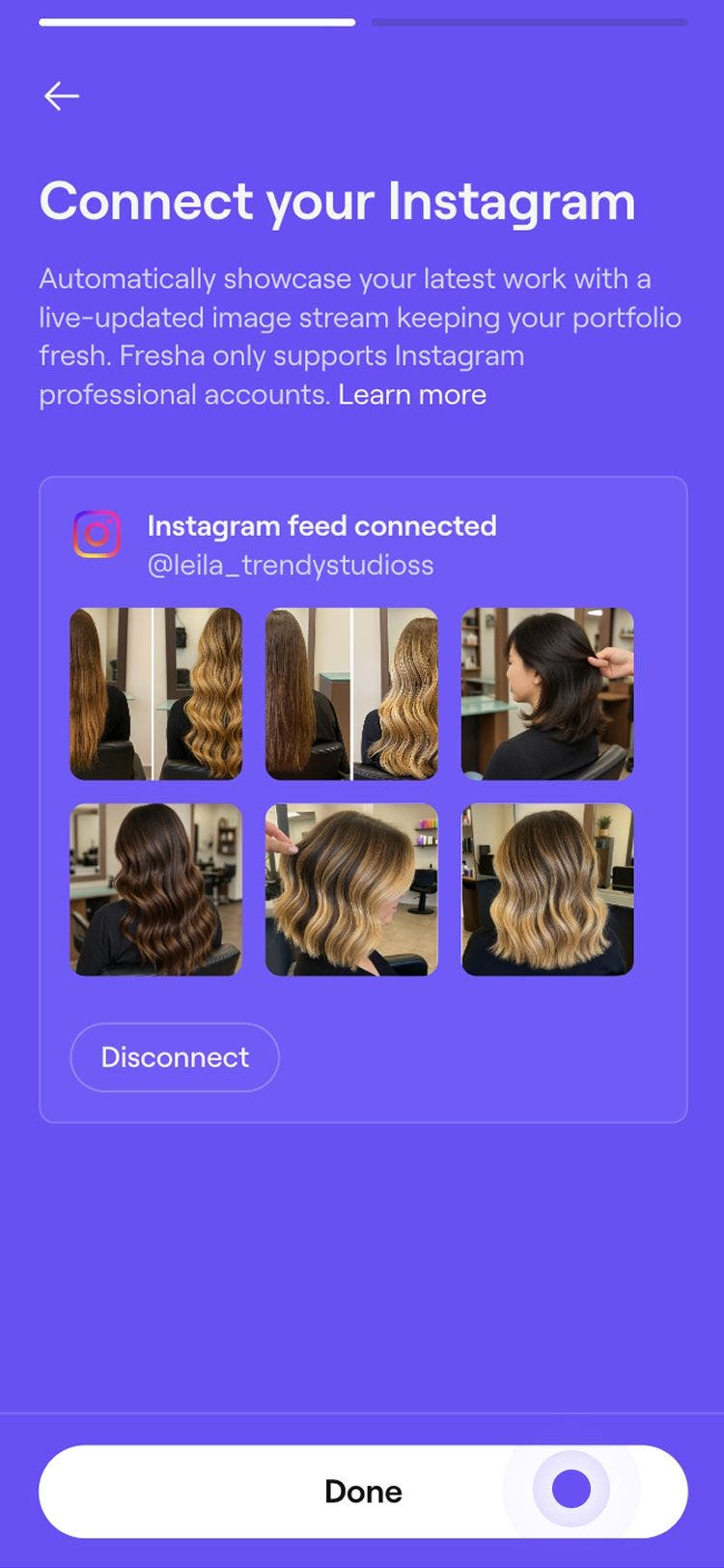
- Log in to your Instagram account to link it with your professional profile. Click Allow to give Fresha access to your Instagram feed.
- Upload images manually: To upload images directly from your device, click on the Upload images manually option.
- Once completed, click on the Done button in the top right of your screen to save your changes.
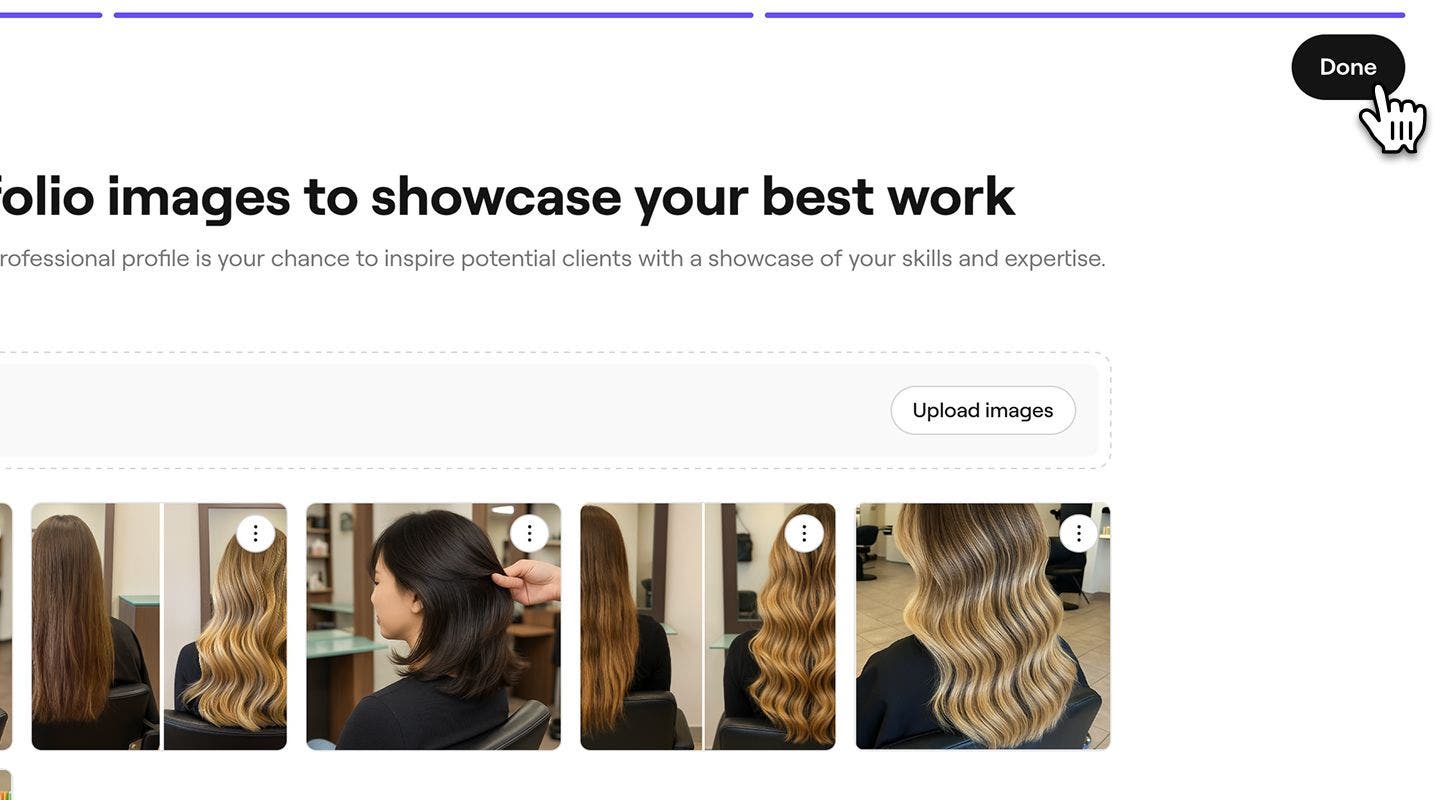
When uploading images to your professional portfolio, follow our service portfolio photography guidelines to showcase your best work at its highest quality.
To connect your Instagram profile to Fresha, it must be a Business or Creator account. If it's not already, Instagram will guide you through the steps to convert it.
FAQs
To remove an image, open your Professional profile in your Fresha account and go to Portfolio. Select Edit, click on the three dots next to the image you want to remove, and choose Delete.
You can manually upload as many images as you like, but each upload batch cannot exceed 10 images at one time.
To disconnect your Instagram account from your professional portfolio, open your Professional portfolio and click Disconnect next to Instagram feed. You can then manually upload images to your portfolio or connect a different Instagram account.
You can manually upload images from your device and your Instagram feed and use both in your portfolio. Open your Professional portfolio, then click on Add to upload images manually or click Connect to link your Instagram feed.