HomeKnowledge baseFresha academy
Manage your personal wallet transfers
Back
  1. Knowledge base•
  2. Personal account•
  3. Manage your personal wallet transfers

Manage your personal wallet transfers

Learn how to send money from your personal wallet to your bank or to other team members and workspaces.

In this article

  • How wallet transfers work
  • Transfer money to your bank account
  • Transfer money to a team member or workspace

How wallet transfers work

Once you’re verified to send and receive payments through your personal wallet, you can transfer funds to your bank account and send money to other team members.

Transfer money to your bank account

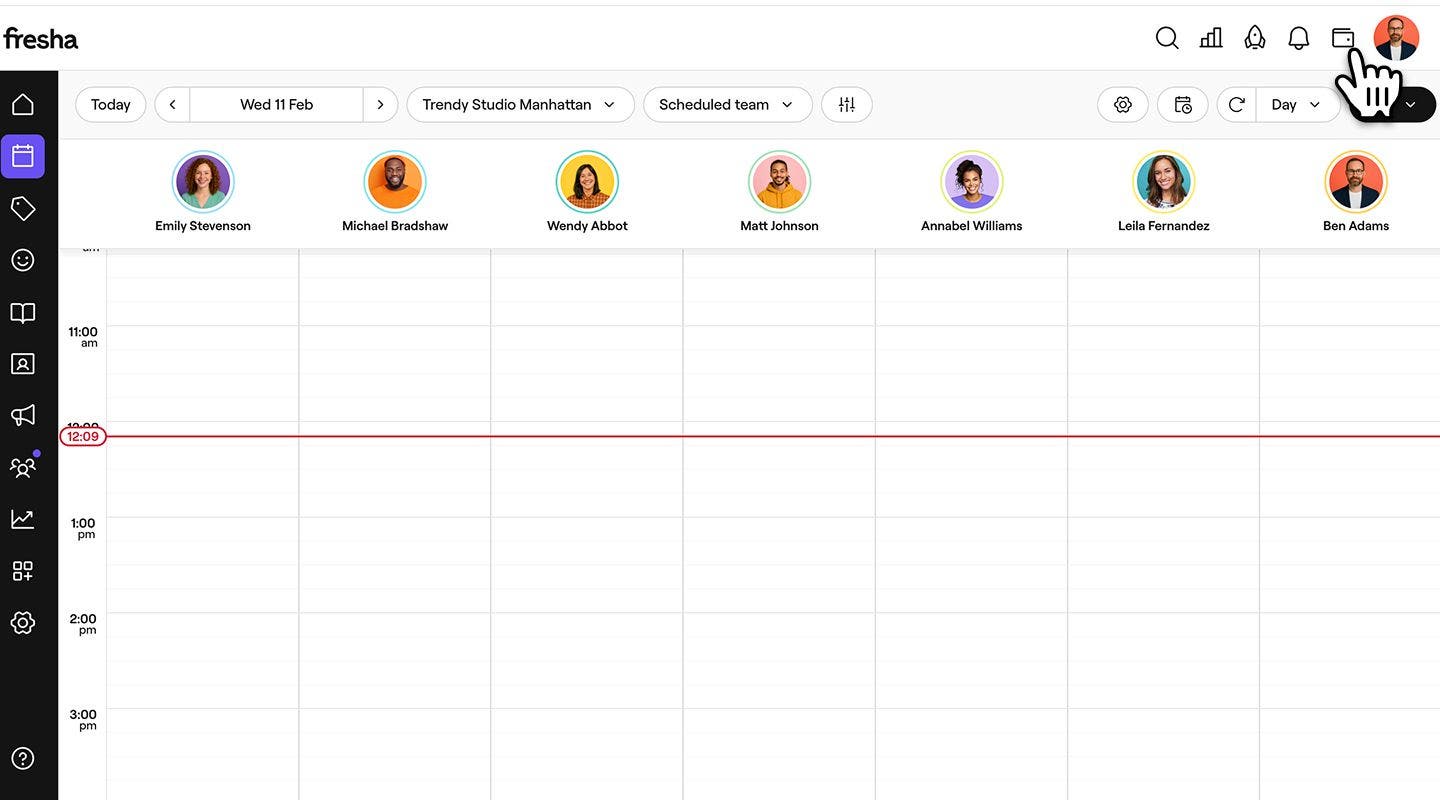
  1. From the toolbar in the top right of your screen, click the Wallet icon to view your wallet.Group 31063.jpg

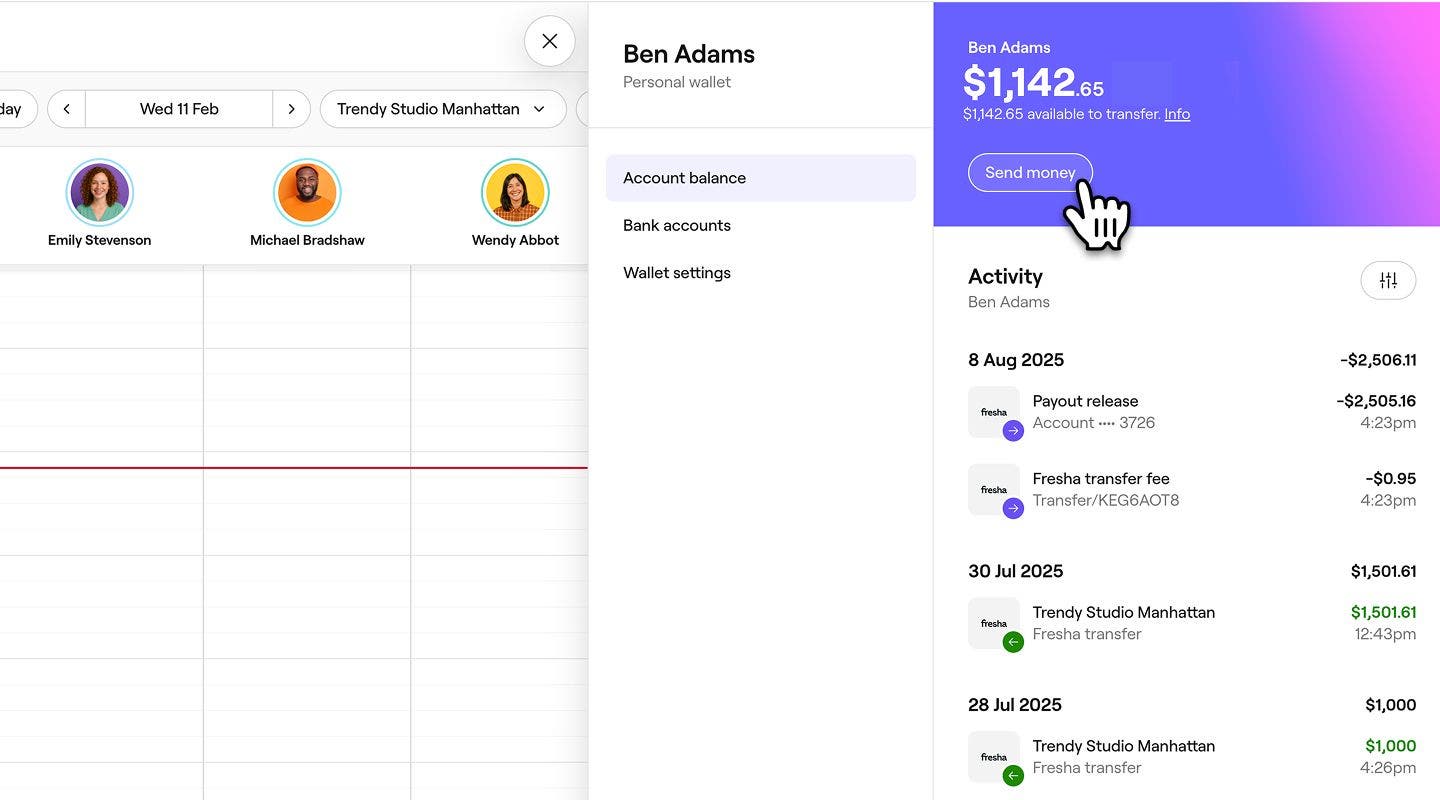
  2. Under Account balance, click on Send money.Group 31053.jpg

  3. In the next step, select Transfer to bank account to pay funds into a bank account.Group 31055.jpg

  4. Next, choose the bank account you want to pay out to. Only bank accounts verified through Fresha will appear.Group 31069.jpg

  5. Next, under Amount, enter the amount you want to transfer. You’ll see a summary of your available balance below.

    1. Click on Add note to add a reference note to the payment.Group 31070.jpg
  6. Click on the Review button in the top right of your screen, to view the transaction details.
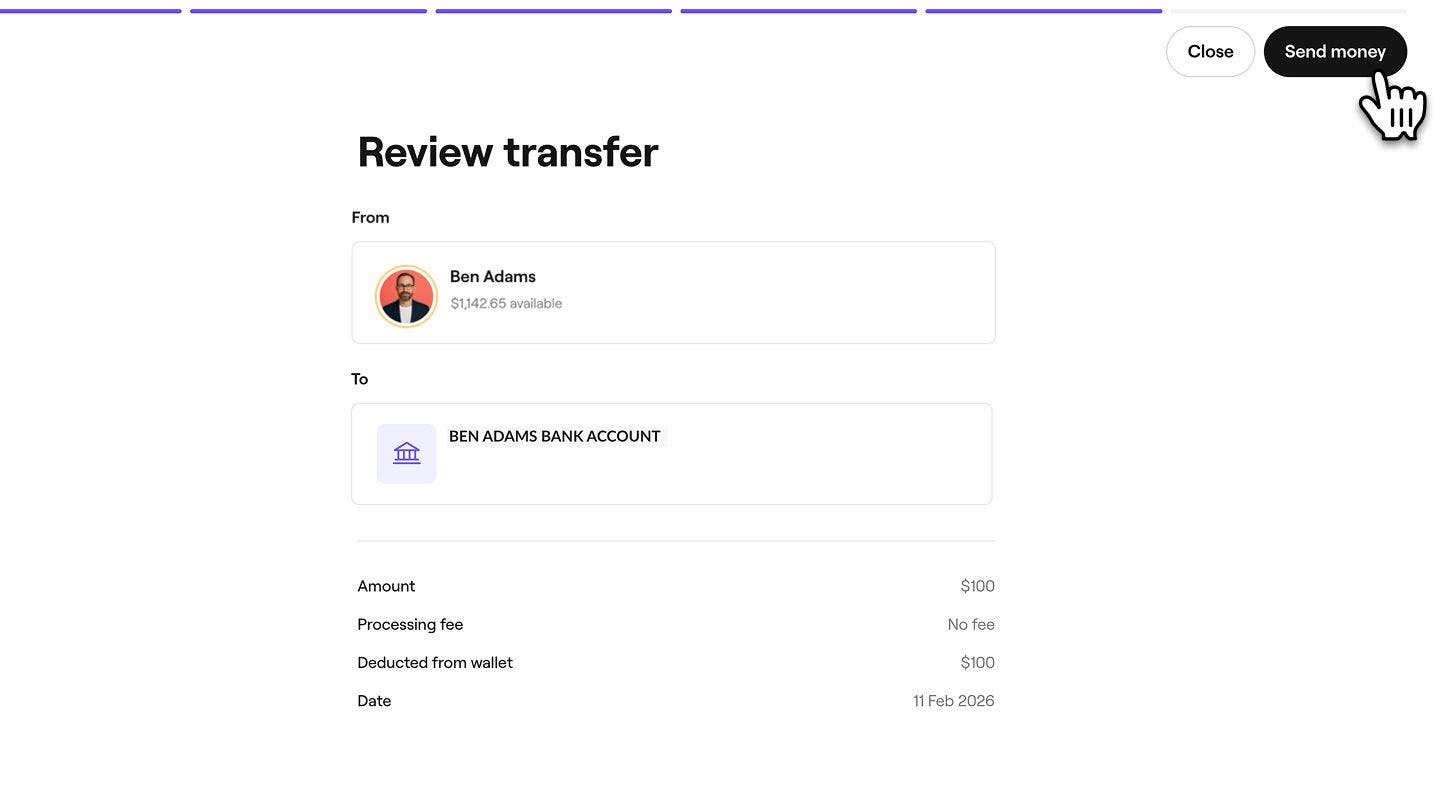
    Group 31071.jpg

  7. Once reviewed, click Send money to transfer the funds.

To send money to your bank account:

  1. Tap on your profile icon then select Personal wallet.
  2. Tap Send money.
  3. If you have enabled transfer authorization, enter your personal account password.
  4. Select Transfer to bank account.
  5. Choose the bank account you want to payout to. 
  6. Enter the amount you want to transfer and add a reference note. To send the full wallet balance, tap Max.
  7. Select Review to view the transaction details.
  8. Tap Send money.

Once you have transferred money from your personal wallet to a bank account, the amount is deducted from your wallet balance. The transfer will appear in your personal wallet statement and activity.

Transfer money to a team member or workspace

  1. From the toolbar in the top right of your screen, click the Wallet icon to view your wallet.Group 31063.jpg
  2. Under Account balance, click on Send money.Group 31053.jpg
  3. In the next step, select Send to team members or workspaces.Group 31054.jpg
  4. Next, use the search bar to find and select the team member or workspace you want to send money to. Only verified team members will appear here to send money to.Group 31056.jpg
  5. Next, under Amount, enter the amount you want to transfer. You’ll see a summary of your available balance below.
    1. Click on Add note to add a reference note to the payment.Group 31059.jpg
  6. Click on the Review button in the top right of your screen, to view the transaction details.Group 31062.jpg
  7. Once reviewed, click Send money to transfer the funds.

To send money from your personal wallet to team members or workspaces:

  1. Tap on your profile icon and select Personal wallet.

  2. Tap Send money.

  3. Choose to send money to either:

    1. Send to team members or workspaces
    2. Transfer to bank account
  4. Use the search bar to find the team member or workspace you want to send money to.

  5. Enter the amount you want to transfer and add a reference note. To send the full wallet balance, tap Max.

  6. Select Review to view the transaction details.

  7. Tap Send money.

Once you transfer money from your personal wallet to a workspace or team member’s Fresha wallet, the amount is deducted from your balance. The transfer will appear in your Wallet statement and activity.

FAQs

    • Money can only be sent from your personal wallet to verified team members or locations.


Personal wallet


Related articles

Was this guide helpful?

Personal wallet

Set up your personal wallet

Set up your Fresha wallet for easy transfers to team members, locations, or your bank.

Manage your personal wallet transfers

Manage your personal wallet transfers by tracking transactions and sending money.

Understand your personal wallet

Stay on top of your earnings with a clear view of your personal wallet activity and balance details.

Related articles

Understand your personal wallet

Stay on top of your earnings with a clear view of your personal wallet activity and balance details.

Join a workspace

Join a workspace through your personal account to access shifts and more.

Fresha
Get the app

About Fresha

Careers

Help and support

Blog

Sitemap

For business

For partners

Pricing

Features

Scheduling

Point of sale

Payments

Capital

Marketplace

Support

Status

Legal

Privacy Policy

Terms of service

Terms of use

Find us on social

Facebook
Linkedin
Instagram

© 2026 Fresha.com SV Ltd