Link your calendar with Fresha
In this guide, you’ll learn how to link your Fresha business calendar with external calendars like Google, Apple, or Outlook.
In this article
How calendar linking works
Linking your calendar creates a one-way connection from Fresha to your personal calendar. Your Fresha appointments appear in your personal calendar automatically, so you can see your full day in one place and avoid double bookings. Only the start and end times will be displayed.
Link your calendar with Fresha
-
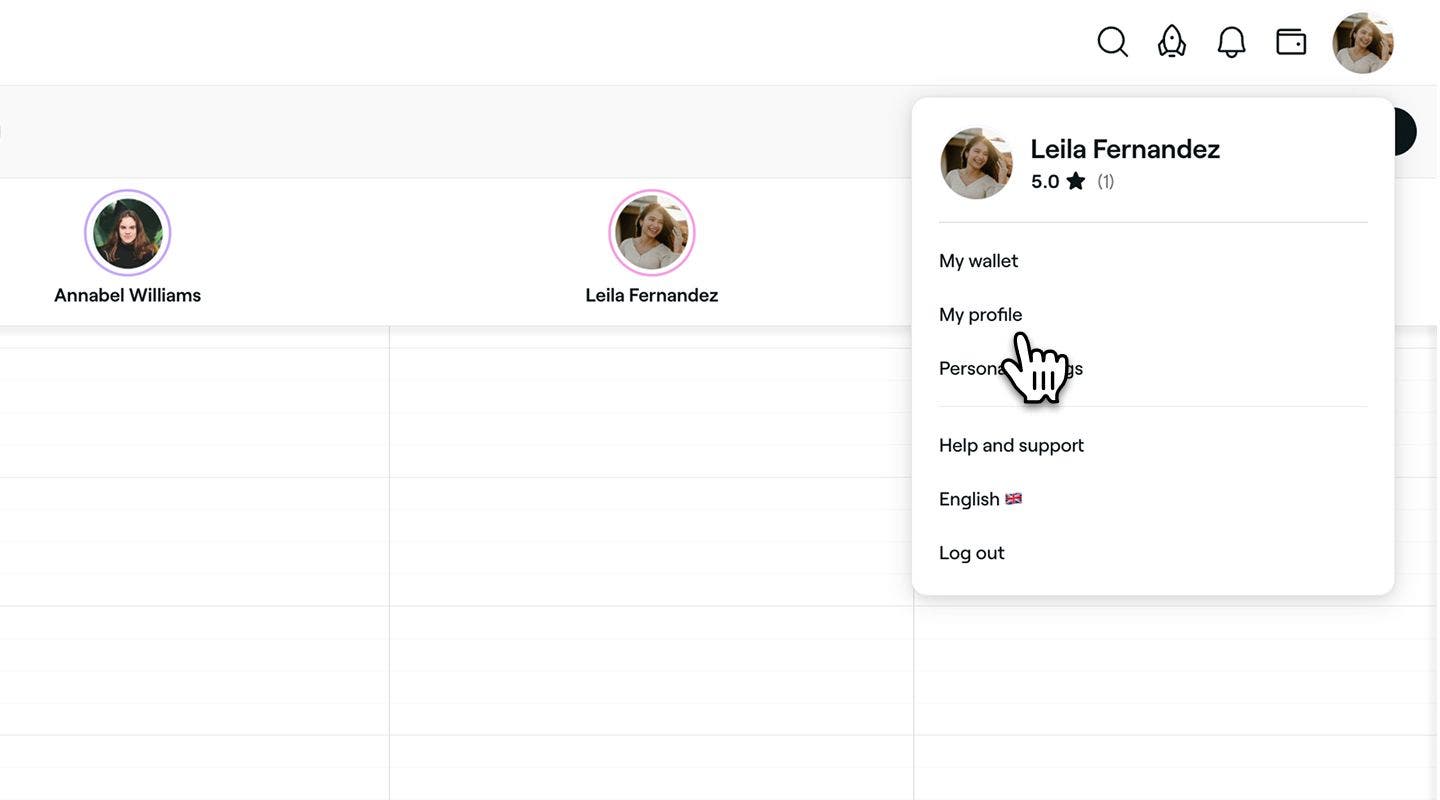
From the toolbar on the top right of your screen, click on your Profile picture and select My profile from the panel.
-
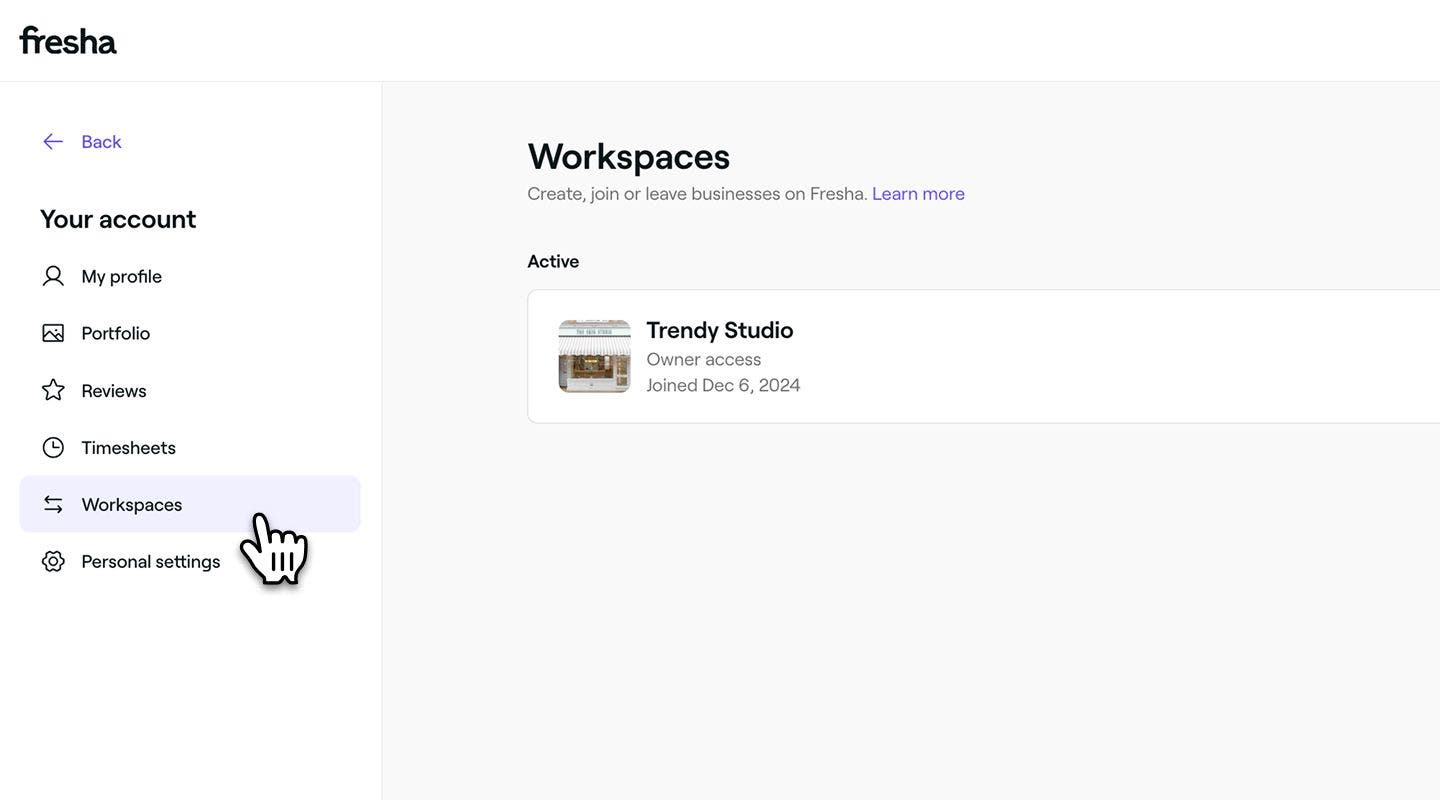
In the left menu panel, select Workspaces to view your workspace.
-
Next to your workspace, click Manage to view your workspace settings.
-
Under Linked calendars, click on the option to Link a calendar.

-
In the Choose a calendar to link step, choose either Google calendar or Other Calendars and click on the Next step button in the top right.
- If you've selected Google calendar, follow the steps to select the email address you'd like to sync with. Click Continue to return back to Fresha.
-
Next, in the How should this calendar sync step, select the option to Export events to an external calendar and click on the Next step button in the top right.

-
In the Export events to an external calendar step, choose if you would like to sync blocked time as well as appointments, and select under Locations to sync which locations you’d like to include. Click on the Complete button in the top right.

-
In the Export events to an external calendar section, choose if you would like to sync blocked time as well as appointments, and select under Locations to sync which locations you’d like to include. Click on the Complete button in the top right.
- If you selected Other calendar, you'll then be prompted to paste your calendar URL to complete the sync. You can use this link to sync Fresha with Google Calendar, Apple Calendar (iCal), Outlook calendar.
It may take up to 15 minutes for your calendar to sync. Once complete, the status will update from New to Synced, and all Fresha appointments from the past seven days, as well as any upcoming events, will appear in your personal calendar.
Link a team member's calendar
You can link a calendar directly from a team member’s settings to keep their Fresha calendar and personal schedule in sync. It helps them see their full day in one place and avoid double bookings.
-
From the main menu on the left of your screen, go to Team.
-
Click on Team members, and then select the team member's name to open their profile.
-
Under Actions select Edit and then in the left menu panel select Settings.

-
Under Linked calendars, click on the option to Link a calendar.

-
In the Choose a calendar to link step, choose either Google calendar or Other Calendars and click on the Next step button in the top right.
- If you've selected Google calendar, follow the steps to select the email address you'd like to sync with. Click Continue to return back to Fresha.
-
In the How should this calendar sync step, select the option to Export events to an external calendar and click on the Next step button in the top right.

-
In the Export events to an external calendar section, choose if you would like to sync blocked time as well as appointments, and select under Locations to sync which locations you’d like to include. Click on the Complete button in the top right.
- If you selected Other calendar, you'll then be prompted to paste your calendar URL to complete the sync. You can use this link to sync Fresha with Google Calendar, Apple Calendar (iCal), Outlook calendar.
If your team member has already linked one of their personal calendars, it will show who added the calendar in their settings.
Remove a linked calendar
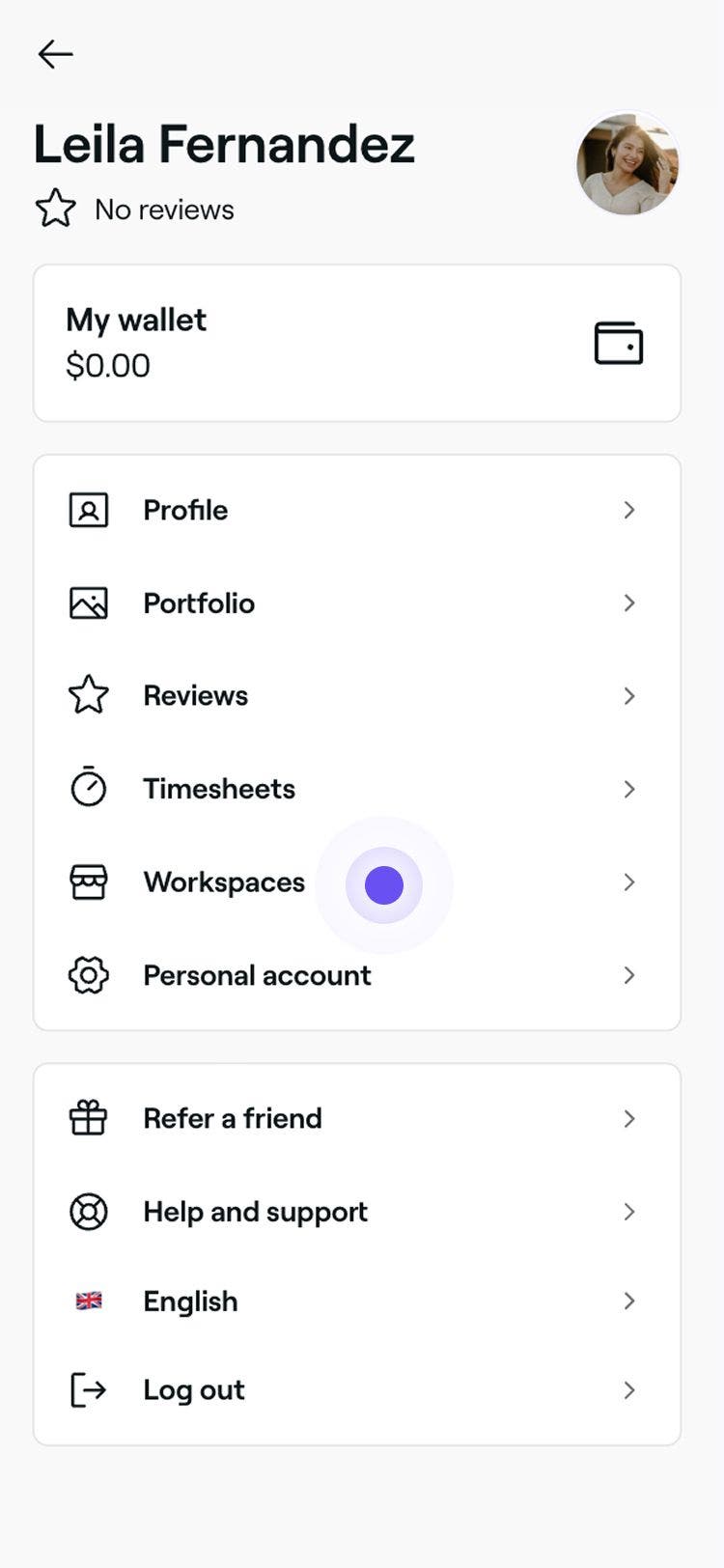
- From the toolbar on the top right of your screen, click on your Profile picture and select My profile from the panel.
- In the left menu panel, select Workspaces to view your workspace.
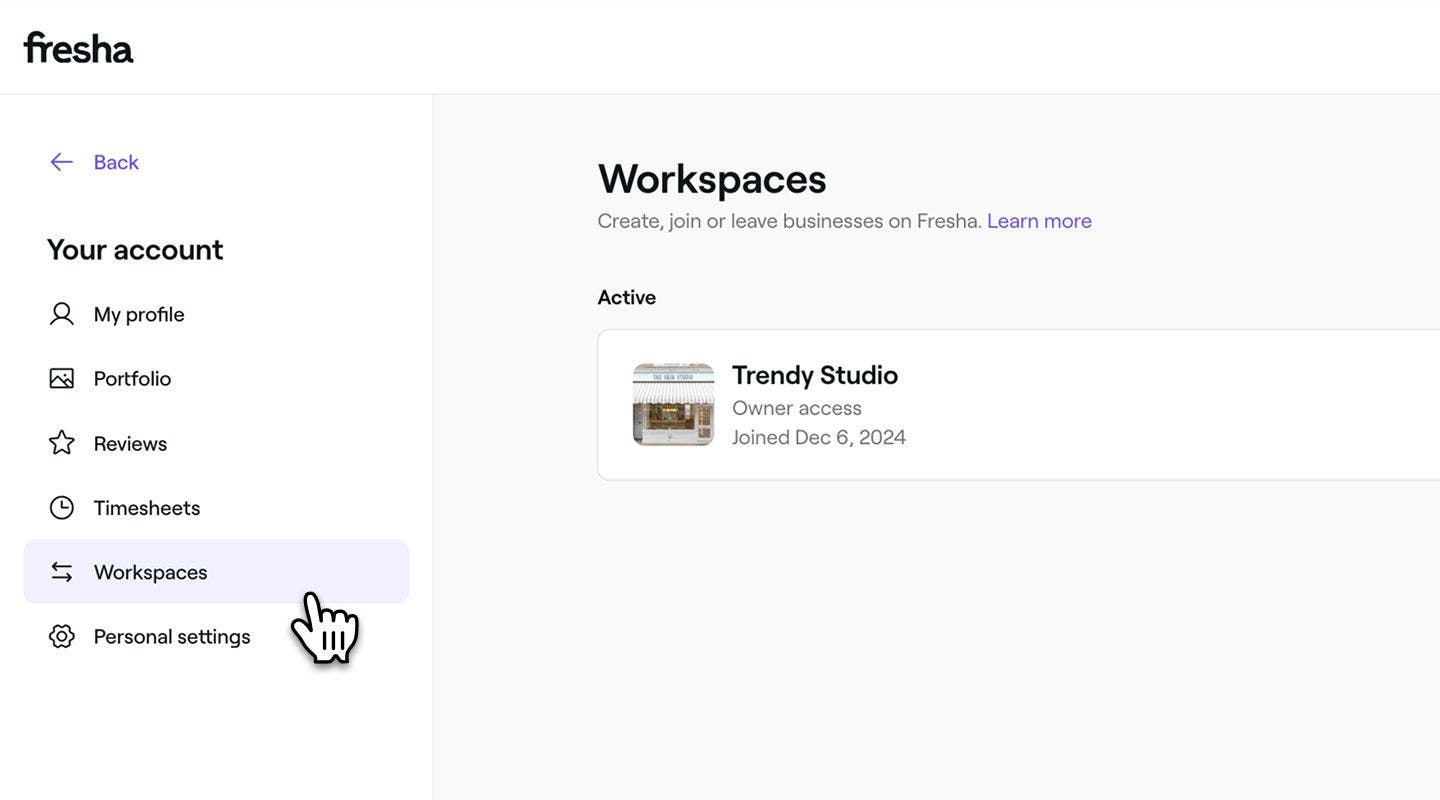
- Next to your workspace, click on Manage to view your workspace settings.
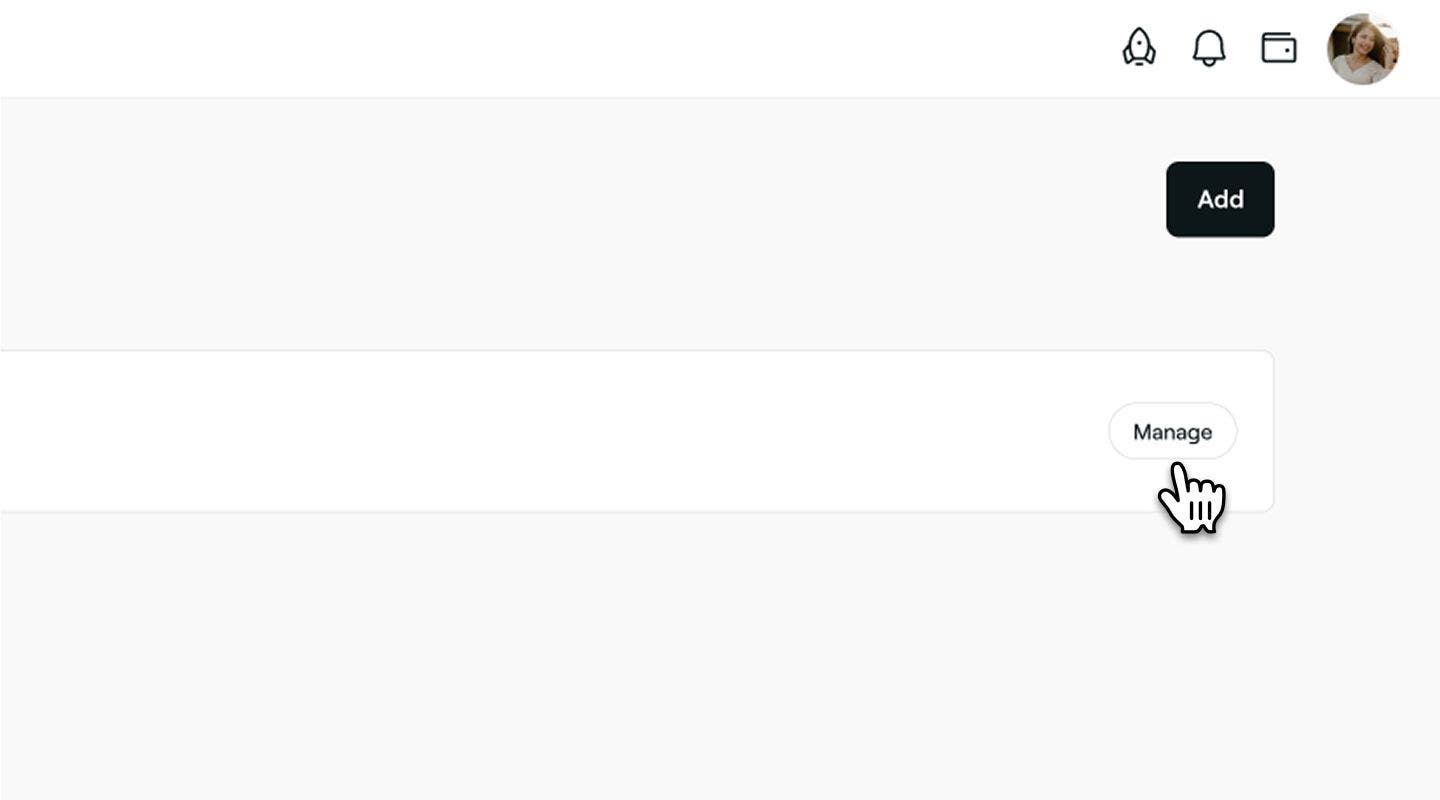
- Under Linked calendars, click on Actions (three dots) next to your synced calendar and select Remove from the panel.

- In the pop-up, click on the Remove button to confirm.
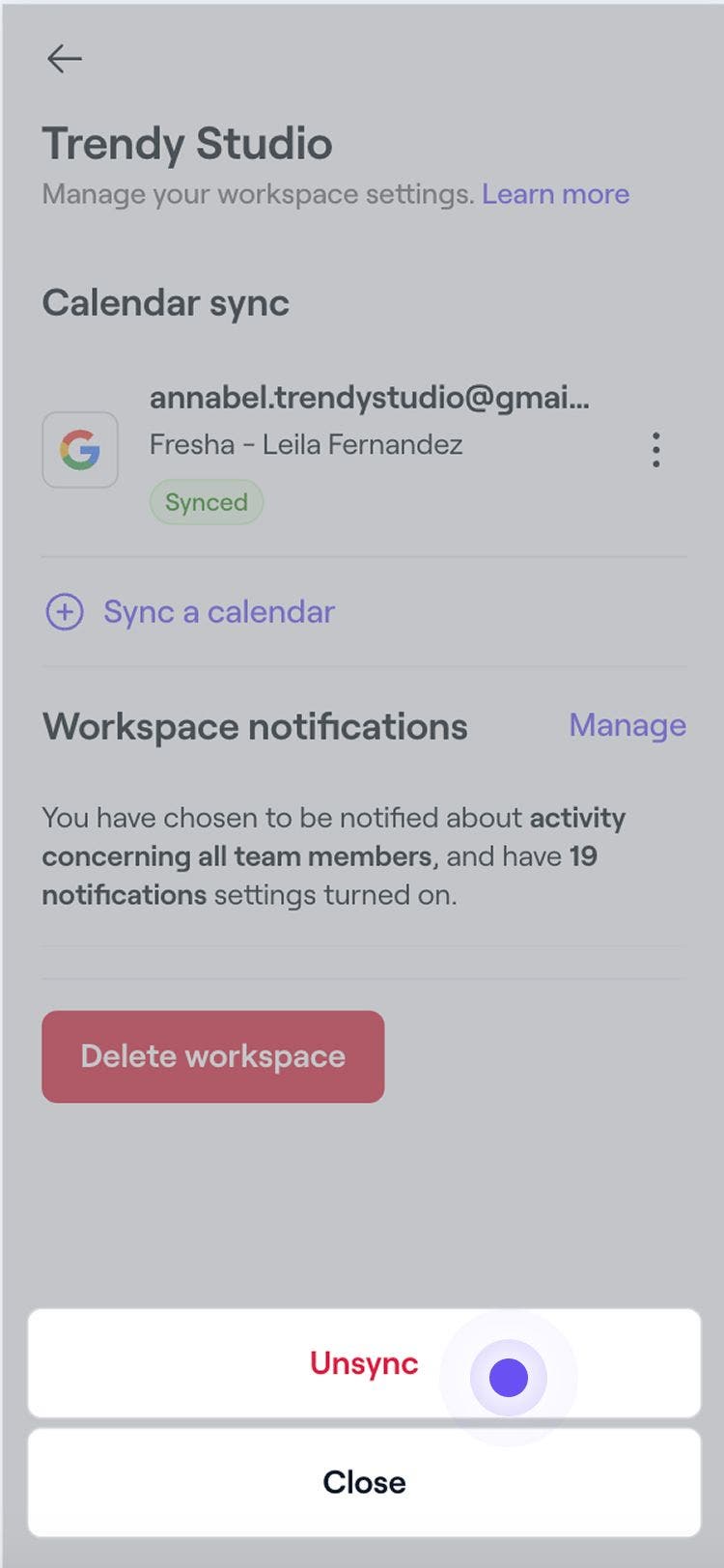
Once your calendar has been removed, any Fresha appointments will no longer show in your personal calendar.
FAQs
Yes, you can link more than one personal calendar with your Fresha calendar. All Fresha events will appear across the calendars you sync with.
Yes, team members can link their personal calendar with your Fresha calendar, as long as they have permission to book appointments enabled.
To keep both calendars aligned, it's best to make changes directly in Fresha. The link is one-way only, so any updates made in your calendar will not reflect in Fresha.
For privacy and security reasons, client and service details are not included in your personal calendar when linked with Fresha. To view full details or make changes, click the link in the event description to open the appointment in your Fresha calendar.
Yes, you can sync your Google calendar with multiple Fresha calendars as long as each business has granted you access. Events from each Fresha calendar will appear in your Google calendar, allowing you to manage appointments across different locations in one place. For better clarity, consider assigning a unique color to each calendar in Google Calendar to easily distinguish between them.