Manage your communication balance
Learn how the communication balance works and how to top it up to send clients appointment reminders and payment requests, through text and WhatsApp.
In this article
How your communication balance works
As part of your Fresha plan, you’ll receive a free monthly allowance based on the number of bookable team members included in your plan.
Your communication balance lets you send text and WhatsApp messages to clients through Fresha. This includes automated messages and payment policy requests. You can choose to top up your communication balance at any time, whenever you need.
- Free messaging allowance: This resets monthly and is used before your credit balance.
- Balance top-up: You can top up your communication balance by adding credits, which gives you flexibility to send more messages once your free monthly allowance runs out. These top-up credits don’t expire and will only be used after your free allowance is finished. For example, if your monthly allowance is 20 free messages, you’ll use that first, and any additional messages will then be charged from your purchased credit.
If you've assigned billing profiles to multiple locations, each billing profile has its own communication balance that you can manage independently.
Each message you send, whether via text or WhatsApp, will deduct from your balance based on its cost. Learn more about message pricing.
Enable automatic communication balance top-ups
You can enable automatic top-ups to add credits whenever your balance drops below a set amount, so your client notifications continue without interruption.
- From the main menu on the left of your screen, go to Settings.
- Click on the Billing category to manage your billing settings.
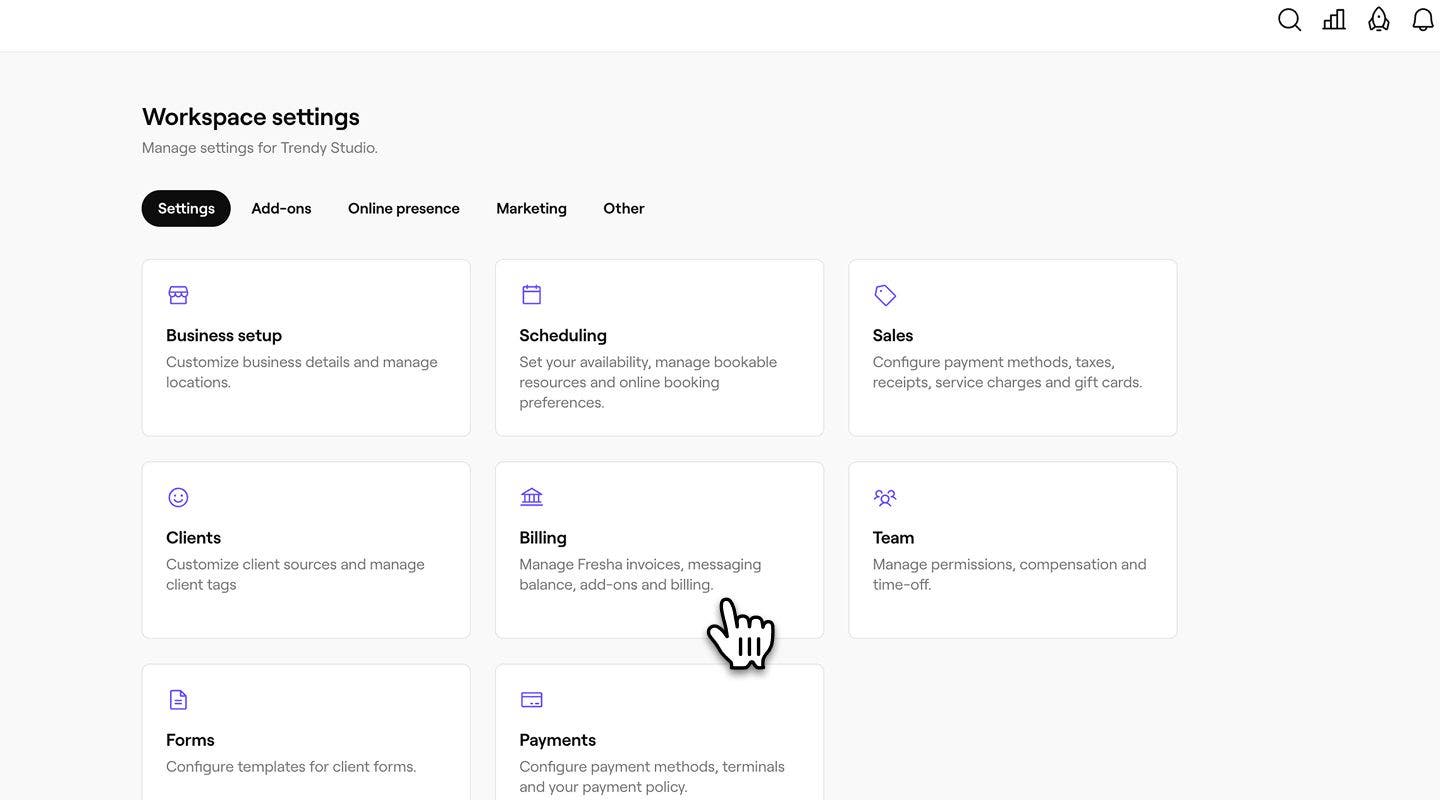
- If your workspace has multiple Billing profiles, click on a billing profile to view its allocated details.
- From the left menu panel, select Communication balance.
- Under Text and WhatsApp notifications, click on the Enable button to enable automatic top-ups.
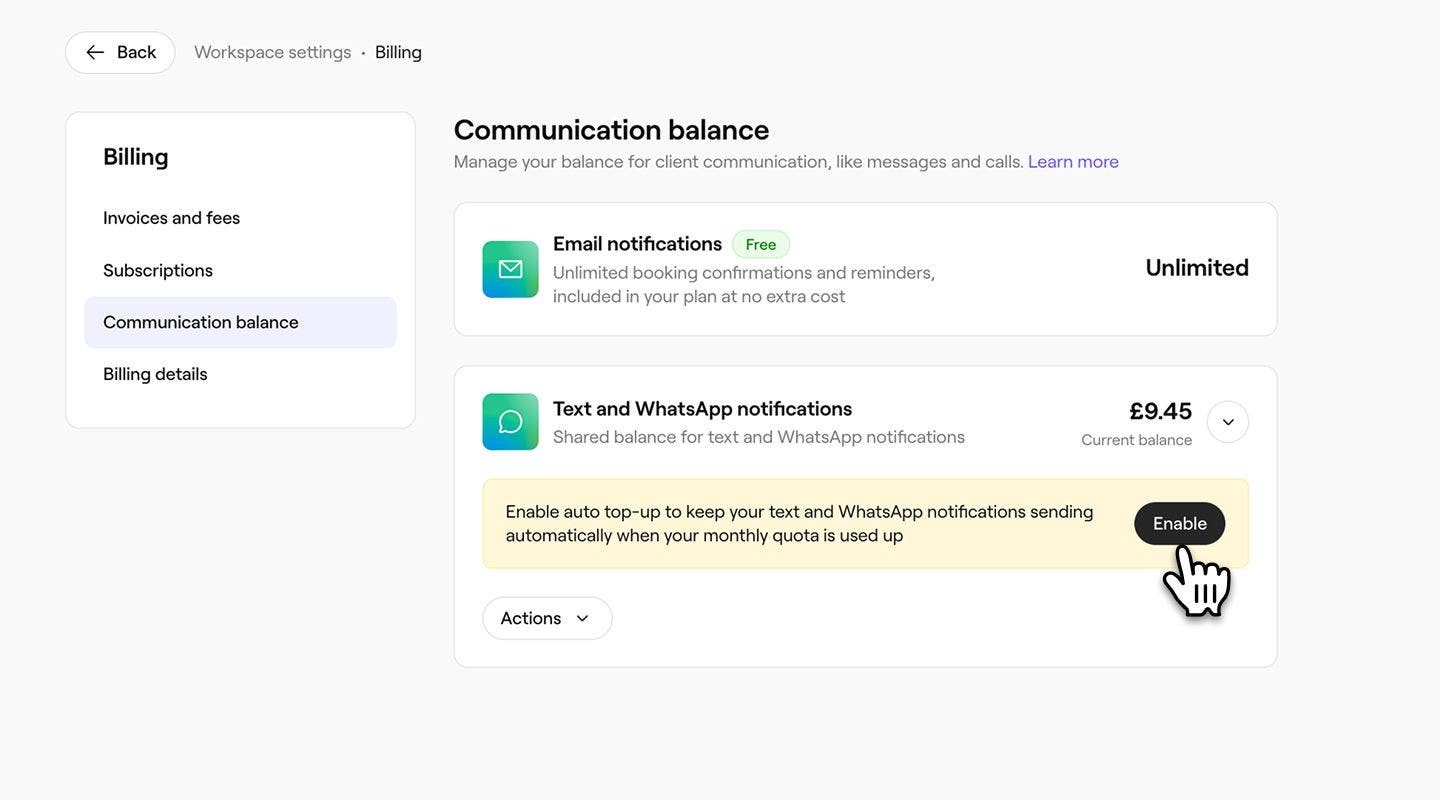
- On the Set automatic top-up amount view, under When balance drops to, set a threshold for when your messaging balance should trigger an automatic top-up.
- Under Automatically top up with, choose a top-up amount from the available options or select Custom to enter your own value.
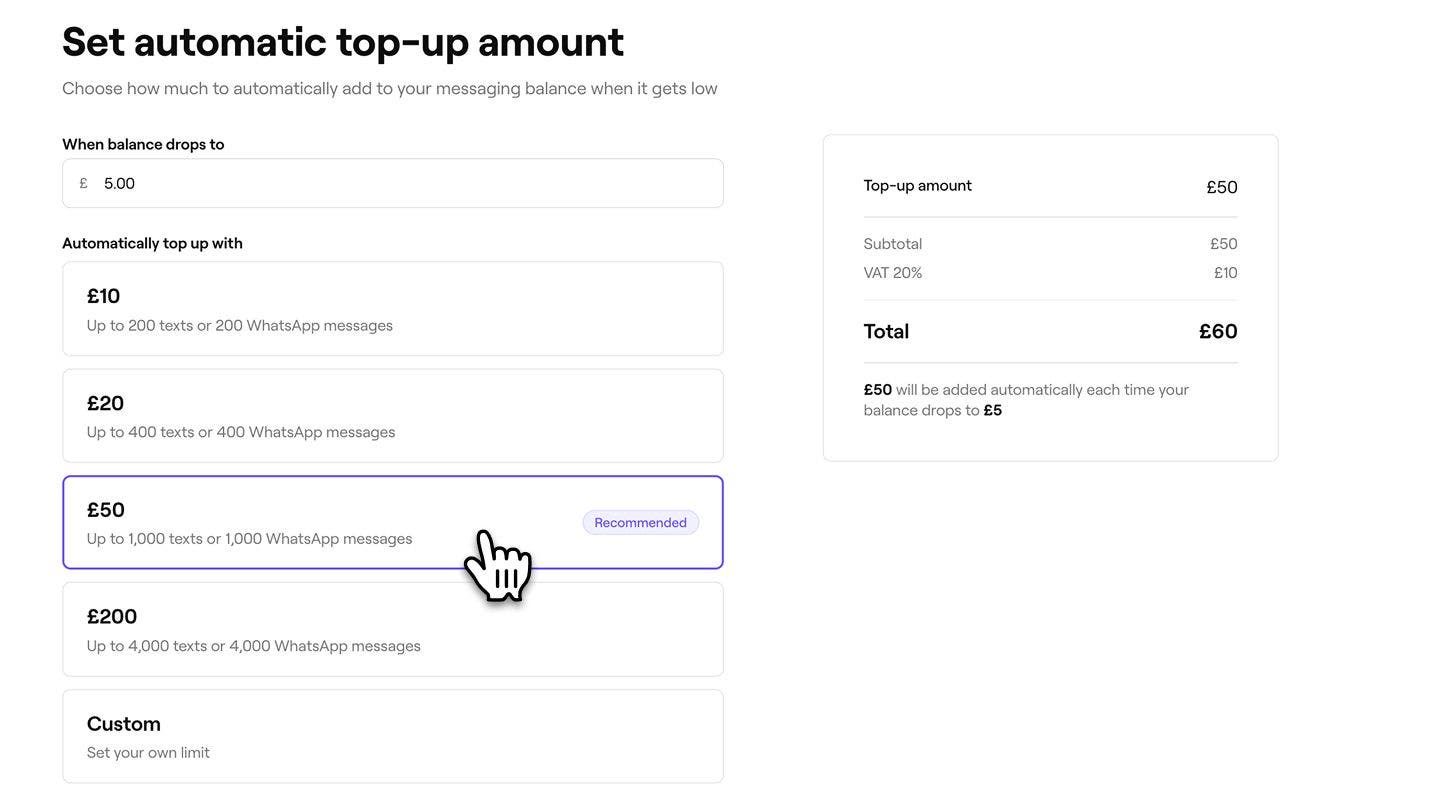
- Select the Continue button in the top right to review your payment details and top-up amount.

- Click on the Enable button in the top-right to complete the setup.


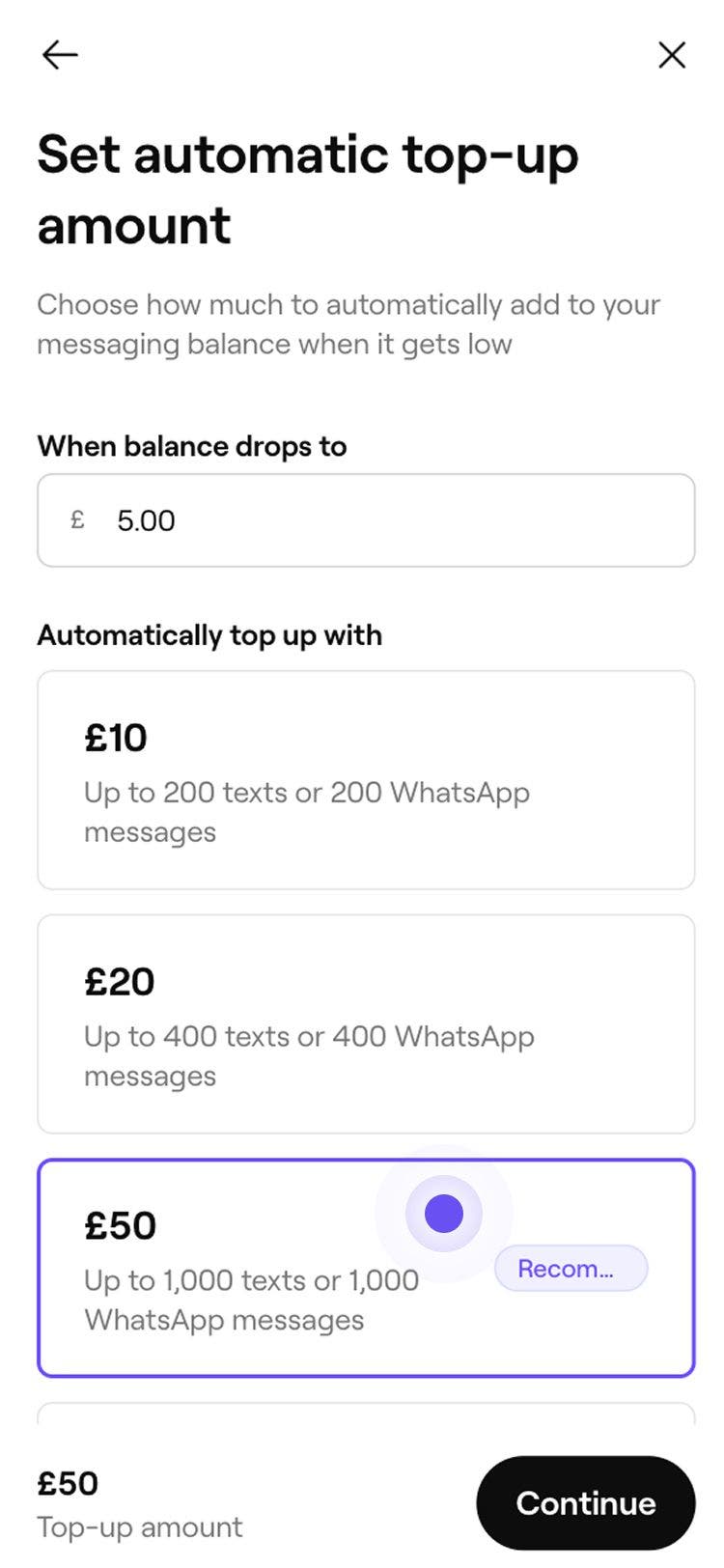
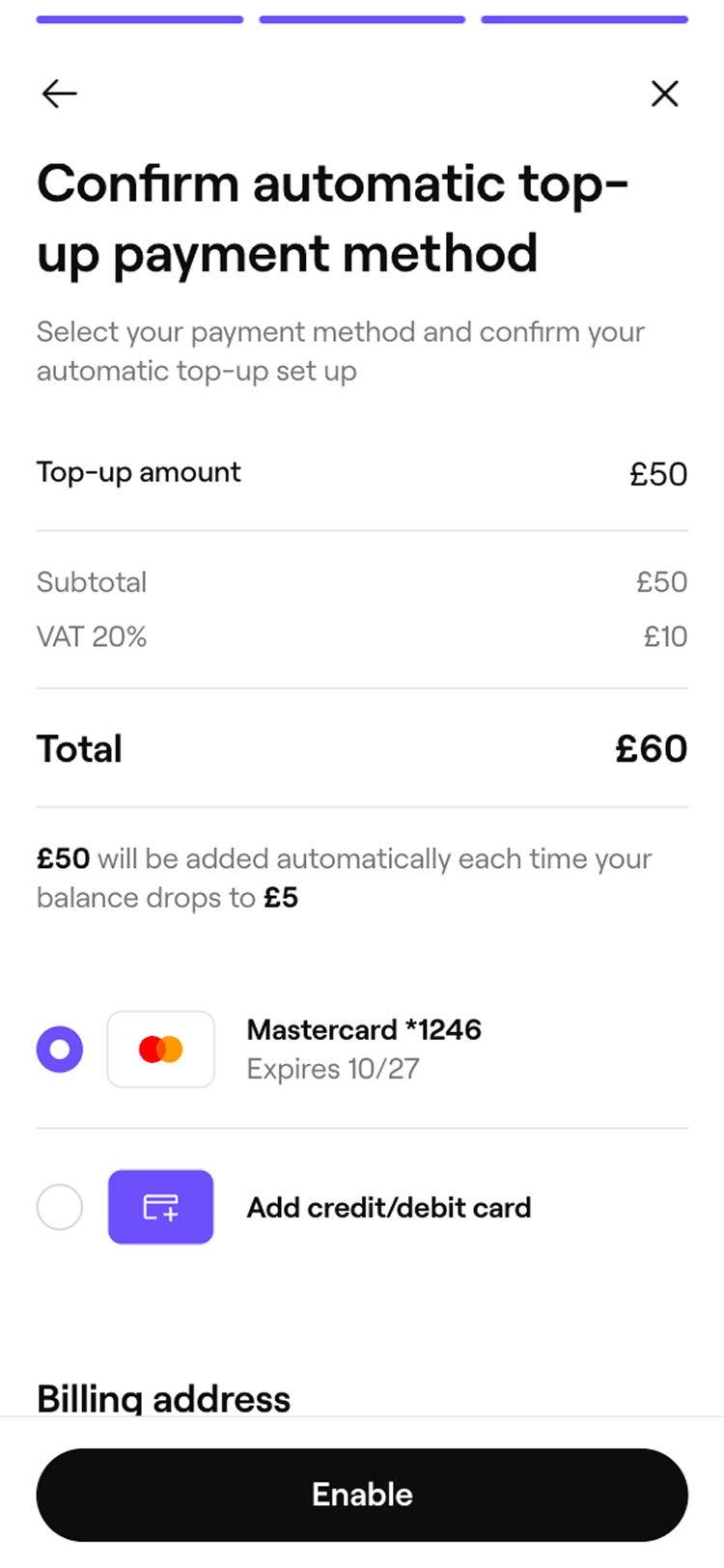
Once automatic top-ups are enabled, your balance will automatically top up by the selected amount whenever it falls below your chosen threshold.
Disable automatic top-ups
- From the main menu on the left of your screen, go to Settings.
- Click on the Billing category to manage your settings.

- If your workspace has multiple Billing profiles, click on a billing profile to view its allocated details.
- From the left menu panel, select Communication balance.
- Under Text and WhatsApp notifications, click on the Actions button, then select Disable auto top-ups.

- Click on the Disable now button in the pop-up to confirm.


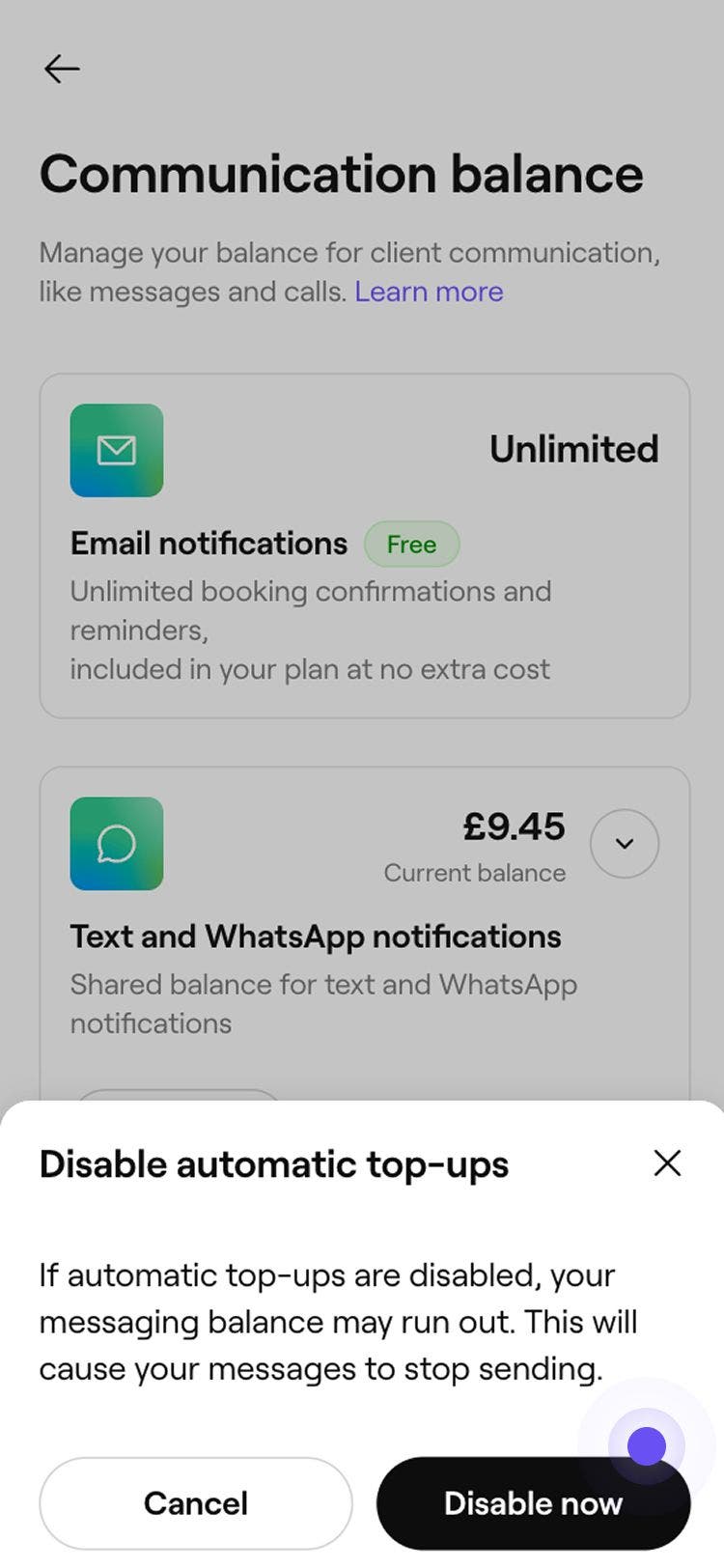
Once you’ve disabled automatic top-ups, your balance will depend on your free monthly allowance and any manual top-ups you make. If your message balance runs out, client messages will not be sent.
Manually top up your communication balance
You can increase your messaging balance at any time by making a one-time purchase.
- From the main menu on the left of your screen, go to Settings.
- Click on the Billing category.

- If your workspace has multiple Billing profiles, click on a billing profile to view its allocated details.
- From the left menu panel, select Communication balance.
- Under Text and WhatsApp notifications, click on the Actions button, then select Top-up.

- On the Set top-up amount screen, choose a top-up amount from the available options or select Custom to enter your own value.

- Select the Continue button in the top right to review your payment details and top-up amount.

- Click on the Pay now button in the top-right to complete the purchase.


Once you have made a manual top-up, this credit will be added to your messaging balance immediately, ready to use for automations and payment policy reminders.
View your communication balance activity
-
From the main menu on the left of your screen, go to Settings.
-
Click on the Billing category.

- If your workspace has multiple Billing profiles, click on a billing profile to view its allocated details.
-
From the left menu panel, select Communication balance.
-
Under Text and WhatsApp notifications, click on the Actions button, then select View balance activity.

- To view your usage for the month, select the drop-down next to your Current balance.

- To view your usage for the month, select the drop-down next to your Current balance.
-
You’ll see a record of all manual and automatic top-ups, along with any free monthly allowance. Each entry includes:
- Whether the credit was added by Fresha as your free allowance or purchased through top-ups
- The amount of credit added
- The date the credit was applied
- The cost of the credited amount (if purchased)

-
Click on the Close button in the top right to exit the screen.


You can view a full log of all messages sent to your clients in your Messages history tab.
FAQs
While WhatsApp is free for personal use, Meta charges businesses to use the WhatsApp Business API to send automated messages like appointment reminders or confirmations. You can find more in our pricing page.
Any text or WhatsApp message sent to clients will be deducted from your communication balance. This includes appointment updates, reminders, confirmation requests, and payment requests.
Blast campaigns are billed separately and must be paid for upfront when they’re created.
Messages will stop sending until you top up your communication balance or your free monthly allowance renews. To prevent any disruption in your client notifications and appointment reminders, we recommend setting up automatic top-ups.
You will see the exact cost for each type of message on your messaging balance page as well as when you top up.
The payment method saved under your workspace billing settings will be charged.
Your free monthly allowance can be used for both text and WhatsApp messages. Your allowance will automatically apply to whichever messages go out first.
If one Billing profile covers multiple locations, the communication balance is shared across all of them. Top-ups are charged to the payment method saved on that profile.