Switch between workspaces
Learn how to switch between multiple connected workspaces in your Fresha account to keep your day-to-day operations running smoothly.
In this article
Workspace switching
Workspace switching lets you access multiple business workspaces from a single Fresha account, without logging out or using a separate email address.
It’s designed for professionals who work across more than one business, making it easy to move between workspaces while keeping each business’s data separate and secure.
If you have joined more than one workspace, you can switch between them seamlessly from any tab in your Fresha account.
Switch workspaces
- From the main toolbar along the top of your screen, click on your current workspace button.

- In the dropdown menu, choose the workspace you want to access.

- Your screen will update, and you’ll be taken to the selected workspace.

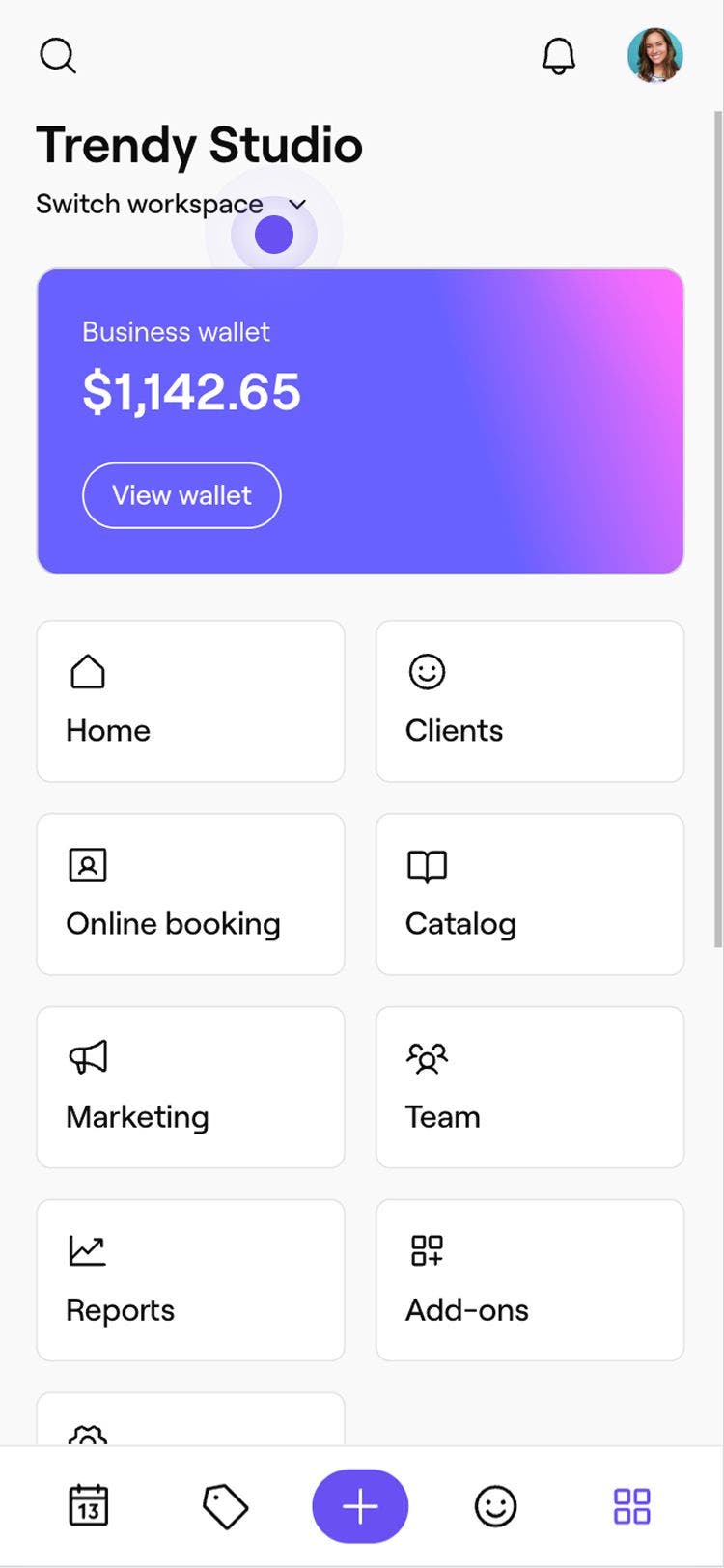

Once you switch workspaces in one tab, the change automatically applies to all other open tabs.
When you log out of your Fresha account, it will default to the last workspace you accessed when you log back in.
FAQs
- Calendar
- Bookings
- Staff
- Clients
- Data and settings
- Wallet balance
- Payouts
- Transactions
- Financial settings
- Desktop (via the toolbar along the top of your screen, under the workspace dropdown)
- Mobile (via the More menu, open Switch workspaces)
Workspaces remain completely separate, and their calendars cannot be merged or shared. Each workspace has its own:
Workspace switching is designed for professionals who work across multiple businesses, not for combining businesses into one.
To access multiple workspaces from one Fresha account, you’ll need to join the other workspace again using the same email address. You are unable to merge logins or email addresses.
Client details are not shared across workspaces. Each workspace maintains its own client list, booking history, notes, and preferences. A client appearing in one workspace will not automatically appear in another, even if it’s the same person.
Wallet balances and payments are workspace specific, and are not shared across separate workspaces. Each workspace has its own:
Funds cannot be transferred or combined across workspaces.
You only need one login to access your Fresha account. As long as all workspaces are connected to the same email address, you can log in once and switch between workspaces without logging out.
Yes, your role can differ per workspace. For example, you might be an owner or admin in one business and a staff member in another.
Permissions and access are managed separately in each workspace.
Depending on your notification settings, you may receive notifications for multiple workspaces.
Make sure you’re in the correct workspace when acting on notifications like bookings, cancellations, or messages.
Workspace switching is available on both desktop and mobile devices.