Create memberships
Encourage clients to purchase services upfront, boosting your sales and attracting new clients. Learn how to bundle your services into a course or membership that clients can pay for in advance or through recurring payments.
In this article
Getting started
Team members with the right permissions can create memberships. If you don’t have access yet, we recommend:
- Reaching out to the account owner to request permission for Memberships under Services.
Creating a membership
A membership requires a recurring payment, where sessions renew on the specified renewal date.
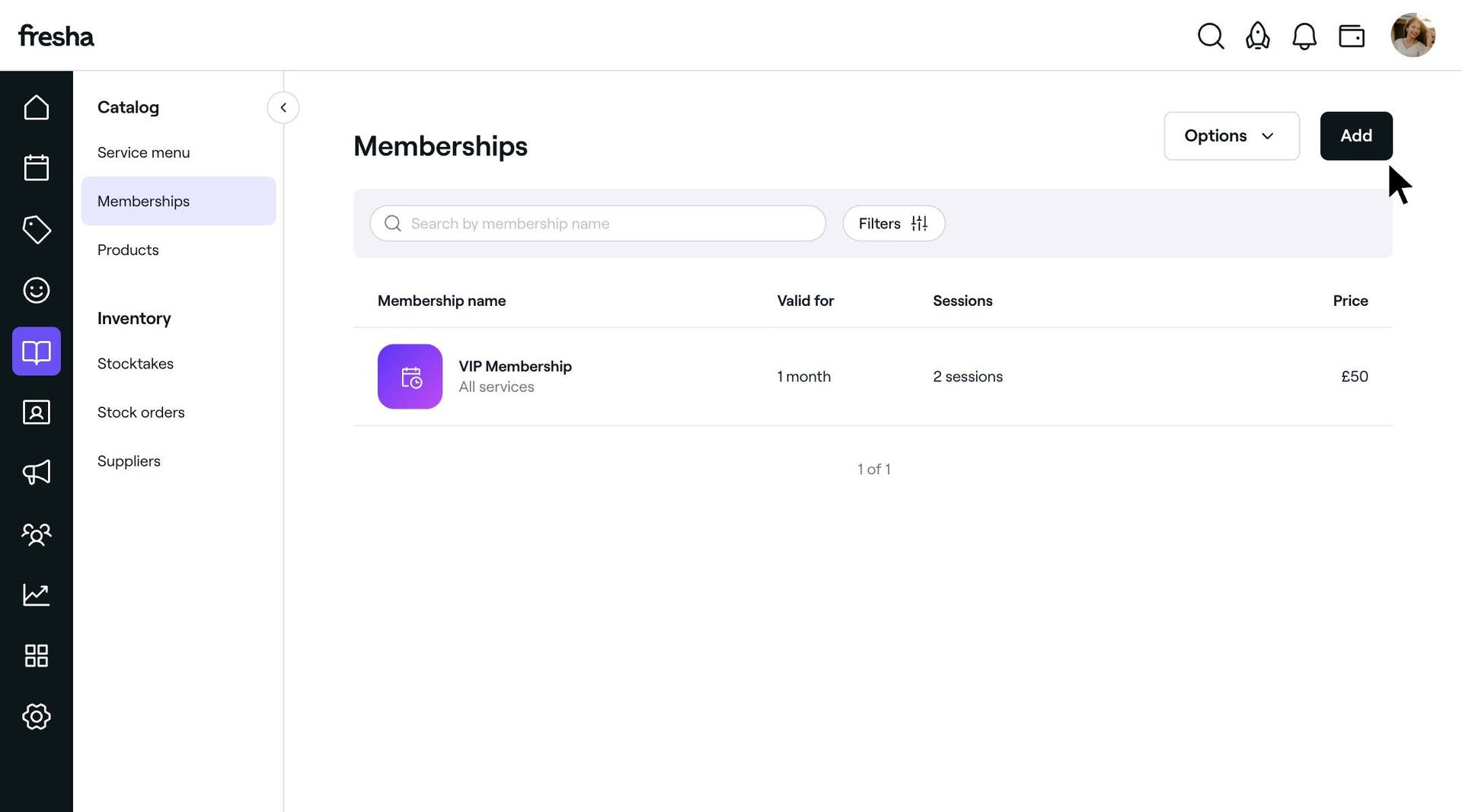
To create a membership:
-
Open the Catalog and select Memberships.
-
Click Add.
-
Under Basic info add the following information:
- Membership name: The membership name shown to your clients.
- Membership description: An optional description of the service, including any specific policies that apply to the membership.
-
Under Services and session, specify the following:
- Included services: Click Edit and check the box next to all services or the ones you’d like to include.
- Sessions: Choose whether a limited or unlimited number of sessions are included.
-
For Pricing and payment, decide how you’d like your clients to pay:
- Recurring payments: Clients are charged on the membership renewal date. Specify the payment frequency, price, and length of membership.
- Tax rate: Select the tax rate you'd like to apply to this plan.
-
Select a color that best matches your membership under Color Customization.
-
Under Online sales and redemption, choose if you’d like to:
- Enable online sales: Allow clients to purchase the membership online.
- Enable online transactions: Clients can use the membership to book services online.
-
Under Terms & Conditions, add any rules attached to your membership.
-
Select Create membership.
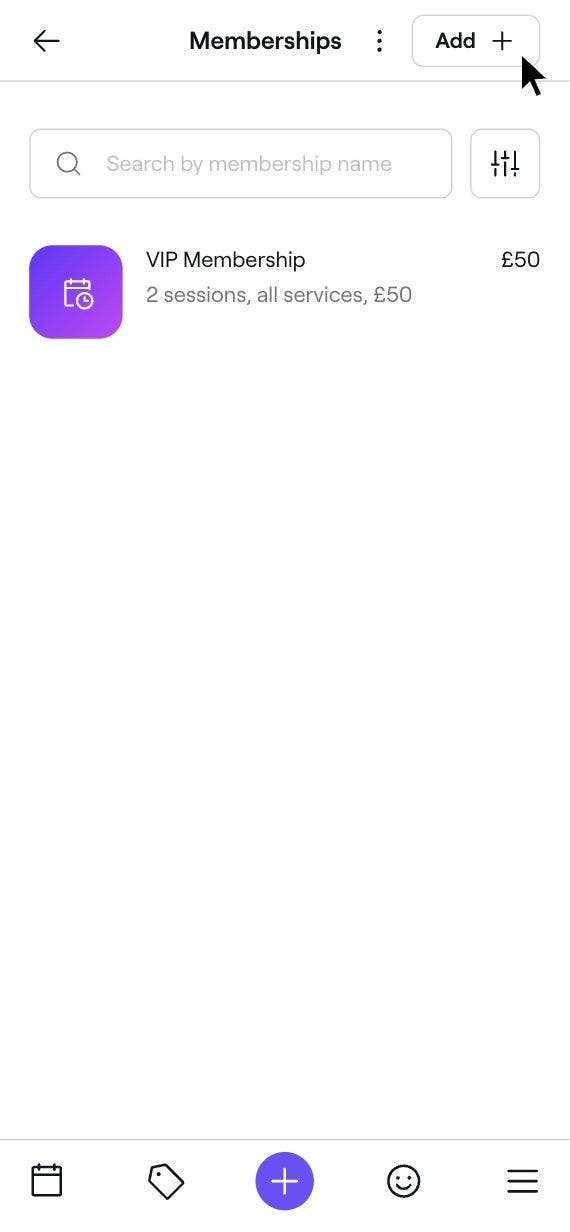
You can edit your memberships at any time from the Catalog. Click on Memberships and select the plan you’d like to edit.
Upselling membership
- Open Workspace settings, select Scheduling then Upselling.
- Next to Upsell memberships, use the toggle to activate the setting.
You can customize membership upselling for each service in your catalog.
FAQs
Your no-show and late cancellation policy will still apply to your memberships.
If the appointment hasn’t been checked out or payment wasn’t collected through Fresha payments, you can void the sale, then edit the appointment by removing and re-adding the service. If the client has an active membership, you’ll be able to select it and deduct the session.
However, if the appointment was checked out using Fresha payments, no changes can be made once the payment has been processed.
You can discount memberships by using a Flash Sale. This discount can be applied online and at checkout.
If you discount a membership with recurring payments, the discount applies only to the first payment. Future renewals will return to the membership’s original price in your catalog. For example, if a membership costs €10/month and you apply a Flash Sale to sell it for €9, the client pays €9 for the first month. On the next renewal date, the price returns to €10/month.
To apply a membership to an existing appointment, open the appointment from your calendar. Click the Edit (pencil) icon next to the service, then select the membership from the Discount drop-down. Click on the Apply button, then choose Checkout or Save to update the appointment.