Manage Client Connect settings
Learn how to adjust messaging preferences and choose how your team and clients use Client Connect.
In this article
Update Client Connect message settings
Choose how messaging works for your clients, including whether clients can message you after booking and whether read receipts or typing indicators are shown.
-
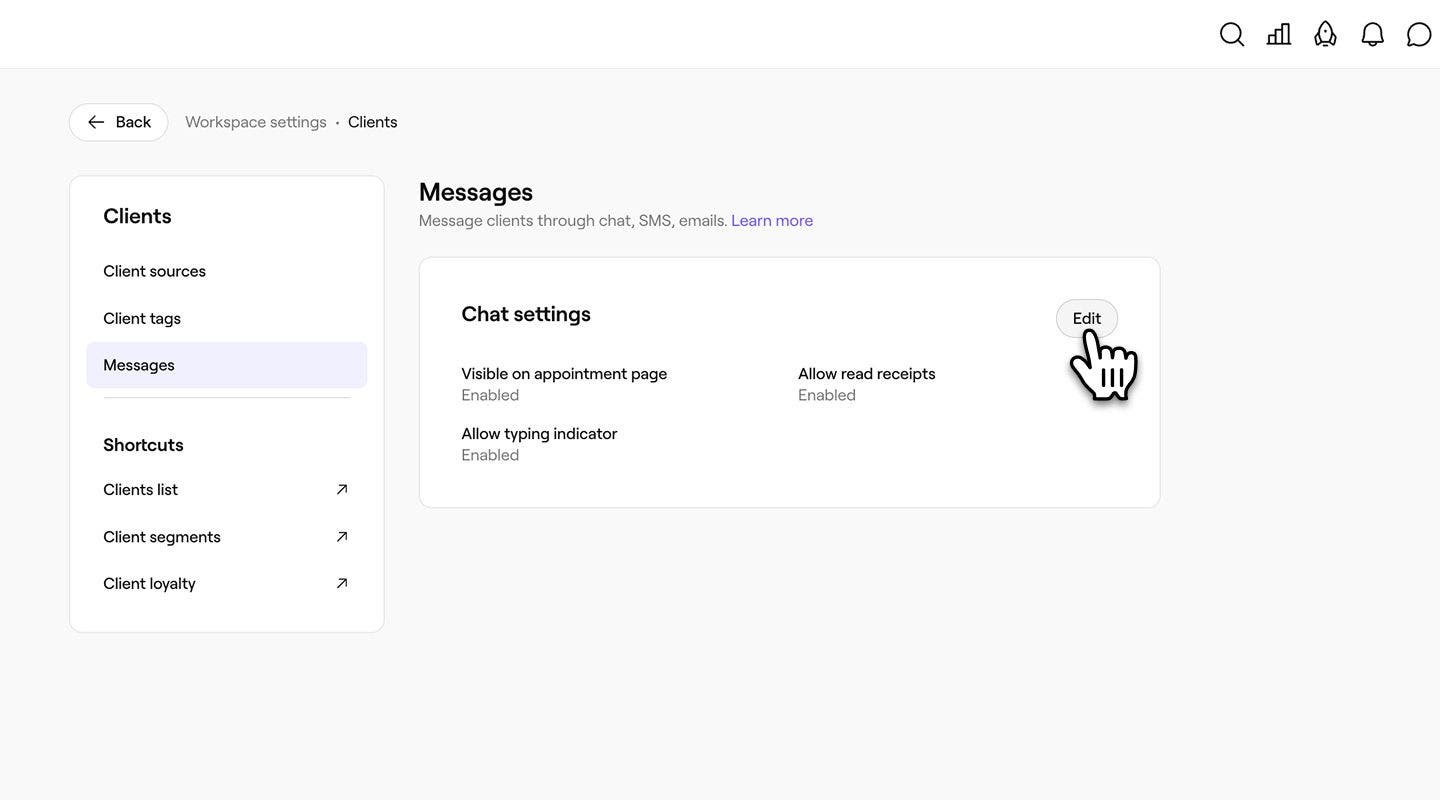
Open Messages from your Client settings.
-
Click on the Edit button next to Chat settings.
-
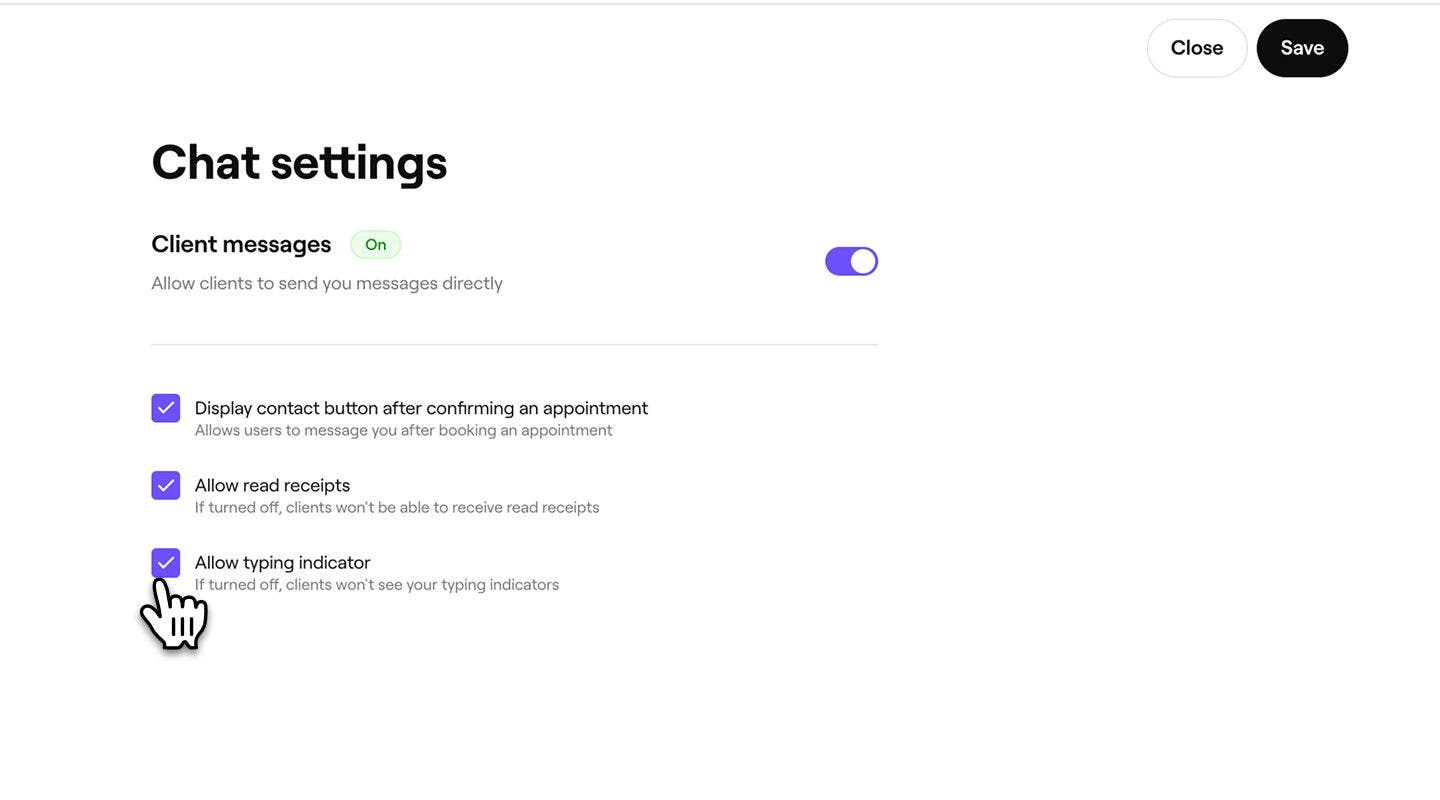
In the Chat settings view, tick or untick the checkboxes to manage how messaging works for your clients:
- Display contact button after confirming an appointment: Allows clients to message you after booking.
- Allow read receipts: Let clients see when you’ve read their messages.
- Allow typing indicator: Shows clients when you’re typing a reply.
-
Click on the Save button in the top right to apply the settings.


Your updated settings apply straight away.
Manage team permissions for client messages
Use permission settings to manage which team members can access and reply to client chats.
There are two permissions available for Client Connect:
- Access client chats: allows team members to view all client chats, message history, and attachments.
- Reply to client chats: allows team members to send messages and start conversations with clients.
- From the main menu on the left of your screen, go to Settings.
- Click on the Team category to access permission settings.

- Select the permission group you want to edit, or click on the Add permission group button to create a new one.

- In the Edit permission role view, select Clients from the left menu panel.

- Under Client messaging, tick the checkbox next to each permission you want to grant.

- Click on the Save button in the top right to update the permission group.


Updated permissions apply the next time team members sign in.
Note: Team members without the Access client chats permission won’t see the Client messages inbox in Fresha Connect.
Manage Client Connect notifications
Clients can control how they receive notifications from your business. Depending on their preferences, clients may receive:
- In-app notifications in the Fresha app
- Email notifications
You can also set notification preferences on behalf of a client through their client profile. To help clients receive notifications successfully, make sure their client profile includes a valid mobile number and email address.
Turn Client Connect off
-
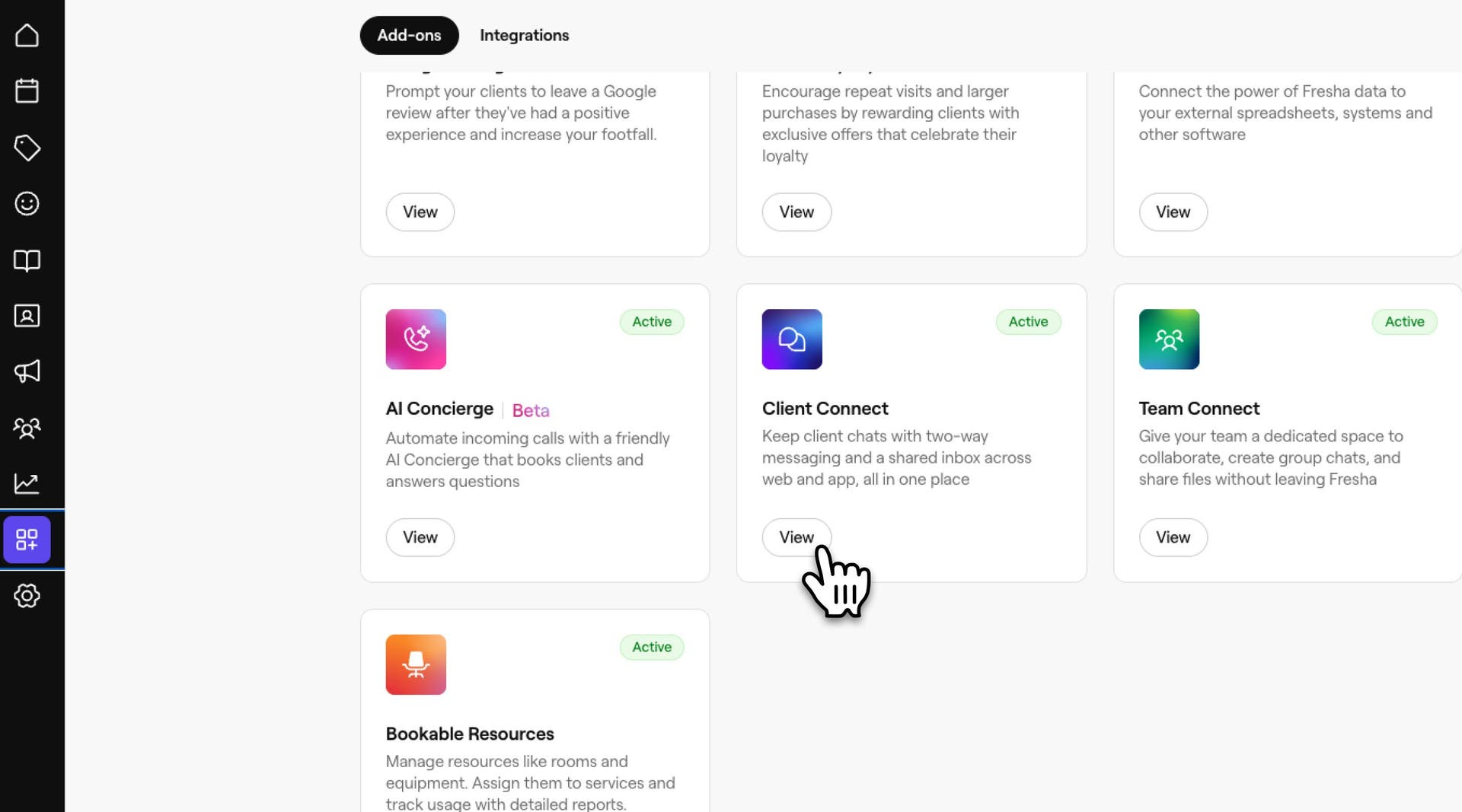
From the main menu on the left of your screen, go to Add ons.
-
Select the View button under Client Connect to open the add-ons summary view.
-
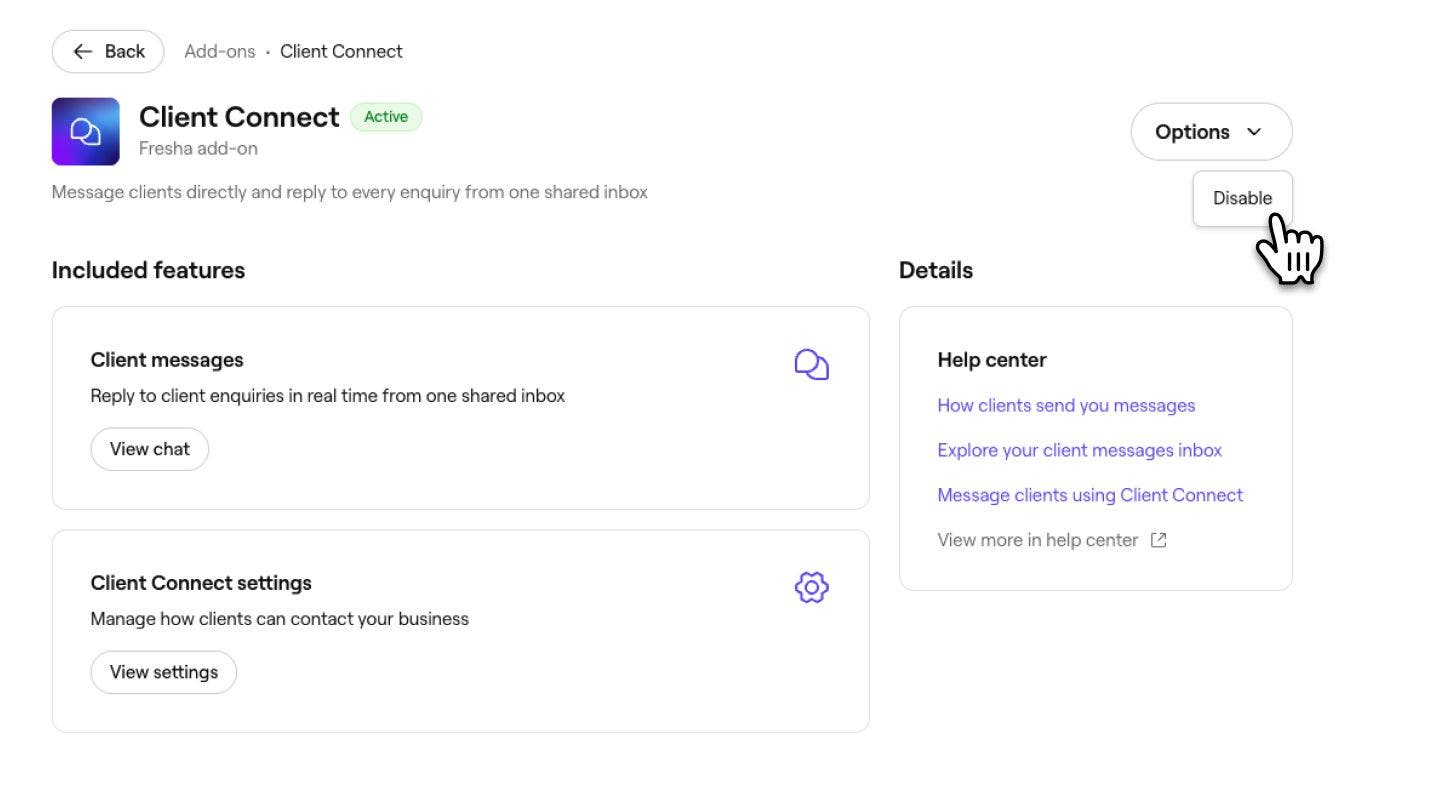
Click on the Options button in the top right and select Disable from the panel.
-
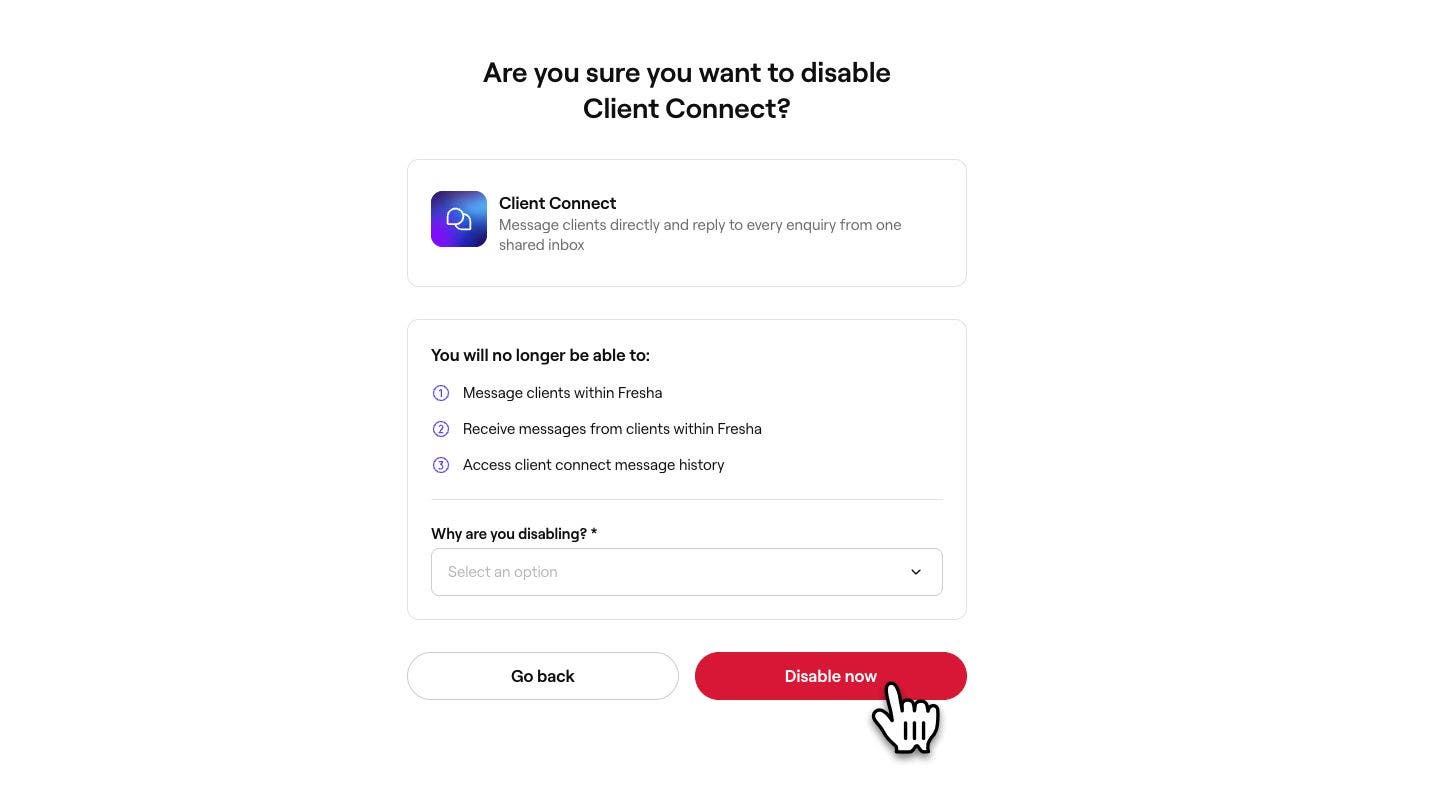
Review the conditions of disabling Client Connect and select a reason.
-
Click on the Disable now button to confirm.
When Client Connect is disabled, clients can’t start new conversations, and your team can’t send or receive messages. Existing conversation history remains saved and becomes available again if you re-enable messaging.
FAQs
Your existing chat history stays saved. While Client Connect is off, clients can't message you and your team can't send or receive new messages. When you turn it back on, your chat history is available again straight away.
Use permission groups to grant Access client chats and Reply to client chats independently. For example, a front-of-house team member might be able to view and reply to chats, while a stylist can view chats but not reply.
If you don't see the Messages icon in your toolbar, you may not have the Access client chats permission. Speak to a workspace owner who can update your permissions.
Clients always receive an in-app notification in the Fresha client app when you send them a message, so they don't miss anything important. They can manage email and text message preferences in their account settings.
Once a team member saves their notification preferences, the same settings apply on every device they sign into.
Client Connect settings apply at the workspace level. Use team permissions to manage which team members at each location can access and reply to chats.