HomeKnowledge baseFresha academy
View your AI Concierge activity log
Back
  1. Knowledge base•
  2. AI Concierge•
  3. View your AI Concierge activity log

View your AI Concierge activity log

Learn how to access your AI Concierge activity log and enable client transcripts to get a clear record of all calls received.

In this article

  • About your AI Concierge activity log
  • Access your AI Concierge activity log
  • Enable call recording and transcripts for your AI Concierge

About your AI Concierge activity log

Every call handled by your AI Concierge automatically generates a call summary, which is automatically saved to your call history. You can view summaries at any time from your AI Concierge Add-on. If you enable recordings and transcripts, a full audio recording and written transcript will also be saved for each call.

Access your AI Concierge activity log

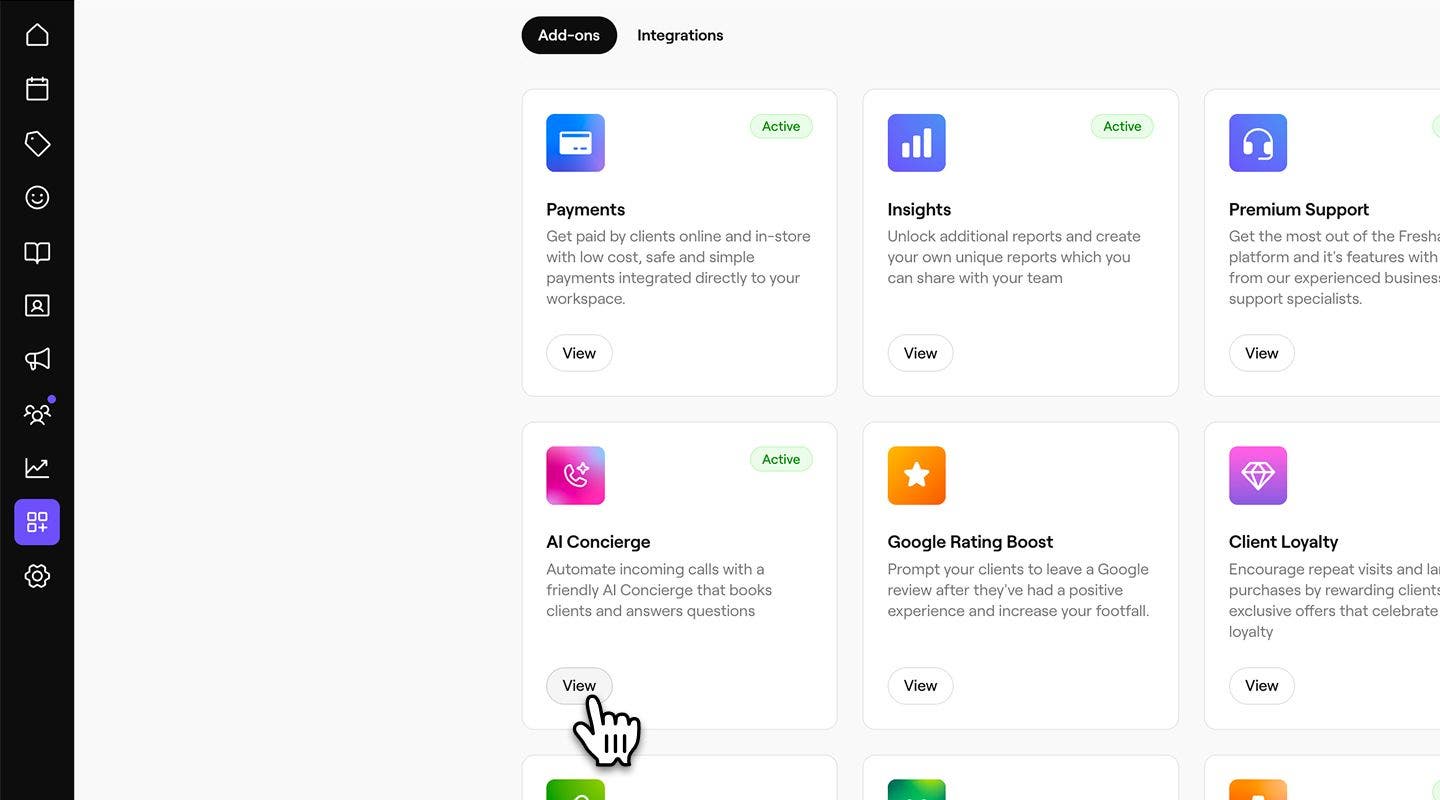
  1. From the main menu on the left of your screen, go to Add-ons.

  2. Under AI Concierge, click on the View button. acitivty_log_web_2.jpg
  3. Click on the Activity tab to access your client call log activity. acitivty_log_web_3.jpg

  4. You can view a complete history of calls, including the date, duration, client, sentiment, any related appointment, and call category.

    1. Click on the Filter icon to filter call logs by location, sentiment, or category, or use the search bar to find a specific client or appointment.
  5. To view a call in detail, click on the Call ID to open a call record, where you will find: acitivty_log_web_5_1.jpg

    1. Overview: a summary of the call, including a recording if enabled in your settings. acitivty_log_web_5_2.jpg
    2. Transcript: call recording and a full written transcript of the conversation, including time stamps. acitivty_log_web_5_3.jpg
  1. From the main menu at the bottom of your screen, tap on More (grid icon) and open Add ons.Group 31242.jpg

  2. Select the View button under AI Concierge. acitivty_log_mob_2.jpg

  3. Tap on the Activity tab to access your client call log activity. acitivty_log_mob_3.jpg

  4. You can view a complete history of calls, including the date, duration, client, sentiment, any related appointment, and call category.

    1. Tap on the Filter icon to filter call logs by location, sentiment, or category, or use the search bar to find a specific client or appointment.
  5. To view a call in detail, tap on the Call ID to open a call record, where you will find: acitivty_log_mob_5_1.jpg

    1. Overview: a summary of the call, including a recording if enabled in your settings. acitivty_log_mob_5_2.jpg
    2. Transcript: call recording and a full written transcript of the conversation, including time stamps. acitivty_log_mob_5_3.jpg

Enable call recording and transcripts for your AI Concierge

  1. From the main menu on the left of your screen, go to Settings.

  2. In the Add-ons section, click on AI Concierge to update your settings. enable_transcript_web_2.jpg
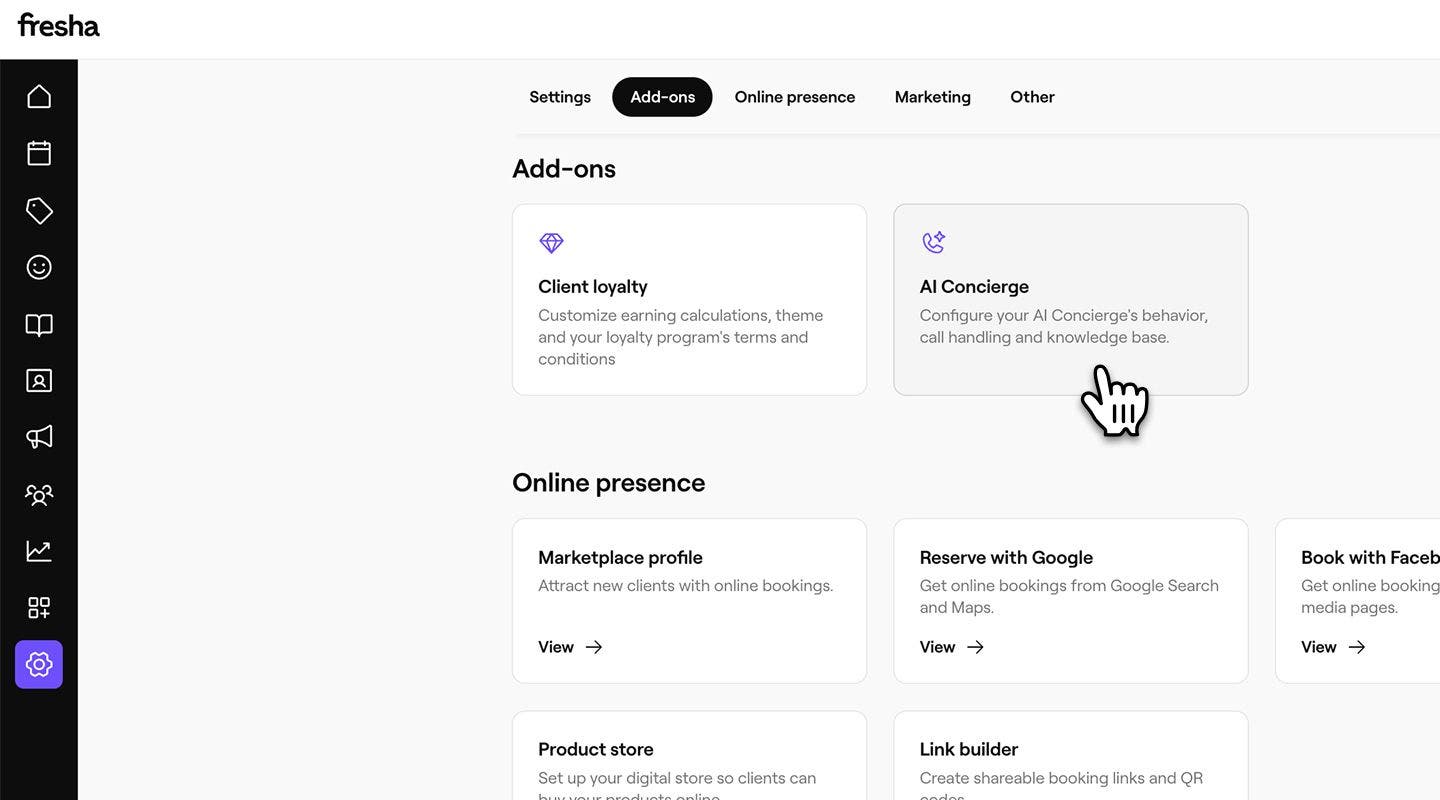
  3. From the left menu panel, click on Settings to find an overview of your current recording and transcript settings.

  4. Click on Edit next to Recordings and transcripts to update your settings. enable_transcript_web_4.jpg
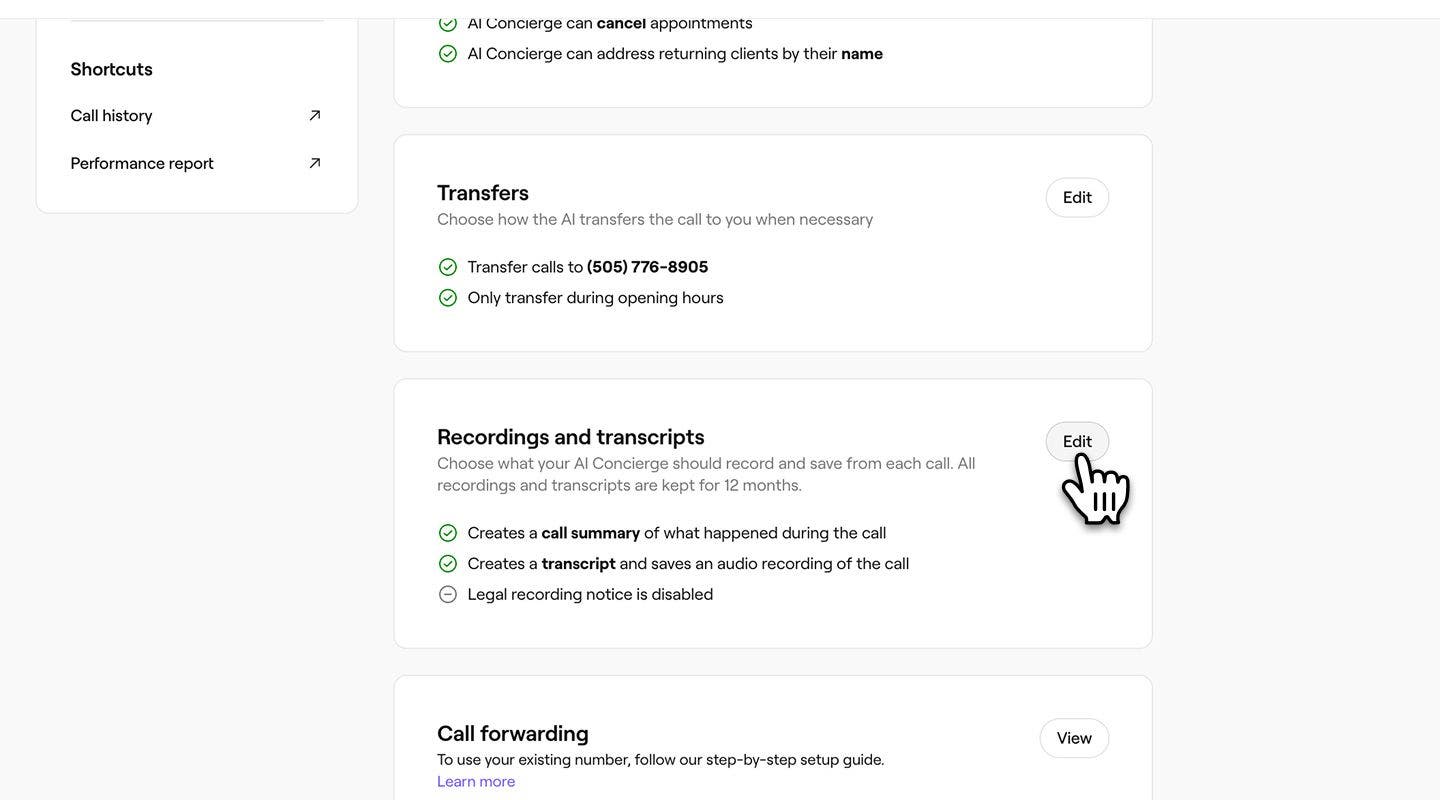
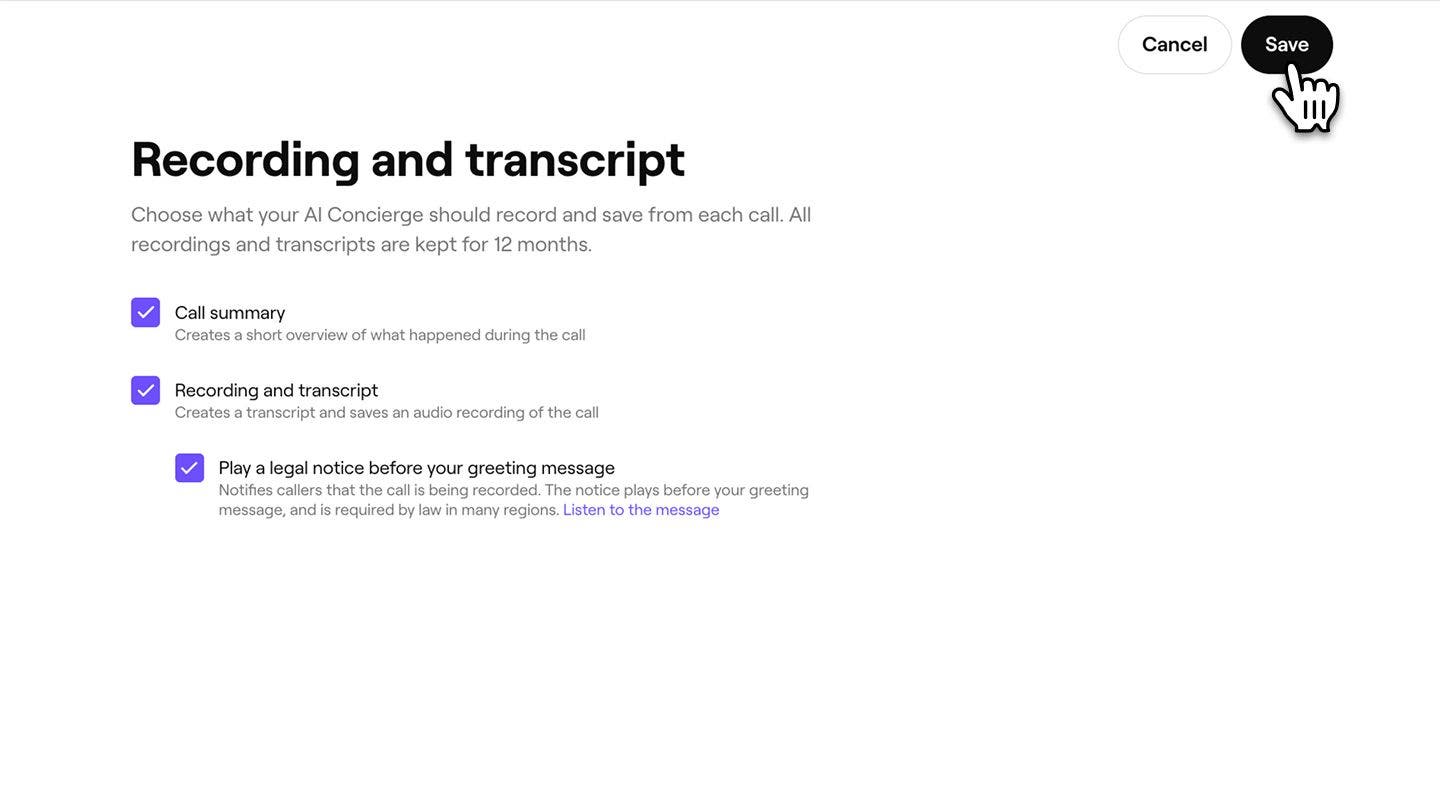
  5. Choose what your AI Concierge should record and save from each call, by ticking the checkbox next to:

    1. Call summary: to create a short overview of what happened during the call, including sentiment, call category, related appointment, and any additional details about the conversation. For example, “Grace booked a haircut for Friday 7 November, at 2.30pm”.
    2. Recording and transcript: to create an audio recording and written transcript of every client call. These recordings are kept for 12 months.
    3. If you choose to record transcripts, you have the option to Play a legal notice at the end of your AI Concierge greeting message, as a compliance requirement to inform clients that the call is being recorded. You can choose to Customize the legal message.
  6. Click on the Save button in the top right of your screen to save your settings. enable_transcript_web_6.jpg
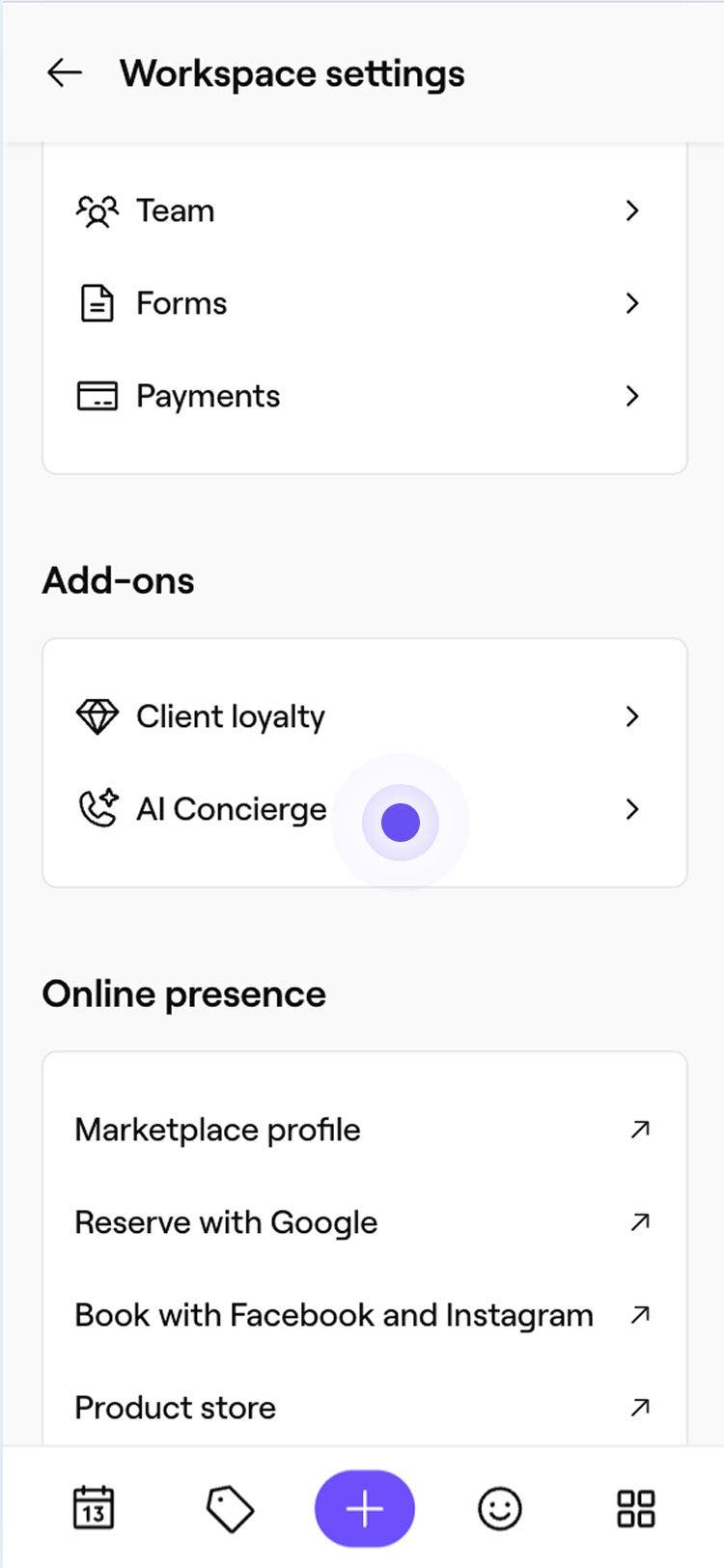
  1. enable_transcript_mob_4.jpgenable_transcript_mob_4.jpgFrom the main menu at the bottom of your screen, tap on More (grid icon) and open Settings.Group 31281.jpg

  2. Under Add-on's, tap on AI Concierge to view your AI Concierge details. enable_transcript_mob_2.jpg

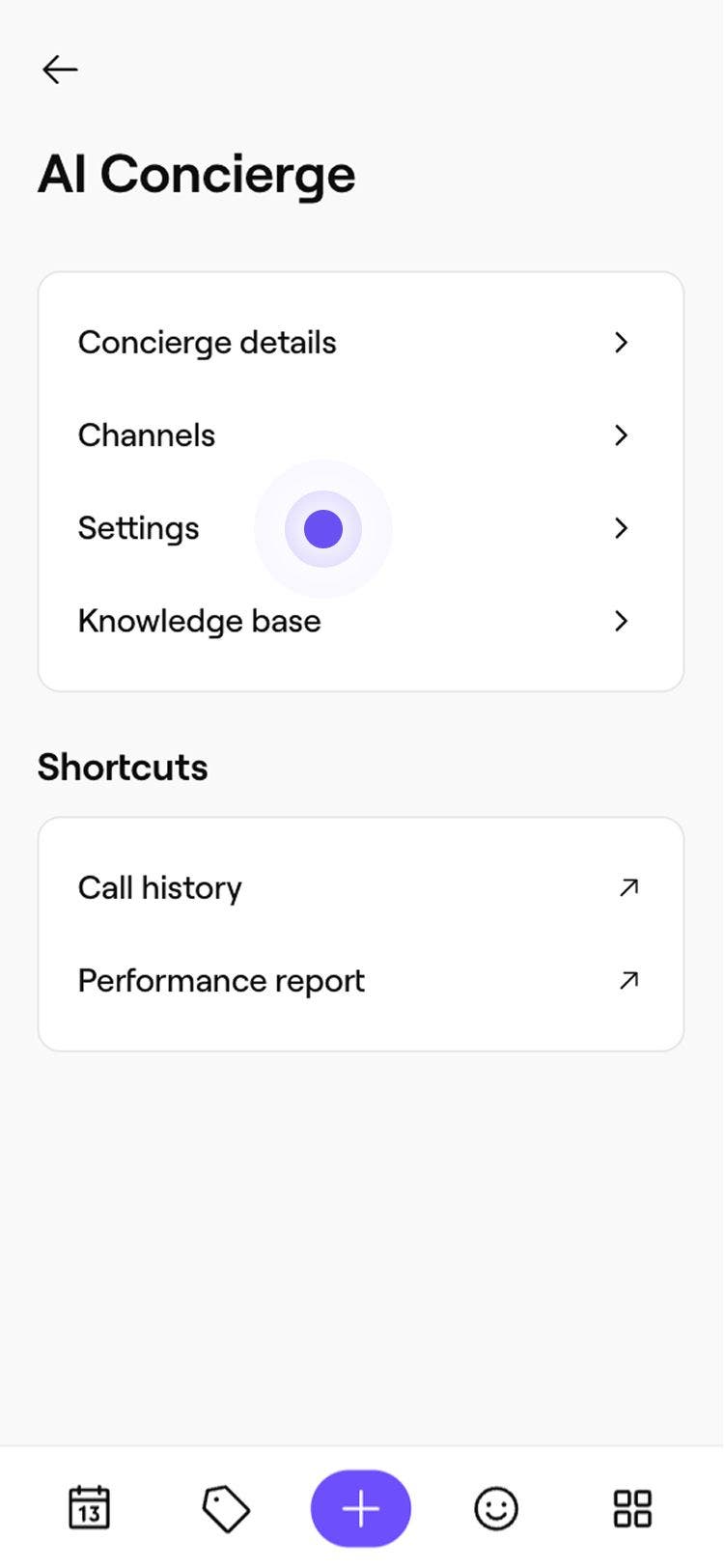
  3. Tap on Settings from the menu to update your AI Concierge settings. enable_transcript_mob_3.jpg

  4. Next to Recordings and transcripts, you can see an overview of the areas that your AI Concierge is enabled to access. Tap on Edit to update the settings. enable_transcript_mob_4.jpg

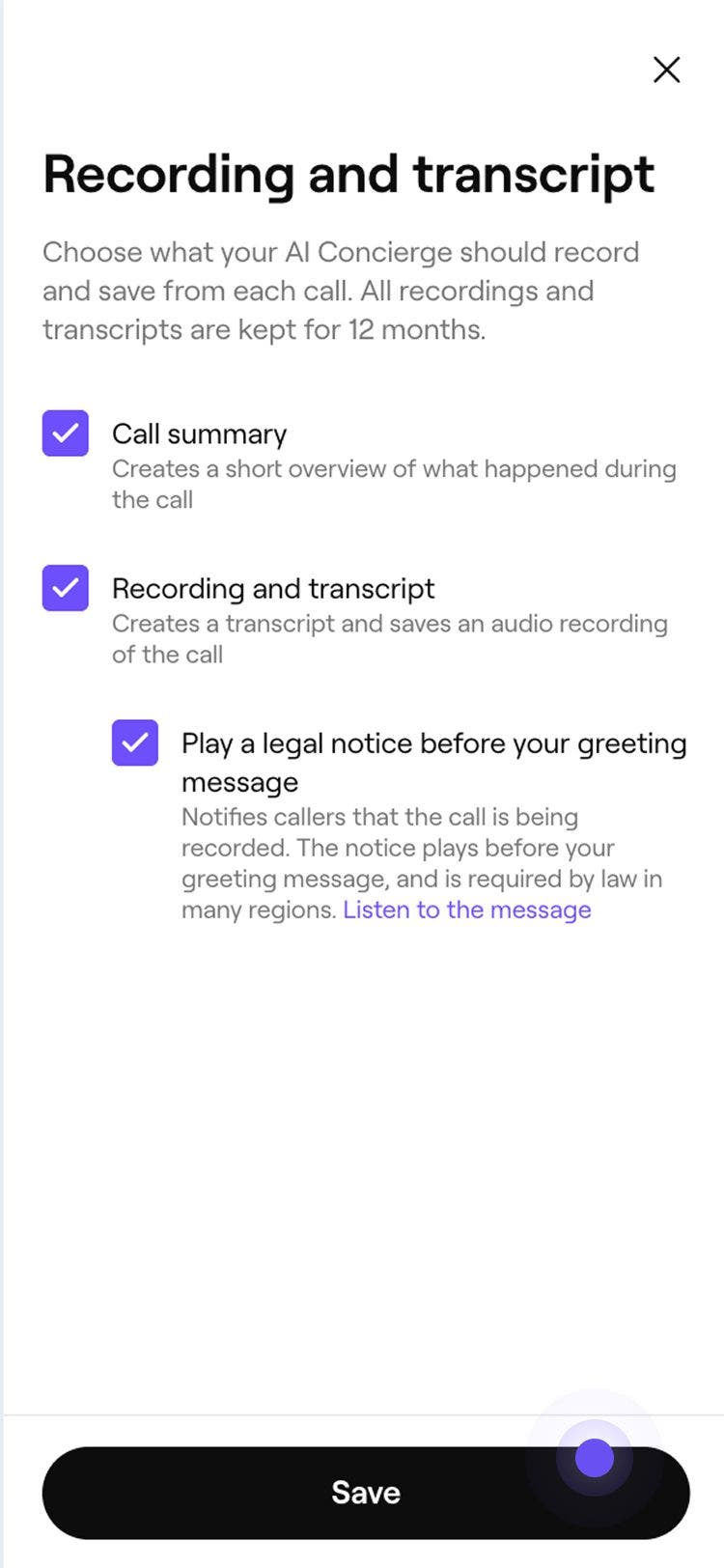
  5. Choose what your AI Concierge should record and save from each call, by ticking the checkbox next to:

    1. Call summary: to create a short overview of what happened during the call, including sentiment, call category, related appointment, and any additional details about the conversation. For example, “Grace booked a haircut for Friday, 7 November, at 2.30 pm”.
    2. Recording and transcript: to create an audio recording and a written transcript of every client call. These recordings are kept for 12 months.
    3. If you choose to record transcripts, you have the option to Play a legal notice at the end of your AI Concierge greeting message, as a compliance requirement to inform clients that the call is being recorded. You can choose to Customize the legal message.
  6. Tap on the Save button at the bottom of your screen to save your settings. enable_transcript_mob_6.jpg
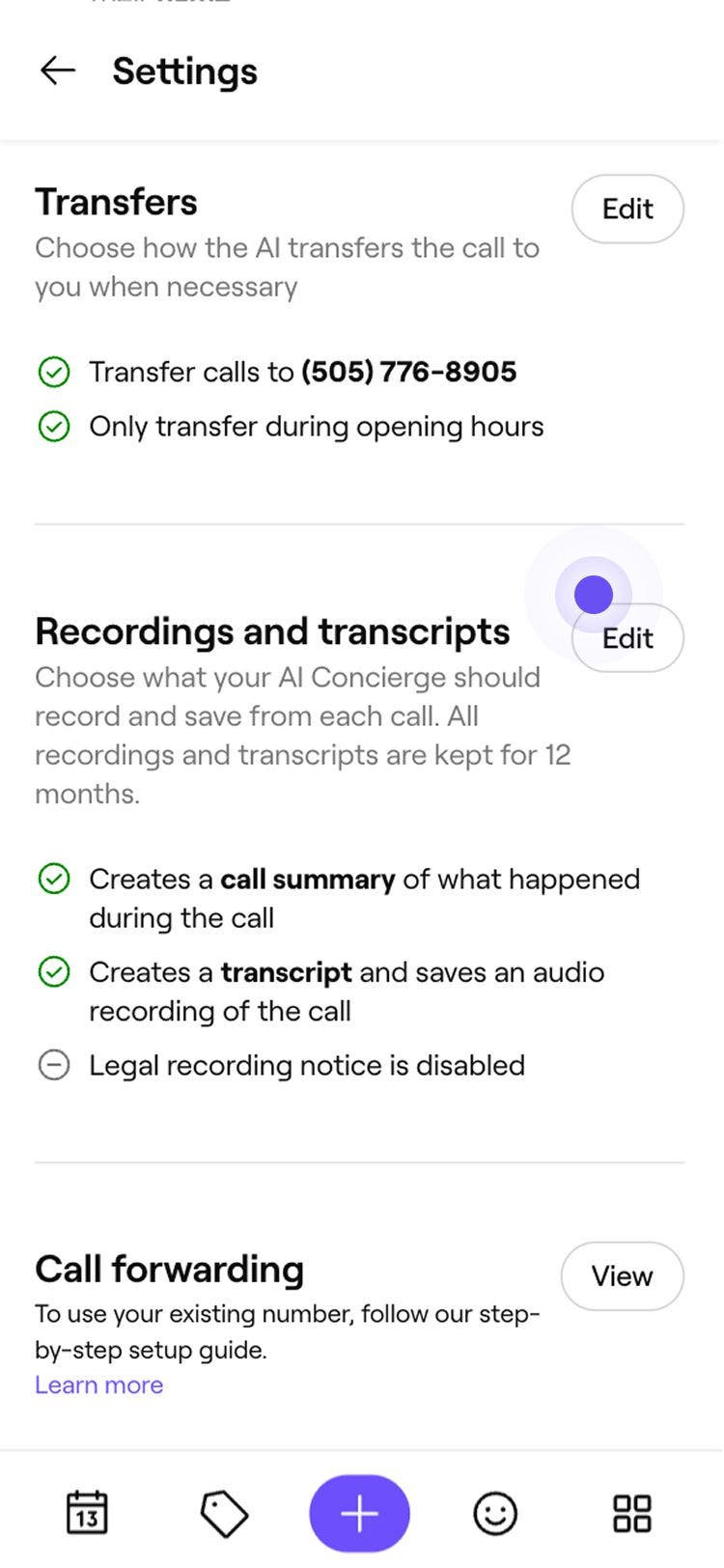
Transcripts and recordings are automatically recorded for every client call, once the setting is enabled. You can access these records from your activity log, with every record being kept for 12 months.

Track AI Concierge performance


Related articles

Was this guide helpful?

Track AI Concierge performance

View your AI Concierge activity log

Access your AI Concierge activity log and client transcripts to view a detailed overview of each AI-assisted call.

View your AI Concierge dashboard

Track the calls, bookings, sales, and time your AI Concierge saves you, all in one place.

Related articles

Set up your AI Concierge

Choose a plan and personalize your AI Concierge to start instantly responding to more clients.

Customize AI Concierge appointment handling

Manage your AI receptionist controls, including what actions it can take when handling client calls.

Update your AI Concierge details

Customize your AI Concierge by selecting the tone and greeting style that best represents your business.

Fresha
Get the app

About Fresha

Careers

Help and support

Blog

Sitemap

For business

For partners

Pricing

Features

Scheduling

Point of sale

Payments

Capital

Marketplace

Support

Status

Legal

Privacy Policy

Terms of service

Terms of use

Find us on social

Facebook
Linkedin
Instagram

© 2026 Fresha.com SV Ltd