View your AI Concierge dashboard
Learn how to view your AI Concierge dashboard to see the calls it's handled, the bookings it's captured, and the time it's saved you.
In this article
How the AI Concierge dashboard works
Your AI Concierge dashboard shows how your AI Concierge is performing, including the calls and chats it's handled, the bookings it’s handled, and the time it's saved you and your team.
It also shows the questions clients ask most often and how many reviews your AI Concierge has replied to, so you can see the value it's adding and spot opportunities to improve its knowledge base.
View your AI Concierge dashboard
-
From the main menu on the left of your screen, go to Reports.
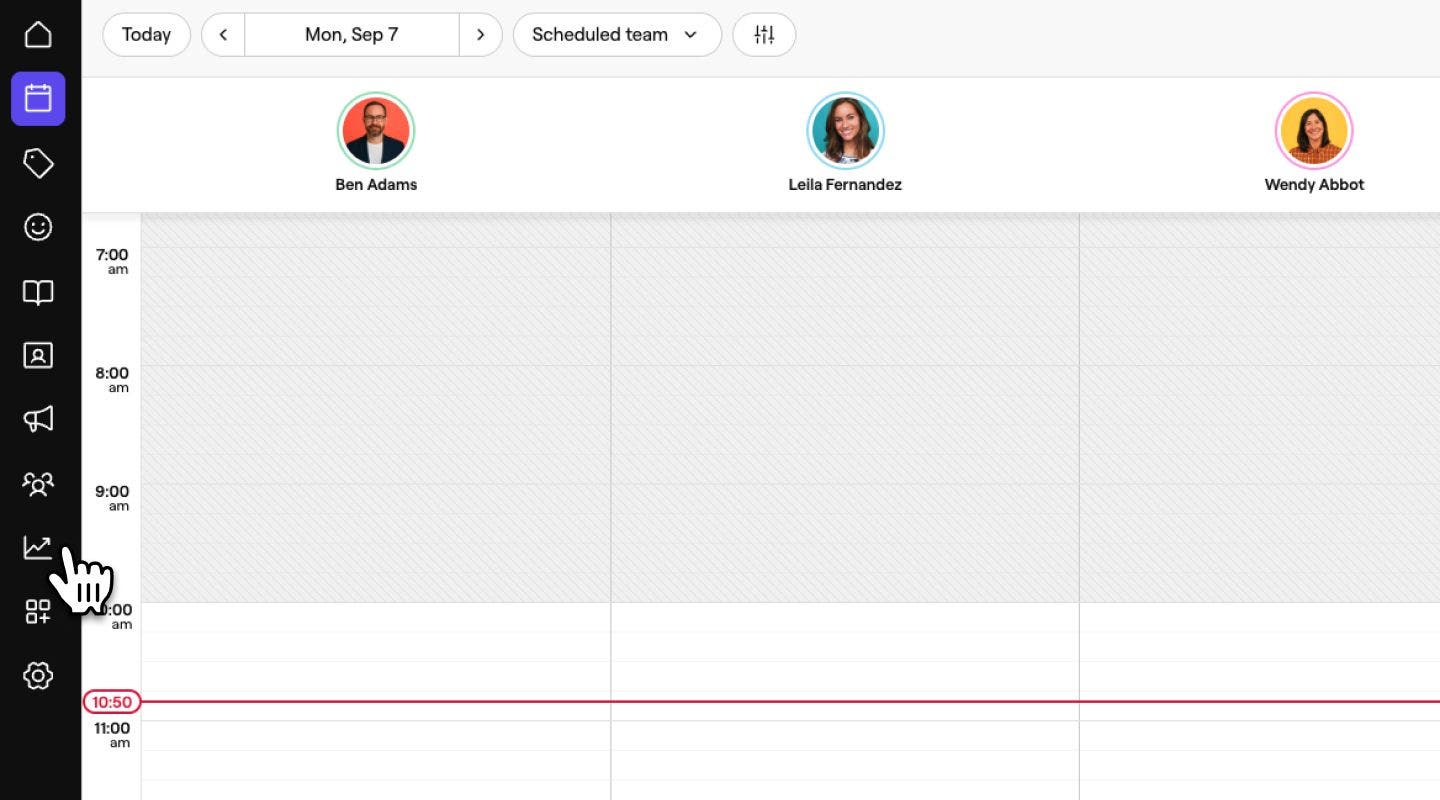
-
In All reports, find and click on AI Concierge dashboard.
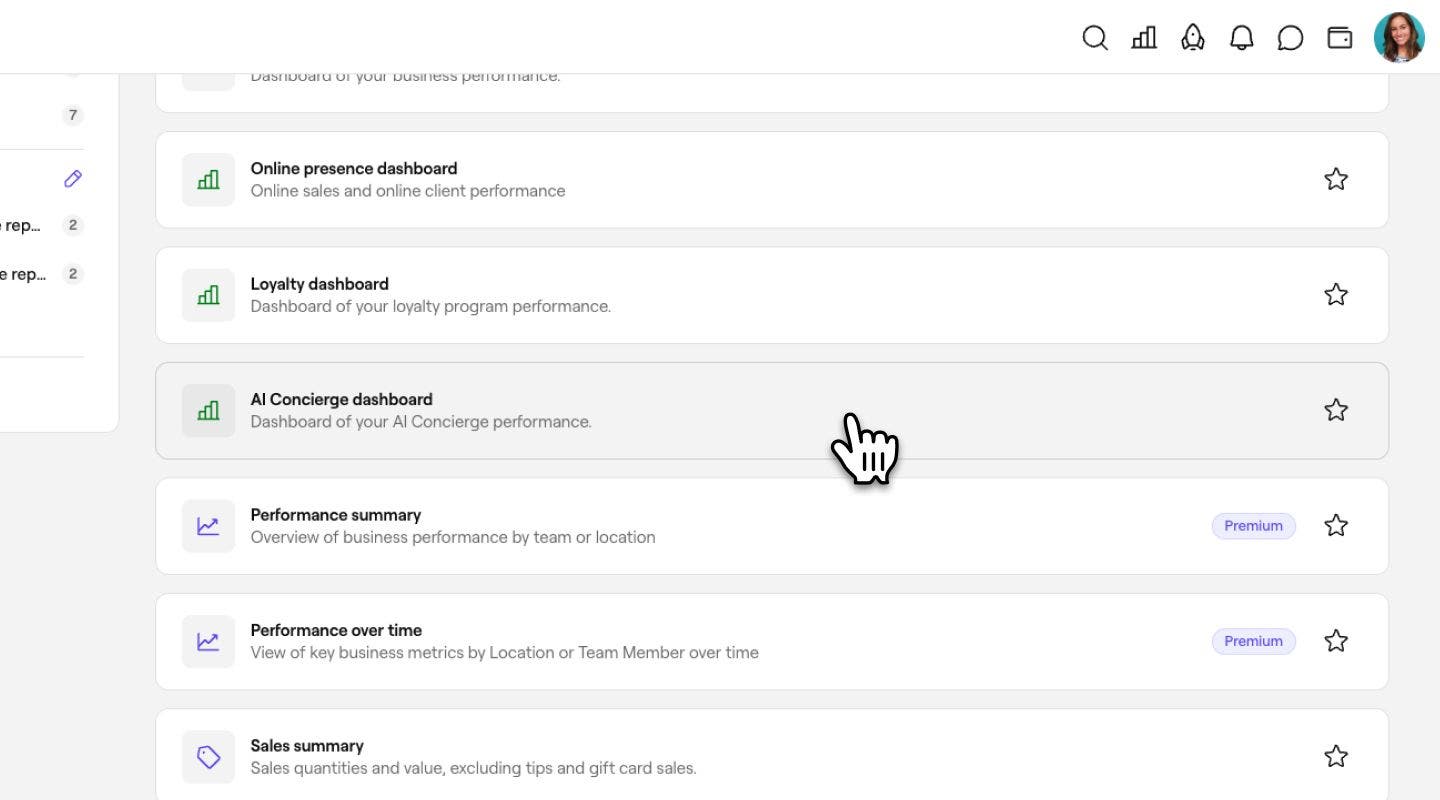
Your AI Concierge dashboard opens, showing your AI Concierge's performance for the selected date range.
Understand your dashboard metrics
- Total activity — Estimated time your AI Concierge saved your team by handling calls, chats, and review replies during the selected period.
- Appointments created, Total sales, and Positive client sentiment —Shows how these results compare to the comparison period you've selected above.
- Lifetime activity — Total interactions your AI Concierge has handled since it was enabled, broken down by calls, chats, and review replies.
Conversation insights
-
Activity by topic — What clients contacted you about. This is split into:
- General inquiry — the client asked a general question (opening hours, pricing, parking, services) without a specific booking action.
- Booking — the client wanted to book a new appointment.
- Rescheduling — the client wanted to move an existing appointment to a new date or time.
- Review — the call or chat related to a review, such as a reply or follow-up.
- Cancellation — the client wanted to cancel an existing appointment.
- Running late — the client called to say they'd be late for their appointment.
- Other — the call doesn't fit any of the above topics.
-
Client sentiment — Conversations split by client sentiment for the selected period.
-
Action taken — The actions your AI Concierge took on behalf of your team during the selected period. This is split into:
- Appointment booked — the AI Concierge booked a new appointment for the client.
- Appointment rescheduled — the AI Concierge moved an existing appointment to a new date or time.
- Review replied — the AI Concierge posted a reply to a client review.
- Appointmentcanceled — the AI Concierge canceled an existing appointment for the client.
- Notesent to team — the AI Concierge logged a note for your team instead of resolving the request itself.
- Calls transferred to team — the AI Concierge handed the call off to a team member.
-
Busy time heatmap — When your AI Concierge is busiest, by day of week and hour, for the selected period.
Sales and activity
- Total sales — Sales from bookings created by AI Concierge for the selected period, split by channel.
- Call minutes, Message replies, Review replies — Total call minutes, message replies and review replieds handled by AI Concierge for the selected period.
Frequently asked questions
- Top questions answered — The most common questions your AI Concierge answered from your knowledge base in the last 12 months.
- Questions to add — Questions clients asked that aren't in your knowledge base yet. Add them so your AI Concierge can answer them accurately next time.
Filter your dashboard by date and location
-
At the top of your dashboard, click the date range dropdown (for example, Last 30 days) and select the period you want to view.
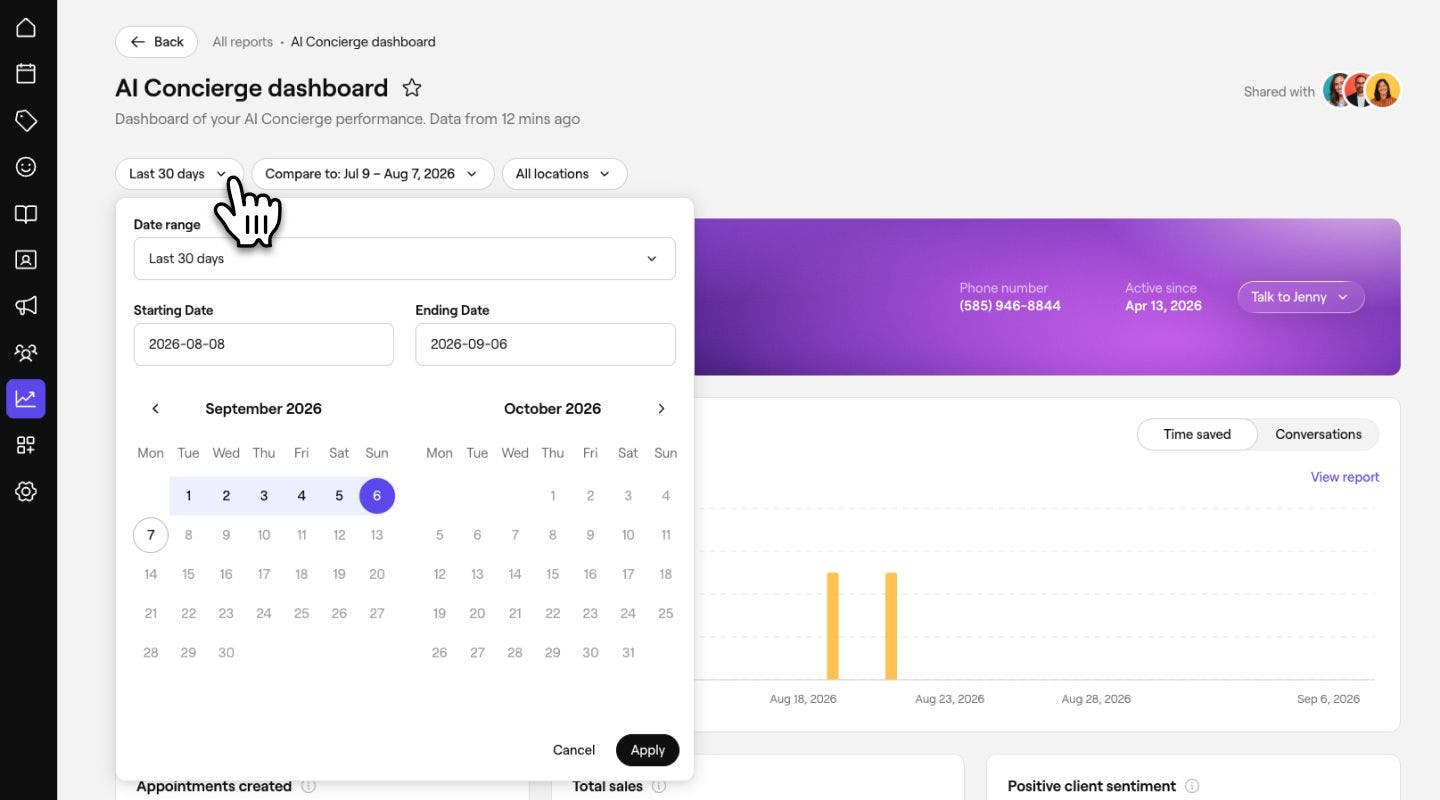
-
Click the Compare to dropdown to choose the comparison period shown against each metric.

-
Use the All locations dropdown to filter to a specific location, if you manage more than one.
Your dashboard will now update automatically.
FAQs
Any team member with access to Reports in your workspace.
We estimate time saved using an average handling time per interaction type. For example, replying to a review is estimated at 5 minutes.
Each interaction is scored as positive, neutral, or negative based on the tone of the client's messages during the conversation.
Each call or chat can have multiple actions, like replied, booked, or note sent to team. If none apply — for example spam or a silent call — it's logged as other.