HomeKnowledge baseFresha academy
Customize AI Concierge appointment handling
Back
  1. Knowledge base•
  2. AI Concierge•
  3. Customize AI Concierge appointment handling

Customize AI Concierge appointment handling

Learn how to manage your AI Concierge controls, including which actions it can perform when handling client calls.

In this article

  • About your AI Concierge capabilities
  • Update how your AI Concierge manages appointments

About your AI Concierge capabilities 

Once activated, your AI Concierge is already set up to book new appointments directly into your calendar. You can also choose to control the information it has access to in your workspace and what it can do when handling client calls.

Update how your AI Concierge manages appointments

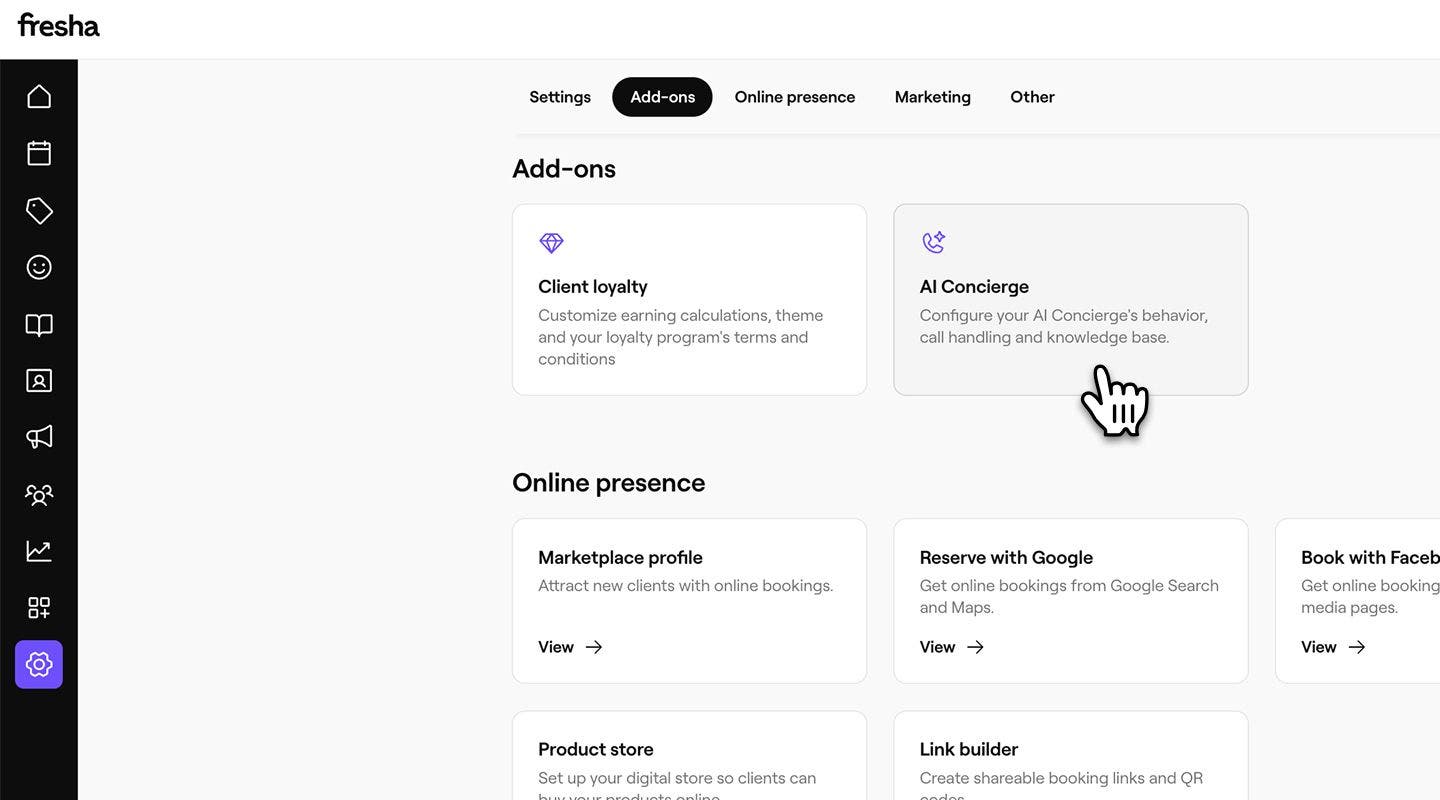
  1. From the main menu on the left of your screen, go to Settings.

  2. In the Add-ons section, click on AI Concierge. update_appointments_web_2.jpg
  3. From the left menu panel, click on Settings to view your AI Concierge settings.

  4. Under Manage appointments, you can see an overview of the areas that your AI Concierge is enabled to access. Click on Edit to update the settings. update_appointments_web_4.jpg
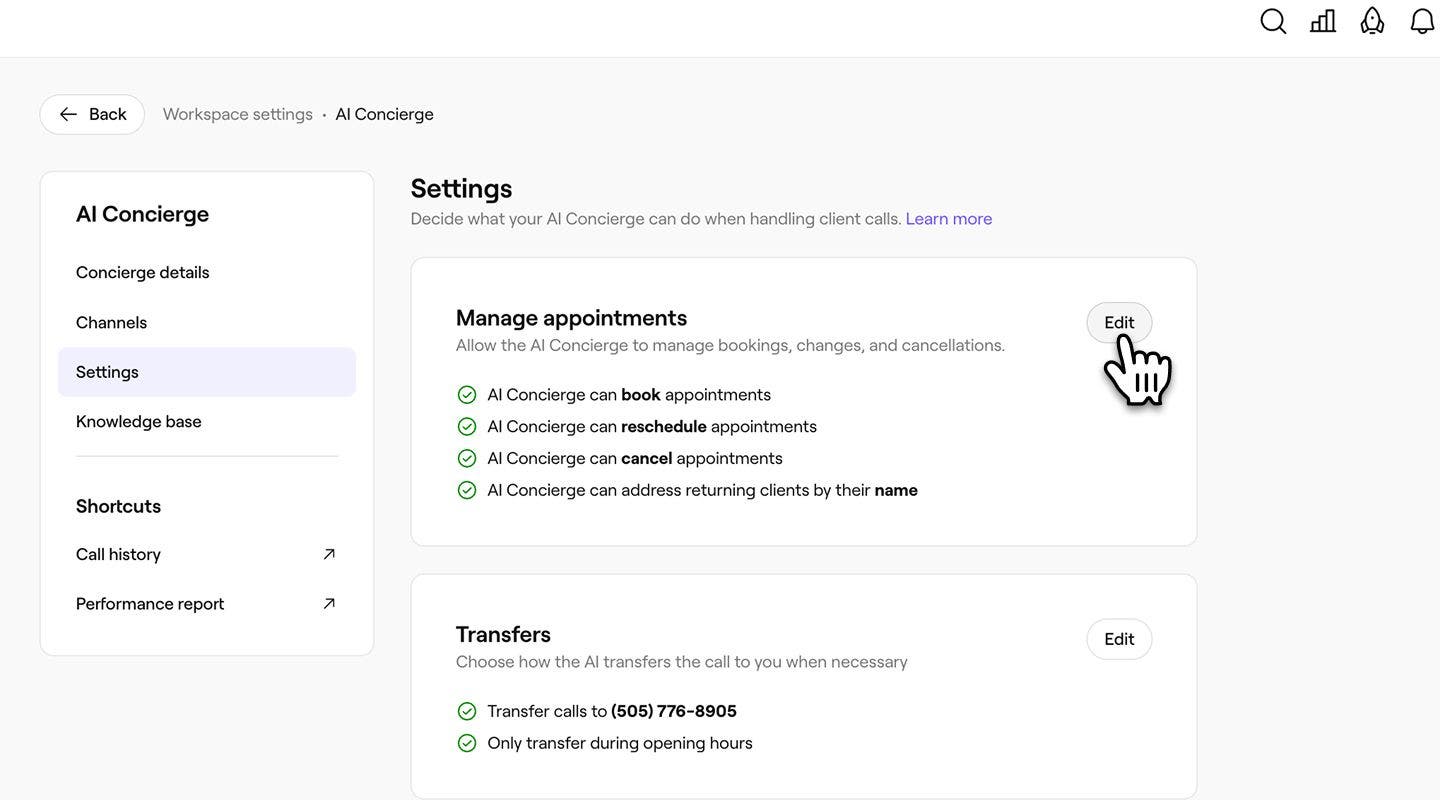
  5. Next, tick the checkbox next to each area to enable this functionality for your AI Concierge:

    1. Reschedule appointments: allows AI to move existing appointments in your calendar to a new date or time.
    2. Cancel appointments: allows AI to cancel appointments in line with your cancellation policy.
    3. Add clients to waitlist: allows AI to add a client to the waitlist for a service that is fully booked.
    4. Address returning clients by their name: allows AI to identify existing clients in your client list and address them by their name to personalize the conversation.
  6. Click on the Save button in the top right of your screen to update your changes. update_appointments_web_6.jpg

  1. From the main menu at the bottom of your screen, tap on More (grid icon) and open Settings.Group 31281.jpg

  2. Under Add-on's, tap on AI Concierge to view your AI Concierge details. update_appointments_mob_2.jpg

  3. Tap on Settings from the menu to update your AI Concierge settings.

  4. Next to Manage appointments, you can see an overview of the areas that your AI Concierge is enabled to access. Tap on Edit to update the settings. update_appointments_mob_4.jpg

  5. Next, tick the checkbox next to each area to enable this functionality for your AI Concierge:

    1. Reschedule appointments: allows AI to move existing appointments in your calendar to a new date or time.
    2. Cancel appointments: allows AI to cancel appointments in line with your cancellation policy.
    3. Add clients to waitlist: allows AI to add a client to the waitlist for a service that is fully booked.
    4. Address returning clients by their name: allows AI to identify existing clients in your client list and address them by their name to personalize the conversation.
  6. Tap on the Save button at the bottom of your screen to update your changes. update_appointments_mob_6.jpg

Once you have updated your settings, your AI Concierge will be able to perform all selected actions. For any unchecked boxes, the AI Concierge will transfer the call for you or a member of your team to manage.

You can update your AI Concierge settings at any time. Any changes you make will take effect immediately and apply to the next incoming client call.

FAQs

    • Booking appointments, or making changes to bookings, can only be done by the client themselves on the phone number that's connected to their client profile.


Get started with AI Concierge

Was this guide helpful?

Get started with AI Concierge

AI Concierge overview

Never miss a booking with your AI Concierge that answers messages, schedules appointments, and handles client questions 24/7.

Set up your AI Concierge

Choose a plan and personalize your AI Concierge to start instantly responding to more clients.

Update your AI Concierge details

Customize your AI Concierge by selecting the tone and greeting style that best represents your business.

Customize AI Concierge appointment handling

Manage your AI receptionist controls, including what actions it can take when handling client calls.

Add to your AI Concierge knowledge base

Enhance your AI Concierge's knowledge base by adding customized answers to client common questions.

Fresha
Get the app

About Fresha

Careers

Help and support

Blog

Sitemap

For business

For partners

Pricing

Features

Scheduling

Point of sale

Payments

Capital

Marketplace

Support

Status

Legal

Privacy Policy

Terms of service

Terms of use

Find us on social

Facebook
Linkedin
Instagram

© 2026 Fresha.com SV Ltd