Manage custom checkout methods
Learn how to manage custom checkout methods you can offer clients when taking payments.
In this article
About custom checkout methods
Custom checkout methods let you record payments taken outside of Fresha, such as bank transfers. Alongside default options like Cash and Fresha Terminal, you can create your own methods to reflect the different ways clients pay.
These methods are for tracking and reporting only, helping you keep accurate records of all payments received. You can view a full breakdown by payment method in the Payments summary report.
Add a custom checkout method
- From the menu on the left of your screen, go to Settings.

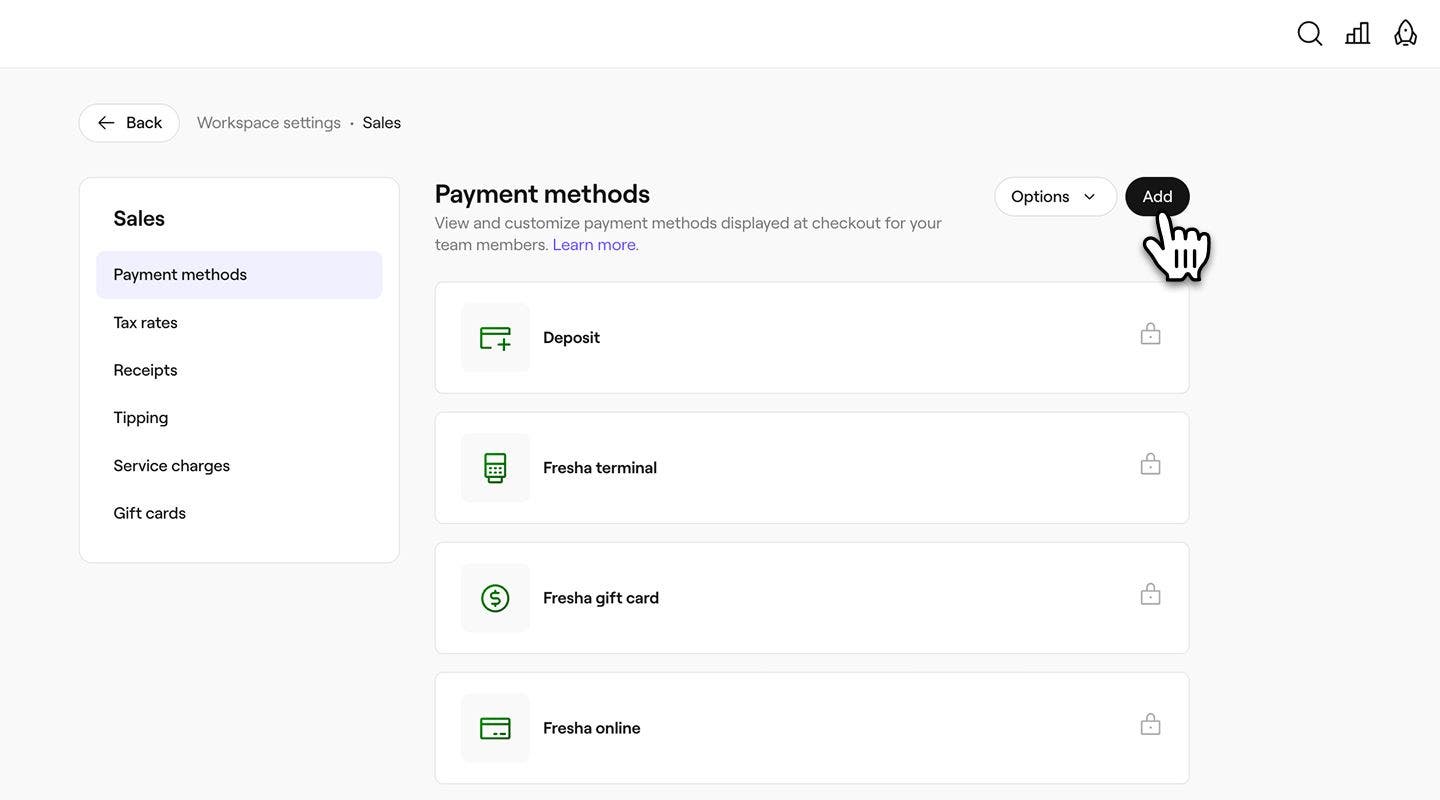
- Click on the Sales category to manage your Custom checkout methods.

- Select the Add button in the top right to create a new checkout method.
- In the Payment method view, enter a payment method name.

- Click on the Save button in the top right to add the method.
Once added, the checkout method immediately appears as a payment option when taking payments in-store.
To allow team members to accept cash payments, enable Can collect cash payments in your permission settings.
Edit or delete a custom checkout method
-
Open Custom checkout methods from your Sales workspace settings.
-
Select Actions next to a method, and choose one of the following:
- Edit: Update the name of the method.
- Delete: Permanently remove the method from the list of payment options at checkout.

Rearrange the order of custom methods
-
Open Custom checkout methods from your Sales workspace settings.
-
Click on the Options button in the top right and select Change order.

-
Drag and drop the checkout methods in the order you’d like them to appear at checkout.

-
Click on the Save button in the top right to apply the changes.
The updated order of the custom checkout methods is shown at checkout.
You can also select Actions next to a custom checkout method, and choose Move up or Move down to change the order they appear at checkout.
FAQs
Locked checkout methods, such as Cash or Fresha terminal, are default options provided by Fresha and are kept in place for system consistency. These methods are marked with a padlock icon to help you identify them easily.