Segment your clients
Learn how to automatically group your clients so you can target campaigns, filter your clients, and quickly understand client behaviour in each profile.
In this article
About client segments
Client segments group your clients based on specific conditions, such as appointment history, spending, or engagement. There are two types of segments:
- Standard segments: Pre-built segments for common use cases.
- Custom segments: Segments you create yourself with more advanced or specific conditions.
Once set up, segments update automatically and can be used across the Fresha platform, including blast marketing campaigns.
Standard client segments
Standard client segments are ready-made groups designed for common scenarios, such as identifying new, returning, or high-value clients.
- They automatically organise your clients based on predefined conditions
- You can edit their condition values to better suit your business
- They remain available to use at any time
- They are labelled in blue in your Client segments list
For more advanced targeting, you can create your own custom segments.
Edit a standard segment
- From the main menu on the left of your screen, go to Clients.
- In the left menu panel, select Client segments.
- Click on the Actions button next to the standard segment you want to update, and select Edit.
- Update the condition values to suit your needs.
- Choose whether you want the segment to be displayed on the client profile
- Click the Save button in the top right to apply your changes.
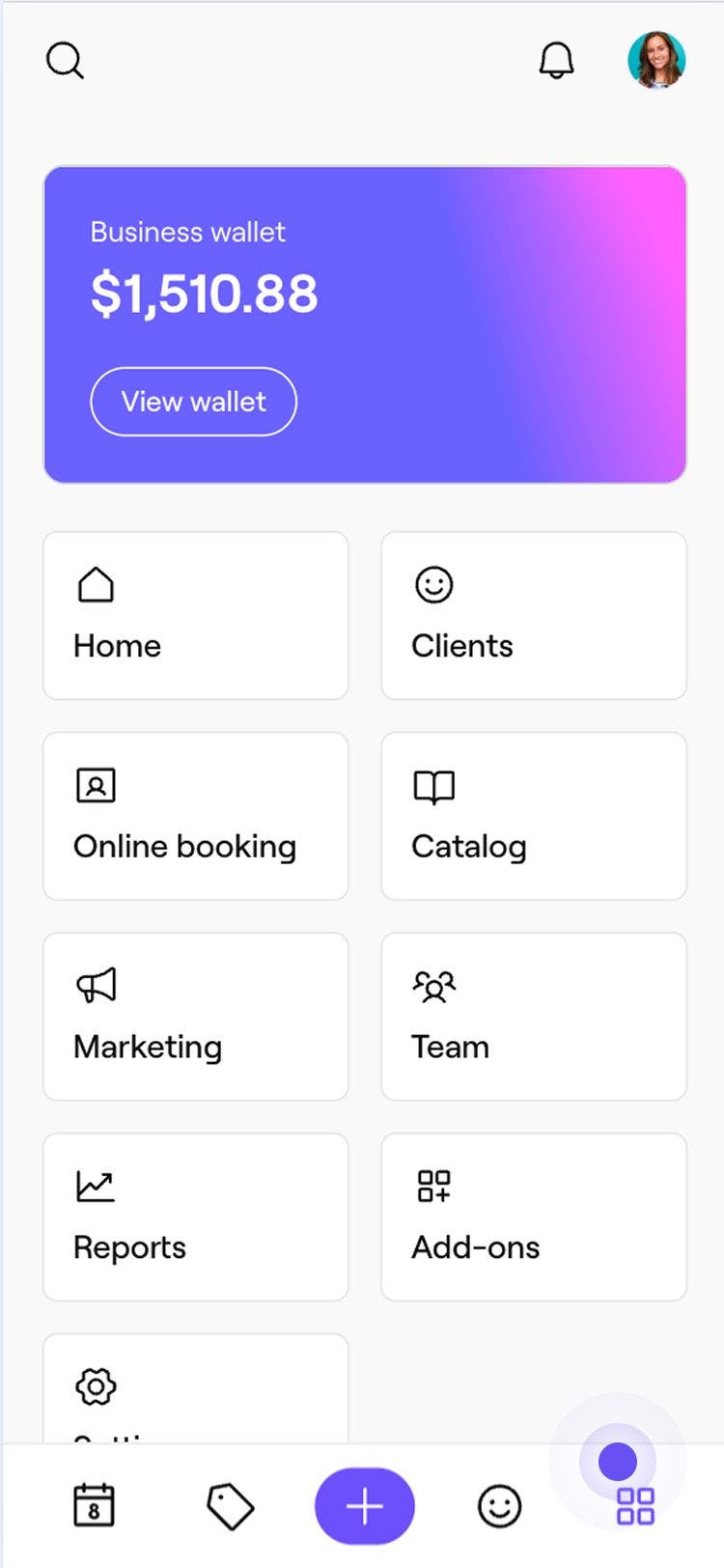
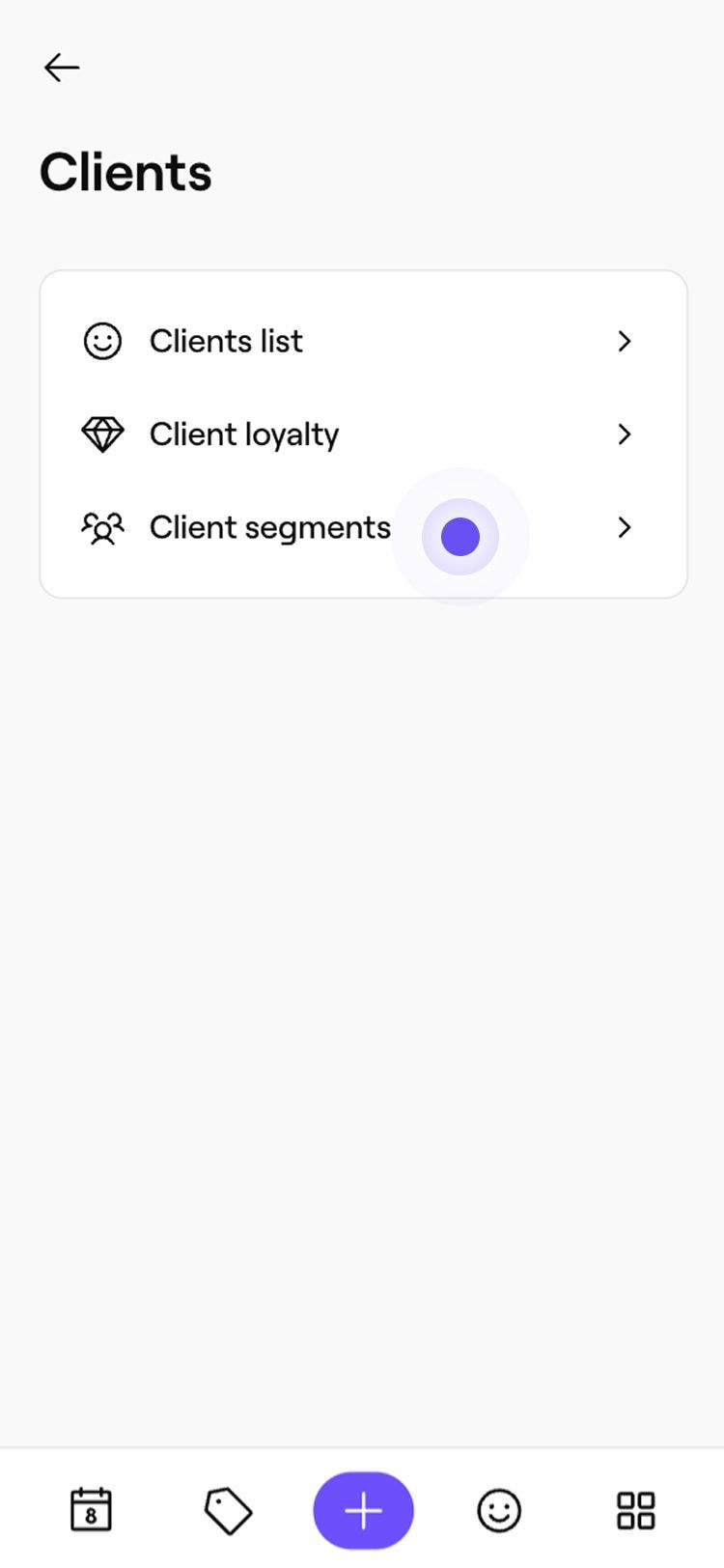
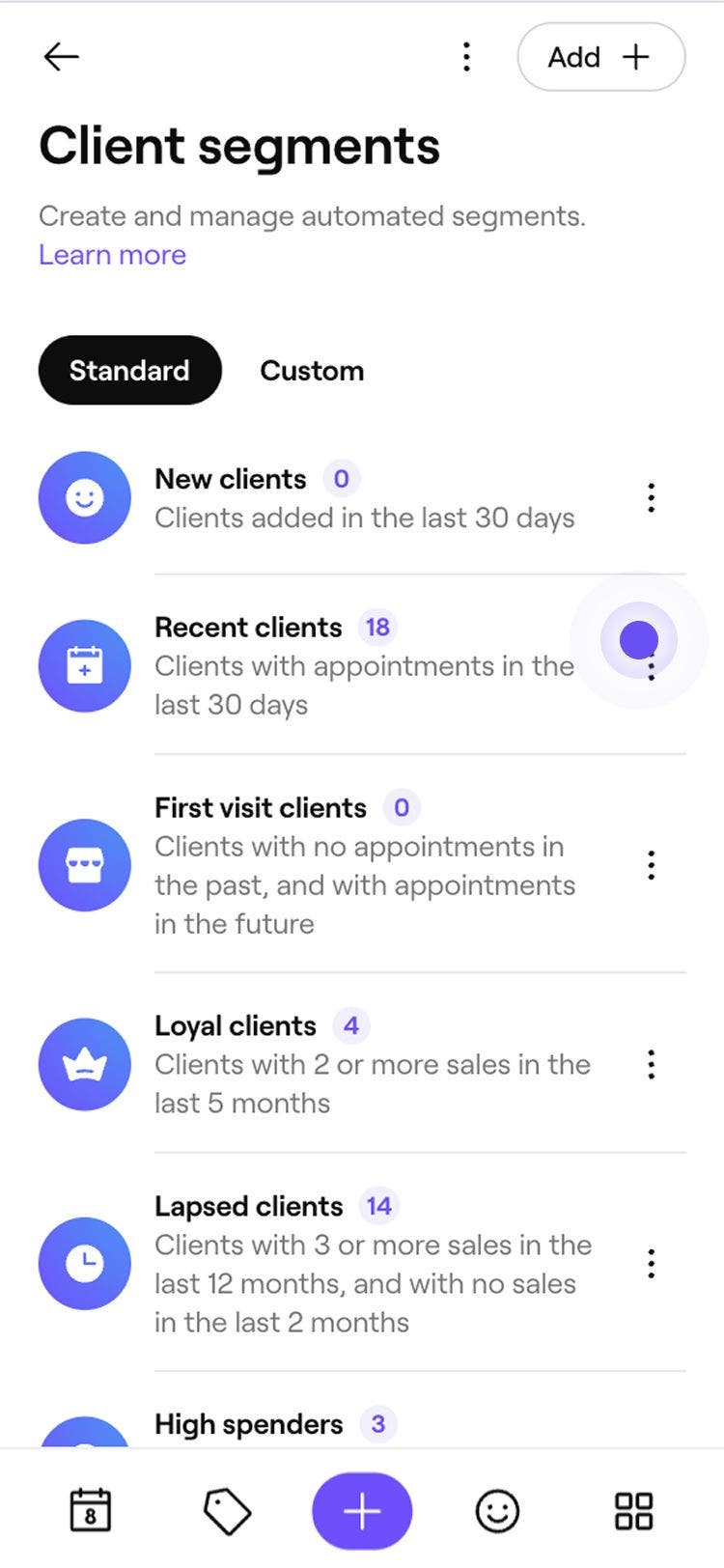
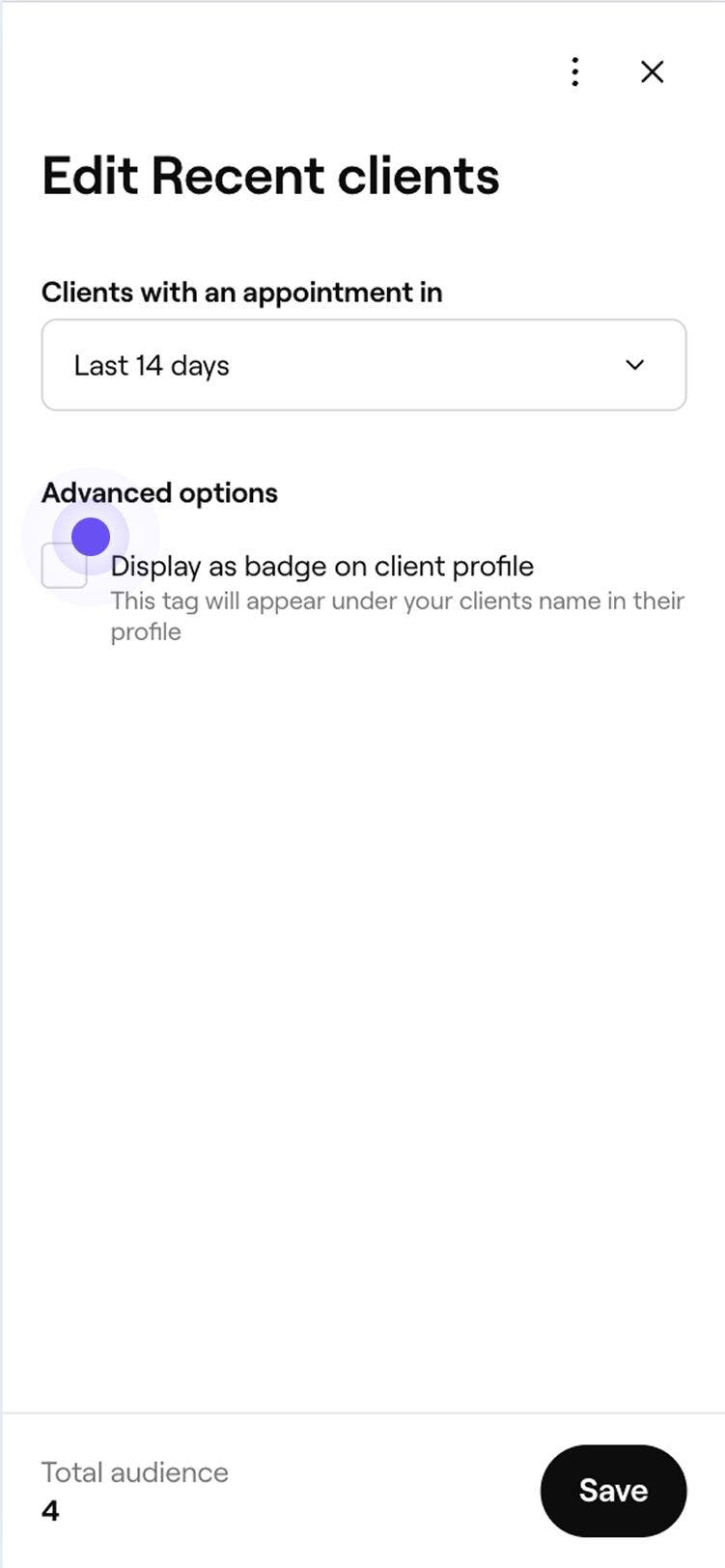
Your standard segment is updated with the new values. To return to the original settings, select Actions next to the segment and then choose Restore to default.
Use client segments in blast campaigns
Send the right message to the right audience. Use segments when sending a blast campaign to target clients based on their behaviour, so your campaigns are more relevant and effective.
- From the main menu on the left of your screen, go to Marketing.
- In the left menu panel, select Blast campaigns.
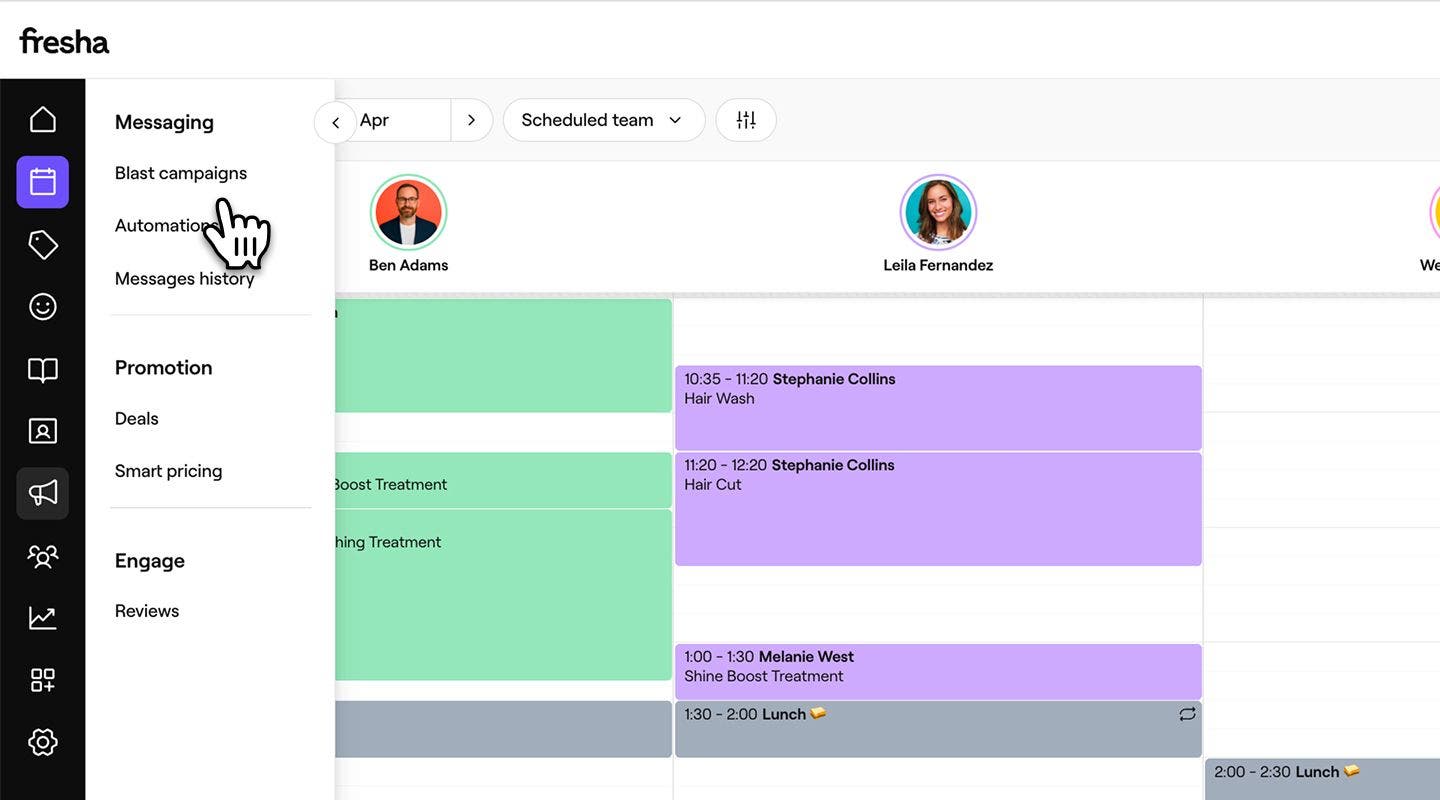
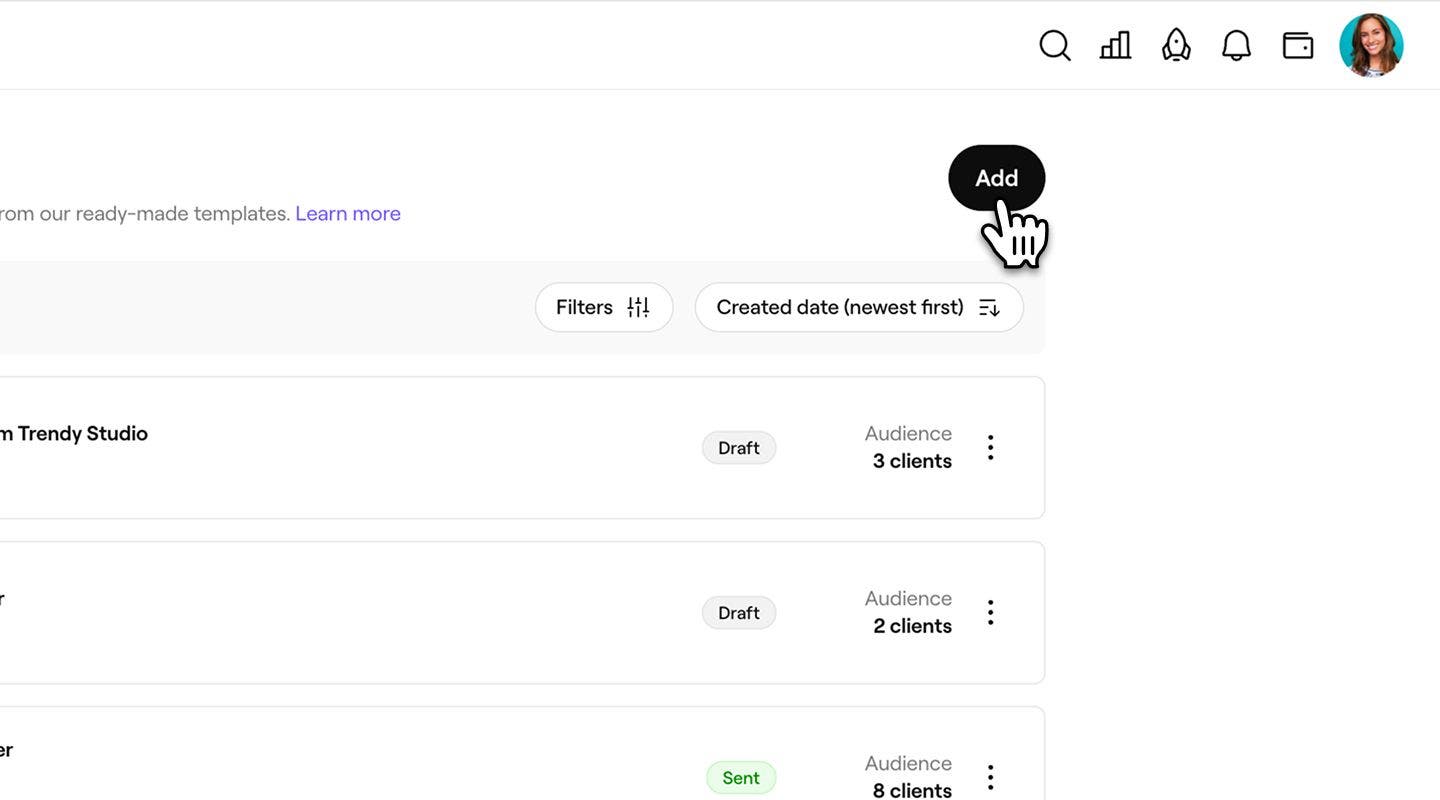
- Click on the Add button in the top right to create a new campaign, or select an existing draft.
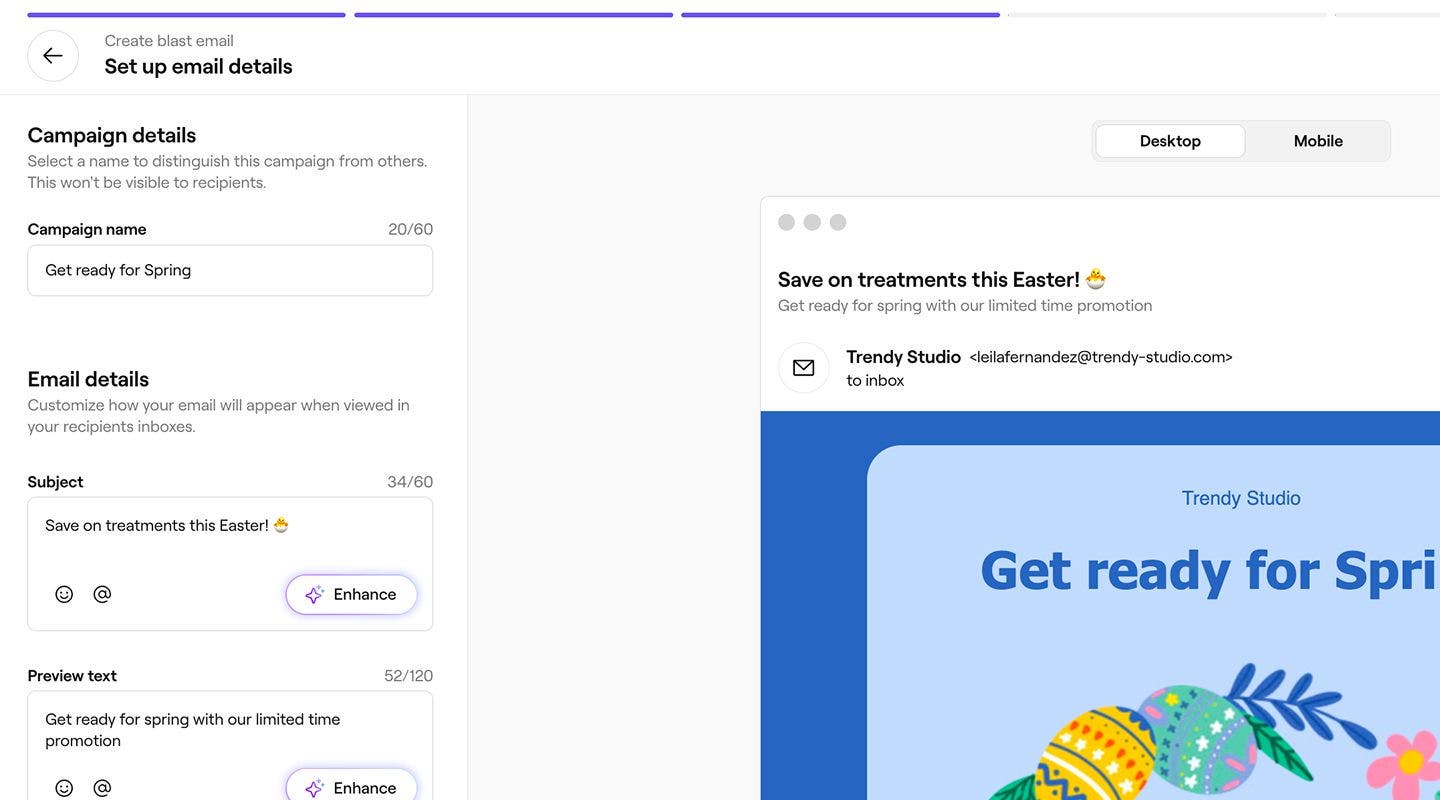
- Complete the template selection and add content for your campaign.
- On the Choose audience screen, select a segment to send the blast to your target audience.
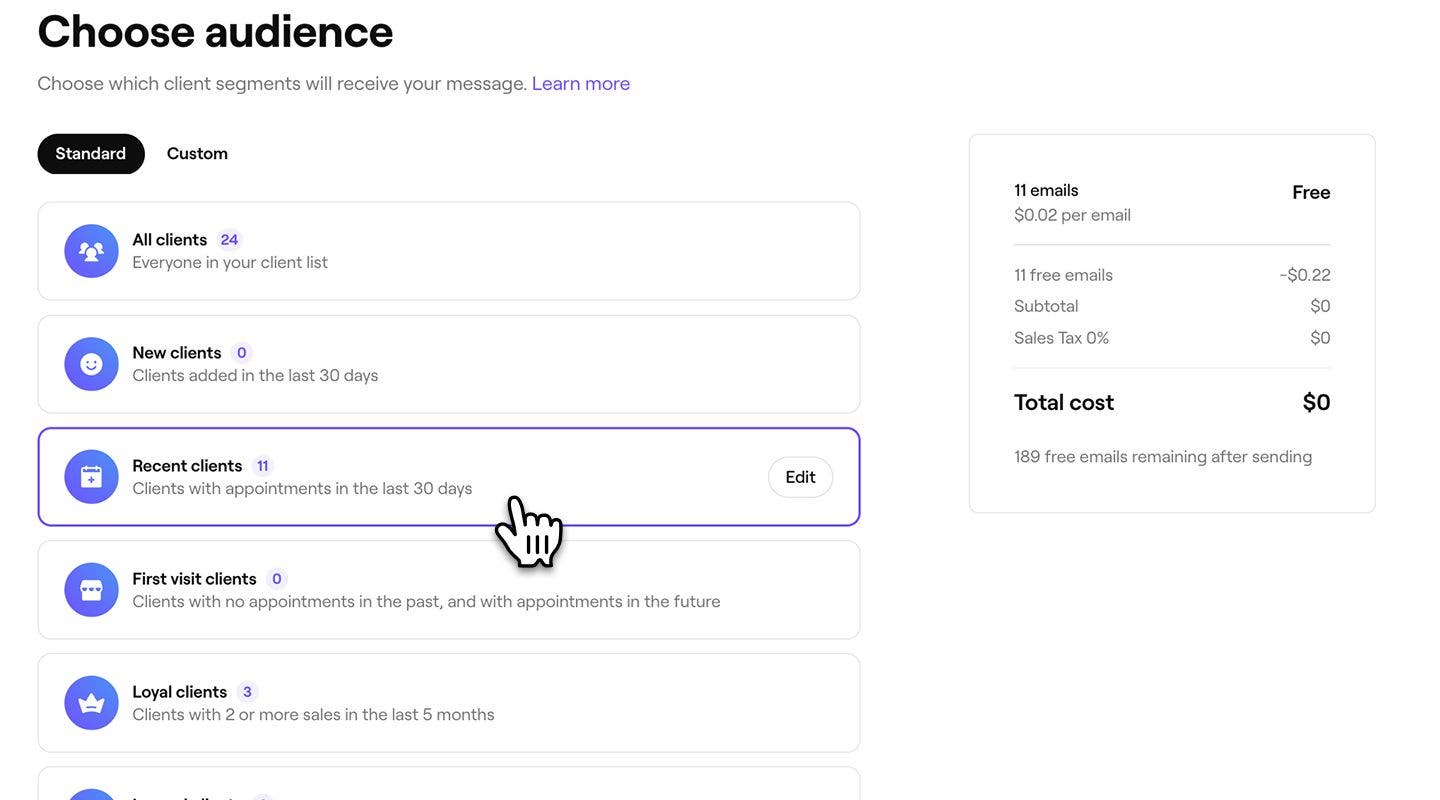
- Review the total number of messages and the cost of the blast.
- Click on the Continue button in the top right to finish creating your blast campaign.


The selected segment becomes the audience for your blast campaign. After your campaign is sent, you can view the exact recipient list by opening the campaign from your Blast campaigns list.
The client count on the Audience step reflects the most up-to-date data at the time of sending. This may be different from the count shown in your Client segments list, which refreshes every hour.
FAQs
Client counts in the Client segments list update every hour. When creating or editing a segment, the count updates in real time as conditions are added or changed, so you can immediately see how your audience is affected.
The client count in a segment shows an estimate of all matching clients. When sending a blast campaign, only clients with valid contact details and accepted marketing preferences are included. Duplicate profiles with the same email address or phone number are also removed, so each client receives the message once.
Profiles with the same email address or phone number are automatically deduplicated when sending a blast campaign. This ensures each client receives only one message, even if multiple profiles exist.
Segments are displayed with standard segments at the top and custom segments below. This order applies in both the Client segments list and when selecting an audience for blast campaigns.