Set up your AI Concierge
Learn how to enable the AI Concierge for your business, so client calls can be handled efficiently by your customized AI Concierge.
In this article
Enable AI Concierge for your business
-
From the main menu on the left of your screen, go to Add-ons.
-
Under AI Concierge, click on the View button.

-
From the sign-up page, click on the Start now button to begin setup.

-
Click on the Continue button to choose your AI Concierge's voice and personality.

-
From the list of available options, click Select next to your preferred tone and voice and click Continue.
- You can choose between a Female or Male voice in the tabs along the top, and click on the Play button to hear a sample of each voice.

- You can choose between a Female or Male voice in the tabs along the top, and click on the Play button to hear a sample of each voice.
-
From the options, choose a profile picture that will be displayed to clients.

-
Customize your AI Concierge by updating their Name and a Greeting to shape how it introduces itself to clients. Click on the Continue button to save your changes.
- Click the '@' symbol to insert dynamic fields such as the client’s first name, your AI Concierge's name, and, if you have multiple locations, the location.

- Click the '@' symbol to insert dynamic fields such as the client’s first name, your AI Concierge's name, and, if you have multiple locations, the location.
-
Click on the Continue button in the top right of your screen to see the tasks that your AI Concierge can perform while taking client calls. To adjust these tasks, click Edit next to conversation skills.
- Tick the checkbox next to your preferred skills and click on Save button to update changes.
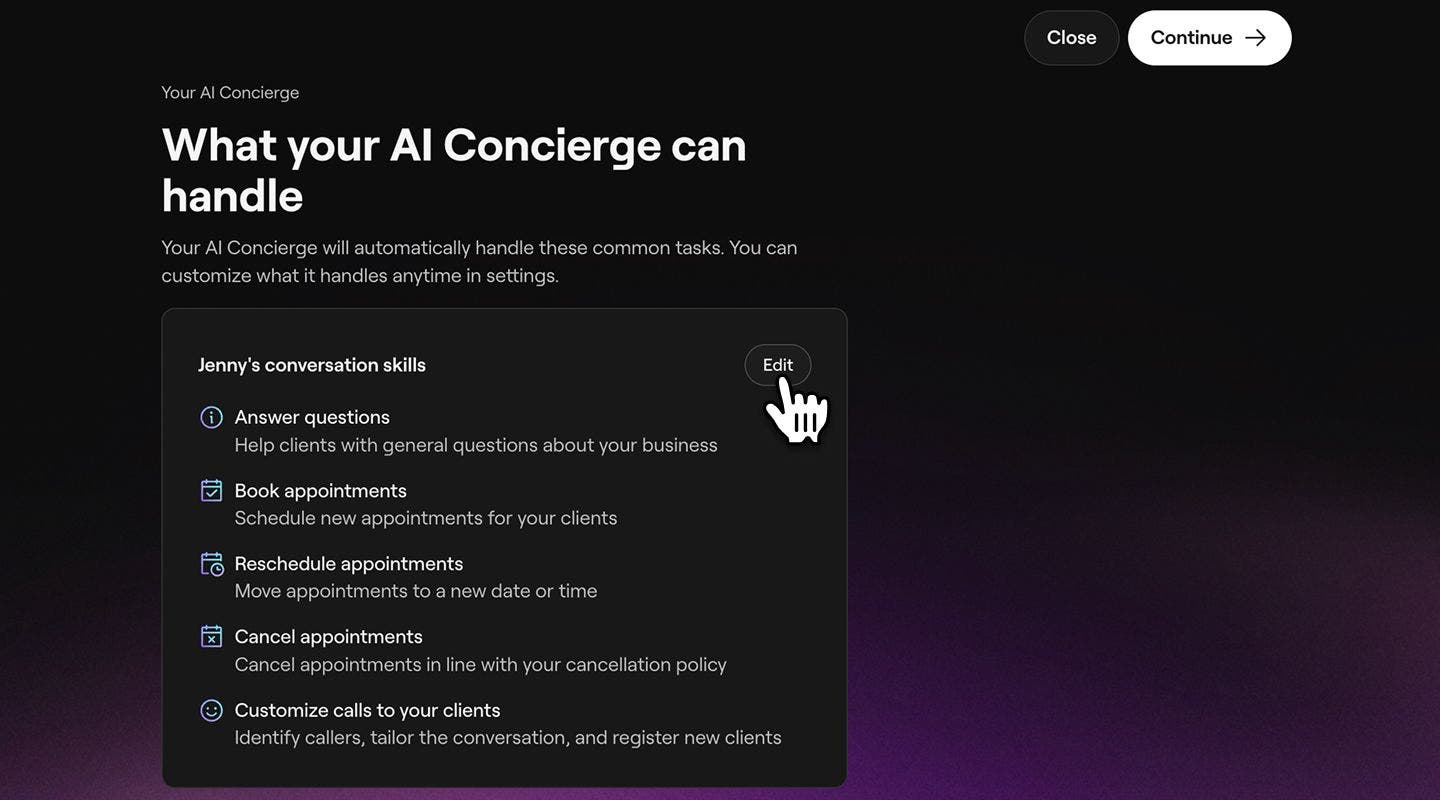
- Tick the checkbox next to your preferred skills and click on Save button to update changes.
-
Click Continue to choose the channels your AI Concierge will handle on your behalf.

-
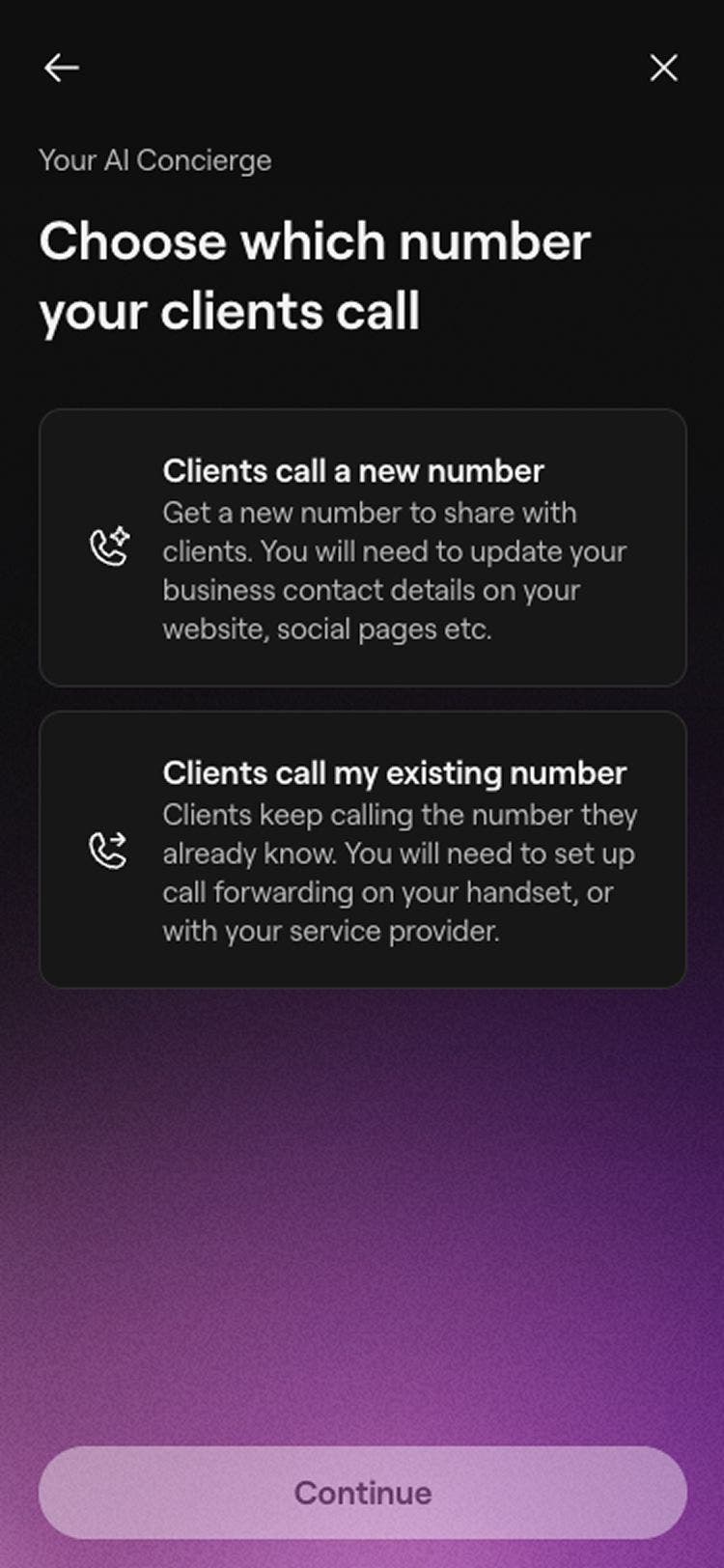
Select Continue to proceed through the setup, then choose if you’d like clients to call a new number or your existing number.
- If you choose Clients call my existing number, you will need to set up call forwarding.
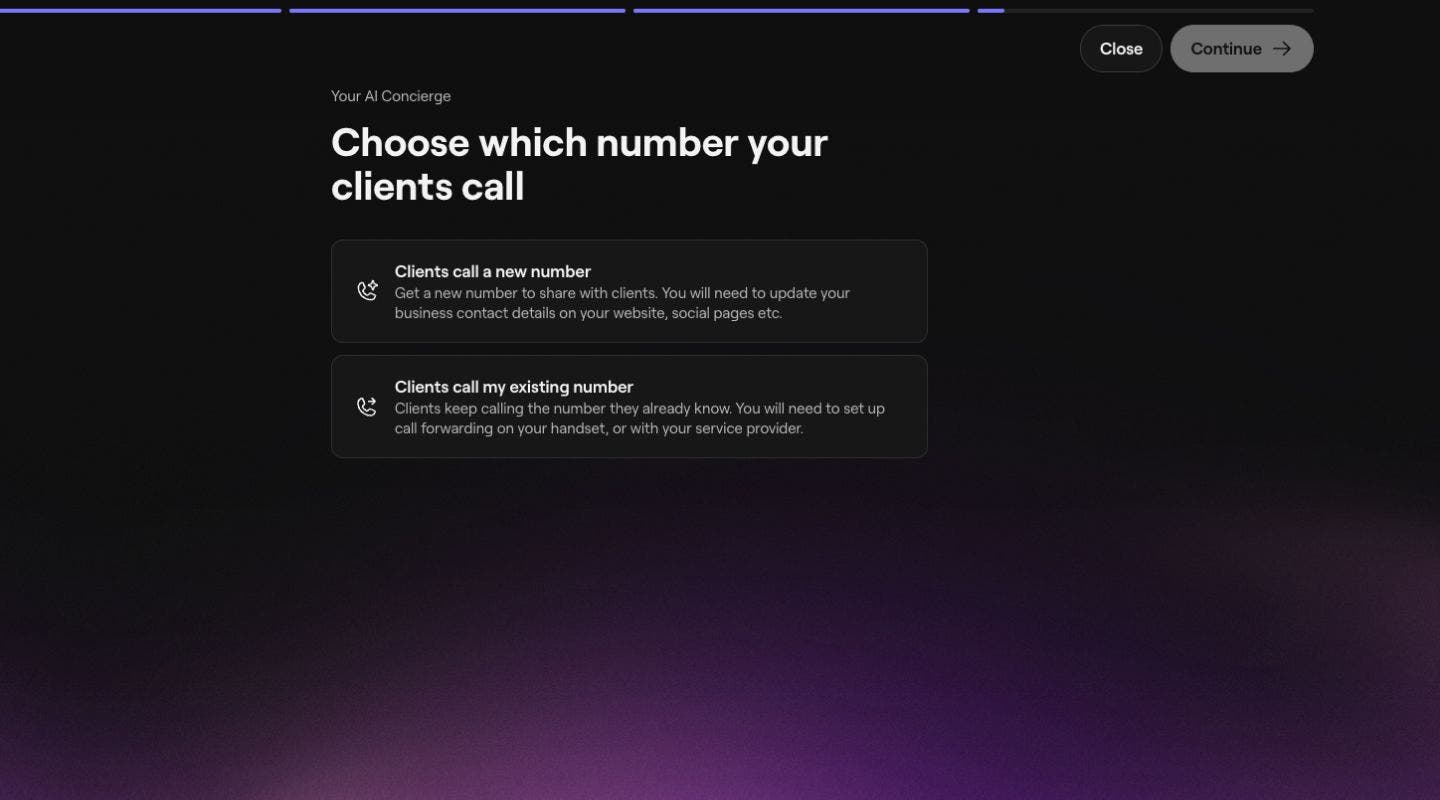
- If you choose Clients call my existing number, you will need to set up call forwarding.
-
Select Continue to proceed through the setup, then click on Generate phone number to create your dedicated AI Concierge number.

-
Once completed, click on the Continue button through to set up call transfer settings for when clients need to reach you. You can choose between:
- Take messages: Your AI Concierge can take messages and pass them on. It does not transfer calls directly to you.
- Transfer calls during opening hours: When your business is open, your AI Concierge can transfer calls directly to you. When closed, it can take messages and pass them on.
- Transfer calls at any time: Your AI Concierge can transfer calls directly to you at any time.
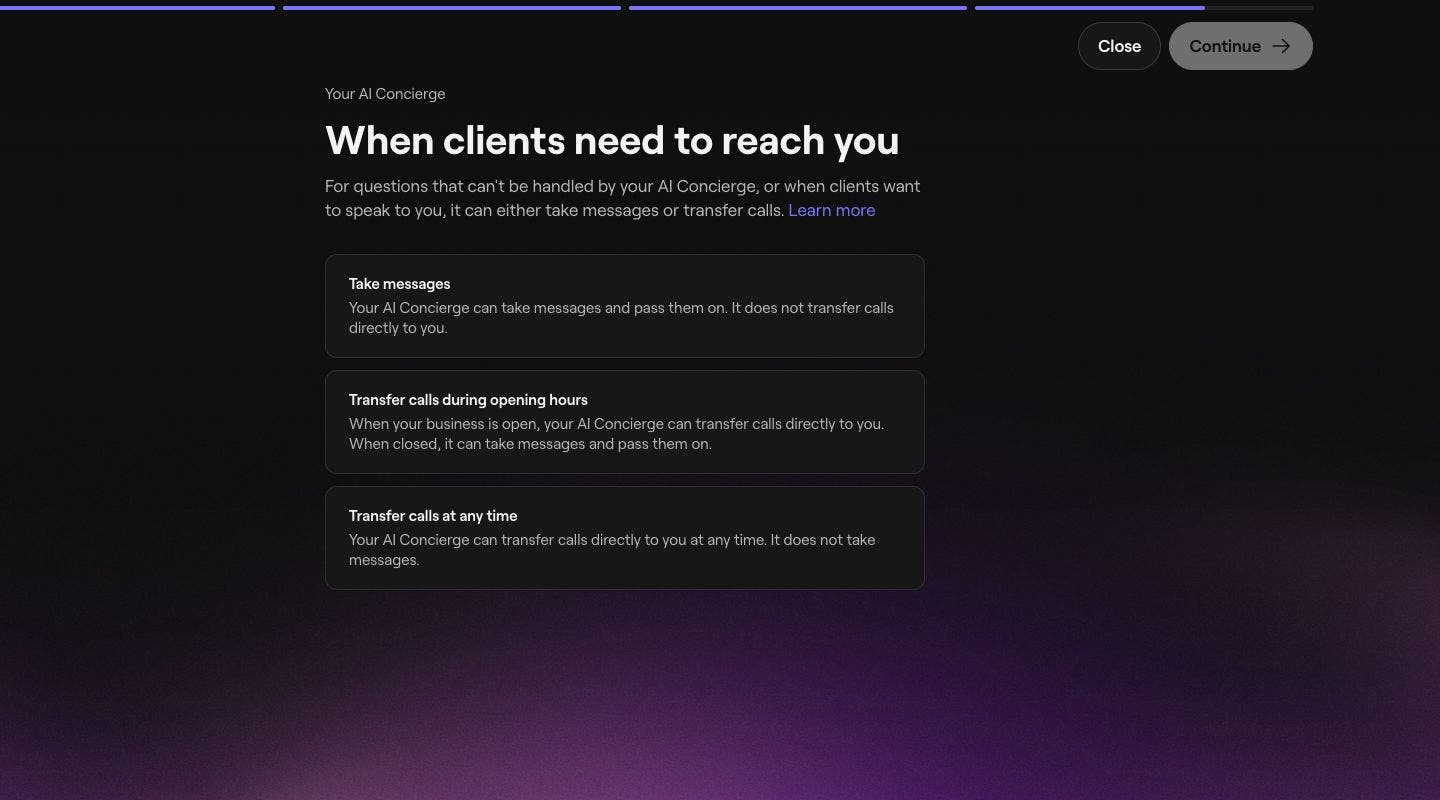
-
Click on the Continue button to set up the number you’d like your AI Concierge to transfer calls to, if you have chosen that option.
- If you want to set up call forwarding make sure to use a different phone number so clients are not redirected back to your AI Concierge.
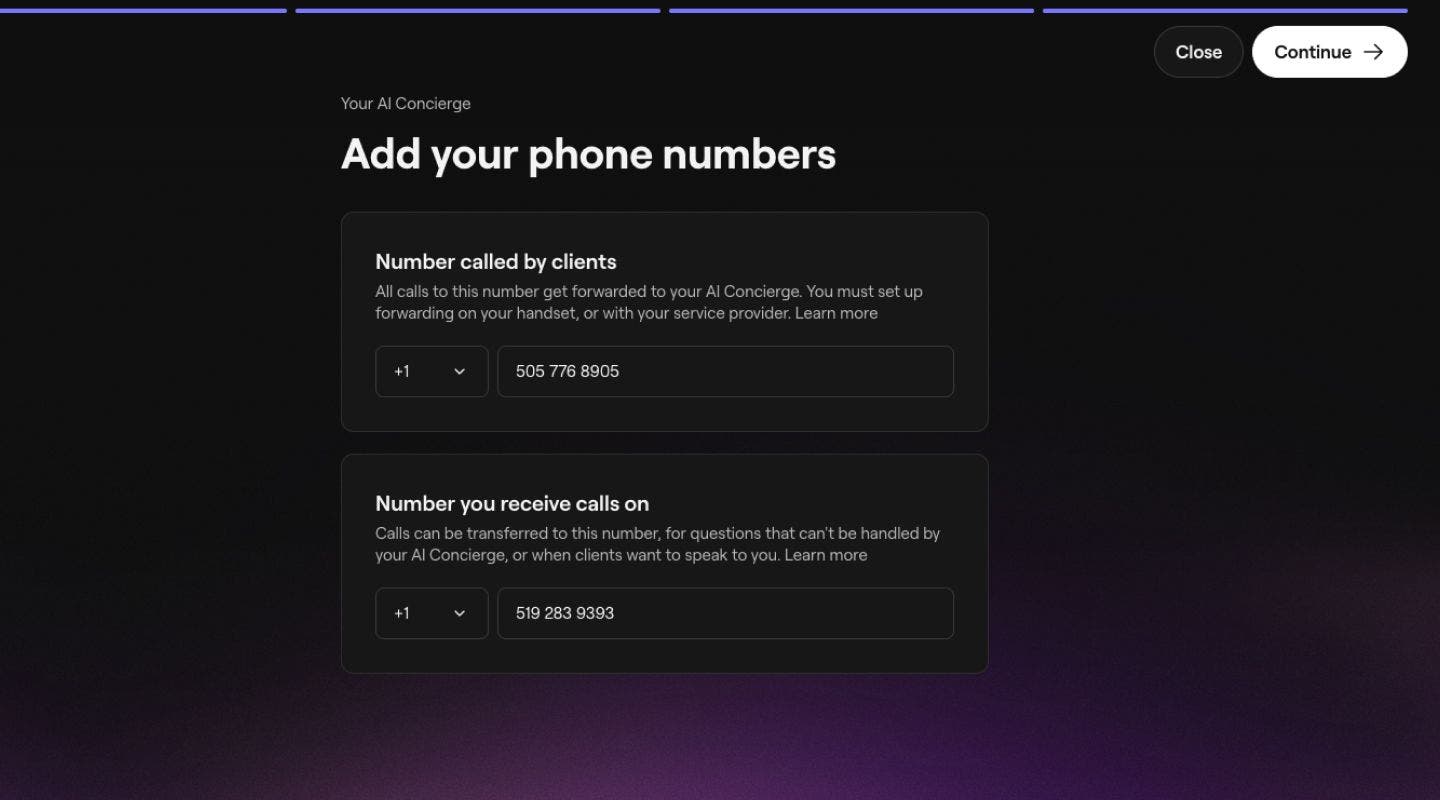
- If you want to set up call forwarding make sure to use a different phone number so clients are not redirected back to your AI Concierge.
-
In the next step, review your payment method options, including the following:
- Select an existing payment method, or add a new credit/debit card.
- Select the Use wallet balance to have the monthly fee deducted from your wallet balance first before charging your saved payment method. If you have multiple locations, click Change to choose which location’s Wallet balance you want to use by default.
-
Click on the Enable button in the top right to activate your AI Concierge.

-
Once activated, click on the Done button in the top right to build your AI concierge.
-
Lastly, you can interact with your AI Concierge and copy your dedicated AI Concierge number to share with your clients.



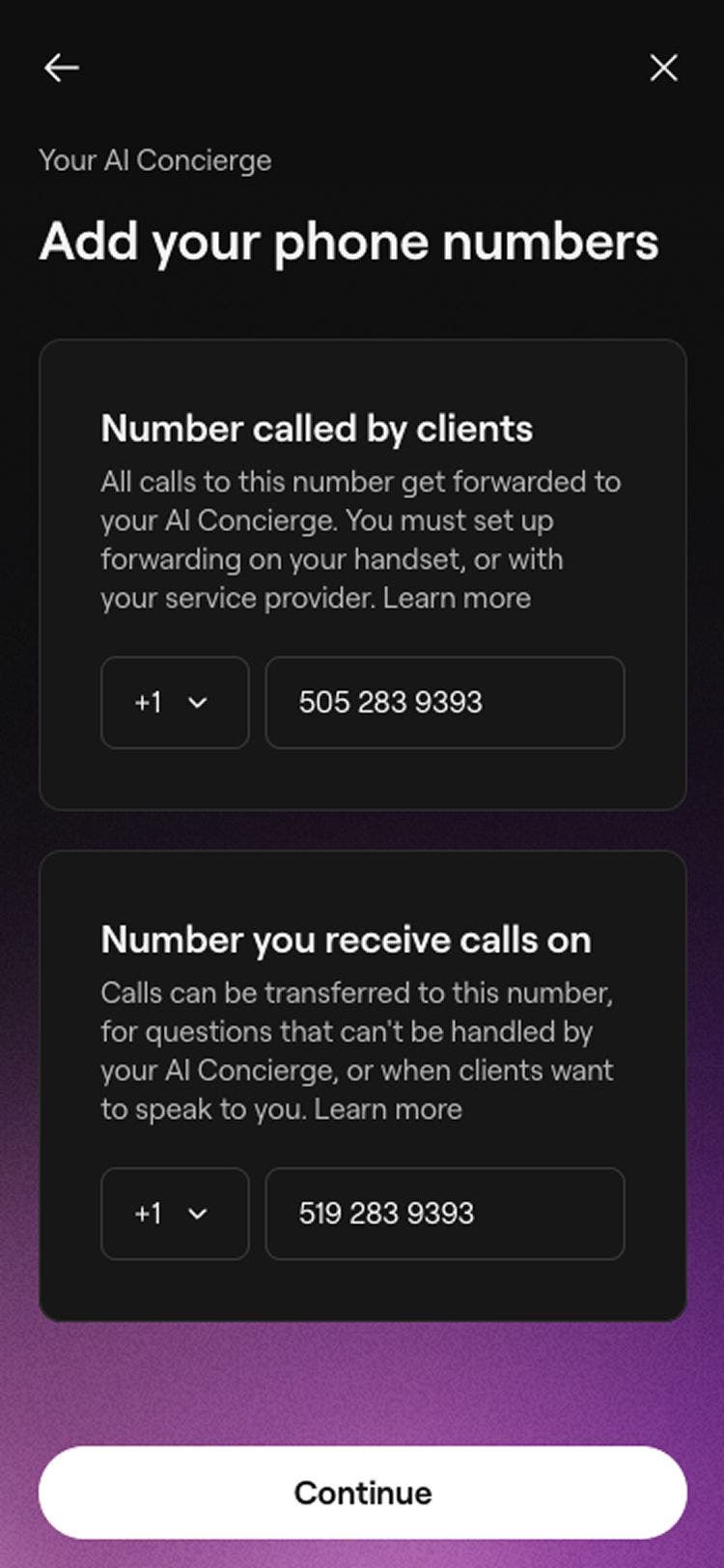


Once set up, share your AI Concierge number on your website, social channels, and Google. Alternatively, set up call forwarding so calls to your existing business number are redirected to your AI Concierge.
Make sure the number you use for call transferring is not the same as your call forwarding number, as this would route the call back to your AI Concierge.
Generate dedicated AI Concierge numbers per location
If you have multiple locations in your workspace, you will have the option to generate a dedicated number per location when setting up your AI Concierge.
-
When you reach the step to generate a number for your AI Concierge, select create Individual numbers per location.

-
Each location will have a dedicated number. You can choose to generate a different number by clicking on the number and choosing to Select a different number.

-
Once completed, click continue to set up call transfers for questions that cannot be handled by your AI Concierge. You can choose between:
- Take messages: Your AI Concierge can take messages and pass them on. It does not transfer calls directly to you.
- Transfer calls during opening hours: When your business is open, your AI Concierge can transfer calls directly to you. When closed, it can take messages and pass them on.
- Transfer calls at any time: Your AI Concierge can transfer calls directly to you at any time.
-
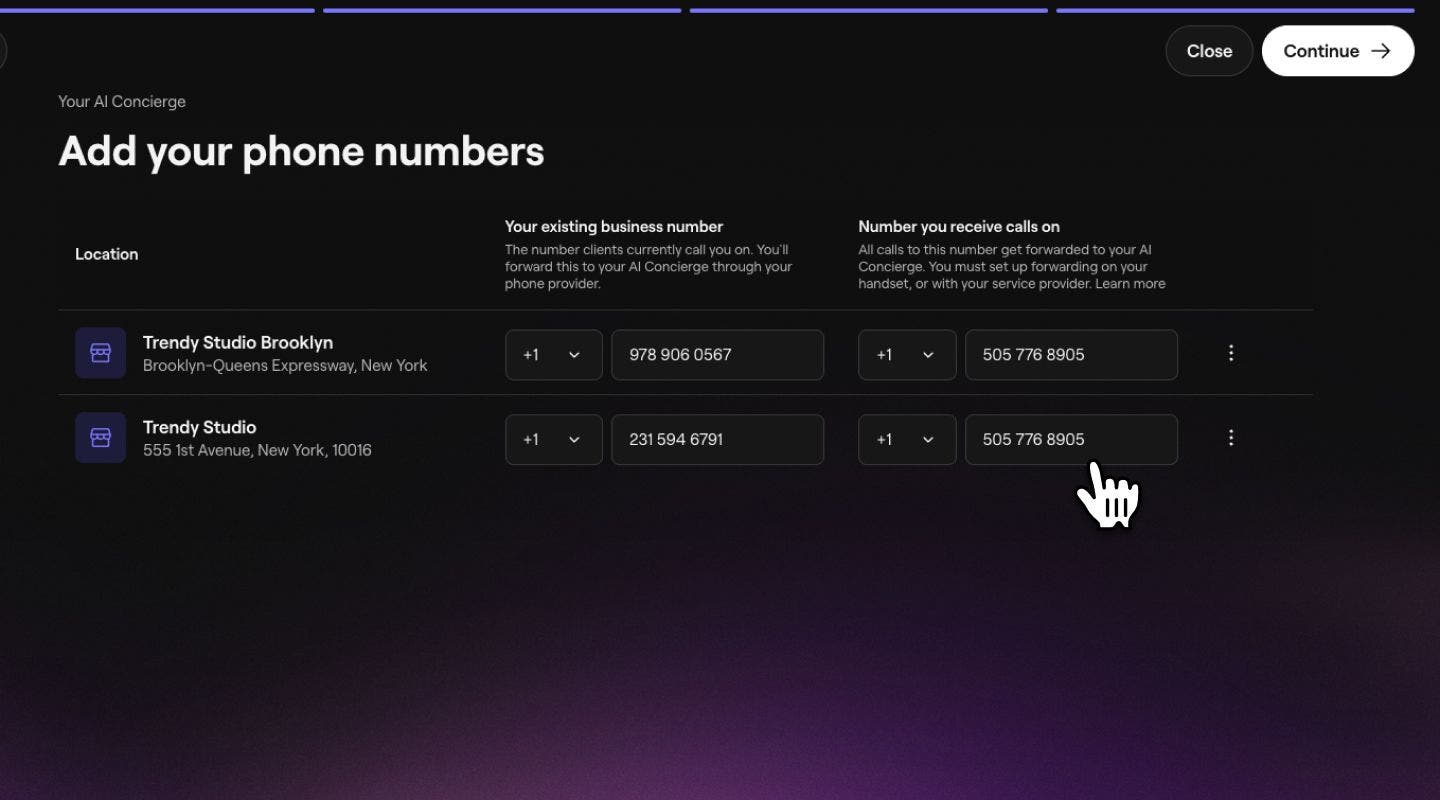
Once completed, tap on the Continue button to enter the phone number that the call will be transferred for each of your locations, and tap on the Continue button to save your changes.
- If you want to set up call forwarding make sure to use a different phone number so clients are not redirected back to your AI Concierge.
-
Enter the phone number that the call will be transferred for each of your locations, and tap on the Continue button to save your changes.
Once set up, share the correct AI Concierge number for each location across your website, social channels, and Google listings. If you use existing business numbers, you can set up call forwarding for each location individually, routing each number to its corresponding AI Concierge number.
FAQs
Once you have disabled your AI Concierge, any remaining call time will be stored in your account pending re-activation.