Message clients using AI Concierge
Learn how to use AI Concierge to manage your client chats in Client Connect, from answering questions to booking appointments.
In this article
About AI Concierge in Client Connect
AI Concierge handles all of your client messages in Client Connect, so you don't need to reply to every conversation yourself. Conversations are customer-initiated, and AI Concierge responds on your behalf, closing the conversation once it's resolved. When a request falls outside what AI Concierge can handle, or a client asks to speak to a human, it notifies a team member to take over the conversation.
Every interaction is visible in the AI Concierge activity log and in Fresha Connect, giving you full visibility into what's been handled. You can take over any conversation at any time, and as soon as you reply, AI Concierge stops responding so you can continue the conversation yourself.
How AI Concierge supports your clients
AI Concierge has the same capabilities on chat as it does on the phone. When a client starts a conversation, it can:
- Share your full service menu, including descriptions and pricing in real time, so clients aren't waiting for a reply.
- Share details from your business profile, such as location, opening hours, and anything you've added to its knowledge base, so responses stay relevant, accurate, and up to date.
- Book, cancel, and reschedule appointments on the client's behalf, following your online booking settings and schedule availability, so every interaction feels consistent with your business.
Manage AI concierge channels
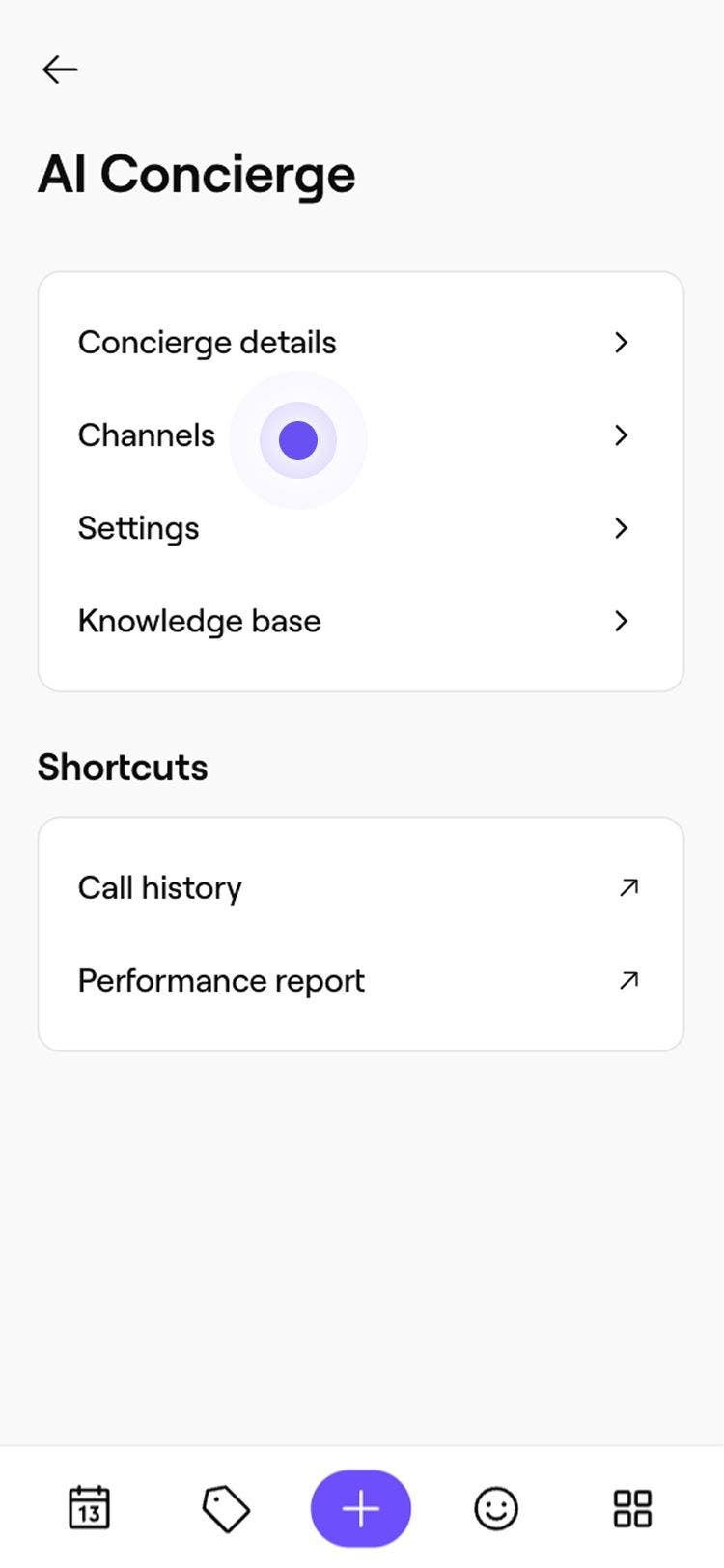
Choose whether AI concierge replies on phone, chat, or both. AI Concierge uses the same name and knowledge base, and escalation rules across both channels.
-
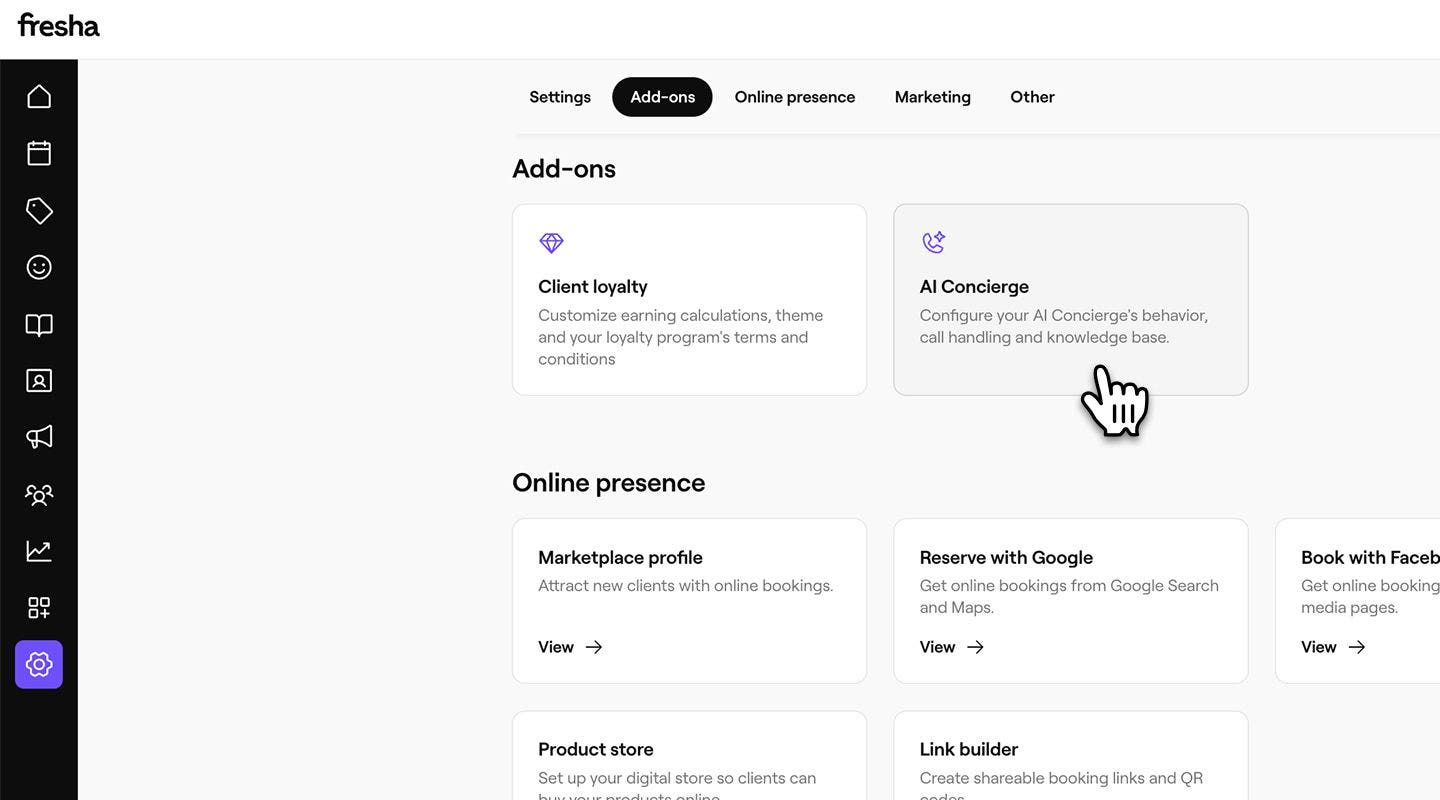
From the main menu on the left of your screen, go to Settings.
-
In the Add-ons section, click on AI Concierge to update your settings.
-
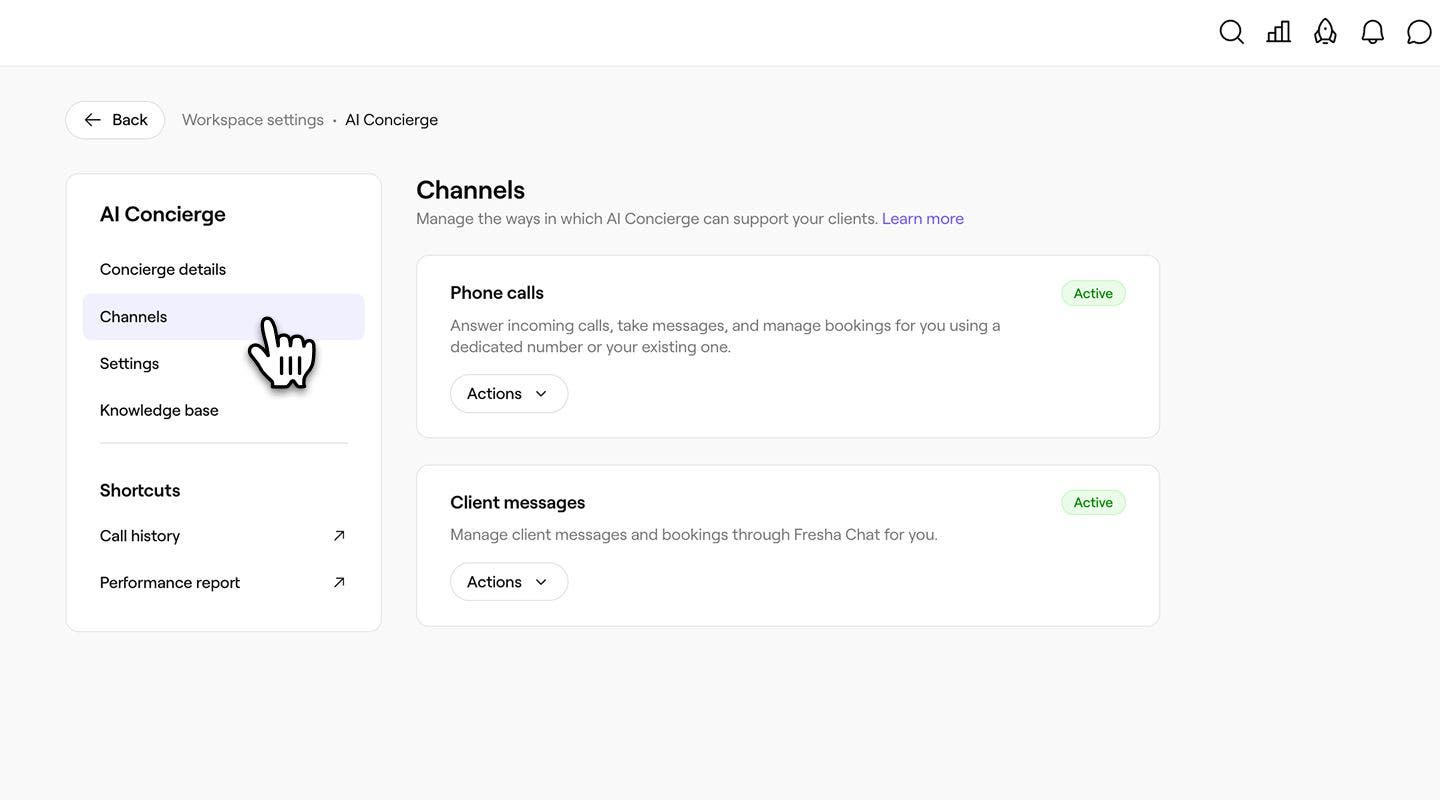
From the menu on the left panel, select Channels to manage the ways AI concierge supports your clients.
-
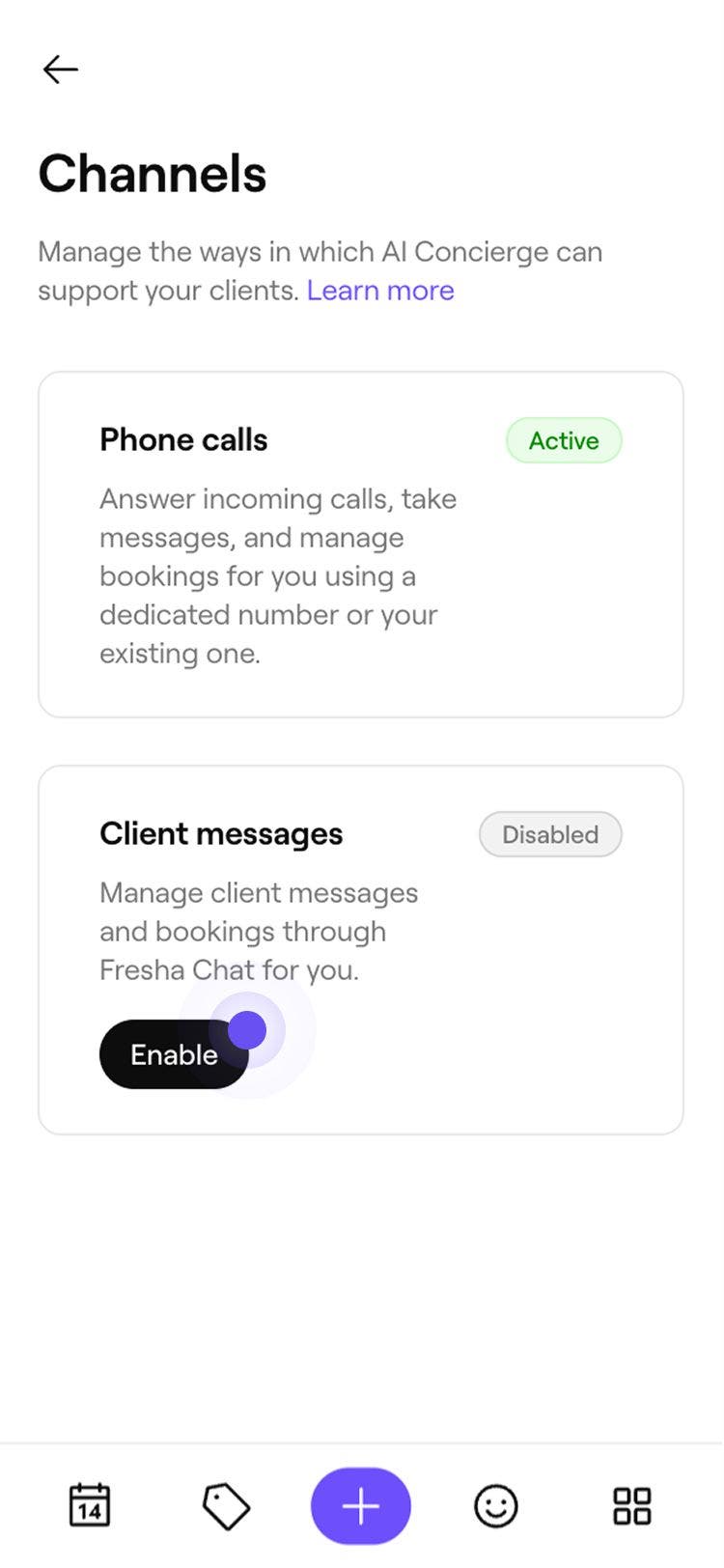
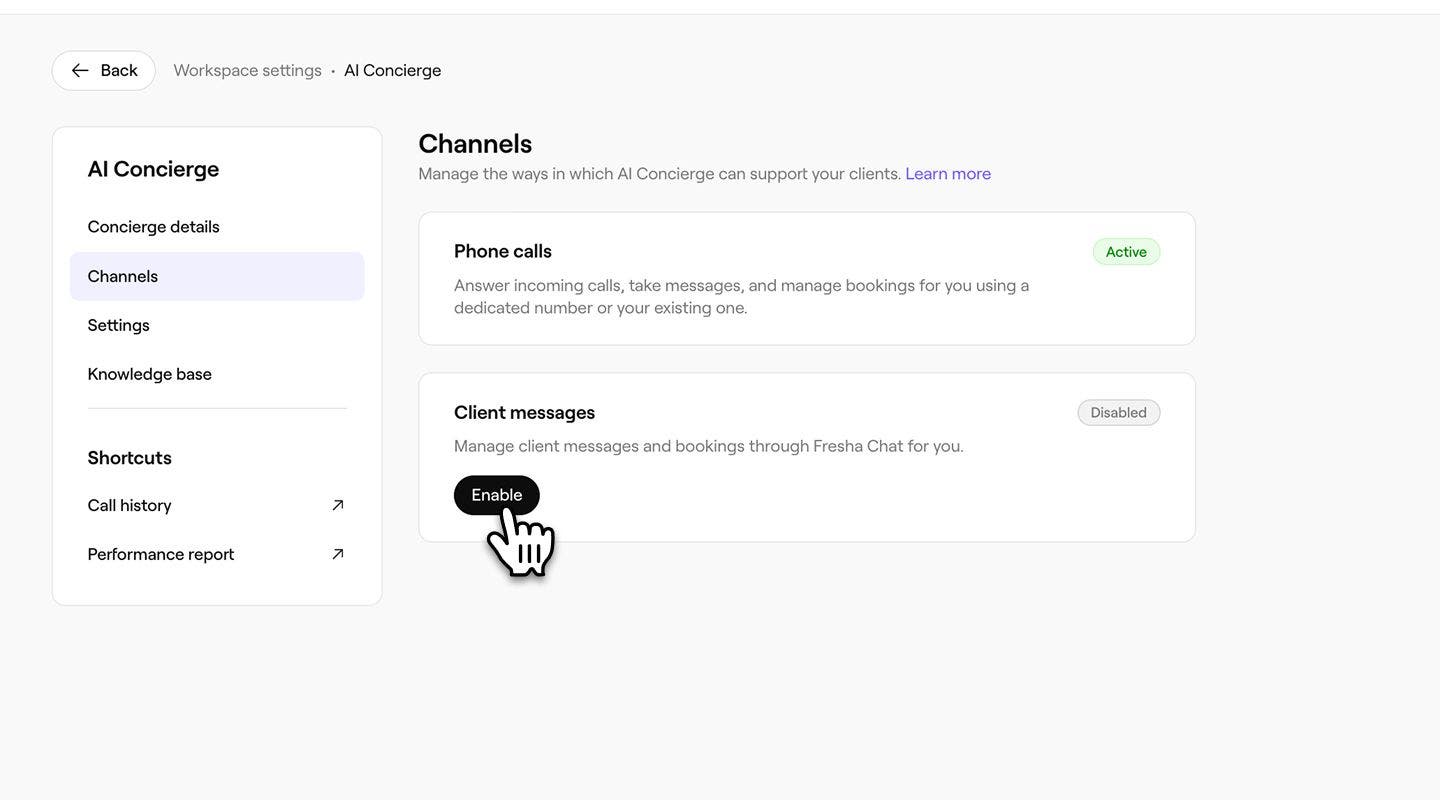
Under Phone calls or Client messages, and select one of the following options:
- Enable phone calls: Click on the Enable button to start the AI Concierge setup flow. Once you complete setup, AI Concierge starts handling your phone calls.
- Enable client messages: Click on the Enable button to turn on AI Concierge for chat. You'll see a page outlining what AI Concierge will handle, and no extra setup is needed because chat uses the same settings as phone.
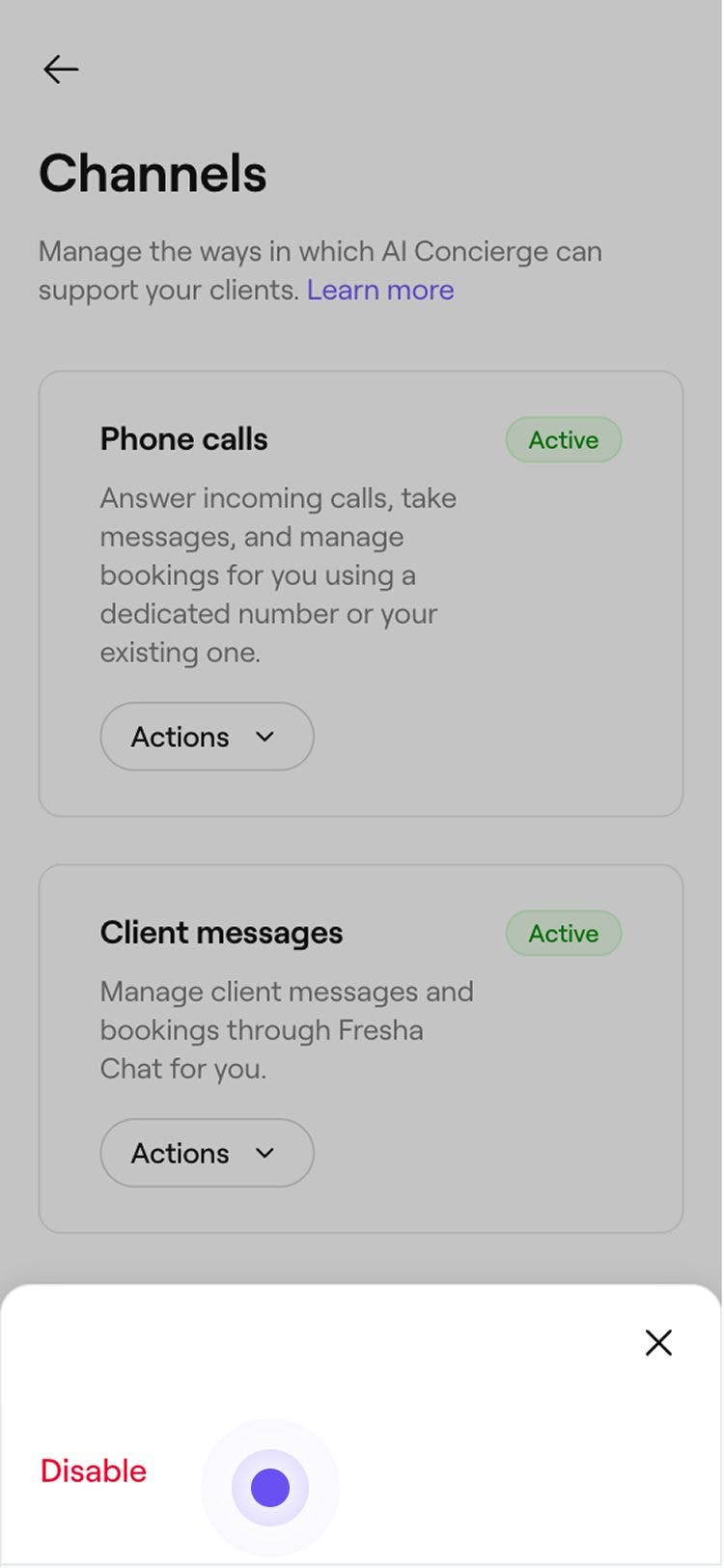
- Disable: Click on the Actions button, then select Disable. Click on the Disable button in the pop-up to confirm. AI Concierge will stop responding on that channel, and any new messages or calls will come straight to your team.