Set up your AI Concierge
Learn how to enable the AI Concierge for your business, so client calls can be handled efficiently by your customized AI Concierge.
In this article
Enable AI Concierge for your business
-
From the main menu on the left of your screen, go to Add-ons.
-
Under AI Concierge, click on the View button.

-
From the sign-up page, click on the Start now button to begin setup.

-
In the next step, review your payment method options, including the following:
- Select an existing payment method, or add a new credit/debit card.
- Select the Use wallet balance to have the monthly fee deducted from your wallet balance first before charging your saved payment method. If you have multiple locations, click Change to choose which location’s Wallet balance you want to use by default.
-
Click on the Enable button in the top right of your screen to activate your AI Concierge.

-
Click Done once activated and then Continue through to choose your AI Concierge's voice and personality.

-
From the list of available options, click Select next to your preferred tone and voice and click Continue.

- You can choose between a Female or Male voice in the tabs along the top, and click on the Play button to hear a sample of each voice.
-
Customize your AI Concierge by updating their Name and a Greeting to shape how it introduces itself to clients. Click on the Continue button to save your changes.

- Click the '@' symbol to insert dynamic fields such as the client’s first name, your AI Concierge's name, and, if you have multiple locations, the location.
-
Click on the Continue button in the top right of your screen to see the tasks that your AI Concierge can perform while taking client calls. To adjust these tasks, click Edit next to conversation skills.

-
Next, tick the checkbox next to your preferred skills and click on Save button to update changes.

-
Click Continue to proceed and select the Generate phone number button to create your dedicated AI Concierge number.
 1. To change your AI Concierge number, select Generate phone number again to generate a new one.
2. If you have multiple locations, you can continue to set up the same number for all locations, or individual numbers for each location.
1. To change your AI Concierge number, select Generate phone number again to generate a new one.
2. If you have multiple locations, you can continue to set up the same number for all locations, or individual numbers for each location. -
Once completed, click on the Continue button through to set up call transfers for questions that cannot be handled by your AI Concierge.
-
Use the dropdown menu to choose when calls can be transferred through to you.

-
Enter the phone number that the call will be transferred to and click on the Continue button to save your changes.

-
Lastly, you can interact with your AI Concierge and copy your dedicated AI Concierge number to share with your clients.


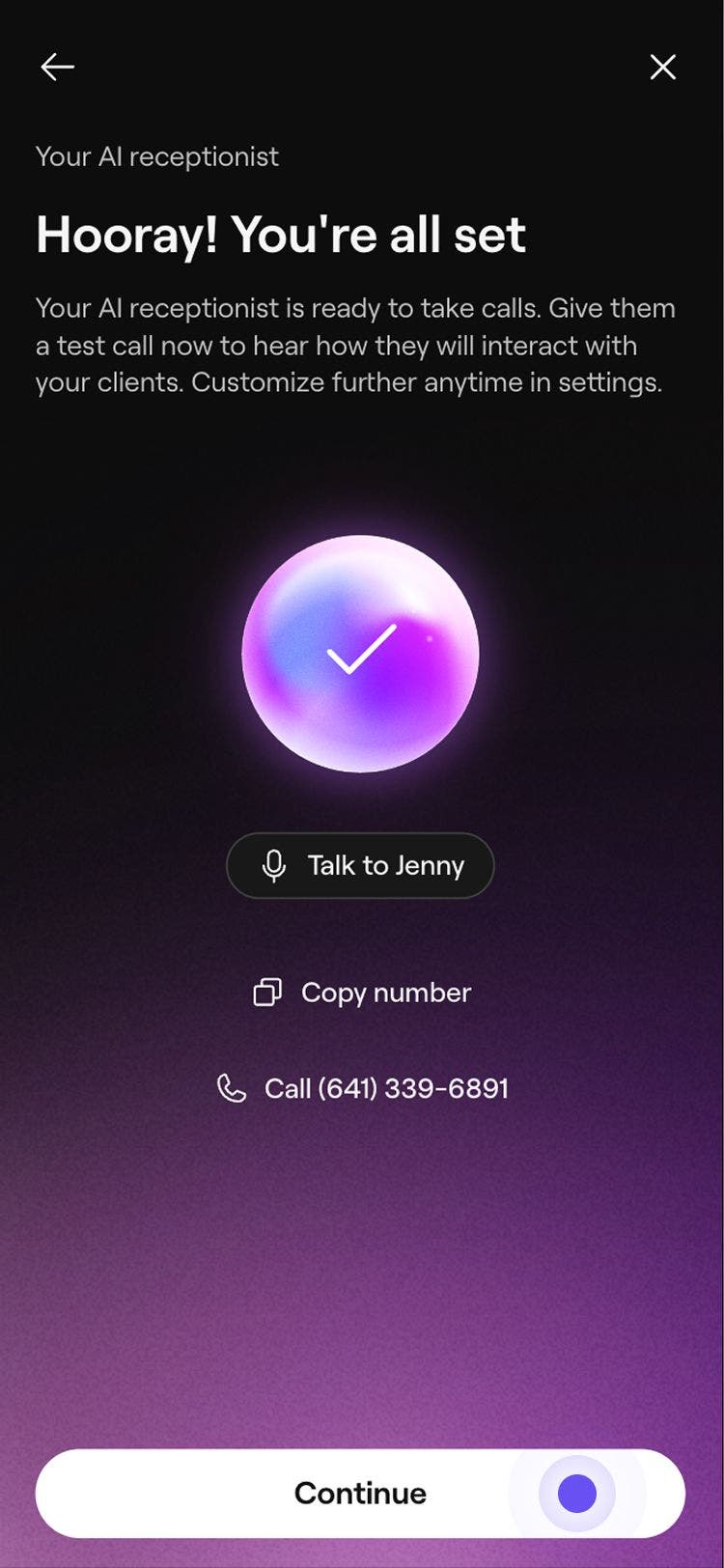
Once set up, share your AI Concierge number on your website, social channels, and Google. Alternatively, set up call forwarding so calls to your existing business number are redirected to your AI Concierge.
Generate dedicated AI Concierge numbers per location
If you have multiple locations in your workspace, you will have the option to generate a dedicated number per location when setting up your AI Concierge.
- When you reach the step to generate a number for your AI Concierge, select create Individual numbers per location.
- Each location will have a dedicated number. You can choose to generate a different number by clicking on the number and choosing to Select a differentnumber.
- Click Continue to set up call transfers for questions that cannot be handled by your AI Concierge. Next to each location, enter the phone number that the call will be transferred to, and use the dropdown menu to choose when calls can be transferred through to you.
- You can click on Actions (three dots) next to a location and select Copy to all locations to have the same transfer number and call transfer availability.
- Click Continue through to interact with your AI Concierge and copy your dedicated AI Concierge numbers to share with your clients.
Once set up, share the correct AI Concierge number for each location across your website, social channels, and Google listings. If you use existing business numbers, you can set up call forwarding for each location individually, routing each number to its corresponding AI Concierge number.
Make sure the number you use for call transferring is not the same as your call forwarding number, as this would route the call back to your AI Concierge.
FAQs
Once you have disabled your AI Concierge, any remaining call time will be stored in your account pending re-activation.