HomeKnowledge baseFresha academy
Share gift cards
Back
  1. Knowledge base•
  2. Packages, memberships, and gift cards•
  3. Share gift cards

Share gift cards

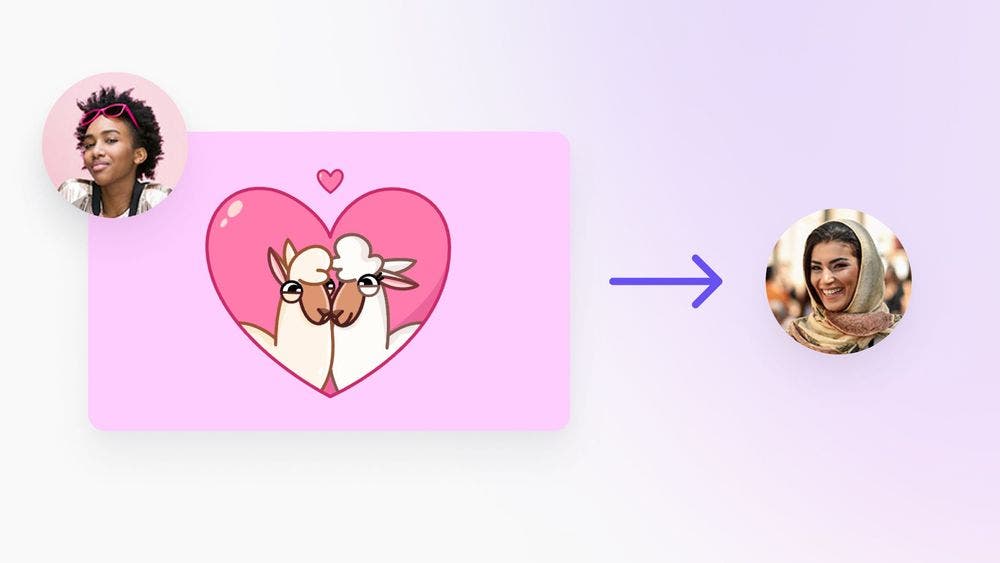
Make it easy for your clients to share the gift of your services with friends and family. Learn how to share gift cards between clients, offering flexibility and convenience.
In this article

  • Getting started
  • Sharing gift cards

This guide is for businesses on Fresha looking to create and manage their own gift cards. If you're a client interested in purchasing a Fresha gift card that can be used across multiple venues on the Fresha marketplace, click here.

Getting started

Before sharing a gift card between clients, make sure:

  • The purchaser's details are accurate.
  • If you’re a team member, ensure you have the necessary permissions to manage Gift cards. If not, contact the account owner to request access.

Sharing gift cards

To share a gift card between clients:

  1. Open Sales and select Gift cards.
  2. Search for and select the gift card you want to share.
  3. Click on the gift card code, then select Actions, followed by Share.
  4. Fill in the following details:
    1. Sender name:
      Enter the name of the client who originally purchased the gift card.
    2. Recipient name:
      Enter the name of the person receiving the gift card.
    3. Recipient email:
      Enter the recipient’s email address.
    4. Personal message:
      Add a note from the sender to the recipient for a personal touch.
  5. Click Share to send the gift card to the recipient.

To share a gift card:

  1. Open Sales and select Gift cards sold.
  2. Search for and select the gift card you want to share.
  3. Tap on Actions and choose Share.
  4. Fill out the recipient's details. 
    1. Sender name:
      Enter the name of the client who originally purchased the gift card.
    2. Recipient name:
      Enter the name of the person receiving the gift card.
    3. Recipient email:
      Enter the recipient’s email address.
    4. Personal message:
      Add a note from the sender to the recipient for a personal touch.
  5. Select Share.

FAQs

    • Clients can redeem gift cards online through the Fresha app, when booking an appointment online, or using the confirmation email received. Gift cards are automatically stored in the client’s wallet once redeemed and appear as a payment option during checkout.


Gift cards


Related articles

Was this guide helpful?

Gift cards

Set up gift cards

Increase revenue and attract new clients with gift cards for your products and services.

Sell gift cards

Boost your revenue and attract new clients by offering gift cards both in-store and online.

Manage gift cards

Easily manage gift cards with tools to edit settings, track sales, and extend expiry dates.

Share gift cards

Offer your clients the flexibility to share gift cards with friends and family.

Understand how clients use gift cards

Grow your revenue and attract new clients by understanding how they use gift cards.

Related articles

Set up gift cards

Increase revenue and attract new clients with gift cards for your products and services.

Manage gift cards

Easily manage gift cards with tools to edit settings, track sales, and extend expiry dates.

Sell gift cards

Boost your revenue and attract new clients by offering gift cards both in-store and online.

Fresha
Get the app

About Fresha

Careers

Help and support

Blog

Sitemap

For business

For partners

Pricing

Features

Scheduling

Point of sale

Payments

Capital

Marketplace

Support

Status

Legal

Privacy Policy

Terms of service

Terms of use

Find us on social

Facebook
Linkedin
Instagram

© 2026 Fresha.com SV Ltd