Manage Packages
Learn how to archive, unarchive, or delete a package, so you can stay in full control of what your business offers.
Edit a package
-
From the main menu on the left of your screen, go to Catalog.
-
Select Packages from the side panel and click on Actions (three dots) next to your package, and select Edit from the options panel.

-
Once you've made updates to your package, click on the Save button in the top right of your screen to apply those changes.

Once you update a Package, the changes apply to all future sales. Previously sold Packages keep their original settings and clients can redeem sessions under the original settings.
Archive a package
- From the main menu on the left of your screen, go to Catalog.
- Select Packages from the side panel and click on Actions (three dots) next to your package, and select Archive from the options panel.

- From the pop-up, click on the Archive button to confirm your choice.
Once you archive a package, it is no longer visible online for clients to buy, nor is it visible in your active package list. You can unarchive a package at any time.
You can’t archive a package that has already been purchased and is still active. To remove it, you’ll need to update the client’s package and sell them a new one, or wait until the package expires.
Unarchive a package
- From the main menu on the left of your screen, go to Catalog.
- Select Packages from the side panel and click on Filters from the options panel.

- From the menu on the right side, under Status select Archived and then click on the Apply button at the bottom of the menu to view your archived packages.

- Next to the archived package, click on Actions (three dots) next to your package, and select Unarchive from the options panel.

- From the pop-up, click on the Unarchive button to confirm your choice.
Once you unarchive a package, it will be visible in your active package list and will be visible to clients online (if enabled for online sales).
Permanently delete a package
- From the main menu on the left of your screen, go to Catalog.
- Select Packages from the side panel and click on Actions (three dots) next to your package, and select Delete from the options panel.
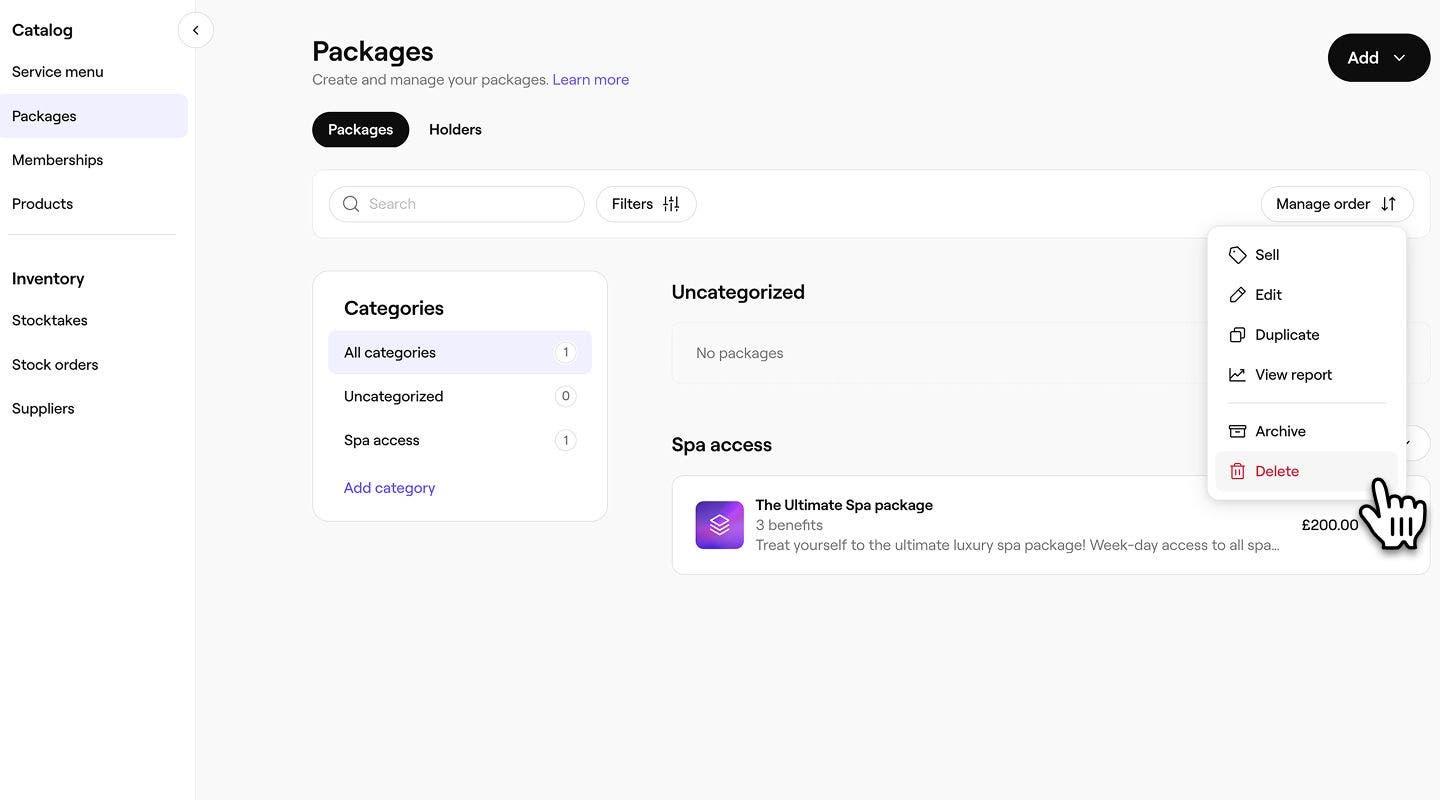
- From the pop-up, click on the Delete button to confirm your choice
Once you delete a package, this action cannot be undone. If needed, you’ll have to create a new package.
You can’t permanently delete a package that has already been purchased and is still active. To remove it, you’ll need to update the client’s package and sell them a new one, or wait until the package expires.
FAQs
You can duplicate any package by clicking on Actions (three dots) next to your package, and select Duplicate from the options panel. Your package will have ‘copy’ in the name to identify this as a duplicate.
Any changes you make to your package settings, such as benefits, expiry or pricing will only apply to new sales of this package. Previously purchased packages keep their original benefits, expiration period, and price.
Clients receive an email reminder 14 days before their package expires, followed by a second reminder 7 days before the expiration date.